
If your Weebly site went dark on 27 September, you are not alone, and it is not too late. What you still have is a few weeks of access to your Weebly account, and possibly a public copy of your site that you did not know existed. Most guides you will find assume your site is still online. This one does not.
Ullbek is an AI website builder. You describe what you want in plain words and it builds a real, custom website around it, then publishes it live. For a Weebly owner that means you can point it at your old site, or at the copy the Wayback Machine kept of it, and let it do the lifting. But first come the three things only your Weebly login can do, and that login has an end date.
Sign in to Weebly (chapter 2), then start getting your domain out (chapter 3). Then look your site up at web.archive.org (chapter 4). If a copy is there, the site can be rebuilt from it later. If it is not, ask Weebly for the site Archive today as well. The domain comes first because Weebly has not said how a domain bought through it can be renewed or moved once the login is gone.
The dates, and who is affected
Weebly's notice, Upcoming Changes to Weebly's Global Operations, says it will "wind down Weebly services in 67 countries". It gives three dates that matter to you.
Passed
29 June 2026
No new pages could be published from this date.
Passed
27 September 2026
Sites in the 67 countries were unpublished, and the plan's essential features ended.
Coming
26 December 2026
Account access ends. After it, Weebly says, "you will no longer have login access to your Weebly account."
The notice also mentions 20 September as the date services wind down "by". The date your site was actually taken offline is the one the notice gives for that: "Your current Weebly site will remain active for 90-days, and then will be unpublished on 2026-09-27." Until 26 December, Weebly says, you keep access "to enable you to move your site, domains, and data to another service". The notice gives a date but no time of day, so our advice is to treat 25 December as your real deadline, and to have the domain moving well before it.
Weebly's notice says nothing about refunds for a plan paid past these dates. If that is you, ask Square support in writing; we cannot tell you what they will say.
Is Weebly shutting down in my country?
If your country is on this list, yes. This is the notice's list of 67, sorted alphabetically.
The 67 countries
- Albania
- Algeria
- Andorra
- Armenia
- Aruba
- Azerbaijan
- Bahamas
- Bahrain
- Bangladesh
- Barbados
- Belarus
- Benin
- Bosnia and Herzegovina
- Cambodia
- Cameroon
- Chile
- Colombia
- Congo
- Costa Rica
- Côte d'Ivoire
- Ecuador
- Egypt
- Ethiopia
- French Polynesia
- Gabon
- Georgia
- Ghana
- Guinea
- Iceland
- Jordan
- Kazakhstan
- Kenya
- Laos
- Malaysia
- Mauritius
- Moldova
- Montenegro
- Morocco
- Nepal
- New Caledonia
- Nigeria
- Oman
- Pakistan
- Palau
- Paraguay
- Peru
- Russia
- Saudi Arabia
- Senegal
- Serbia
- Sierra Leone
- Singapore
- South Korea
- Suriname
- Taiwan
- Tajikistan
- Tanzania
- Thailand
- Turkey
- Uganda
- Ukraine
- United Arab Emirates
- Uruguay
- Uzbekistan
- Vietnam
- Zambia
- Zimbabwe
The notice says "Congo" without saying which of the two countries of that name it means.
If your country is not on the list (the United States, the United Kingdom, Canada, Australia, India, South Africa, Brazil and Mexico are not), nothing has been announced for you. Square's help page, Weebly Website Builder Support Update, says "we have no plans to discontinue the Weebly website builder at this time." Your site is still published, so if you want to move anyway, you can skip to way A and rebuild it from its address.
If you are not sure which country Weebly thinks you are in, ask Weebly support. The notice does not say how it decides, and some owners outside the 67 report receiving it by mistake (r/Weebly thread). And if you bought Weebly through your web host rather than from Weebly itself, check your host's dates: some hosts that resell Weebly have published dates of their own.
Getting back into your account
Everything Weebly will still do for you happens behind the login: unlocking your domain, the site archive, the account data download. So the first job is simply to get in, and to check that you can, well before 26 December. In the forum threads we read this year, signing in was the problem owners raised most often, and Weebly's notice does not cover it. Most of those reports come from owners outside the 67 countries, so take the steps below as things to try, not as promises.
- Try the ordinary sign-in first
Go to weebly.com/login and sign in with the email and password you have always used. If it works, go straight to chapter 3.
- Look at the three buttons under the email box
Weebly's sign-in page also offers Log in with Facebook, Log in with Google and Log in with Square (as the page stood on 10 November 2026). If you created your Weebly account with one of them, or linked it to one later, use that button and not the email box.
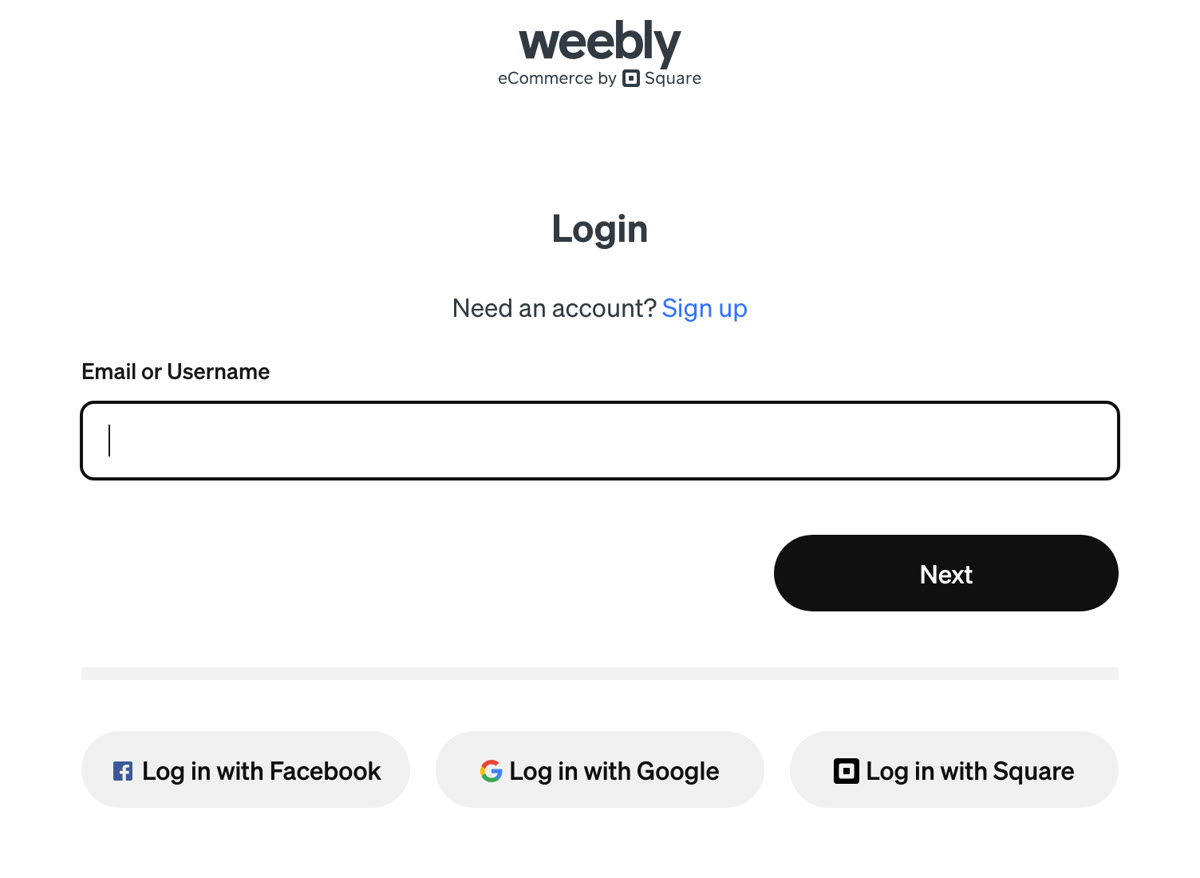
Weebly's sign-in page on 10 November 2026. The three buttons sit under the email box. - If your account was moved to a Square login
Weebly's help page Weebly and Square FAQ says: "we ask that you replace your Weebly account with a Square account. You’ll use the Square account to sign in going forward", and "you’ll log in from squareup.com using your Square email address." If you made that switch, use your Square email and password. One owner whose Weebly sign-in had been merged into a Square account found that the old Weebly details no longer worked, and that Log in with Square, with the Square email and password, was the fix. The last part is what one owner reports, not an official step: r/Weebly thread.
- If Square signs you in but you cannot find the site
One owner found the old Weebly site listed under My Business, at the top left once signed in to Square. What one owner reports: Square Community thread.
- Reset the password, and if the email never arrives, write to Weebly today
Weebly's help page I Forgot My Password, How Can I Reset It? links its reset page at weebly.com/reset, and Square's at squareup.com/password if your login is a Square one. Several owners report that the reset email never came. The same help page says: "If you’re unable to remember the email address for your Weebly account, please fill out this form." That is Weebly's account recovery form, and you can open it without signing in. It also has an option for an email address you can no longer open. It asks for your name, an email address to reach you on, your site's address, and roughly when you set the account up and last signed in. We have seen no report yet of how it went, so send it now and keep trying the steps above while you wait. Do not leave this to December.
A club secretary who has moved on, a parent, a partner who has died: Weebly support has to verify you before it can help, so contact them now and ask what they need. Allow for the days each reply takes.
Getting your domain out
Your domain (yourbusiness.com, yourclub.org) is the address people know you by, the address on your cards, and often the address your email runs on. A site can often be rebuilt from a copy later (chapter 4 shows how to check for one). A domain is different. If it was bought through Weebly, it is unlocked and moved from inside your Weebly account, and Weebly has not said what happens to a domain left behind after 26 December, or how it could be renewed or moved without that login. Do this chapter first.
Who holds your domain?
There are two kinds of Weebly domain, and they need different things.
- A domain you bought somewhere else and connected to Weebly (at GoDaddy, Namecheap, a local company). It stays with that company. Nothing needs to be transferred; later you change where it points. You do not need your Weebly login for it.
- A domain you bought through Weebly. It has to be unlocked and transferred out from inside your Weebly account, before 26 December.
To find out which you have, look the domain up at lookup.icann.org (ICANN is the body that oversees domain names). Type your domain and read the Registrar line. If it names a company you have an account with, the domain is there, and that is where you will make changes. If it names a company you have never dealt with, the domain was most likely bought through Weebly. The name to look for is Register.com or Network Solutions: Weebly's own terms of service from 2018 named Register.com, and one owner in the 67 countries reports a registrar line that carries both names (Square Community thread).
Transfer a domain bought through Weebly
Steps 2, 3 and 5 are from Weebly's notice. Steps 1 and 4 happen at the company you move the domain to.
- Choose where the domain will go
Pick a domain company (a registrar) you will keep, and open an account there. Look for its "transfer a domain" page; it will ask for a transfer code, which comes next.
- Open the domain in Weebly
From your Weebly Dashboard: Websites → Domains, then Manage → Manage Domain. That is the notice's wording. In the dashboard as it stood on 11 November 2026, the menu on the left reads Website, with Domains under it.
- Turn off the Registrar Lock
Switch off the Registrar Lock toggle. Weebly then shows the EPP authorization code, the transfer code your new registrar asks for. Copy it somewhere safe.
- Start the transfer at the new registrar
Enter the domain and the code there and follow its steps. A transfer is not instant, which is one more reason not to wait for December.
- Turn privacy back on
Turning off the lock "also disables Whois privacy protection", the setting that hides your name and address from public lookups. Switch privacy on at the new registrar once the domain arrives.
Weebly's notice says a domain cannot be transferred within 60 days of the date it was registered, a rule that comes from ICANN, not from Weebly. And changing the owner's name, email or phone on the domain "will result in a 60 day registrar lock". So do not edit the contact details before you transfer, even if they are out of date. Update them at the new registrar afterwards.
If something on the Weebly side does not work
- A country domain (ending in a country code, such as .sg, .ae or .com.au): the notice says "please let our support team know and we can help you." Contact Weebly support early.
- The domain settings page will not open, or you cannot find the Registrar Lock toggle: one owner reports a page saying the domain settings had been "moved or removed" (Square Community thread). Contact Weebly support, ask in writing for the domain to be unlocked and for its EPP code, and keep a copy of what you send.
- The domain was bought too recently to transfer under the 60-day rule: ask Weebly support what they can do before 26 December.
Email on your domain
If your email addresses end in your domain, they need care too. Weebly's notice says: "If you have a Google Workspace account, please contact us for help transferring your account directly to Google." Do that while you can still sign in. Whatever runs your email, write down the domain's email settings before you transfer it: the records called MX and TXT. If you cannot find them in your domain settings, your email provider can tell you what they should be. Copying them to the new registrar is what keeps your email arriving after the move.
Saving what Weebly will give you
Weebly offers two downloads while you can sign in. They are different things, and it is easy to get one and think you have both. On 11 November 2026 we asked for both in a free Weebly account outside the 67 countries. Both screens are where Weebly says they are. We then made a small demo site in that account, with a blog, and archived it twice: once published, once after un-publishing it. What we saw is described under each download. Where we only have Weebly's word for something, we say so.
The site Archive (one site, as a ZIP file)
- Open the site's settings
Weebly's notice gives the path Website → Edit Site → Settings → Archive. Its help page Back Up Your Site says: "go to Settings > General, then scroll down to the Archive section". In the dashboard as it stood on 11 November 2026: Website → Edit Site in the menu on the left, then Edit. The editor opens. Choose the Settings tab at the top; General opens first, and Archive is a short scroll down.
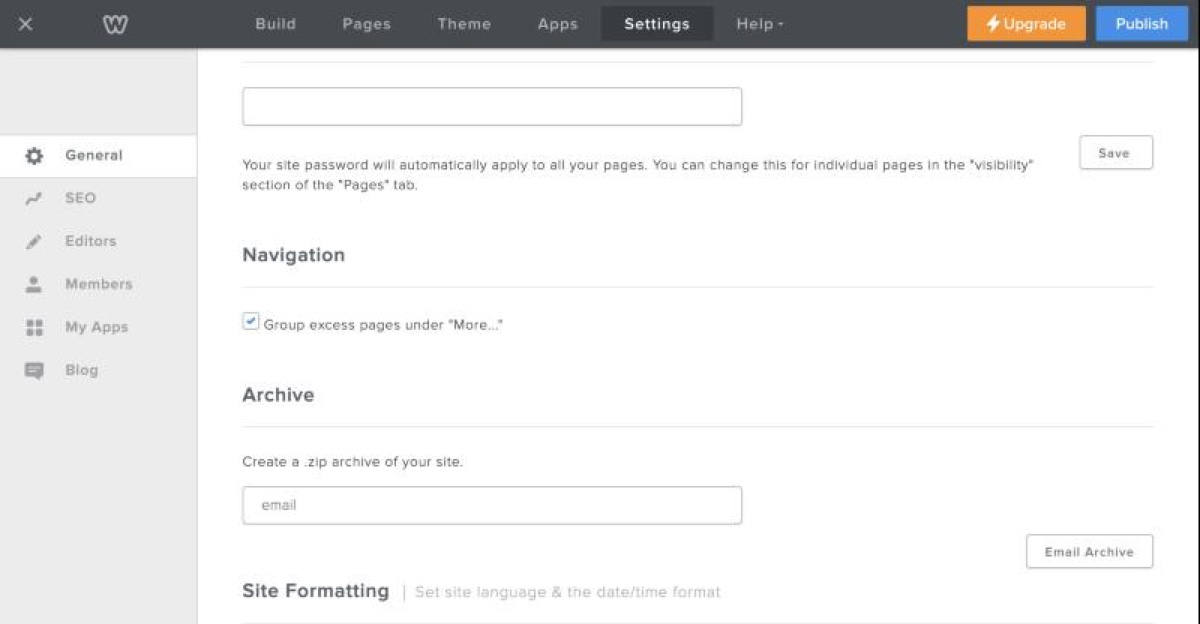
The Archive section in the editor's Settings, on a free account, 11 November 2026. - Have it emailed to you
Enter your email address and select Email Archive. Weebly's help says: "You’ll receive an email shortly with a link to download the archive as a ZIP file." When we pressed it, the email box emptied and we saw no message on the screen. The email, titled "The export of your site is ready to be downloaded", arrived about a minute later the first time, and within seconds for our small demo site. After that, the Archive section also listed the file under Recent Exports, so there are two places to get it from. Ask for it early. If no email comes, check your spam folder and ask again, so there are days in hand and not hours.
- Download it and keep it
Select Download .zip archive in the email, and do it while you can still sign in. When we opened that link in a browser that was not signed in to Weebly, it went to Weebly's login page, not to the file. Having the email is not the same as having the file. Save the ZIP somewhere you will not lose it. Weebly says "it isn’t possible to import this file back into Weebly". Open it once to make sure your pages are in it. Ours was a little under 6 MB for a five-page site with 29 pictures.
What was in ours. The demo site had five pages, 29 pictures and a blog with two short posts. Its ZIP held 50 files:
- Every page, as a web page file, with its wording as published.
- The pictures, in a folder of their own, bar one. A picture that one page used was not in the ZIP. Count yours against the site.
- The blog's front page, with both posts on it in full: title, date and every sentence. There was no separate page for either post, and no page by month or by category. An archive we took while the posts had titles but no text yet held only the titles. So the Archive carries what your blog's front page shows. If your blog has more posts than its front page lists, or posts cut short with "Read More", expect the rest to be missing. We have not tested a blog like that.
It is a copy to rebuild from, not a site to upload somewhere else. Opened from the ZIP, each page still fetched its fonts, styles and scripts from Weebly's servers, and some of the theme's own files and background pictures sat in folders the pages do not look in. The words and the pictures are what you are saving.
It still worked after the site was un-published. We un-published the demo site, watched its address turn into Weebly's "404 - Page Not Found", and asked for the Archive again. The email came straight away, and the ZIP held the same 50 files, blog posts included. That was a site we un-published ourselves, in an account outside the 67 countries. We have not been able to test a site that Weebly unpublished on 27 September.
Weebly's help page says: "Blog and store pages aren’t included in the export as they rely directly on our database." In our test that was true of each post's own page, while the posts on the blog's front page did come along (above). We had no store to test. The help page also says the Contact Form and Slideshow "may not work correctly outside of the Weebly editor". If your blog matters to you, the Wayback Machine's copy (below) may hold more of it than the Archive does.
Download My Data (the whole account)
The notice gives the path Account Settings → My Data → Download My Data, and describes the download as "your site content and data". Weebly has not published a list of what is inside, so download it anyway and keep it with the Archive.
To get there from the dashboard, open the menu at the far right of the top bar, next to Support, and choose Account settings. My Data is the last tab on that page.
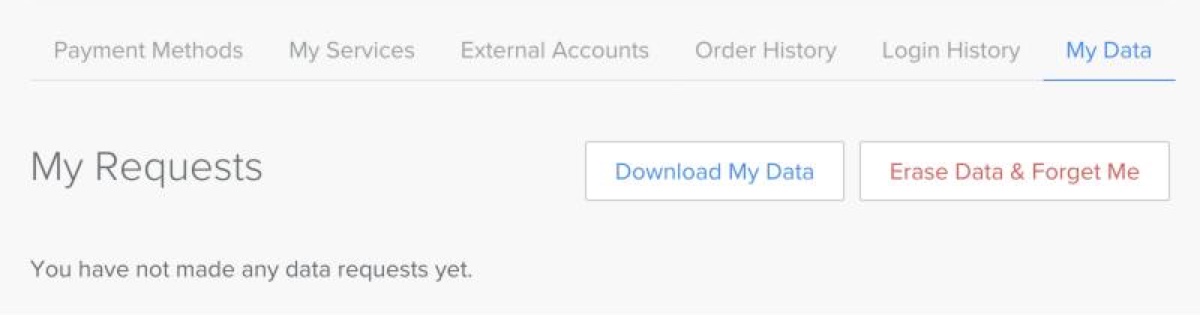
It is not an instant download, so start early. When we pressed Download My Data, Weebly said it had received the request and sent a confirmation email, and that "our Customer Success Advocates will complete your request". The My Data tab then listed an Export Request with the status Pending. The email, titled "Weebly GDPR Request", came within seconds. It said Weebly was collecting the data and would send instructions for retrieving it. Weebly's on-screen message says to respond to the confirmation; the email we received asked for no reply, so read yours and do what it asks. Ours took 23 minutes. A second email, titled "GDPR Export Completed", brought a link and a password, and said the link works for 30 days, after which you have to ask again. We have not opened ours yet, so we cannot say what is inside.
Take care which button you press. Download My Data sits right beside a red button, Erase Data & Forget Me. The notice adds that once you have downloaded your data, "you can also request that Weebly erase data and forget your account." Leave that until your domain has finished transferring and your new site is live. Weebly does not say it can be undone.
If you run a store, Weebly's older store help describes exporting your products as a spreadsheet (a CSV file). Do it while you can sign in. And if your forms collected entries you want to keep, copy them out now: we could not find a Weebly help page on exporting them.
Then check the Wayback Machine
The Wayback Machine, at web.archive.org, is a public library of saved web pages run by the Internet Archive. If it saved your site before 27 September, you have a copy of it that needs no login, and it is enough to rebuild from (way B).
- Look your site up
Go to web.archive.org and type your site's address: your own domain if you had one, and also your weebly.com address if you had one of those. The calendar shows each day it was saved.
- Open the latest save before 27 September
Click the year, then a highlighted day close to the date your site went offline, then the time.
- Click through it
Open the menu pages, a few blog posts and the photo galleries. Do the photos show? Do the inner pages open? Many small sites were saved thinly or not at all, so it is worth knowing now what is there.
- Copy the address from the top of your browser
It looks like
https://web.archive.org/. That is what you give Ullbek in way B.web/ 20260923105453/ https:// yourbusiness.com/
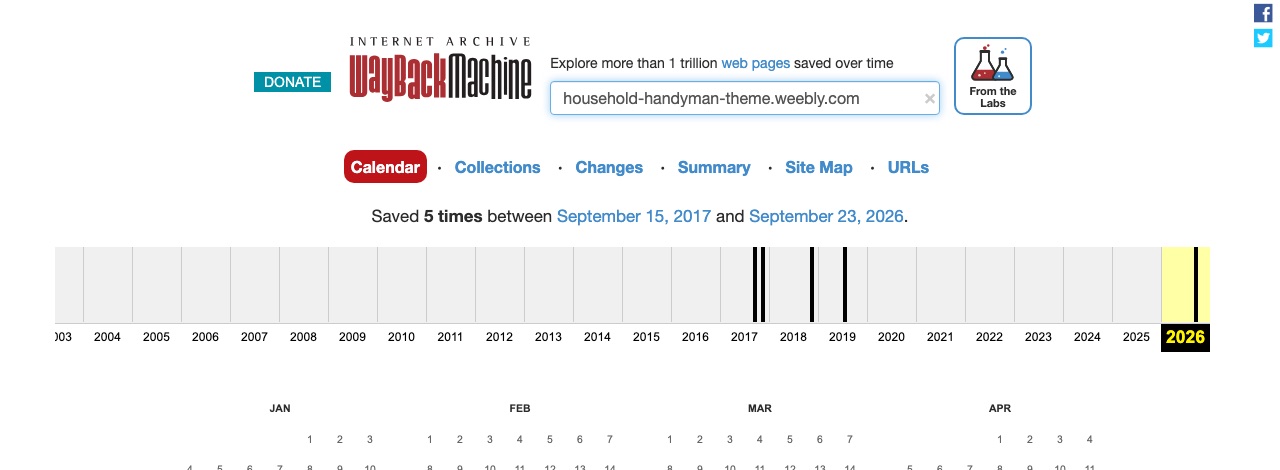
If the Wayback Machine never saved your site and it is already offline, the Archive and Download My Data are what you have, and only while your login works. We rebuilt our demo site from its Archive ZIP alone, after un-publishing it: that is way C below.
The two ways to rebuild on Ullbek
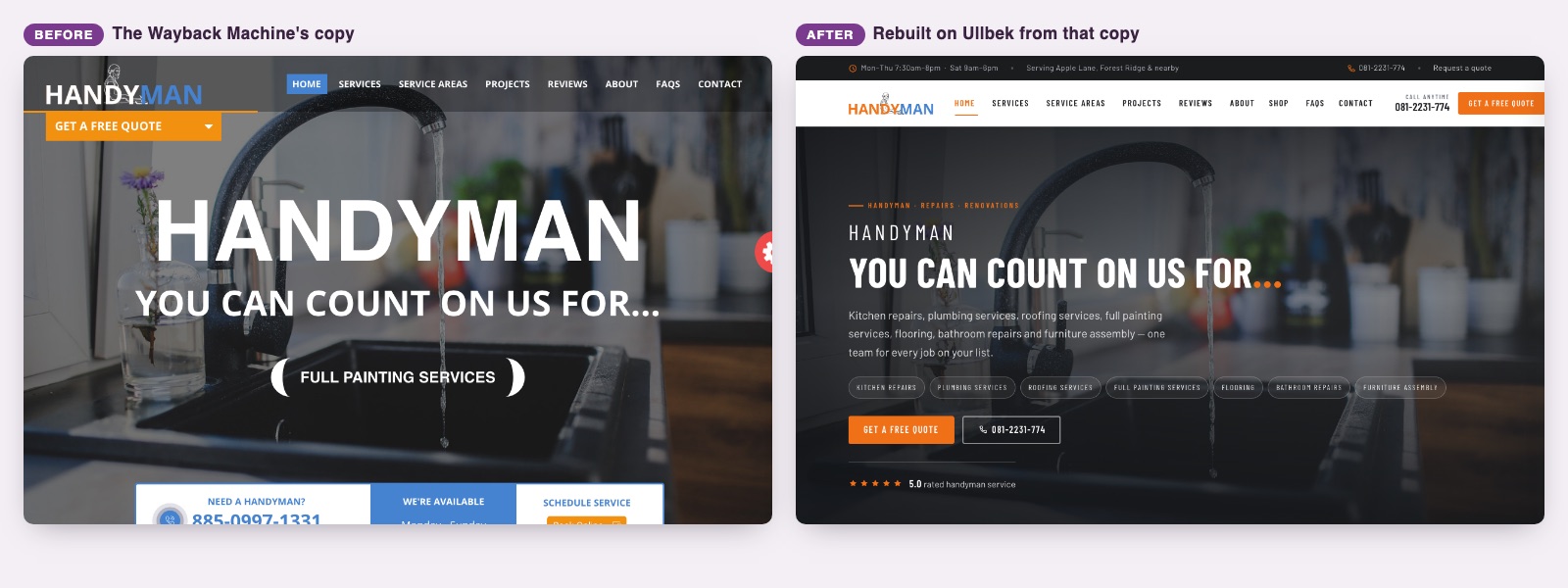
To write this chapter honestly, we rebuilt a real Weebly site both ways, in the same product you will use. We used a Weebly theme demo, not a customer's site: a handyman business with 28 standalone pages, a blog with six posts, a two-product store, and 133 image files.
A · From the site's address
Your Weebly site is still published (owners outside the 67 countries). Ullbek reads every page and brings the photos across.
B · From the Wayback Machine's copy
Your site was taken offline. Ullbek rebuilds it from the public copy. You do not need your Weebly login for this.
Either way, start the same: sign up at app.ullbek.com, create a new site, and type the message below with your own address in it. If your site is offline and the Wayback Machine never saved it, there is a third way in, from Weebly's own Archive ZIP: way C, further down.
Way A: from the site's address
- Create a new site and type this
Paste your site's address where it says so. Say that it is your Weebly site, and what to keep.
- Let it work
It reads the pages, downloads the photos into the new site, and builds. In our test it asked no questions before building.
- Answer what it asks at the end
Ours asked which of two phone numbers was the real one, and for the real service details where the old site had placeholder text.
Our 35-page site took about 40 minutes this way, and every page answered at the end.
Way B: from the Wayback Machine's copy
- Find the copy
Follow the Wayback Machine steps in chapter 4 and copy the address of the latest good save.
- Create a new site and type this
Paste the Wayback address where it says so.
- Expect a slow start
The Wayback Machine limits how fast pages can be downloaded from it. In our test Ullbek showed a run of failed downloads, said it was retrying more gently, and got every page and photo on the retries. That is normal; let it carry on.
The same site took about 45 minutes from the Wayback copy, and came back as 37 pages: the 28 standalone pages, the blog with all six posts at their original addresses, and the store's two product pages. Every photo was brought into the new site, none of them left pointing at Weebly or at the Wayback Machine.
We then ran it again from the same copy, with the same message. That build took about 30 minutes and came back as 30 pages: every standalone page at its old address, the six blog posts as short previews on the blog page rather than pages of their own, and no store pages. Two builds from one copy gave two shapes, which is why the three messages below are worth sending.
Way C: from Weebly's Archive ZIP
This is the way in for a site that is already offline and that the Wayback Machine never saved. It needs your Weebly login once, to fetch the ZIP (chapter 4). We tested it on the small demo site from that chapter, after un-publishing it: five pages and a blog with two short posts.
- Create a new site and attach the ZIP
Under the message box, select Attach files (the paperclip) and choose the ZIP file Weebly sent you. Ours was a little under 6 MB and attached without trouble.
- Type this
Say that the file is Weebly's archive of your site, and what to keep.
- Answer its questions
About two minutes in, ours stopped and asked three things in one card: what to do with placeholder text the old site still had, which address and phone number to show, and how the new site should look. We chose to keep everything exactly as archived, in a look close to the old one.
It took about 16 minutes, with no stop, and came back as seven pages: the five pages at their old addresses, and a page for each of the two blog posts at its old address. The ZIP held no post pages; Ullbek made them from the posts' text on the blog's front page. Checked against the archive, every word of each page was there, down to a spelling mistake in the old text, and every picture was served from the new site. Nothing was fetched from Weebly.
Check the pictures of people. One portrait on our Team page was missing from the ZIP. Ullbek filled the gap with a generated stock-style portrait, and said so in its closing summary. On your site that would be an invented face beside a real name. Read the summary, and replace any such picture with the real one or ask for it to be taken out. Numbers that Weebly animated on the old page were not in the ZIP either, and came back as dashes.
That is one small site, built once. A bigger site will take longer and may stop for Continue, as ways A and B did.
Three messages to send next
Our tests turned up three things worth asking for in every Weebly move. Send them once the first build has finished.
Why: in our address rebuild, the blog posts moved to new addresses, and the old ones no longer answered. In one Wayback rebuild they stayed where they were; in the other they arrived as short previews on the blog page. Ask, rather than leave it to chance. Old page addresses ending in .html answered in every rebuild.
Why: in one of our rebuilds, one blog post of six was missed, and the closing summary did not mention it. Count before you publish.
Why: even when asked to keep "all the wording", our rebuilds corrected the old site's typos and added a few short new lines in headers, footers and some sections, and the rebuild from the address rewrote two pages with questions and answers that were not on the original. Most owners will not mind. If your words matter exactly as written, say so.
While it builds: what you will see
- "Paused at the step limit": press Continue
A site this size is more work than one sitting allows. In our rebuilds the build stopped once or twice with Paused at the step limit, and a click on Continue carried on from where it stopped. If you walk away and come back to a half-built site, that is what happened: press Continue.
- When your browser asks to "Allow", allow it
Partway through, Ullbek may want to look at your preview to check its own work, and your browser shows a small permission request with Deny and Allow. Click Allow. When it was denied in our tests, the build carried on without that check.
- If you closed the tab
Your work is not lost. Reopen the site; if the builder looks empty, open the ⋯ menu at the top of the builder, choose Session history and pick the earlier session.
Plan on most of an hour for a site of thirty-odd pages, and stay nearby for the Continue clicks. Ways A and B needed no Weebly login, no export file and no developer. Way C needs the login once, to fetch the ZIP.
What carries across, and what arrives changed
A rebuild is not a copy. Here is what happened to each part of the site in our tests, so you know what to check.
| On your Weebly site | What happens to it |
|---|---|
| Pages and the menu | Every standalone page came across, with the menu that reaches it. |
| The wording | In our first rebuild from the Wayback copy, the body text of each page was the original's. From the address, most pages matched almost line for line, and two were rewritten with new questions and answers. In both, typos were corrected and a few short new lines were added in headers, footers and some sections. A later rebuild also wrote a short customer quote of its own; look for lines like that and put your real reviews in their place. Use the "Keep the wording exactly" message above if that matters to you. |
| Photos | Every photo was brought into the new site and kept with it, none left pointing at Weebly or the Wayback Machine. |
| The look | The same colours, the same style of headline, the same hero photo and layout. One rebuild gave the header a darker colour than the original. Ask for any change in plain words. |
| Contact forms | Rebuilt and connected to Ullbek's built-in form, which delivers messages to your inbox. Set where they go and send yourself a test after you publish; our first build asked for exactly that. See Contact forms. |
| Old page addresses ending in .html | Answered on the new site in every rebuild, such as /about.html. |
| Blog posts | From the Wayback copy, all six arrived at their original addresses in one rebuild, and as short previews on the blog page, with no pages of their own, in another. From the address, they moved to new addresses and one was missed. Ask to keep the old addresses and count them. |
| Older-style blog addressesSuch as /1/post/2020/03/… | Did not answer on the new site in any rebuild. We have not yet tested asking for them by name. |
| Blog category and archive pages | Not rebuilt in any test. |
| A Weebly store | From the Wayback copy, each product arrived as its own page in one rebuild and not at all in another; from the address, the shop arrived as one page. A cart and checkout are not rebuilt. Orders can come in as requests through a form; see Take bookings and orders. |
| Members-only pages, Weebly apps | Not in the site we tested. Expect the public pages around them to come across, and the login and the apps themselves not to. |
| A background video | Became a still picture with a play button. Ullbek said it needs the video file to put it back, so keep a copy. |
| Placeholder text | Arrived as it was, and Ullbek pointed it out and asked for the real details. |
| Your domain | Separate from the site. Move it out of Weebly yourself (chapter 3), then connect it (next chapter). |
Open every page, on your phone as well. Check phone numbers, opening hours and prices: a site that has been offline since September may still say last season's. Ask for the fixes in plain words.
Put your domain on the new site
Here is the order that gets you back online on your own address with nothing left to chance.
- Publish on your ullbek.site address first
Every site gets its own ullbek.site address that never expires. Publish there, read every page once more, and send the link to someone whose opinion you trust. See Publishing & going live.
- Put the site on premium hosting
Your own domain needs premium hosting, a monthly plan per site. The price shows before you pay, in your own currency. See Billing & payments.
- Connect the domain
Enter your domain and Ullbek shows you the records to add at your registrar: the company that now holds your domain after chapter 3. Log in there, add or change only those records, and leave everything else exactly as it is.
- Wait until it opens on your domain
Usually within the hour, occasionally up to 48 hours. Your ullbek.site address keeps working in the meantime. When your domain shows the new site, with the padlock, you are live.
If your email runs on the same domain, the records that make it work sit next to the ones you are changing. Add or change only the records Ullbek shows you, and make sure the MX and TXT records you wrote down in chapter 3 are in place at your new registrar.
If the old domain cannot be saved, a new .com, .net or .org can be bought inside Ullbek; bought for a site already on premium hosting, it is connected for you with nothing to add anywhere. The walk-through is in Publishing & going live.
The prompt library
Everything below is a sentence you type in your own words; the change is made and you see it in the preview.
Starting the move
After the first build
Related
My Weebly site disappeared
What happened, what you can still recover and from where.
Publishing & going live
Your ullbek.site address, premium hosting, and connecting your domain.
Contact forms & submissions
Set the recipient, test it, and every message is kept by Ullbek.
Move your WordPress site
The same move, from WordPress.
See your site come back
Sign up, paste way B with your Wayback address (or way A if your site is still online), and see your site rebuilt before you decide anything.