
If you are reading this, something about WordPress has worn you down. An update that broke the site, a plugin renewal you did not expect, spam pages appearing overnight, a contact form that says "sent" while nothing arrives, or simply the feeling that keeping a six-page website alive should not be a second job. You are not wrong, and you do not need to become technical to leave.
Ullbek is an AI website builder. You describe what you want in plain words and it builds a real, custom website around it, then publishes it live. For a move, that means you can point it at your old site, or hand it your export file, and let it do the lifting. This guide takes you through the whole thing: checking your site is a fit, getting your keys back before you touch anything, the three ways to bring the site across, what does and does not survive the move, your form, your addresses, your domain, and what to cancel when. Read the first two chapters before you do anything else.
Is your site a fit?
Ullbek builds websites, not web apps, and that is a deliberate, permanent choice. A website shows people who you are, what you do and how to reach you, and takes their enquiries, bookings and orders as requests that land in your inbox. A web app runs things on the site itself: logins, carts, payments, member areas. Most small-business WordPress sites are websites built on a system designed for web apps, which is part of why they are so much work. Here is the honest check.
| Your site is… | Fit | What that means |
|---|---|---|
| A brochure or service businessTrades, clinics, salons, restaurants, studios, consultants: a handful of pages, a form, a map, some galleries | Yes | This is the site the move was built for. From the address, in under twenty minutes. Our worked example below is one of these. |
| A portfolioPhotographer, designer, artist, architect | Yes | Galleries and captions come across; the look is rebuilt around your work. |
| A small blog or news siteTens of posts | Yes | Posts become article pages with an index you can filter and search. In our tests, 21 pages and 56 posts came across in one sitting. |
| A large blogHundreds of posts | Ask first | Volume is probably not the limit, but we have not tested beyond 77 pages and posts in one move. Tell us what you have before you start. |
| A WooCommerce shopCart, checkout, stock | No | Orders here arrive as requests, not payments. If you sell online with a cart, you want Shopify or a similar shop, with a website in front of it if you like. |
| Memberships, courses, forumsLogins, member areas, paid content | No | There are no accounts on an Ullbek site. A membership belongs on a membership platform; a course on a course platform. |
| A booking calendar that takes payment | No | Not on the site itself. Keep your booking tool and put a Book button in front of it, or take bookings as requests. See Take bookings and orders. |
| A site whose domain is in a vanished developer's name | Not yet | Not until you have the domain back. The next chapter shows how to find out and what to do. |
If you are in the first three rows, carry on. If you are in a "No" row, we would rather tell you now than halfway through. A shop with a cart is still better off with a website in front of it that sends people to the shop, but the shop itself is not something Ullbek builds.
Get your keys first
Before you build anything, find out what you actually hold. Many owners discover, in the middle of a move, that the person who built the site also registered the domain, set the recovery email to their own address, and is no longer answering. The time to find that out is now, while the old site is still up and nothing depends on the answer. Work down this list.
Can you log in to WordPress?
Try it. If you can, good; you will need it for the export file. If you cannot, use "Lost your password?" and watch where the email goes. If it goes to a developer who has left, your hosting company can usually get you back in; ask them before the forums. If you do not know who your host is, look at the invoices on your card statement.
Where is your domain registered, and can you log in there?
Your domain (yourbusiness.com.au, yourbusiness.co.uk) is the one thing that must come with you. It is registered with a company (the registrar), and it is usually not the same company as your host. To find out which one, search for "whois lookup", type your domain, and read the registrar's name in the result. Then find your login there. You will need it later to point the domain at the new site.
Only the registrar can help, and only by their own process: you will need to prove the business is yours and ask them to transfer the domain to you. Nobody else, including us, can do that for you. Start it today, because nothing in the rest of this guide works on your own domain until it is solved. You can still build and publish the new site on its free address in the meantime.
Where is your email hosted?
If you have addresses like hello@yourbusiness.com, they live somewhere: with your host, with Google Workspace or Microsoft 365, or with the registrar. Find out which. Moving the website does not have to touch your email, but cancelling the wrong thing at the end can, so you want to know before you cancel anything.
Take what is yours
Think of this as the box you pack before you leave. Most of it you will not need on the fastest route, but the backup you never checked and the host that deletes everything after a lapse are both real, so take it anyway.
- The export file
In WordPress, go to Tools → Export, choose All content, and click Download. You get one .xml file. It holds every page, post, menu and the names of your images. Keep it even after the move.
- Your photos
The export file names your images but does not contain them. Download the ones that matter from Media Library, or if you can, ask your host for the uploads folder from their file manager. If the site is still online you can skip this for now; Ullbek fetches the photos from the old site itself.
- A saved copy of each page
Open each page of your site in your browser and use Save Page As…, choosing Webpage, Complete. Put them all in one folder. This is your insurance if the site goes down before you finish, and it is all you need for way C below.
- Your logins, written down
Host, registrar, email, WordPress, Google Business Profile, Google Search Console if you have it. One note, somewhere safe.
Three ways in
There are three ways to bring a WordPress site into Ullbek. Which one you use depends on what you still have.
A · From the site's address
The old site is still online. Give Ullbek its address and it reads every page and brings the photos across. The fastest way and the one we recommend.
B · From the export file
You have the .xml export, or the site is offline or hacked but you can still log in. Best for blogs with many posts.
C · From saved pages and photos
The site is gone, but you have saved copies of the pages and the pictures. Ullbek reads them and fills the gaps it notices.
Whichever way you choose, start the same: sign up at app.ullbek.com, create a new site, and type one of the messages below. Ullbek will come back with a short card of questions: your business name, what to do with any placeholder text it finds, your contact details, and sometimes the look you want. Answer them all in one go and let it work.
Way A: from the site's address
- Create a new site and paste this
Use your own address. Say it is WordPress, say what to keep, and ask for the photos.
- Answer the question card
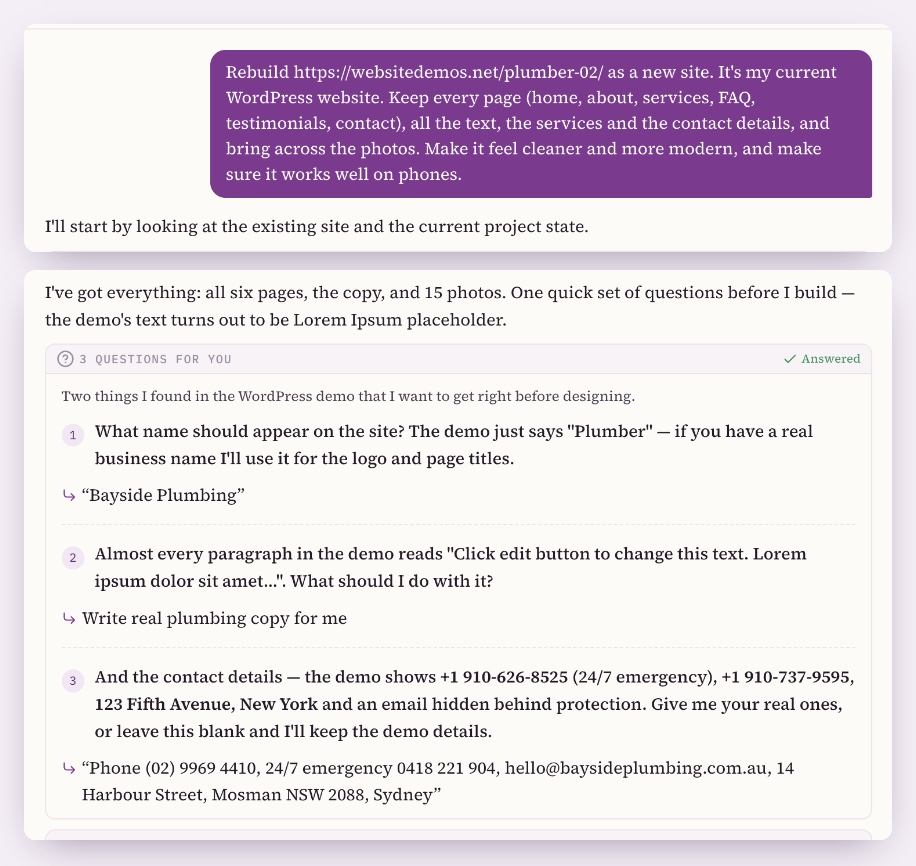
In our tests Ullbek asked three things at once: the business name (the old site did not say), what to do with the placeholder text it found (write real copy, keep it, or write it and mark it for review), and the contact details. Answer them together.
- Leave the tab open and watch
It reads every page, downloads the photos, finds the email address even when the old site hid it from spam robots, and builds. In our tests a six-page site took about 17 minutes.
- Read the preview properly
Every page, on your phone as well. Check prices, hours, phone numbers and names. Ask for changes in plain words; the prompt library below has the common ones.
Way B: from the export file
- Export from WordPress
Tools → Export → All content → Download. One .xml file.
- Give it to Ullbek
Upload it in Manage → Files (drop it in the upload area), then tell Ullbek the file name in your message. Large exports are read in parts; that is normal and fine.
- Do it while the old site is still online
The export names your photos but does not contain them. Ullbek fetches them from your old site's addresses, so do way B before you cancel hosting. If the site is already gone, use way C.
- Answer the questions, then wait
Ullbek may ask about the name and the home-page layout, then the colours, then the fonts. In our tests a 21-page, 56-post site took about half an hour, questions included, and every post came back as its own page with an index you can filter and search.
Way C: from saved pages and photos
- Upload what you saved
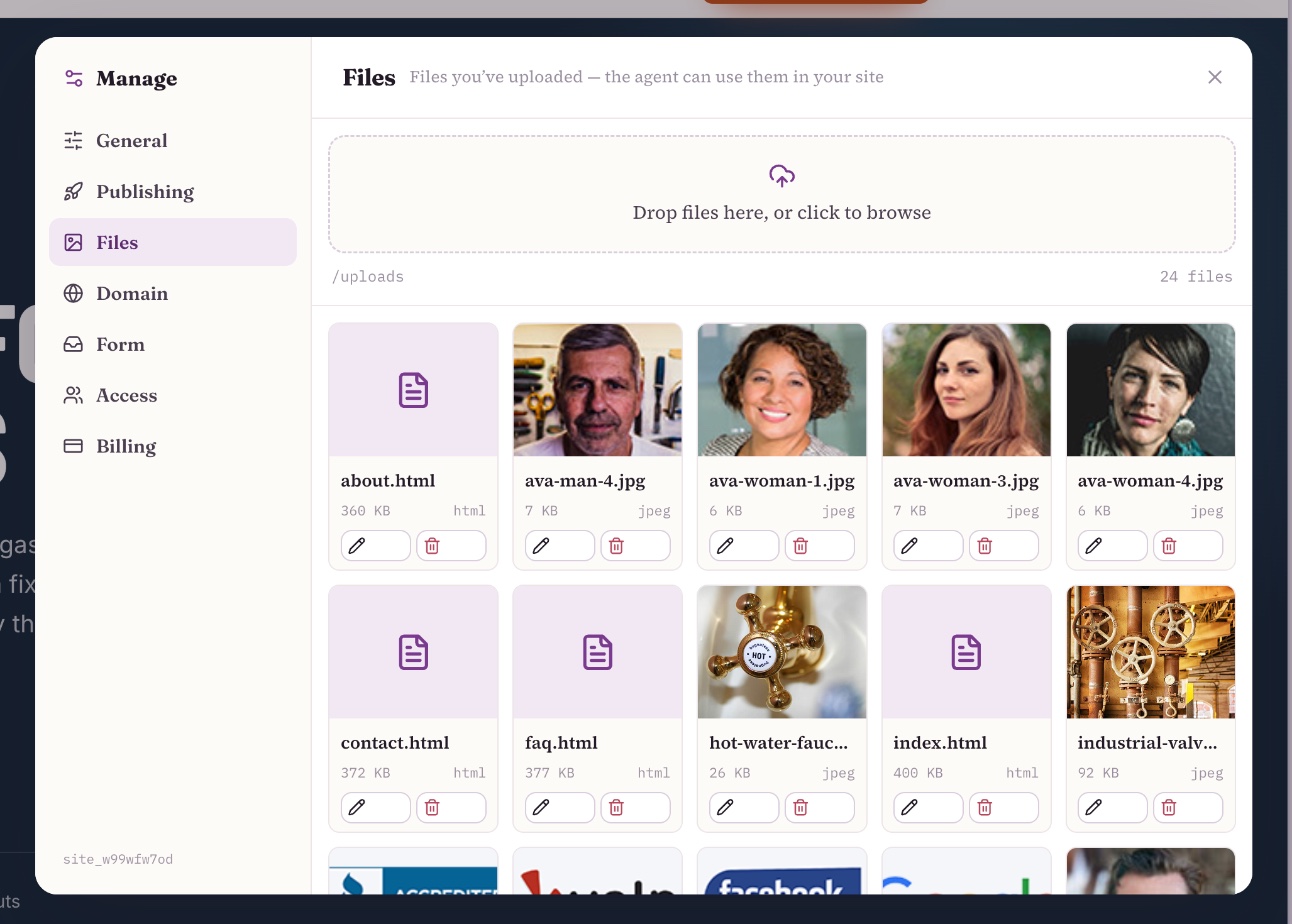
Open Manage → Files in your new site and drop the saved pages and the photos into the upload area. A folder of saved pages plus a folder of pictures is enough.
- Tell Ullbek the site is gone
Say so plainly. It reads the saved pages for the text and the structure, and notices what is missing. In our tests it spotted two service photos and the logo that were not in the folder and made replacements to match.
- Answer the card, then check
The same questions as way A plus the look you want. About 20 minutes for six pages in our tests, including checking at phone, tablet and desktop sizes.
What comes across, and what doesn't
A move is not a copy. Here is exactly what we saw carry over in our tests, and what did not, so you can plan around it rather than find out later.
Comes across
- Structure and menus. Every page, in its place, with the menu links that reach it. Page hierarchies are kept; a long menu may be regrouped so everything stays reachable.
- The words. Headings, paragraphs, lists, quotes and tables.
- Images, placed by role. The hero photo stays the hero, the team photo stays with the team. Photos are brought across and kept with the new site, not borrowed from the old one.
- Contact details, including an email address the old site hid from spam robots.
- Services, reviews and FAQs as content, kept whole.
- Blog posts as pages, with an index that can be filtered and searched, and each post carrying its tags and previous/next links.
- Galleries and captions, including a photo library with a lightbox.
Does not come across
- The design. An export has no theme in it, and a rebuild from the address sees your old look but builds fresh. Every move is a redesign. That is the point: you are leaving because the old site was slow, samey or breaking, and you can tell Ullbek what the new one should feel like.
- Things that ran on the old site. Comments, password-protected posts, scheduled posts, on-site search of the old kind, category and tag archive pages, user accounts, carts and checkout. Some of these can be made as plain pages (an archive page, next and previous links, a filterable index); the rest are left out, and Ullbek tells you which. Where comments mattered, it said so and moved on.
- Plugins. Nothing a plugin did survives as a plugin. Where a plugin produced a website outcome (a form, a gallery, a map, a booking button) that outcome is rebuilt as part of the page. The next chapter goes through them one by one.
- Lorem ipsum and stale facts come across faithfully unless you answer the question. If the old site said "Lorem ipsum dolor" under a service, or listed last year's prices, the new one will too, unless you tell Ullbek to write real copy or give it the right numbers. It asks; answer.
A move is often the first time in years anyone has read every page of a site. The phone number nobody answers, the staff member who left, the "opening soon" from 2021: now is when you catch them. Ask for the fixes in plain words.
What each plugin becomes
Owners often count their plugins and wonder what replaces them. The honest answer is that most of them exist to do one job WordPress did not do out of the box. Here is what each job becomes.
| Your plugin | On Ullbek |
|---|---|
| Contact formContact Form 7, WPForms, Gravity Forms | A built-in form, delivered to your inbox from Ullbek's own sending address with spam checked first. Ullbek keeps a copy you can ask it to read. See Contact forms. |
| Gallery or slider | A gallery, built into the page. Ask for a lightbox, captions or a grid, in your words. |
| SEO pluginYoast, Rank Math, All in One SEO | Page titles, descriptions and a sitemap are part of every publish. Nothing to install, no banner nagging you to upgrade. See How search engines find your site. |
| Caching or speed pluginWP Rocket, LiteSpeed Cache, W3 Total Cache | Nothing needed. There is nothing on the site to speed up or to cache. |
| Security, firewall, backupWordfence, Sucuri, UpdraftPlus, Jetpack | Nothing needed. There are no plugins to patch, no admin login page on your site, nothing for the probes to break into. Your site is kept by Ullbek. |
| Cookie banner | Ask for one if your business needs one. |
| Booking pluginAmelia, Bookly, Simply Schedule | A Book button that opens the tool you already use (Calendly, Fresha, Square, your clinic system), or bookings taken as requests to your inbox. See Take bookings and orders. |
| Google Analytics or Meta pixel pluginMonsterInsights, PixelYourSite | Ask Ullbek to add the tag. See Google Analytics & Ads tags and Meta pixel, chat & booking. |
| WooCommerce | Not here. Keep the shop on Shopify, Etsy or a payment link, and put a Buy button on the new site that goes to it. |
| Membership, forum, LMSMemberPress, bbPress, LearnDash | Not here. These are web apps; they belong on their own platforms. |
| Page builderElementor, Divi, WPBakery, Beaver Builder | Nothing. The builder was the design, and the design is rebuilt fresh. |
A worked example
To write this guide honestly we moved a WordPress site ourselves, in the same product you will use. We used a WordPress demo site as a stand-in, not a customer's site: a six-page plumbing business built in Elementor on a popular theme, with 22 photos, placeholder "lorem ipsum" under several services, and an email address hidden from spam robots. Way A, from the address.
The whole message was the one in way A above, with the demo's address pasted in. Ullbek read all six pages and came back with one card of three questions: the business name (the demo just said "Plumber"), what to do with the lorem ipsum (write real copy, keep it, or write it and mark it for review), and the contact details. We answered all three in one go.
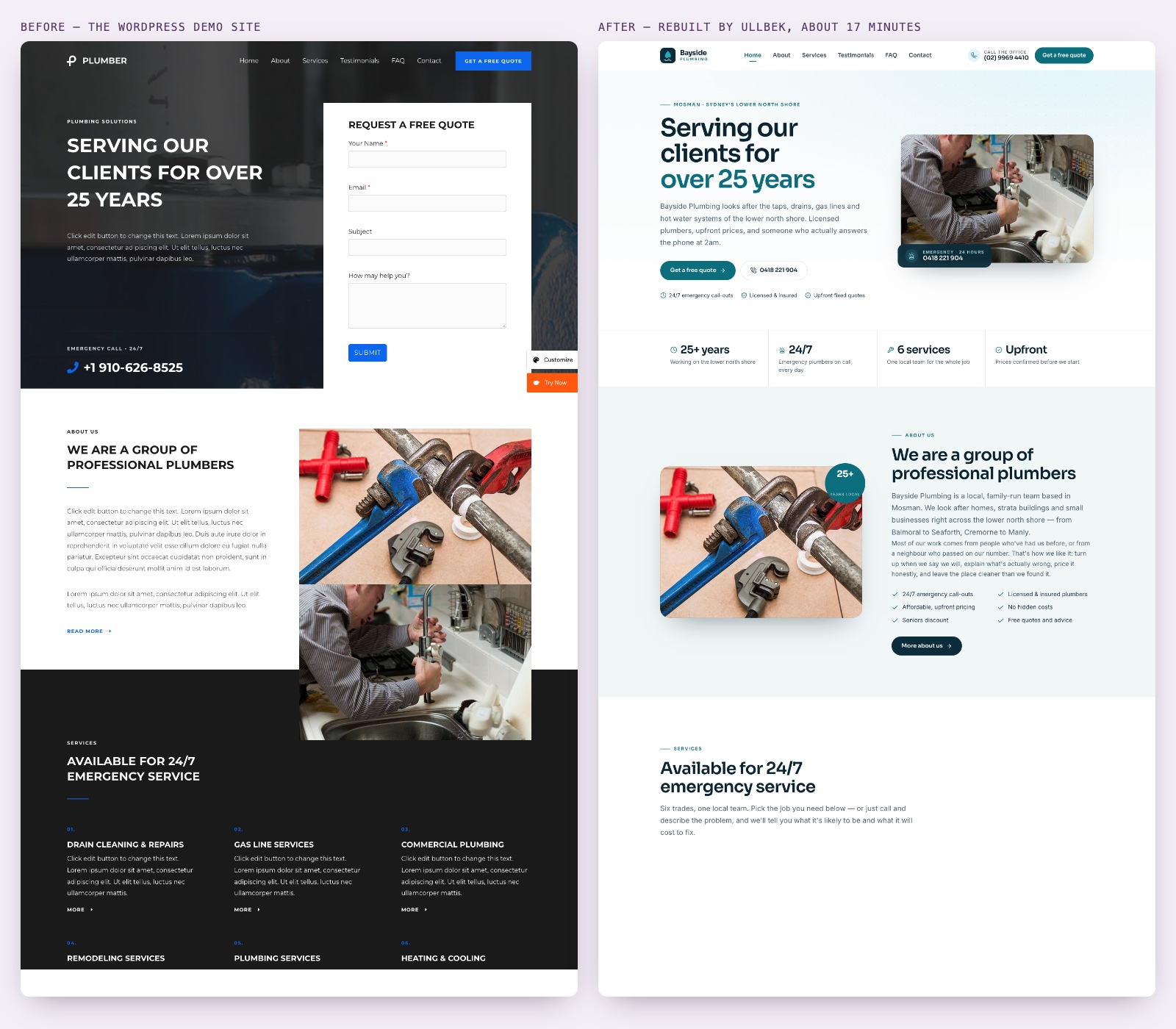
About seventeen minutes later it had built:
- All six pages, with every section and heading in place.
- Six services, each with its bullet list; seven customer reviews with names and suburbs; twelve FAQs; the review-site logos.
- Every photo from the old site, reused in the same role it had before.
- Real plumbing copy where the old site had lorem ipsum, because we asked for that.
- A header that stays put as you scroll, with the phone number in it; a proper menu on phones; a fixed Call / Get a quote bar on mobile.
- A quote form that it tested itself: it sent a test enquiry and checked that it arrived.
- A site brief, so later changes know what the business is. See The Site Brief.
Two things worth saying because they are the kind of thing you would normally pay someone for. Partway through, it noticed its own mobile menu was not opening, found the cause and fixed it before telling us the site was ready. And it did not take the form on trust: it filled it in, sent it, and confirmed the message landed.
For way B and way C we did the same with the official WordPress test export (21 pages, 58 posts, five menus; two posts were drafts, so 56 came across) and with the plumber's six saved pages plus 18 photos dropped into Files. The export took about half an hour and came back as a magazine-style site with every post as its own page and a blog index with a category filter and search; the 30 MB video and the comments were left out, and it said so. The saved-files move took about twenty minutes, found the two service photos and the logo that were missing from the folder, and dropped a US trade badge that did not apply here, telling us why.
Wire the form
If the old site's form was the one that said "sent" while nothing arrived, this is the chapter you have been waiting for. On Ullbek the form is built in, and messages are delivered to your inbox from Ullbek's own sending address, with spam checked before anything reaches you. You set it up once.
- Set the recipient
In Manage → Form, enter the email address that should receive messages. Ullbek sends a 6-digit code to that address; enter it to confirm. This is what stops messages going to a developer who has left.
- Send yourself a test
Open the published site on your phone, fill in the form as a customer would, and send it. It should arrive shortly. If it lands in spam the first time, mark it as not spam.
- Know where the copies are
Every submission is also kept by Ullbek, so if a message ever goes missing from your inbox you can ask Ullbek to read your recent submissions. Reply from your email as normal.
The full walk-through, including what the customer sees and how to change the fields, is in Contact forms & submissions.
Keep your addresses and your rankings
Your old site's pages have addresses that other things point at: Google's results, your Google Business Profile, a directory listing, a link in a customer's email from 2023. If the new site uses different addresses, those links break and Google has to find you again from scratch. The fix is simple, but it has to happen before you publish.
List the addresses of your old pages, the part after your domain, like /about-us/, /services/, /contact/ and /blog/. Tell Ullbek to keep them. Its own addresses have no slash at the end (/about-us), so for each old address it makes a small page that sends visitors, and Google, straight on to the new one; in our test the old addresses worked with and without the slash afterwards. For posts, give it the pattern your old site used, such as /2024/03/post-title/ or /blog/post-title/, and ask it to keep that too.
Two honest notes. A rebuild is a redesign, and Google re-reads a redesigned site over a few weeks; that is normal and the addresses above are what keep your place while it does. And the padlock, the secure connection that "Not secure" warnings are about, is automatic on every Ullbek site, on the free address and on your own domain. There is nothing to renew. More on how Google sees the new site in How search engines find your site.
Move the domain, then cancel
Here is the order that keeps you online all the way through. The principle is that nothing old gets cancelled until the new site is open on your own domain and you have looked at it.
- Publish on the free address first
Every site gets a free ullbek.site address that never expires. Publish there, read every page one last time, and send the link to someone whose opinion you trust. See Publishing & going live.
- Put the site on premium hosting
Your own domain needs premium hosting, a monthly plan per site. The price shows before you pay, in your own currency, and it is the same price at renewal. See Billing & payments.
- Connect the domain
Enter your domain and Ullbek shows you the records to add at your registrar (the company from the keys chapter). Log in there, add or change only those records, and leave everything else exactly as it is. The domain stays registered where it is.
- Wait until it opens on your domain
Usually within the hour, occasionally up to 48 hours. Your free address keeps serving in the meantime. When your domain shows the new site, with the padlock, you are live.
- Then cancel, in this order
WordPress hosting. Plugin renewals (check your card statement for the yearly ones). The care or maintenance plan. The security subscription. Keep the export file and your saved pages; they cost nothing to keep.
If your email runs on the same domain, the records that make it work are in the same place as the ones you are changing. Add or change only the records Ullbek shows you. If your email was hosted by your WordPress host, move it before you cancel that hosting; your email provider or registrar can do this.
If you would rather not touch records at all, a new .com, .net or .org can be bought inside Ullbek; bought for a site already on premium hosting, it is connected for you with nothing to add anywhere. The walk-through is in Publishing & going live.
The prompt library
Everything below is a sentence you type in your own words. There is no settings page to learn and no developer in the loop; the change is made and you see it in the preview. These are the ones that came up in our move, grouped by when you need them.
Starting the move
During the build
After the move
While it builds: three things to know
- Don't close the tab
A move takes a while (our six-page example took about 17 minutes) and Ullbek keeps going while you watch. If you did close it and came back to an empty builder, your earlier session is not lost: open the ⋯ menu at the top of the builder, choose Session history and pick the earlier session. It picks up where it was, even if it was waiting on an answer from you.
- When your browser asks to "Allow", allow it
Partway through, Ullbek wants to look at your preview to check its own work. Your browser shows a small permission request, "wants to take a screenshot", with Deny and Allow. Click Allow. The build waits until you do.
- Answer the card in one go
Questions usually arrive as one card with fields. Fill in every field you can and send it once; if another card comes back, answer that one the same way. If you do not know something, say so and ask it to leave a note where the fact belongs.
What you're leaving behind
A short list, in your own words, of what stops the day the domain moves.
- The updates. Core, theme, plugins, the version notice from your host: there is nothing to update, so a page that worked yesterday works today.
- The plugin renewals, and the banner in the admin asking you to upgrade.
- The security plugin, the firewall plugin and the backup plugin, and the nagging feeling that one of them is quietly not working.
- If your host metered "visits", the meter that counted robots as customers. Nothing here is metered.
- The "There has been a critical error on this website" email, and the white screen it comes with.
- The backup you never checked. Your site stays with Ullbek and the free address never expires.
- The hourly developer bill to change a phone number. You change it by saying so.
Two honest limits. There is no 24-hour phone line; there is one company to ask, because the builder, the hosting, the form and the domain are all Ullbek, and you can reach us from Contact. And while there is no admin login page on your site for anyone to attack, your Ullbek account is still an account; use a strong password you do not use anywhere else.
If you want the longer comparison, with the yearly cost of WordPress laid out, it is at Ullbek vs WordPress. If you want to understand why the hacks kept coming back, read Why WordPress sites keep getting hacked.
Related
Ullbek vs WordPress
What changes, what it costs, and who should stay on WordPress.
Contact forms & submissions
Set the recipient, test it, and every message is kept by Ullbek.
Publishing & going live
The free address, premium hosting, and connecting your domain.
Redo an old website
For agencies: rebuilding a client's site from its address.
Start with your own address
Sign up free, paste the way A message with your site's address, and see your site rebuilt before you decide anything.