What you'll end up with
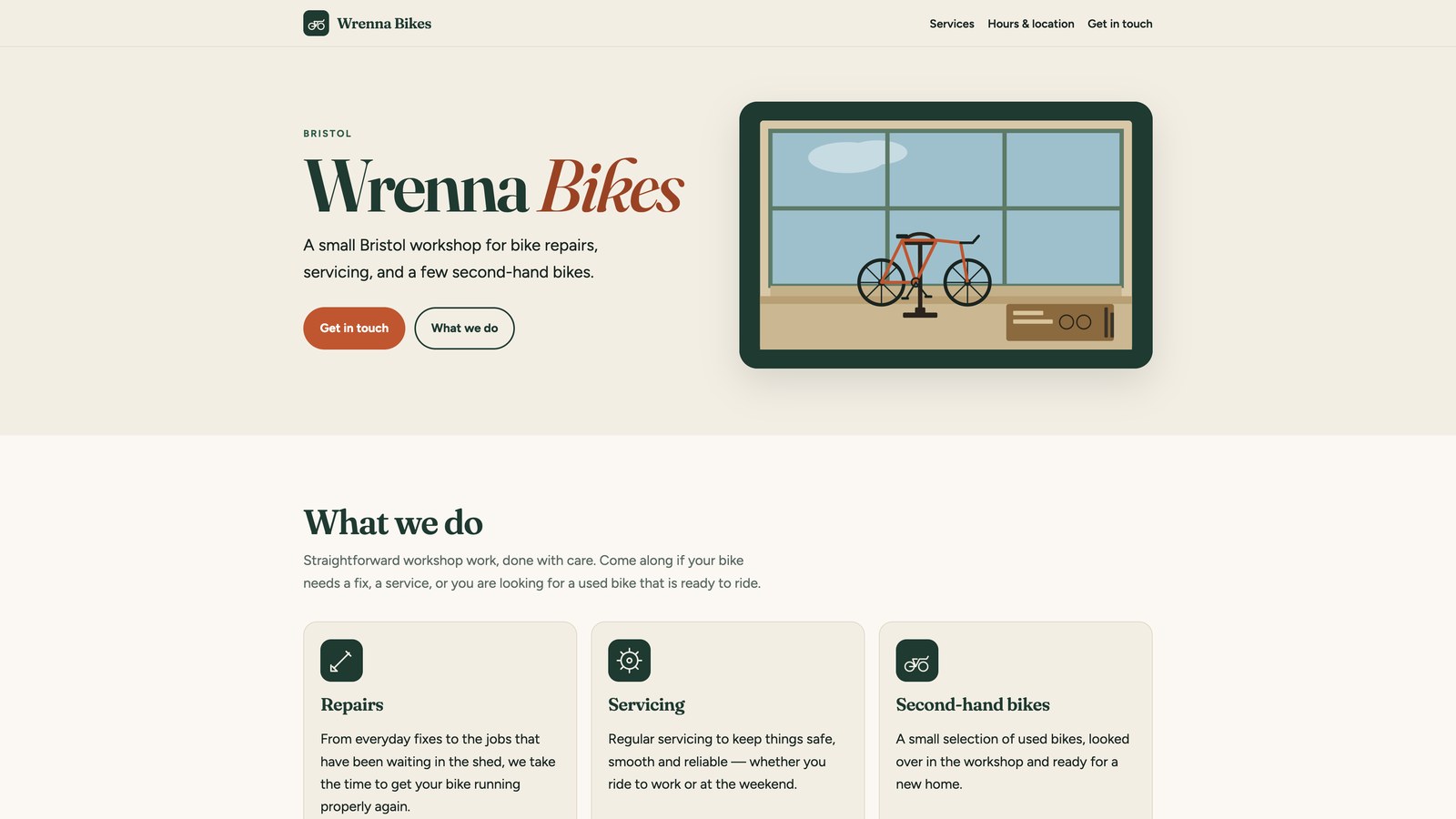
A real, custom website built around what you told Grok Bot, on a free yourname.ullbek.site address with hosting and HTTPS included. Not a template with your name dropped in. You stay in the Grok Bot chat the whole way: Grok Bot does the building, Ullbek supplies the workshop underneath (the site, the preview, publishing and hosting).
To write this guide we did it ourselves in the Grok Bot app on a Mac, for an example business: Wrenna Bikes, a small bike repair shop. Every screenshot below is from that one conversation. From the first message to a live website took about ten minutes, most of it Grok Bot building.
You don't need an Ullbek account to startGrok Bot builds your first draft without one. You only make an account when you want the site live, and Grok Bot does that for you in the chat, with your email and a code.
Connect Ullbek to Grok Bot
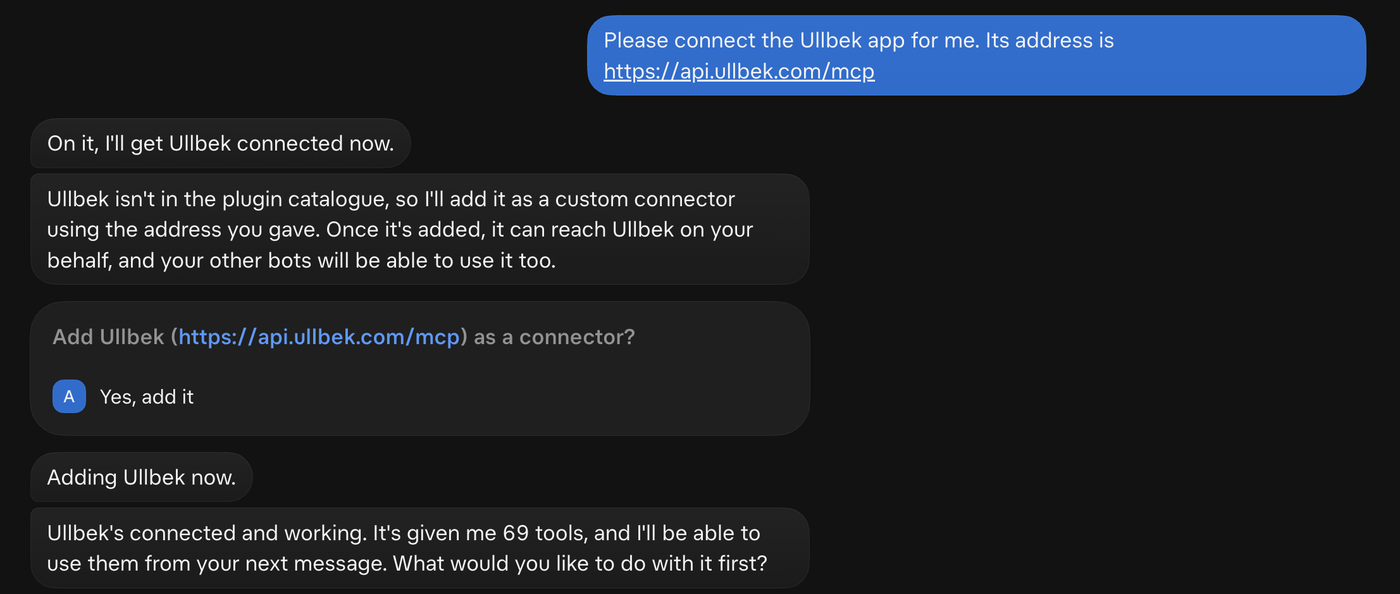
Ullbek isn't in Grok Bot's Connect apps list, and you don't need it to be: you ask Grok Bot to connect it, and it adds Ullbek for you. It takes one message and one press. There's nothing to sign in to at this point.
-
Open a bot to talk to
We pressed New Bot at the bottom of Grok Bot's sidebar and made one just for the website, called Website, so the conversation starts clean.
-
Ask it to connect Ullbek
Send this, address included:
-
Press "Yes, add it"
Grok Bot explains that it will add Ullbek as a custom connector and asks Add Ullbek as a connector? Press Yes, add it. A few seconds later it tells you Ullbek is connected and asks what you'd like to do with it.
Describe your business
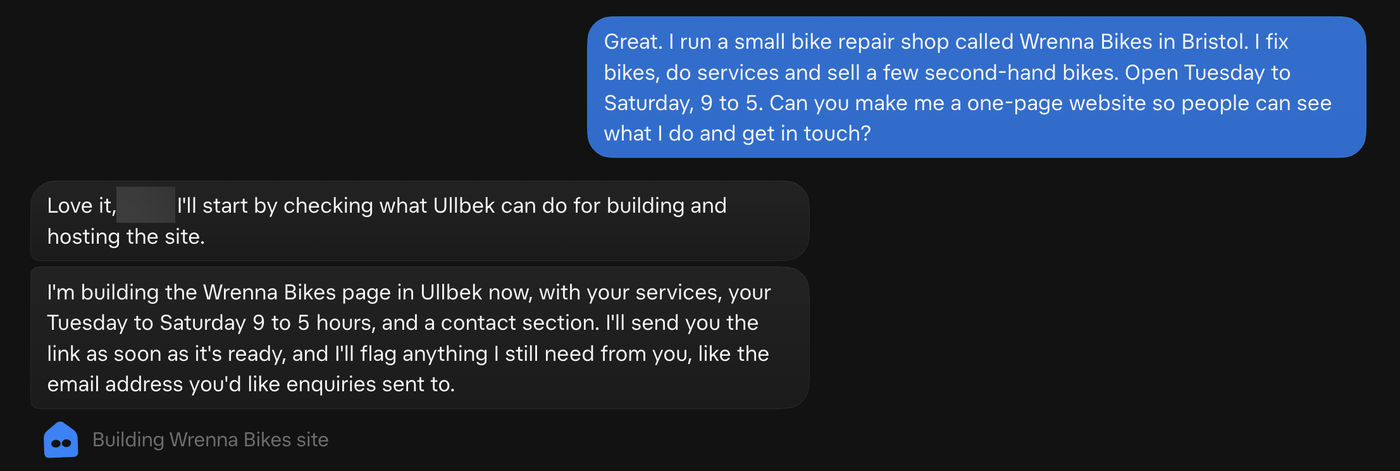
Now say what you want, the way you'd tell a friend who builds websites. What the business is, where it is, what you offer, when you're open, and what visitors should do. This is what we sent:
Grok Bot says what it's going to build and gets to work. While it builds, a Building… line sits under its last message. Ours took about four minutes. You don't need to do anything while it works.
See your draft
When the draft is ready, Grok Bot tells you what's on the page and gives you a preview link. Open it: it's your real website, running, exactly as it will look when it goes live. Nobody else can see it unless you share the link.
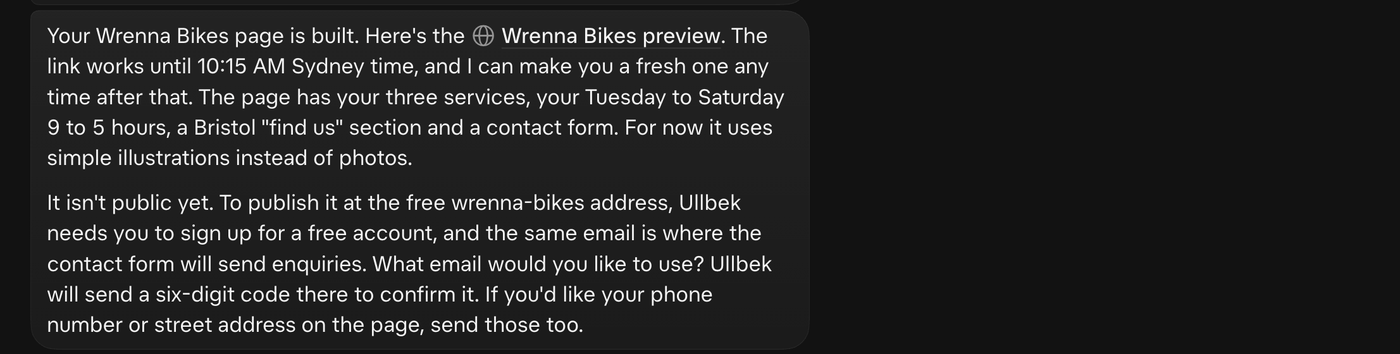
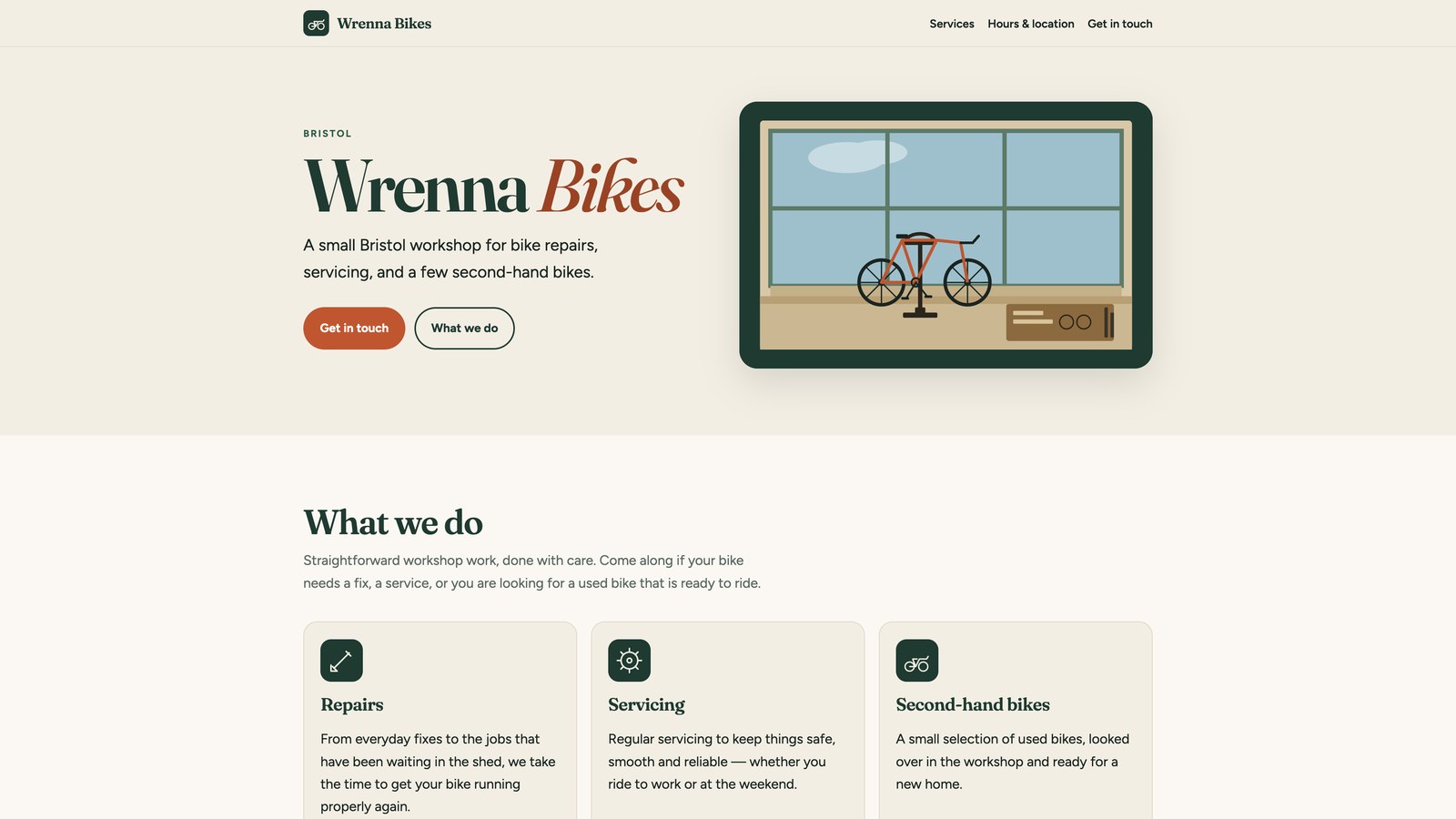
Want changes? Say them in plain words ("make the header warmer", "add my phone number") and ask for a fresh preview. The preview link works for a limited time (Grok Bot tells you until when), and Grok Bot can give you a new one whenever you ask.
Put it live
Happy with it? Say so. Going live needs a free Ullbek account, and Grok Bot makes it for you right there in the chat.
-
Say "put it live"
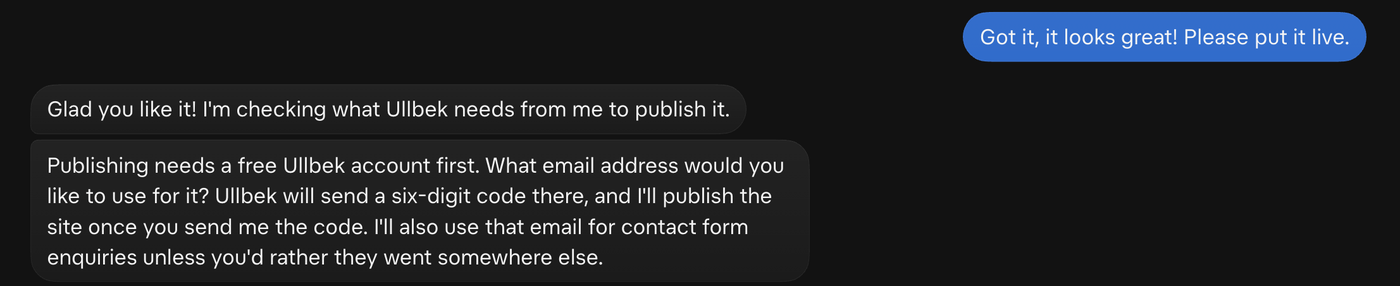
We wrote "It looks great! Please put it live." Grok Bot asks which email address to use. That email becomes your Ullbek account, and it's also where messages from your site's contact form will go.
-
Give your email
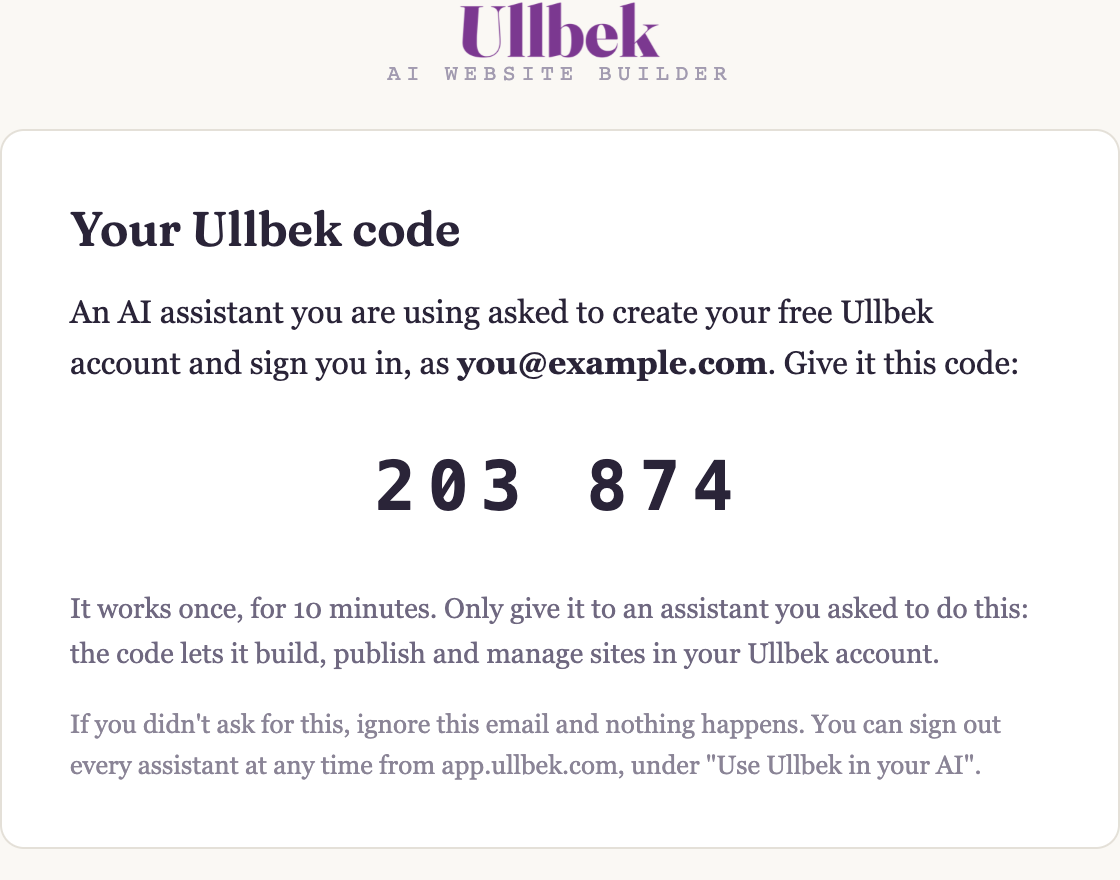
Type it into the chat. Ullbek emails you a six-digit code straight away, with the subject Your Ullbek code. If it isn't in your inbox, look in spam.
-
Send Grok Bot the code
Type the six digits into the chat. The code works once, for ten minutes. Grok Bot signs you in (or makes your free account if you're new), moves your draft into your account and publishes it. Ours was live within a minute.

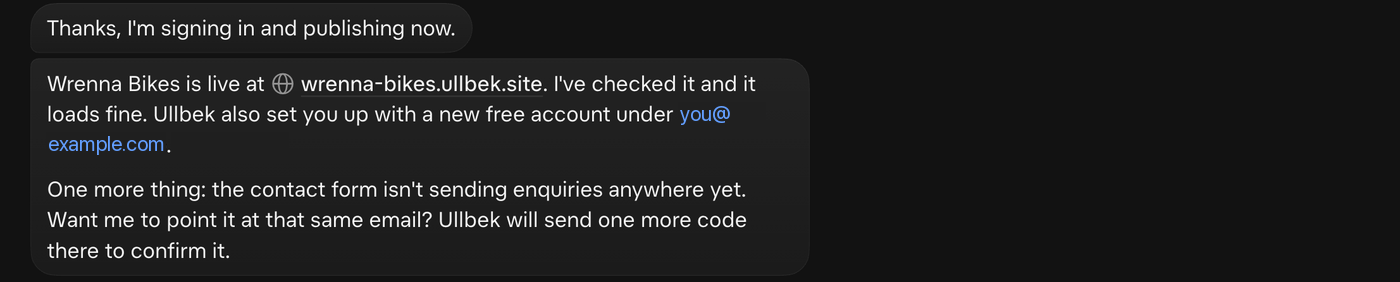
Grok Bot may then offer to send your contact form's messages to the same email, which takes one more code. We left that for another day; you can say yes, or ask for it whenever you like.
Sign out when you're done
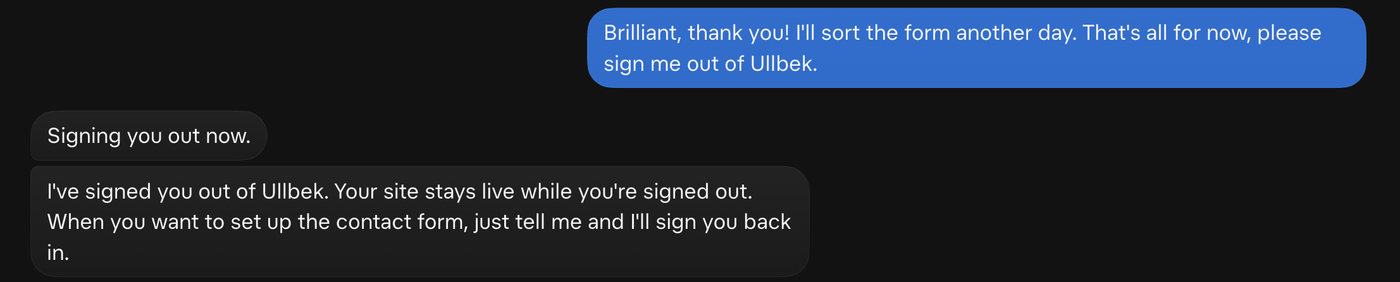
If you share the computer, or you'd just like Grok Bot to stop acting on your Ullbek account, ask it to sign you out. Your site stays live, and Grok Bot offered to sign back in whenever we wanted to set up the contact form.
Good to know
Where is my website kept?
In your Ullbek account, under the email you gave. Until you put it live, a draft is private: only its preview link opens it, and a draft nobody puts live is kept for seven days.
Is it safe to give Grok Bot the code?
Give it only when you asked Grok Bot to sign you in or put your site live. The code lets the assistant build, publish and manage the sites in your Ullbek account, works once, and runs out after ten minutes. If you get a code you didn't ask for, ignore the email and nothing happens.
I can't see Ullbek in Connect apps
That's what we saw too: after Grok Bot added Ullbek, it didn't show in the Connect apps window, and Grok Bot used it all the same for the rest of the conversation.
Using another AI app?
Ullbek works with any AI app that can add a connector. See Ullbek in Claude, Ullbek in ChatGPT, or other AI apps. Everywhere, this is the address:
Your website is one conversation away
Ask Grok Bot to connect Ullbek, tell it about your business, and put it live with your email and a code. About ten minutes, start to finish.