What you'll do
Antigravity is Google's app for working with an AI agent. Add Ullbek to it and that agent can build you a website — a real, custom site built around what you tell it, not a template with your name dropped in. There are three moments:
- Connect Ullbek once
Ask Antigravity to add Ullbek, then restart the app. About five minutes, and you never do it again.
- Ask for a website
Antigravity builds a private draft and gives you a link to see it. No account needed yet.
- Say "put it live"
Antigravity asks for your email, Ullbek sends you a six-digit code, you read it back, and your site goes live at its own yourname.ullbek.site address.
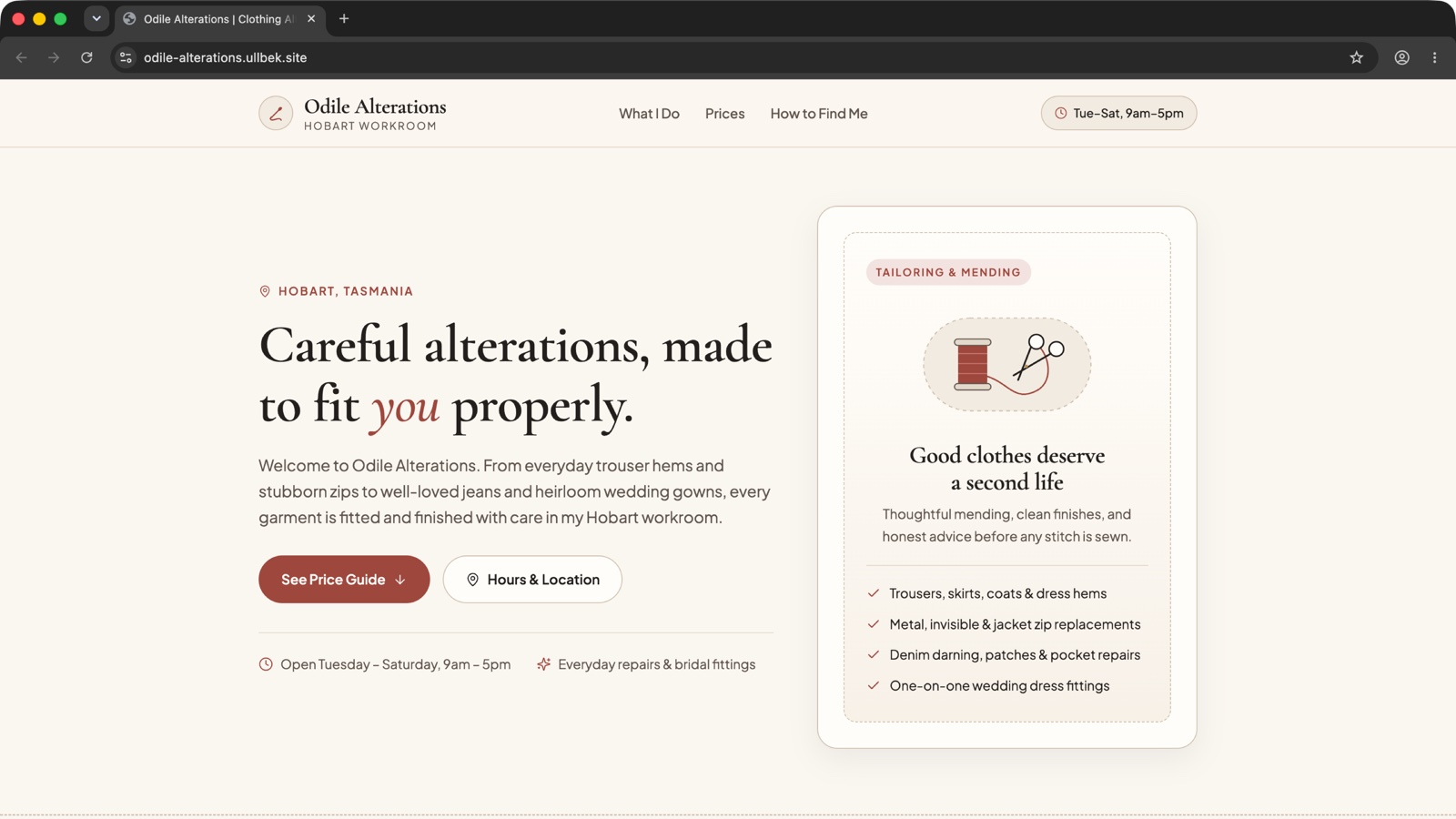
The example on this page is a made-up shop, Odile Alterations in Hobart. Every screenshot is from a real run, start to finish.
Connect Ullbek to Antigravity
Ullbek isn't in Antigravity's own list of add-ons, so you add it by its address. The easiest way is to ask Antigravity to do it for you.
-
Ask Antigravity to add Ullbek
Open Antigravity and start a New Conversation. Paste this and send it:
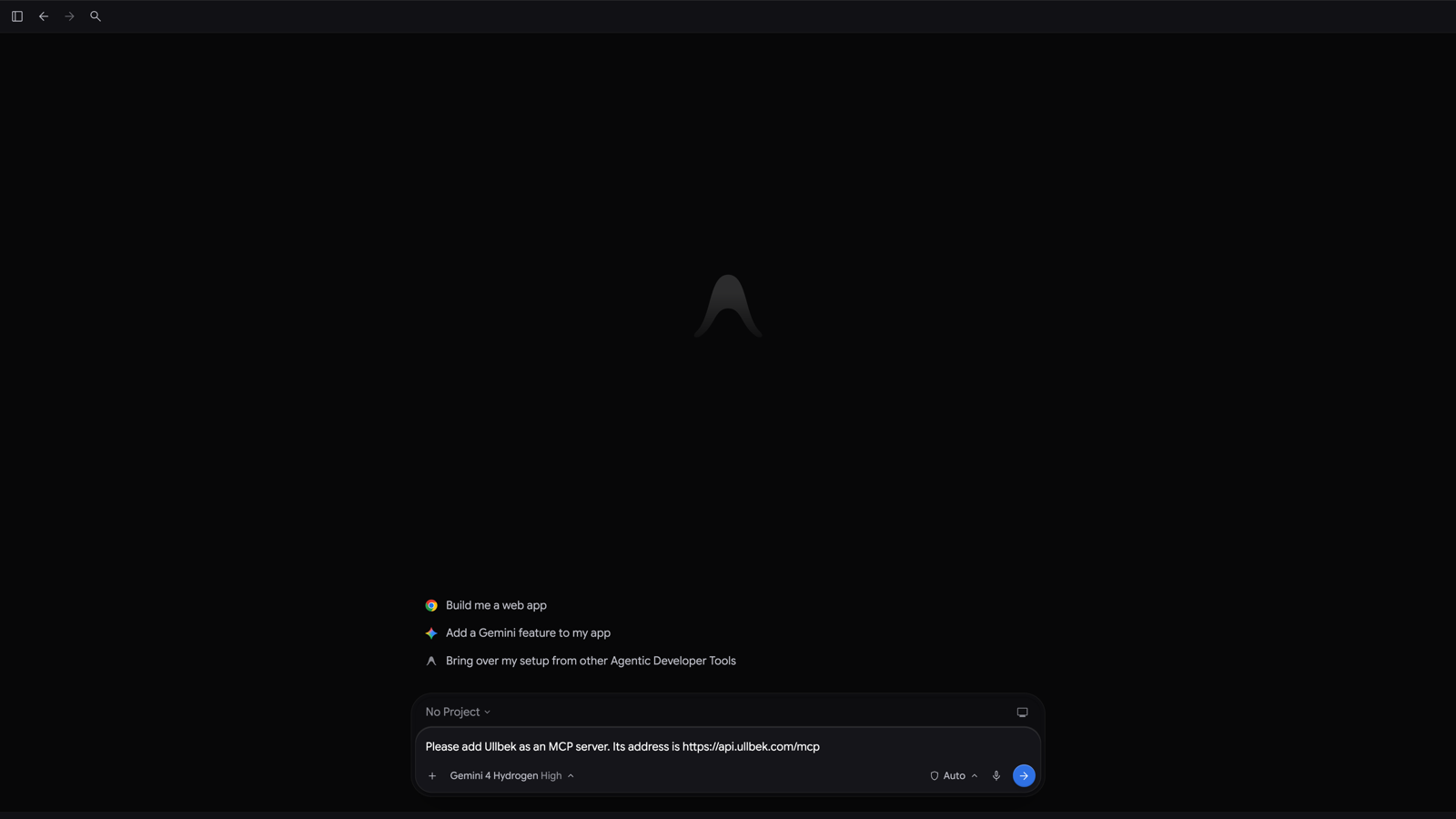
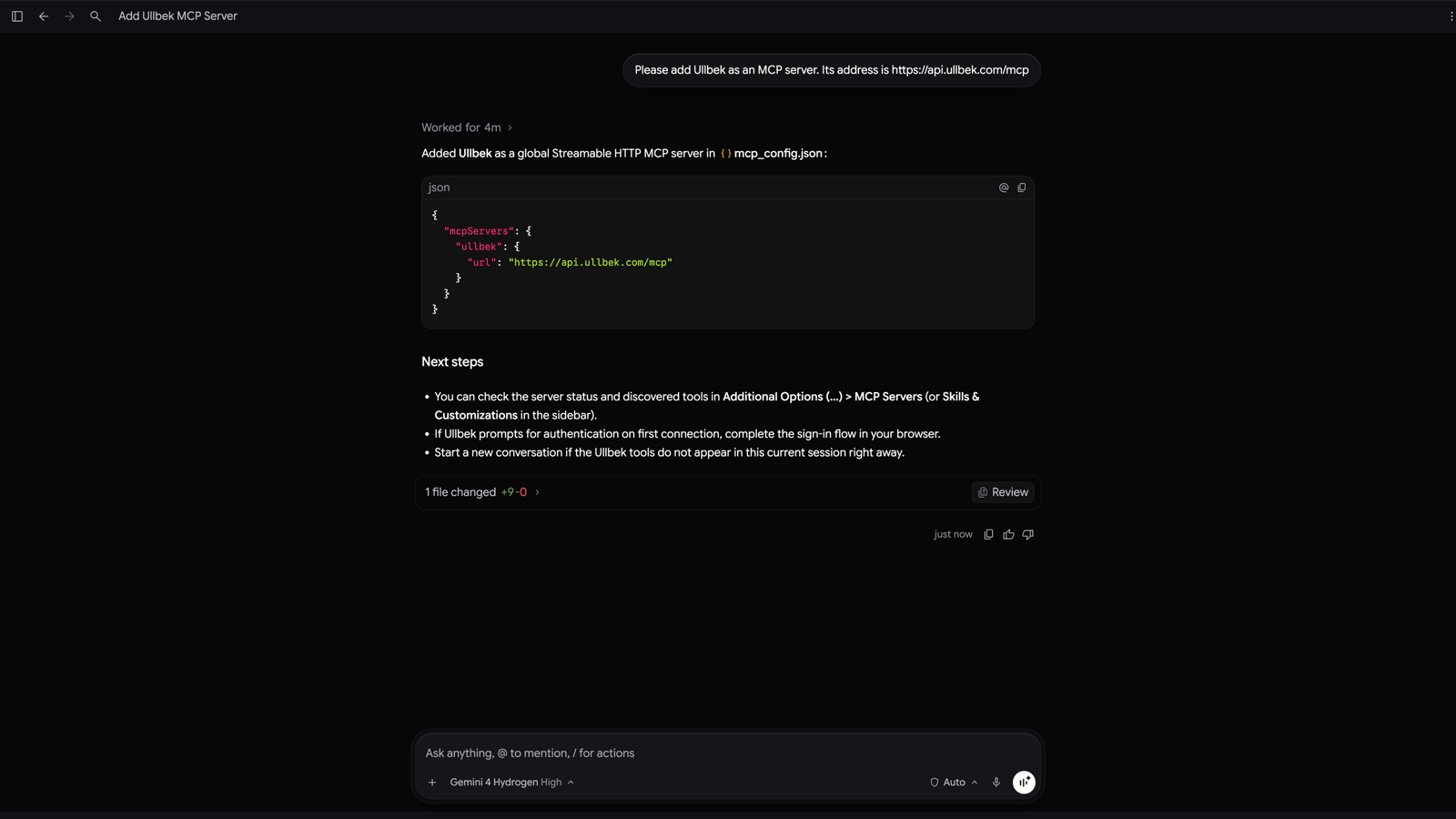
Antigravity looks up where its settings live and asks your permission to read and change its settings file a few times along the way. Each time, choose Yes and press Submit. After a few minutes it confirms that Ullbek has been added.
-
Restart Antigravity
Quit Antigravity (Antigravity → Quit Antigravity) and open it again. Ullbek is picked up when the app starts.
-
Check that Ullbek is there
Open Customizations in the sidebar and choose Installed. Under MCP Servers you'll see ullbek with its tools listed beside it. That's it — you're connected.
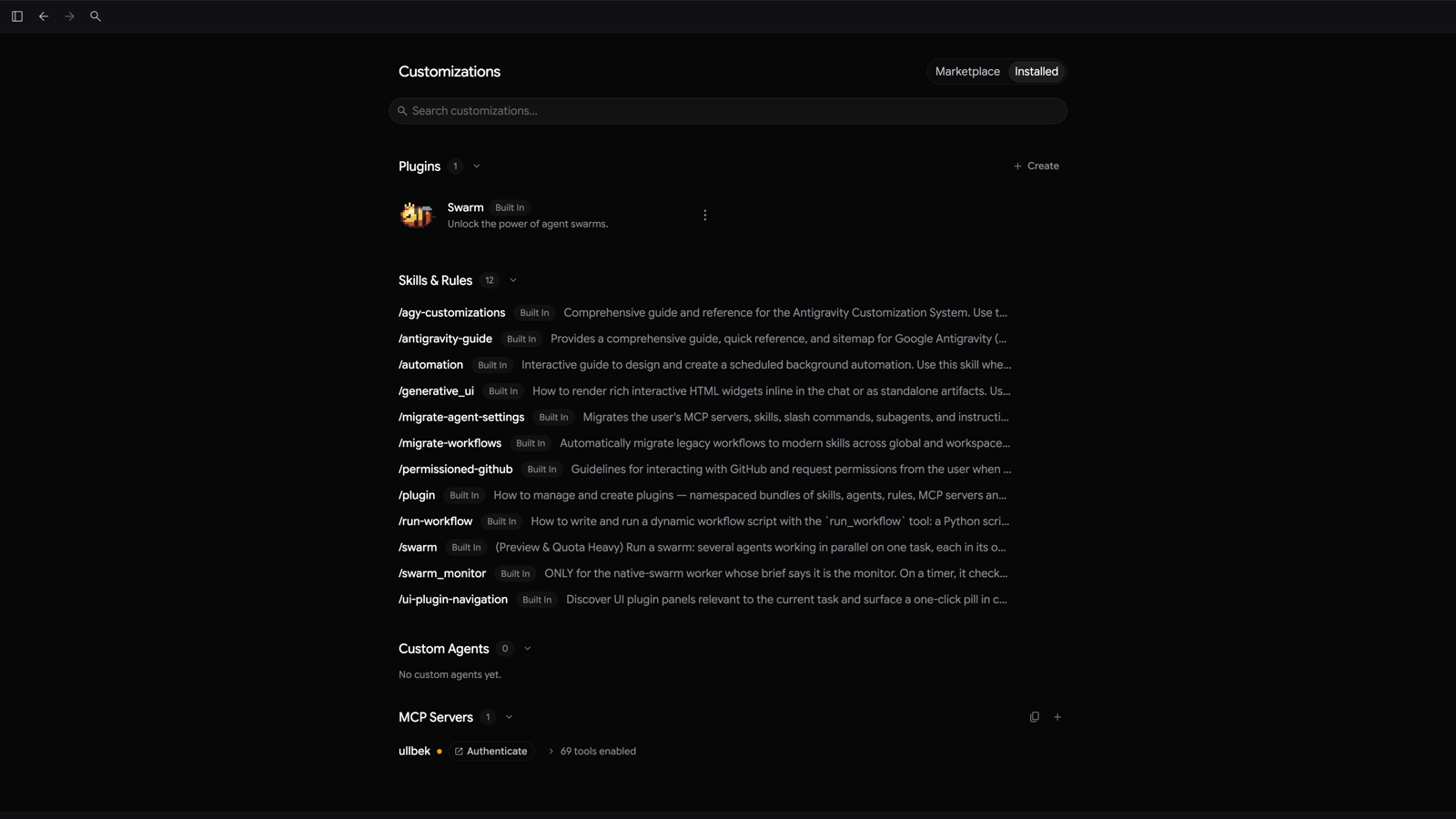
You can skip "Authenticate"Antigravity shows an Authenticate link next to Ullbek. You don't need it: Antigravity builds your draft without an account, and signs you in right in the conversation when you want the site live.
Prefer to add it yourself?Antigravity keeps its connections in one settings file. In Customizations → Installed → MCP Servers, the Copy Config File Path button copies where it is. This is the whole entry Antigravity added for Ullbek: {"mcpServers": {"ullbek": {"url": "https://api.ullbek.com/mcp"}}}. Save it, then restart Antigravity as above.
Build your first site
Start a New Conversation and say what you'd like, in your own words. Mention Ullbek, say what the business does, and add anything people should find on the page.
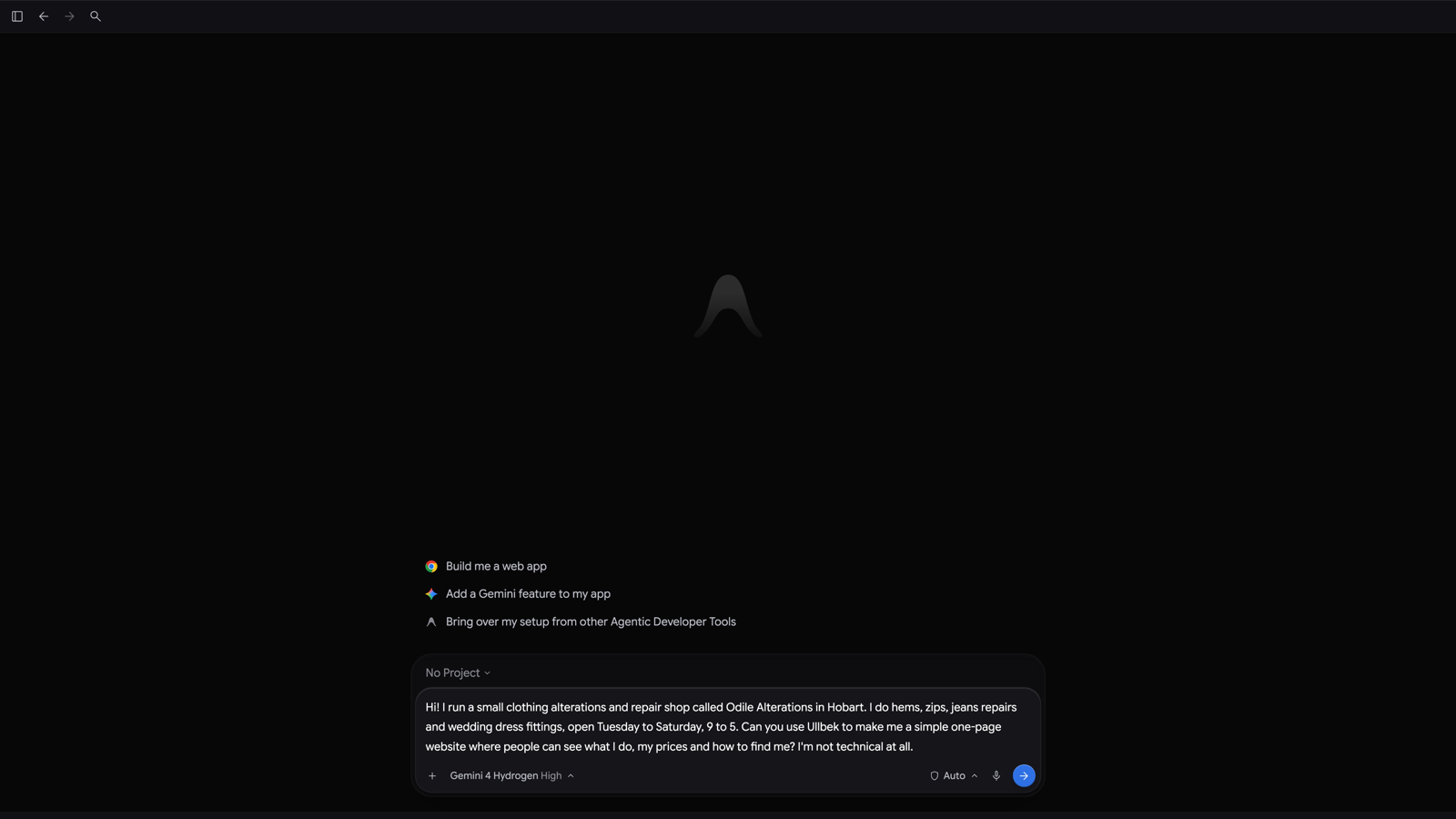
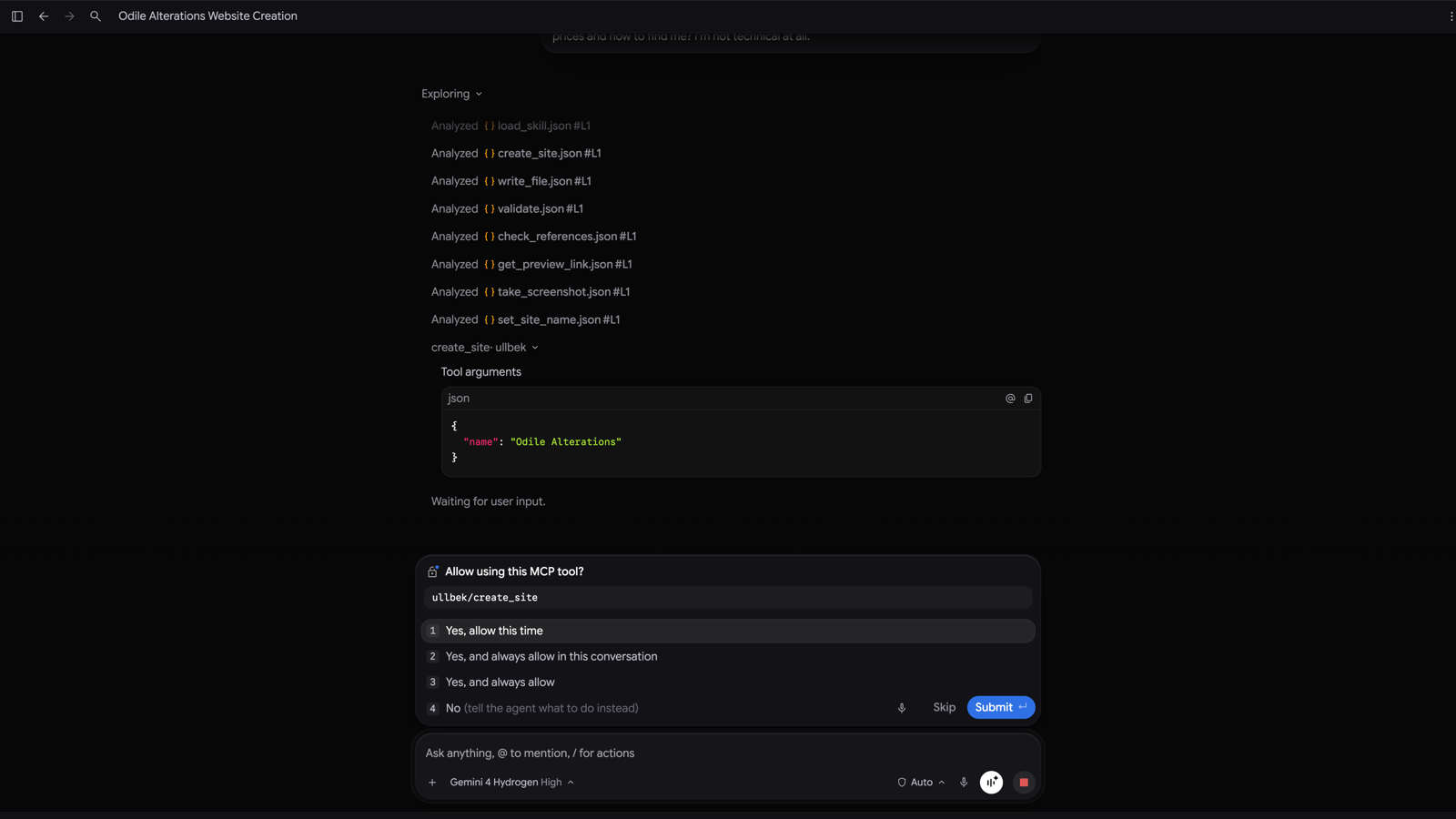
Antigravity asks before it uses each part of Ullbek for the first time — creating the site, writing a page, checking it, and so on. Choose Yes, and always allow in this conversation and press Submit, and that part won't ask again in this conversation.
Then Antigravity gets to work: it creates the site, writes the page, checks it, and takes its own screenshot to look over the result. Our example took about seven minutes. When it's done, it tells you what's on the page and gives you a preview link.
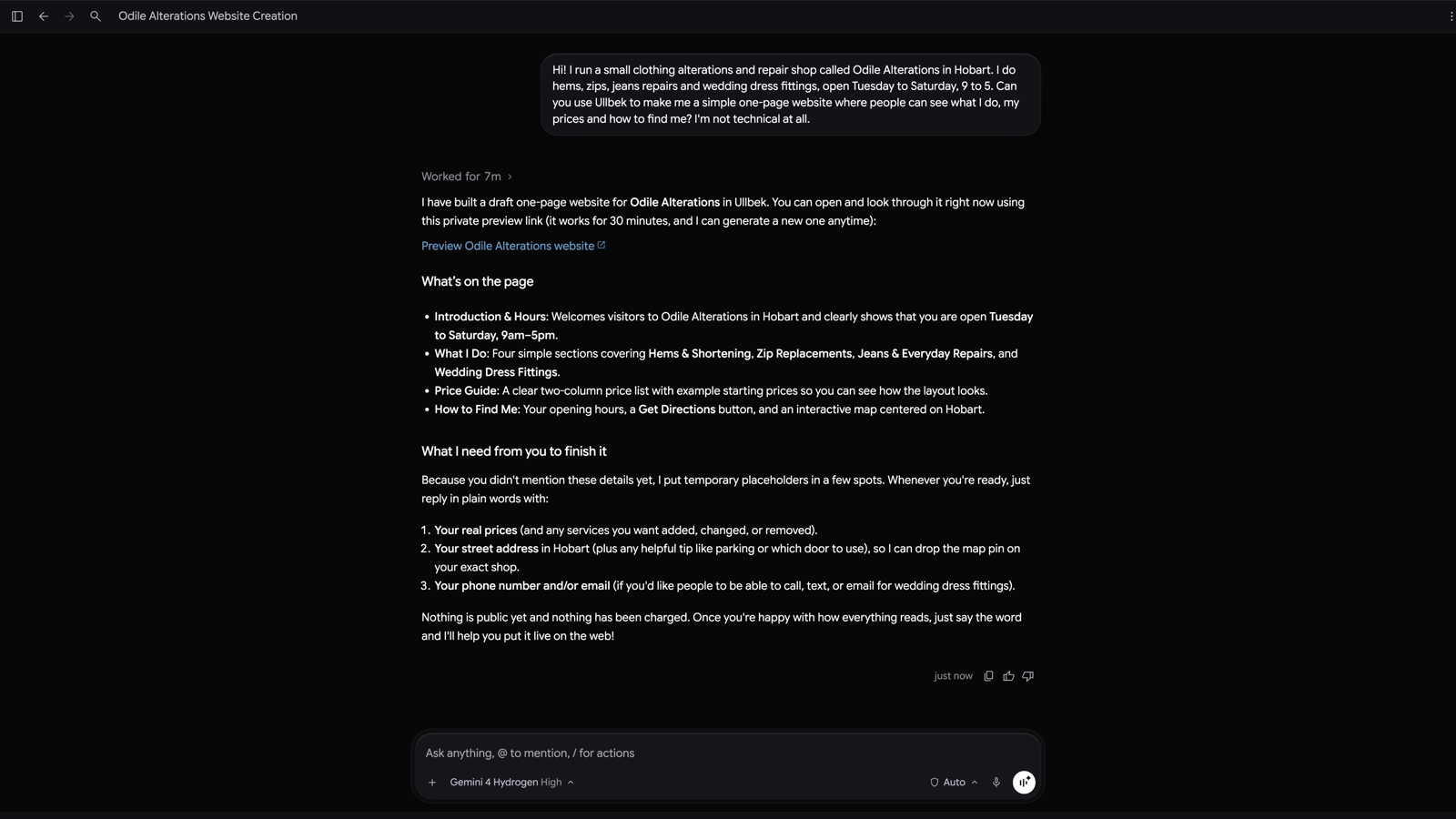
Open the link to see your real site in your browser. It's private: only people with the link can see it, and nothing is public yet. The link works for 30 minutes; ask Antigravity for a fresh one any time.
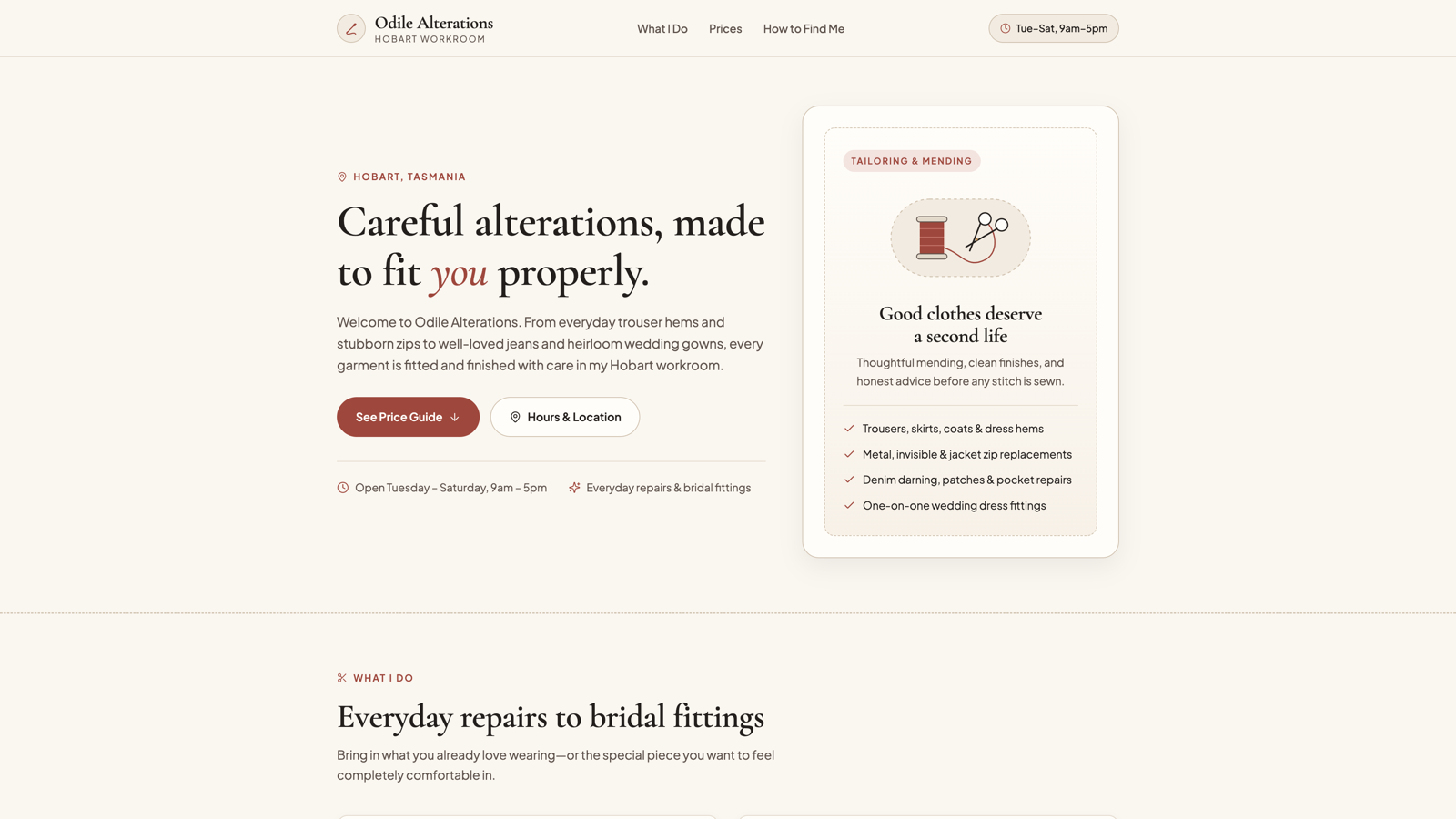
Want changes? Just say so — "make the header warmer", "add my phone number", "here are my real prices" — and Antigravity updates the same site.
Put it live
When you're happy, tell Antigravity to put it live.
A live website needs a free Ullbek account, so Antigravity asks for your email address. You don't need to sign up anywhere else.
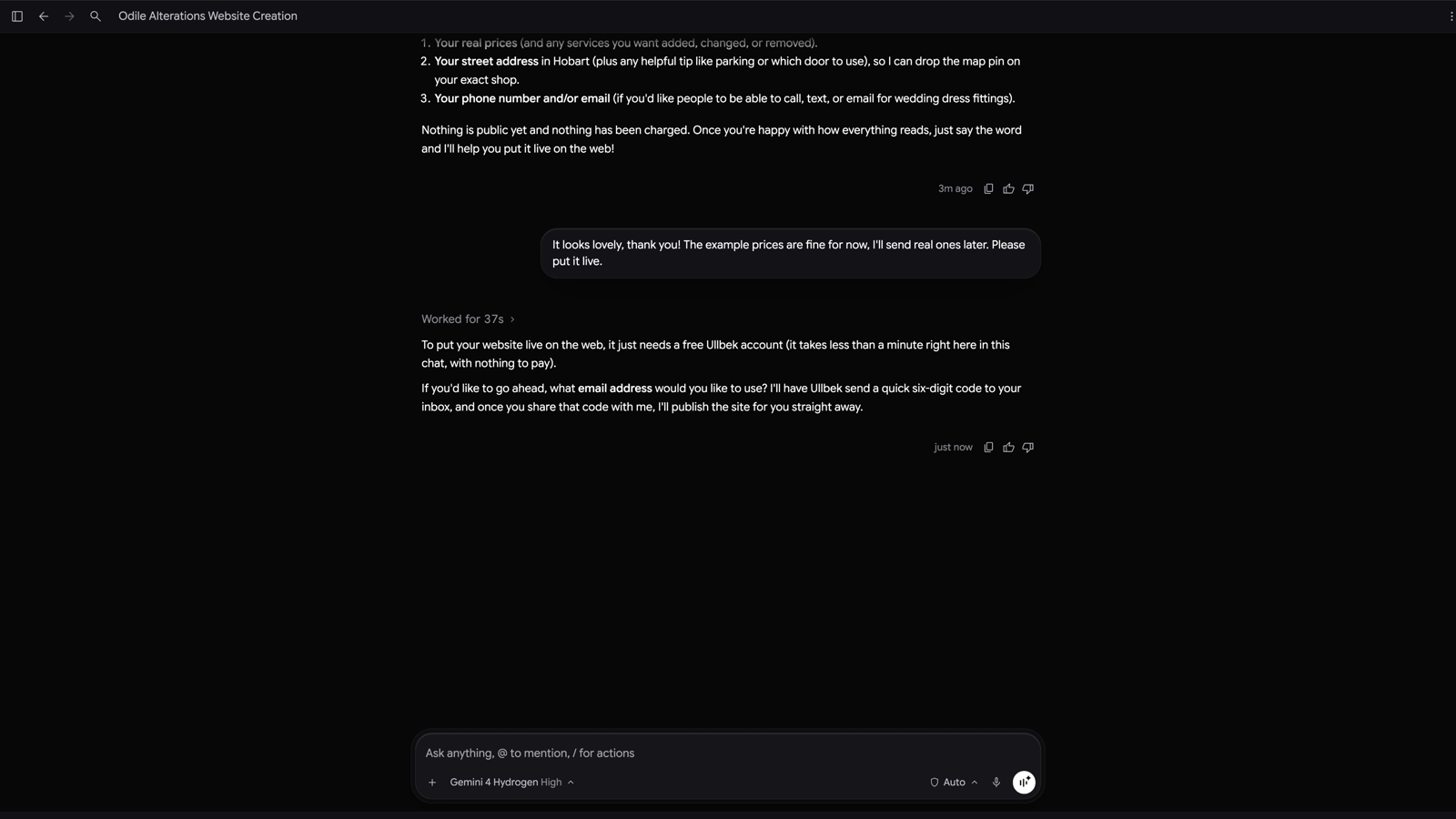
-
Give your email
Type the email address you want for your account. Ullbek emails you a six-digit code straight away; the subject line is Your Ullbek code. It can take a moment, so check your spam folder if it isn't there. The code works for 10 minutes.
-
Read the code back
Type the six digits into the conversation.
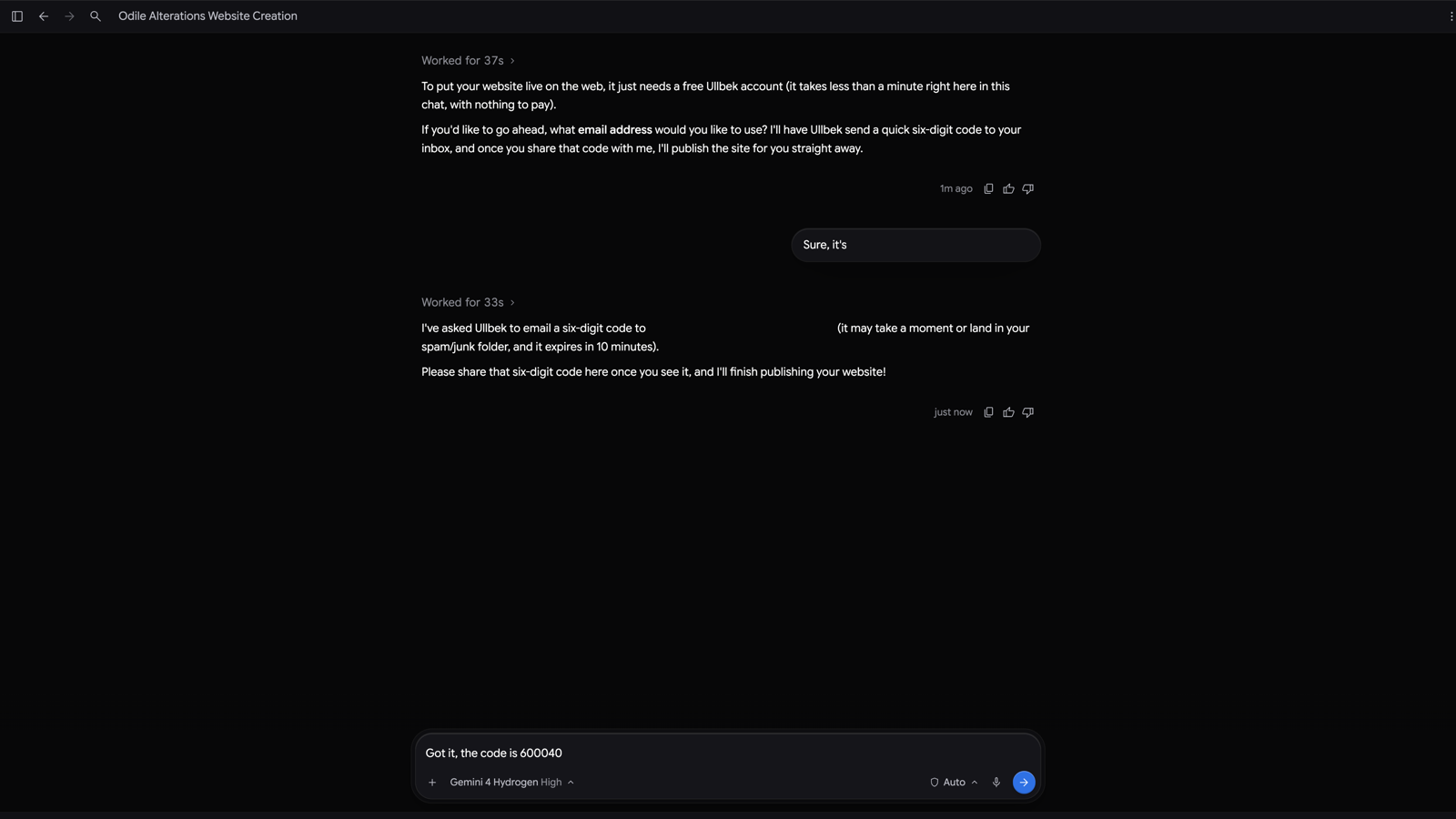
Antigravity makes your free Ullbek account, moves your draft into it, and publishes it. A couple of minutes later it gives you your live address.
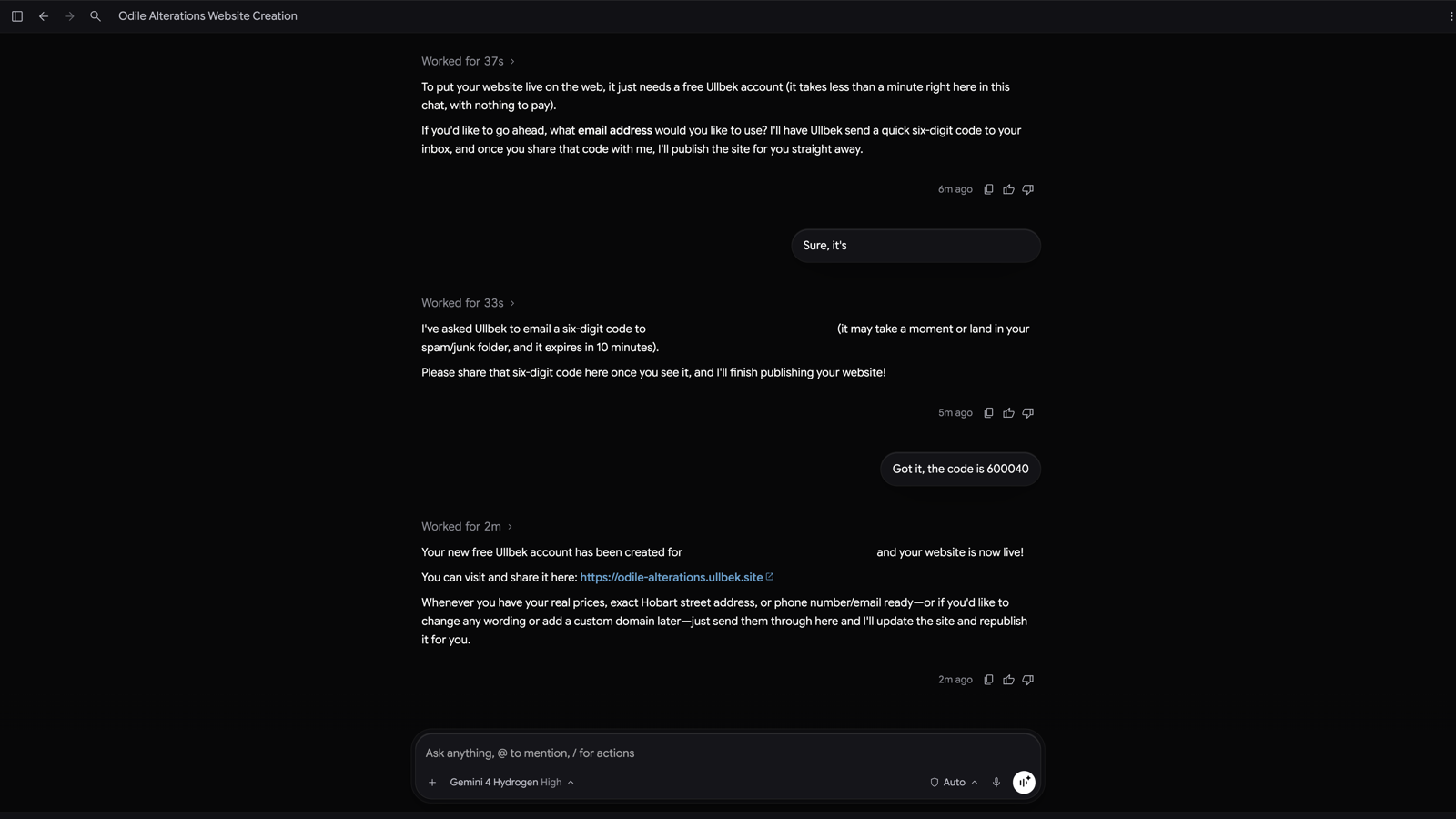
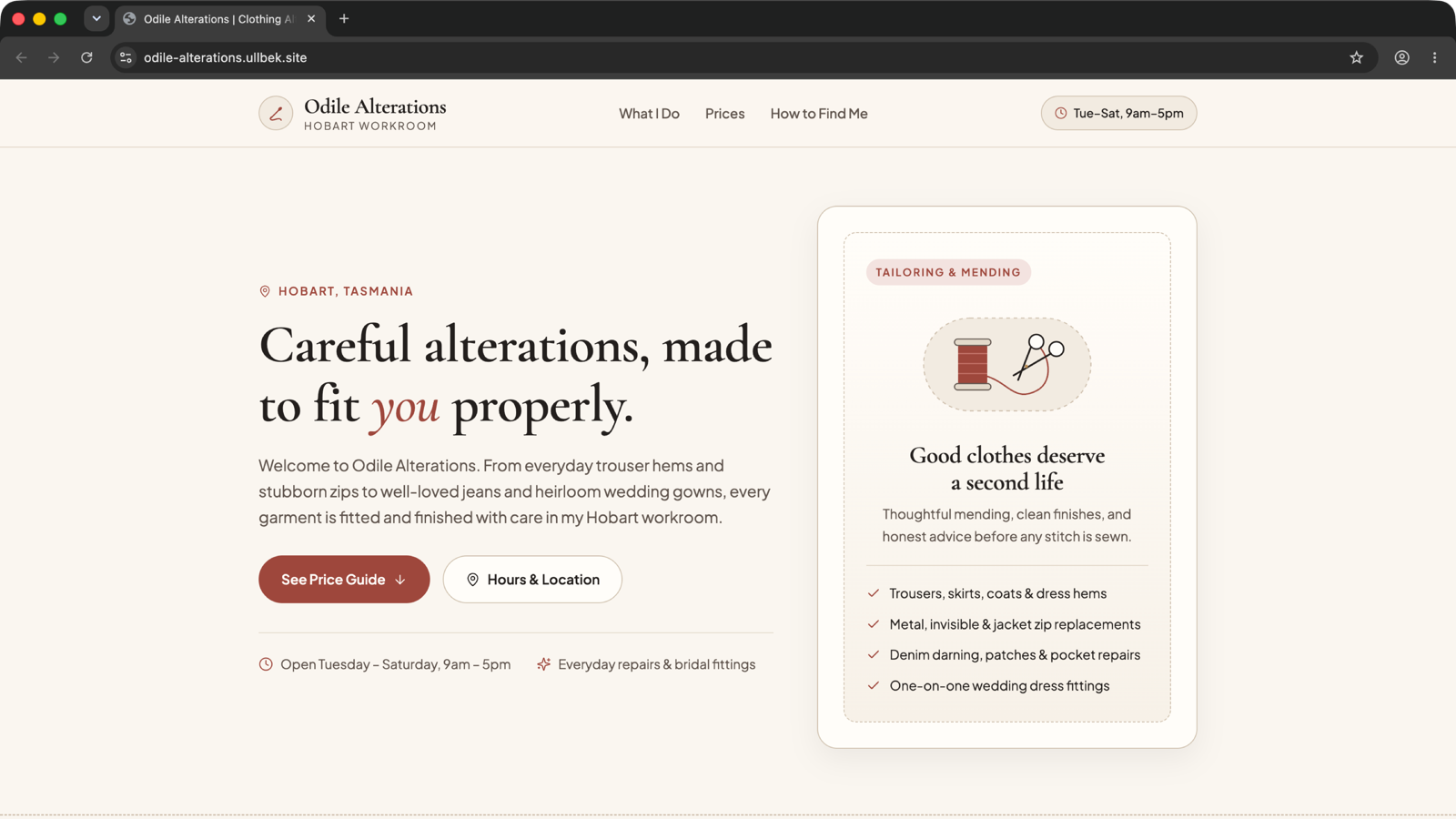
Every site gets a free yourname.ullbek.site address. To change the site later, come back to Antigravity and say what's different; it updates the site and publishes it again.
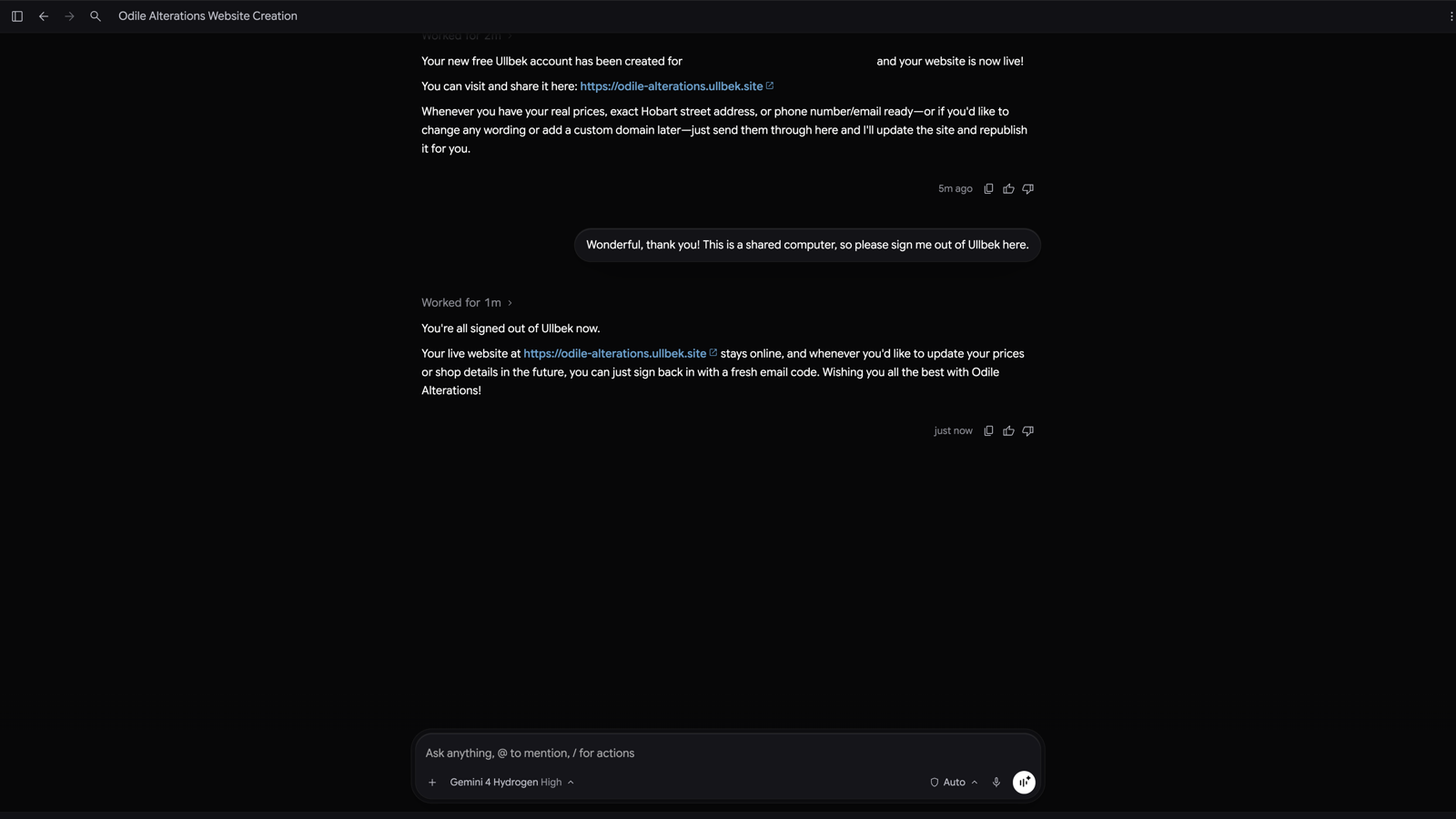
Sign out when you're done
On a shared computer, ask Antigravity to sign you out of Ullbek. Your website stays online. Next time you want to change it, Antigravity signs you back in with a fresh code.
Good to know
Do I need an Ullbek account before I start?
No. Antigravity builds your draft without one. The account is only needed to put the site live, and Antigravity makes it for you in the conversation with your email and a six-digit code. A draft nobody puts live is kept for a week.
Why does Antigravity keep asking permission?
Antigravity asks before it uses each part of Ullbek for the first time in a conversation. Choosing Yes, and always allow in this conversation means each part asks only once.
Is this safe?
Your draft is private until you say "put it live", and the code from your inbox is what proves the account is yours. Every site published this way passes the same content review as sites built in the Ullbek builder.
Using another AI app?
Ullbek works with Claude, ChatGPT and many other AI apps. See Use Ullbek inside Claude, Use Ullbek inside ChatGPT, and Use Ullbek with any AI app.
Your website is one conversation away
Add Ullbek to Antigravity, say what your business does, and watch it become a real website — live at its own address the moment you say so.