
Every client site goes through the same moment: you've built it, and now the client has to see it, react to it and say yes. On Ullbek that moment is a link. The client opens it on their phone, sees their real website exactly as it will look when it's live, and tells you what they think. You make the changes, they look again, and you publish.
This page covers the whole loop, from the first preview to the monthly changes that keep a client with you for years. If you're new to running an agency on Ullbek, start with Ullbek for agencies and come back here when your first site is ready to show.
Send a preview link
A preview link shows the client the site you're working on before it's live. They don't need an account, a password or an app: they tap the link and the site opens.
- Open the site in the builder
From your dashboard, open the client's site, for example Rosie & Bean in Maya's Studio.
- Click Share
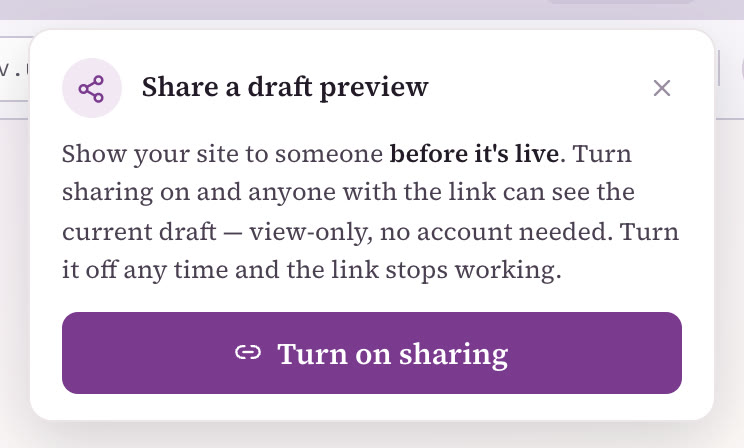
The Share a draft preview panel opens. You'll find the same control under Manage → Publishing → Draft preview.
- Click Turn on sharing
Ullbek gives you the site's preview link. Copy it.
- Send it the way you usually talk to the client
Email, WhatsApp, a text message. It's an ordinary link, so it works anywhere.
What the client sees
- The current working draft. Whatever the site looks like right now in your builder, the link shows, view-only.
- No account needed. Anyone with the link can open it, on any phone or computer.
- One link, for good. The link never expires and never changes. It always shows the latest draft, so you send it once.
- Off in one click. Click Turn off sharing and the link stops working straight away. Turn it back on whenever you need it.
A preview link shows a small chip that reads Draft preview — built with Ullbek. It tells the viewer they're looking at a draft, not the live site. Mention it when you send the link ("you'll see a little draft label, that's just because it isn't live yet") so nobody is surprised.
The approval loop that works
Most website projects don't go wrong in the building. They go wrong in the feedback: comments arriving one at a time over two weeks, a partner who sees it last and wants something different, and nobody quite saying "yes, that's it". A simple routine fixes almost all of that.
- Send the link with two or three specific questions
"What do you think?" gets you silence or a novel. Specific questions get you useful answers, and they tell the client what to look at.
- Ask for all the feedback in one message
One list, from everyone who has a say, by a day you agree. If the business has two owners, ask them to look together.
- Make the changes by telling Ullbek what to change
Open the site in the builder and say what should change, in plain words. You can work through the client's list one item at a time or give Ullbek the whole list at once.
- Reply: "It's updated, same link"
Because the link always shows the latest draft, there's nothing new to send. The client opens the link they already have.
- Ask for a clear "yes, publish"
Don't publish on "looks fine I think". Ask the direct question, and wait for the yes in writing.
Here's the kind of message Maya sends with a first draft:
Change requests Ullbek gets right first time
Be as specific as the client was, or more. Name the page and the part of the page, and say what you want rather than what you don't. A few that work well:
When the changes are in, look through the site yourself before you reply to the client. You're the person whose name is on the work, so you're the first reviewer.
The same preview link always shows the latest draft, so you never send a "v2" or "final-final" link. Clients keep one link from the first draft to the day it goes live, and every round of changes is one short message: "It's updated, same link."
Publishing on approval
When the client says "yes, publish", press Publish in the builder. The site goes live on its free ullbek.site address, or on the client's own domain once the site is on premium hosting. The steps and the domain options are in Publishing & going live.
The preview link keeps showing the working draft after the site is live. That's handy for next month: make the client's changes, let them check the draft through the same link, and publish again when they're happy.
Most agencies put a small credit in the footer of every client site, such as "Website by Maya's Studio", linking to the studio's own site. It's how the work finds you your next client. Agree it with the client up front (it's normal agency practice), then ask Ullbek before you publish:
Use your studio's name and your studio's site. This is your own credit and it has nothing to do with the Ullbek badge, which only appears on free ullbek.site addresses.
Contact forms work in the preview too, so the client can try theirs before launch. Messages sent from a preview arrive tagged [Test], so nobody mistakes them for a real enquiry. Form messages go to the workspace owner's email (yours, in your main workspace) unless you change it. If enquiries should go straight to the client, set that before launch: tell Ullbek ("send form messages to rosie@…"), and the client types back the 6-digit code that arrives in their inbox. More in Contact forms & submissions.
When the client wants to make changes themselves
Many clients are happy for you to make every change; that's what they pay you for. Some want to change the opening hours themselves on a Sunday night. For them, add the client to that one site as a guest.
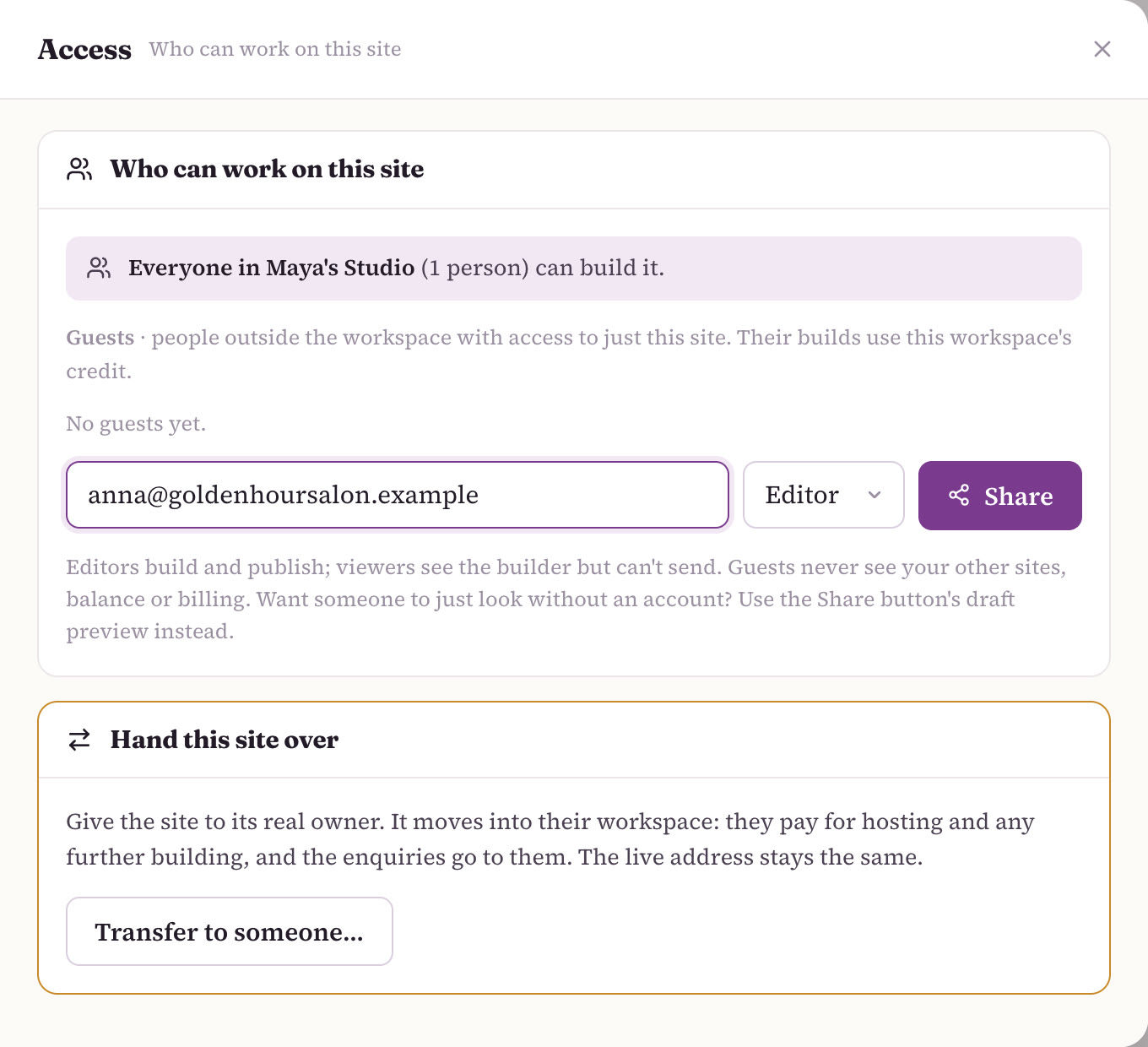
- Open Manage → Access
In the builder for the client's site, open Manage, then Access. The first card is Who can work on this site.
- Enter the client's email
The address they'll use to sign in to Ullbek.
- Choose Editor or Viewer, then click Share
The site appears in their dashboard under Shared with you.
| A guest who is… | Can | Never sees |
|---|---|---|
| Editor | Build and publish that one site: ask for changes, see the preview, press Publish. | Your other sites, your balance, your billing or your workspace's people. Guests can't subscribe, delete the site, hand it over or pay. |
| Viewer | Open the builder read-only: the preview and the conversation, without sending anything. |
A Viewer suits a client who likes to watch the work take shape. An Editor suits a client who wants to make small changes and publish them without waiting for you. Guests sign in to Ullbek to open the site; if someone only needs to look, the preview link is simpler and needs no account.
When a guest editor builds, it uses the credit of the workspace the site lives in, which is yours. If that credit runs out, the guest sees a card asking them to contact the owner, and Ullbek emails you. Agree up front how much a client can change on their own, and build it into your monthly fee.
A client who wants to look at their site needs a preview link. A client who wants to edit it needs a guest invite as an Editor. Either way, their site stays in your main workspace with all your other clients, and you bill them yourself as usual.
A separate workspace is only for when a client's billing has to be different: they want to pay Ullbek directly with their own way to pay, pay in their own country's currency, or control the billing themselves. Then you create a workspace named after the client, invite them as an admin, and they add their way to pay; their changes run on their own credit. That's the exception, not the routine; see Organise clients with workspaces. And if a client wants the site to be fully theirs, you can hand it over and stay on as an editor.
One builder at a time
A site has one builder at a time. If someone else is working on it when you open it, you'll see "X is building this site", with a Take over button.
That's exactly what you want with a client who edits: two people changing the same page at once is how work gets lost. Agree a simple rule, such as "I make changes on Mondays and Thursdays; anything else is yours", or ask the client to message you before they start. Use Take over when you've agreed it, not as a surprise.
Changes as a service
Changes are where an agency keeps its clients. A website is never finished: there's a new menu, a summer price list, a holiday closure, a new team member. Most agencies sell this as a monthly care plan, alongside the one-off build fee. A care plan typically covers:
- Keeping the site live on its hosting and its own domain, renewed on time.
- Changes when they need them, within what you agree: new prices, photos, opening hours, a seasonal page.
- Form messages that arrive at the right inbox, checked when anything changes.
- Someone to call. That's you, and it's the part clients value most.
You set the price. Every change uses building credit from the workspace the site lives in, and hosting and domains have their own costs; all of it is on the pricing page in your currency, and Who pays for what shows how to cover it. Once you have more than ten sites on premium hosting, email us at support@ullbek.com and we'll take 25% off premium hosting from your 11th site onwards.
A simple change-request routine
- One place for requests
One email address or one message thread per client, so nothing gets lost in a voicemail.
- What, where and by when
Ask clients to say what should change, on which page, and when it needs to be live.
- Batch the small things, rush the urgent ones
A wrong phone number or a closure today goes straight in. Everything else waits for your weekly or monthly round.
- Make it, check it, send the link
Tell Ullbek what to change, look over the draft, and send "It's updated, same link".
- Publish on their yes, and keep a short log
A line per change (the date and what changed) makes your monthly summary and invoice easy to write.
For tiny fixes, like this week's opening hours, many agencies agree with the client that they can go straight live without a preview round. Save the full loop for anything the client will want to see first.
Related
Organise clients with workspaces
All your clients in your main workspace, and the rare client whose billing needs its own.
Who pays for what
Building, hosting and domains, and how to cover them in your prices.
Hand a site to a client
Move a finished site into the client's workspace and stay on as an editor.
Agency FAQ
The badge, client ownership, limits, and what Ullbek doesn't do.
Send your first preview tonight
Build a sample site for a business you know, turn on sharing, and send them the link.