
The assistant that already knows your business
If you've been using Claude to think through your business — the name, what you offer, who it's for, the tone, the prices, the plan for the year — it already holds the most important ingredient of your website: the context. Every website builder makes you type all of that in again. With Ullbek connected, you don't.
You stay in the chat you already use. Ullbek supplies the workshop underneath: sites, live previews, publishing, contact forms, hosting, and your own domain. Claude does the building, drawing on everything you've told it. The result is a real, custom website built around your business — not a template with your logo dropped in.
Same account, two doorsEverything Claude builds lands in your normal Ullbek account. Open app.ullbek.com anytime and continue in the Ullbek builder — same sites, same files, no import step. Switch back and forth as much as you like.
Connect Ullbek to Claude
You'll do this once, and it carries across Claude on the web, the desktop app and the mobile app. It takes about a minute, and there is nothing to pay Ullbek for — connecting is free, and your Claude plan powers the conversation.
-
Add Ullbek to Claude
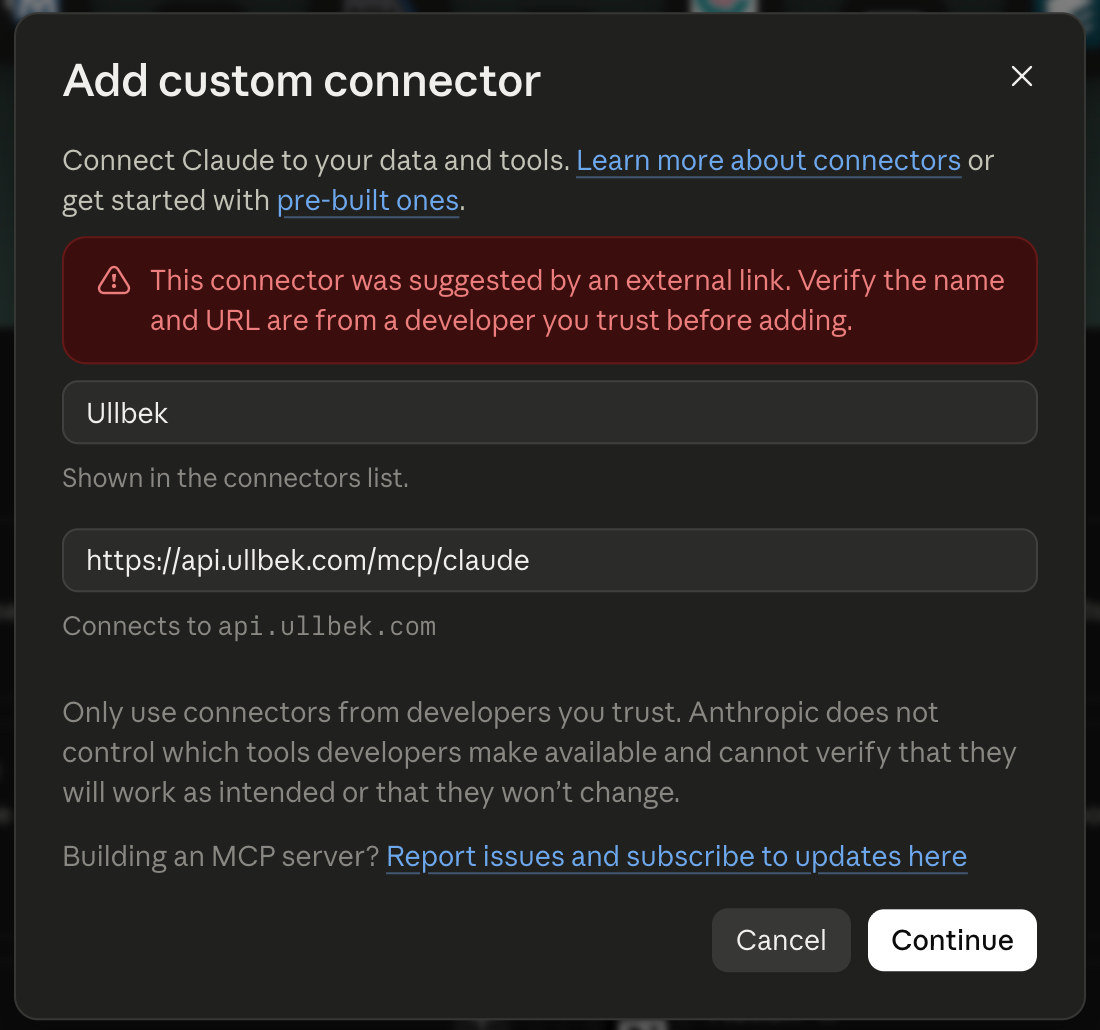
Click Add Ullbek to Claude. Claude opens its connector dialog with the name and address already filled in — check that the address is
https://api.ullbek.com/mcp/claudeand click Continue.
-
Connect it
Ullbek now appears in your connectors. Click Connect and Claude opens the Ullbek sign-in page in your browser.
-
Sign in and allow
Continue with Google or sign in with email — or create your free account right there if you're new. Review what the connection can do, then allow it. Back in Claude, Ullbek is ready.
Prefer to do it by hand?Ullbek is on its way into Claude's Connectors directory; until it's listed there, add it yourself: in Connectors choose Add custom connector, name it Ullbek, paste https://api.ullbek.com/mcp/claude, click Add, then Connect and follow the same sign-in-and-allow flow. Custom connectors are available on Claude's paid plans. The abilities are identical.
Claude Code (for the technically inclined)
One command in your terminal: claude mcp add --transport http ullbek https://api.ullbek.com/mcp/claude. Then, in a Claude Code session, run /mcp, choose ullbek and Authenticate to sign in. An Ullbek plugin for Claude Code and Cowork, with ready-made commands for building and for putting a project folder online, is on its way.
Build your first site
Start a new chat and describe what you want. The more you've already discussed with Claude, the less you need to say now — just point it at what it knows.
The first time Claude uses a tool that changes something — writing a page, publishing — it asks your permission. Read-only steps like listing your sites or checking a link run without asking. Choose Always allow for the tools you're comfortable with and the build flows without interruption.
Claude then works for a few minutes: it creates the site, writes the pages, places your photos and logo, checks its own work, and hands you two links — a private preview of the real site, and, when you say the word, the live address.
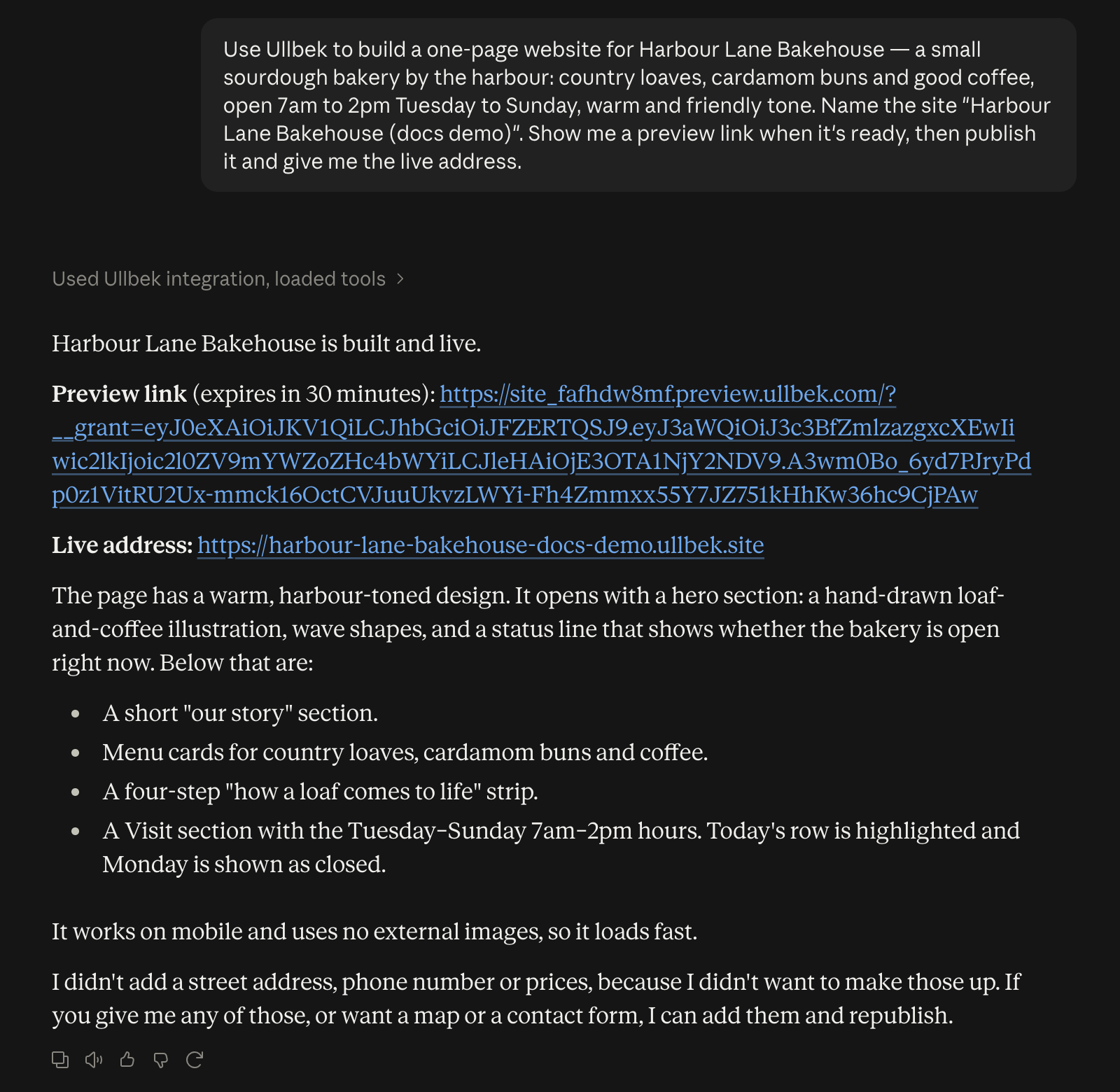
From there it's a conversation. "Make the header warmer." "Add a section with the opening hours." "Use the photo I uploaded for the hero." Every change shows up in the preview; publish again whenever you're happy. Every site gets a free yourname.ullbek.site address with hosting and HTTPS included.
Getting the most out of it
Put the business in a Project
If your business plan, brand notes and offer already live in a Claude Project, start the build from inside it. Claude carries the Project's knowledge into every page, so the site reflects the real business — its offer, its voice, its customers — instead of a generic first draft.
Give it your photos
Drop your logo and photos into the chat, or tell Claude where to find them on the web, and it places them on the site. Your own pictures make a site look like yours.
Ask for a preview before publishing
The preview link is the real site, served exactly as it will go live. Open it on your phone and your laptop, click through every page, and send changes back in plain words. Publish only when it looks right.
Ask for a screenshot
"Show me a screenshot of the homepage on a phone" gets you a picture right in the chat — handy for a quick look without opening a link.
Continue in the Ullbek builder when you want the full workshop
Side-by-side live preview, the brand kit, your assets, form submissions, models to choose from: all of it is waiting at app.ullbek.com, on the same site Claude just made. Many people start a site in Claude and polish it in the builder.
What Claude can do with Ullbek
Once connected, Claude gets the same abilities the Ullbek builder has — the full journey, not a demo:
Create & edit sites
Start a new site or keep improving an existing one — pages, sections, images, colors, the lot.
Live preview links
Ask for a preview and you get a private link to the real, running site — click it and see exactly what will go live.
Publish & go live
Free address included, secure HTTPS and all. Say the word and your site is on the internet.
Your own domain
On premium hosting, connect a domain you own — Claude walks you through the setup, record by record, and confirms when it's live.
Read your messages
"Any new messages from my contact form?" — form submissions arrive in your inbox and Claude can read them back to you.
Your photos & screenshots
Your own photos and logo, placed well and sized right, plus fresh screenshots of your site right in the conversation.
Premium hosting and your own domain
The free address is yours for as long as you like. When you want the site on your own domain, ask Claude — it hands you a secure checkout link for premium hosting, which you open and complete in your own browser. Once the site is on premium hosting, Claude takes over the technical part: it tells you exactly which DNS records to add and keeps checking until your domain answers.
Payments never happen in chatClaude can never charge you. Anything paid — premium hosting, a domain, extra credits — only ever happens through a secure checkout page that you open in your browser. The price is shown there before you confirm.
ChatGPT and other assistants
Ullbek works with any assistant that supports connectors — the open standard is called MCP (Model Context Protocol). ChatGPT has its own one-click install: see Use Ullbek inside ChatGPT. Everywhere else, this is everything the assistant needs:
If your tool asks for a connection type, pick Streamable HTTP (Ullbek is a remote server, not a program on your computer). Name it anything you like, paste the URL, and skip every token and header field: the sign-in happens in your browser when you first use it.
Good to know
Is this safe?
The connection can build and publish websites on your account — and that's it. It cannot spend your money (payments only complete in a checkout you open yourself), Claude asks before it changes anything unless you've told it not to, and sites published from a chat pass the same content review as sites published from the builder. Sensible per-account rate limits apply.
How do I disconnect?
In Claude, open Customize → Connectors, find Ullbek, and remove it — the same place you connected it. That ends its access; you can reconnect anytime with the same steps. Your sites stay safe in your Ullbek account either way.
Which is better — Claude or the Ullbek builder?
They're the same account, so it's never either/or. The Ullbek builder gives you the full workshop: side-by-side live preview, brand kit, assets, models to choose from. Claude gives you convenience and context — the assistant that already knows your business can act on it. Many people start a site in a conversation and polish it in the builder.
Your website is one message away
Connect Ullbek in Claude, say what you want, and the business you've been talking about becomes a real website.