Every step is written out below.
Captions available — press CC · Also on YouTube
You type your Weebly site's address, the one on your business cards and your Google listing, and your site isn't there. If you are in one of the 67 countries, it is most likely nothing you did: not a missed bill, and not a hack.
Sites in those countries were taken offline on purpose, and Weebly said so in a notice on its own help center. This page walks through that notice, the three things you can still get, and the date that matters for two of them. Everything in it, and in the film above, was looked up on the real pages on 10 November 2026.
What actually happened
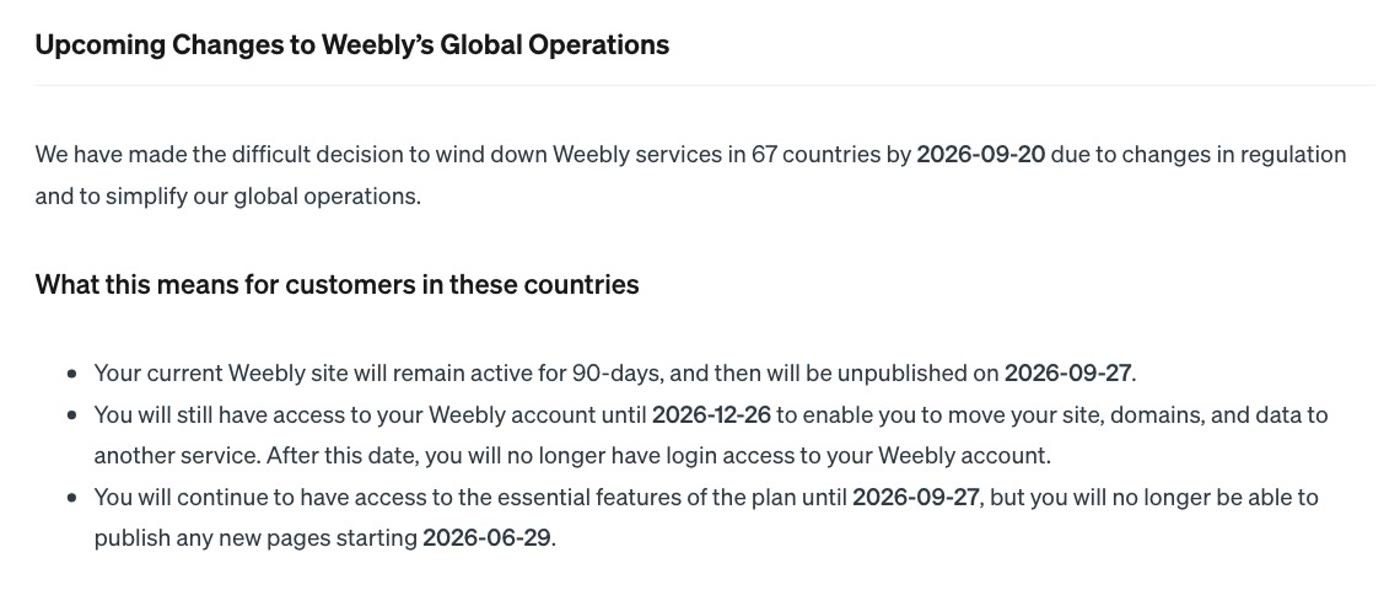
Weebly's notice, Upcoming Changes to Weebly's Global Operations, says Weebly is winding down its services in 67 countries "due to changes in regulation and to simplify our global operations". For sites in those countries it sets out three dates:
- 29 June 2026: no new pages could be published.
- 27 September 2026: the sites were unpublished. That is the day your address stopped showing your site.
- 26 December 2026: account access ends. The notice says you have access until then "to enable you to move your site, domains, and data to another service", and that after it "you will no longer have login access to your Weebly account."
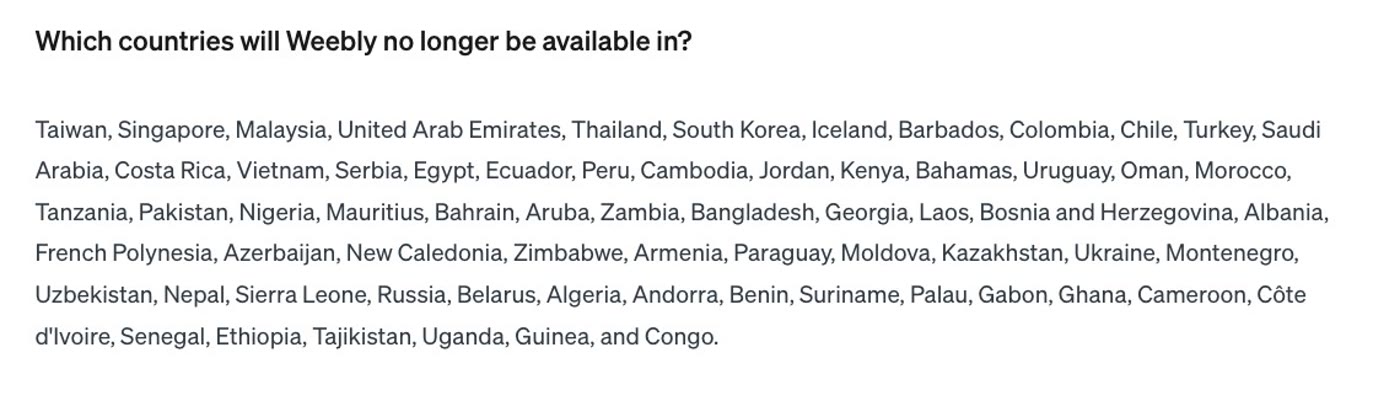
Is your country one of them? The full list is at the end of the same notice, under "Which countries will Weebly no longer be available in?". It includes Singapore, Malaysia, the United Arab Emirates, Turkey, Kenya, Nigeria, Pakistan and Bangladesh, among others. Check your country there, by name.
Weebly's notice gives no way to put it back online there. The time Weebly gives you is for moving to another service, so getting back online means rebuilding the site somewhere else. Three things are still yours to get first, and two of them need your Weebly login, which ends on 26 December 2026.
Step 1: Save your domain
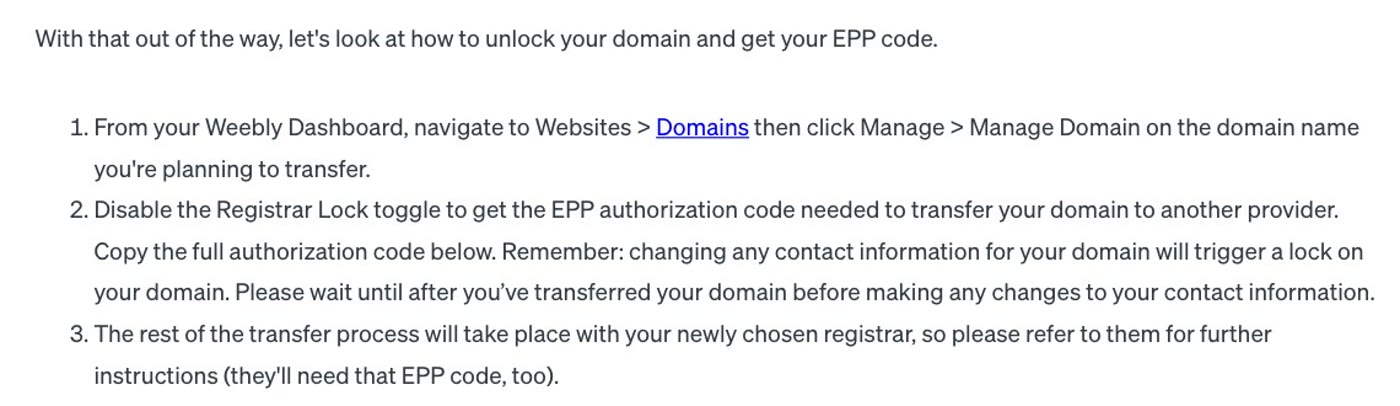
If you bought your domain (yourbusiness.com) through Weebly, it is in your Weebly account, and you unlock it from inside the account. Weebly's notice gives the steps:
- In your Weebly dashboard, go to Websites, then Domains. Click Manage, then Manage Domain on the domain you want to move.
- Turn off the Registrar Lock toggle and copy the EPP code. The notice calls it the "EPP authorization code"; it's what lets another registrar take the domain over.
- Give the code to your new registrar. The rest of the transfer happens there, and they will ask for that code.
A country domain (one ending in a country code, like .sg, .co.uk or .de) works differently: Weebly's notice says to let its support team know, and it will help.
Three rules from the same notice, before you start:
- Don't change your contact details first. Changing the registrant's name, email or phone "will result in a 60 day registrar lock", and a locked domain can't be transferred.
- A domain can't be transferred within 60 days of being registered. The notice says this is an ICANN rule, not Weebly's.
- Turning off the lock also turns off WHOIS privacy. Set privacy up again at your new registrar.
Weebly has not said what happens to a domain left in an account after 26 December 2026, or how it could be renewed or moved without the login. That is why this step comes first. The move guide has each step.
Step 2: Download what Weebly gives you
Weebly offers two downloads. Both need your login.
- For your whole account: Account Settings, then My Data, then Download My Data. The notice calls this "your site content and data". After downloading, you can also ask Weebly to erase your data.
- For one site: open its editor, then Settings, then General, and scroll to Archive. The notice gives the same place as "Website > Edit Site > Settings > Archive".
- Enter your email address and choose Email Archive. Weebly's help page says you'll receive an email "shortly" with a link to download the archive as a ZIP file.
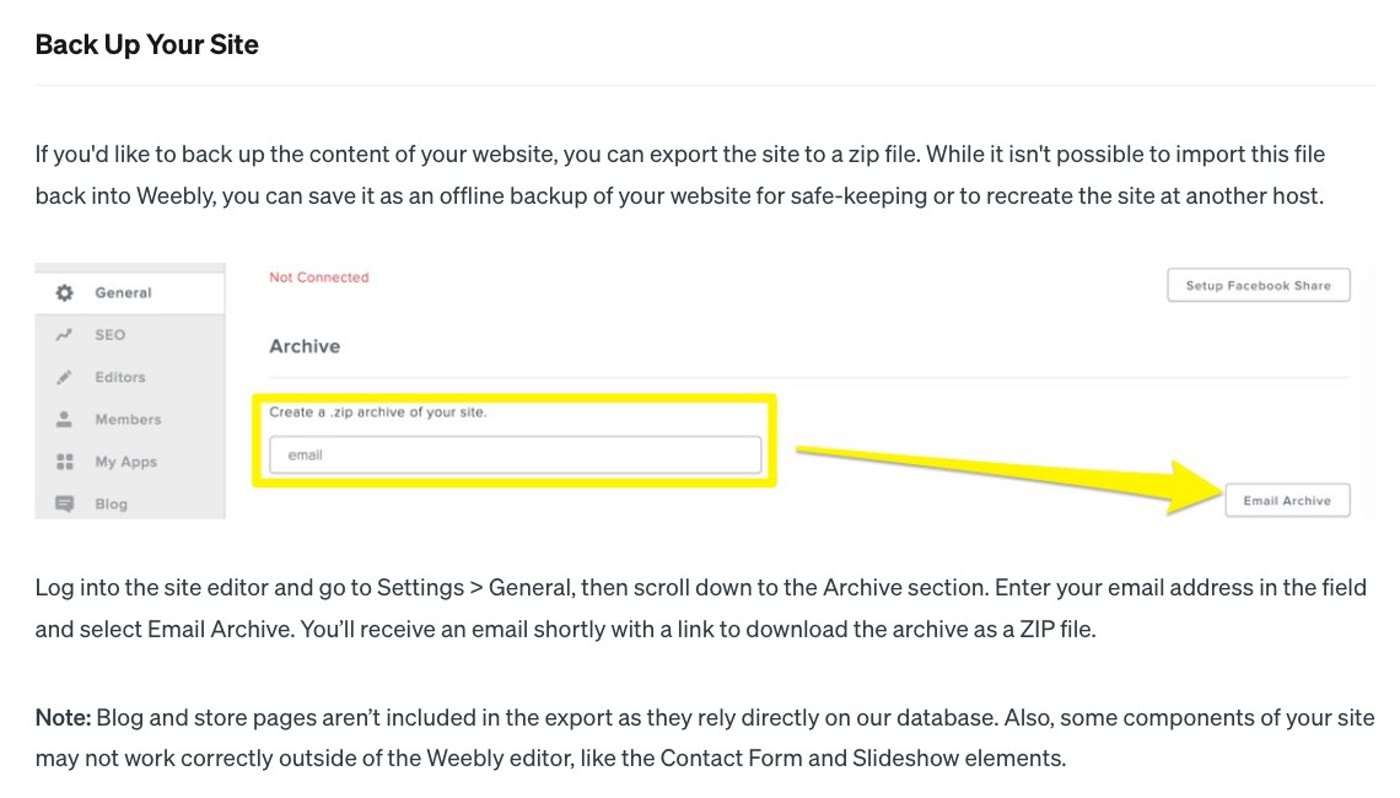
Know what's missing before you rely on it. Weebly's Back Up Your Site page says: "Blog and store pages aren't included in the export as they rely directly on our database." It also says some parts, like the Contact Form and Slideshow elements, may not work correctly outside the Weebly editor, and that the file can't be imported back into Weebly; it's a backup, or a starting point "to recreate the site at another host". We haven't been able to try the Archive on a site that is already unpublished.
Step 3: Find the public copy
This one needs no login at all. The Wayback Machine at web.archive.org keeps public copies of websites, saved over the years.
- Open web.archive.org and type your site's address into the Wayback Machine's box.
- Read the calendar. It shows every time your site was saved. You want a save from before 27 September 2026.
- Open the latest save and click through the pages. Check the menu, the inner pages, the photos and the blog, and see how much was saved. Some sites were saved thinly, or not at all.
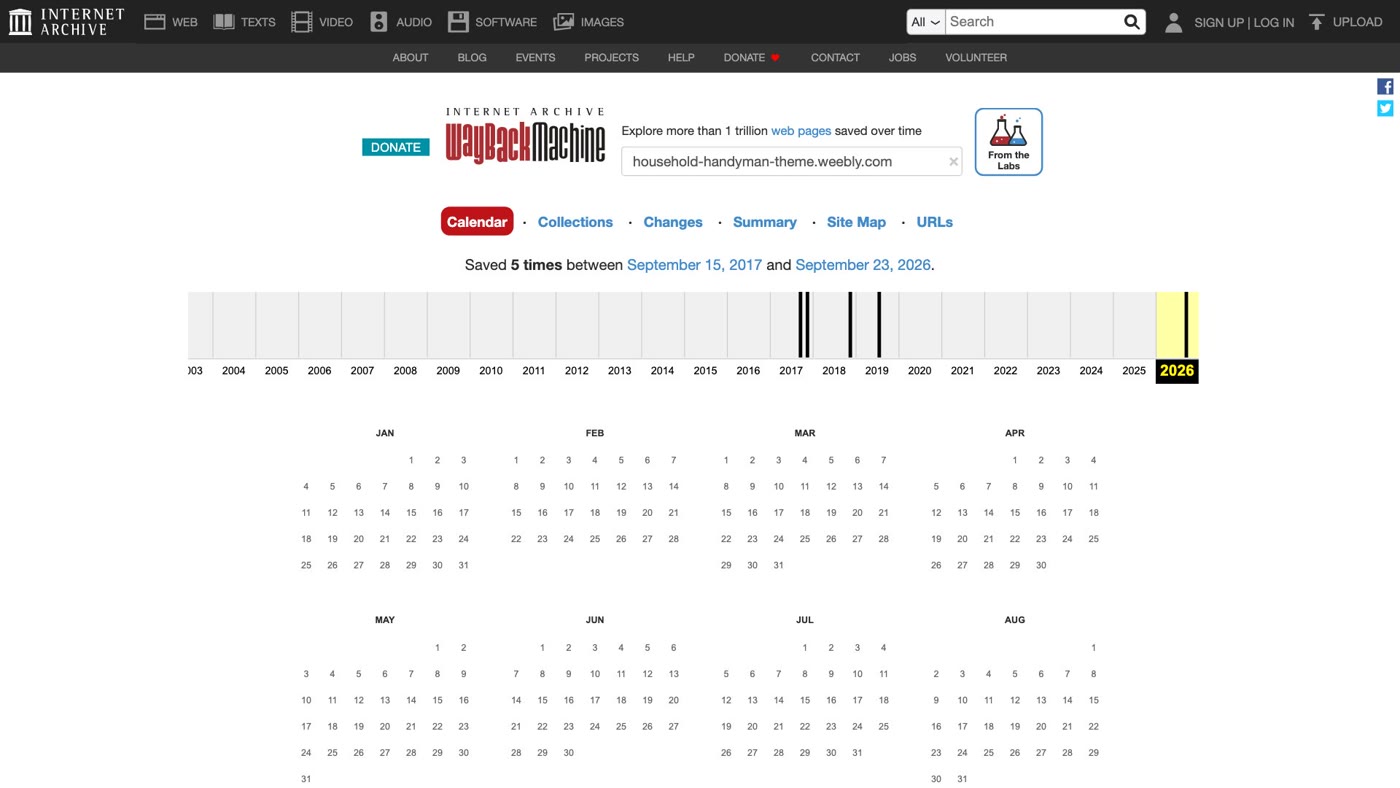
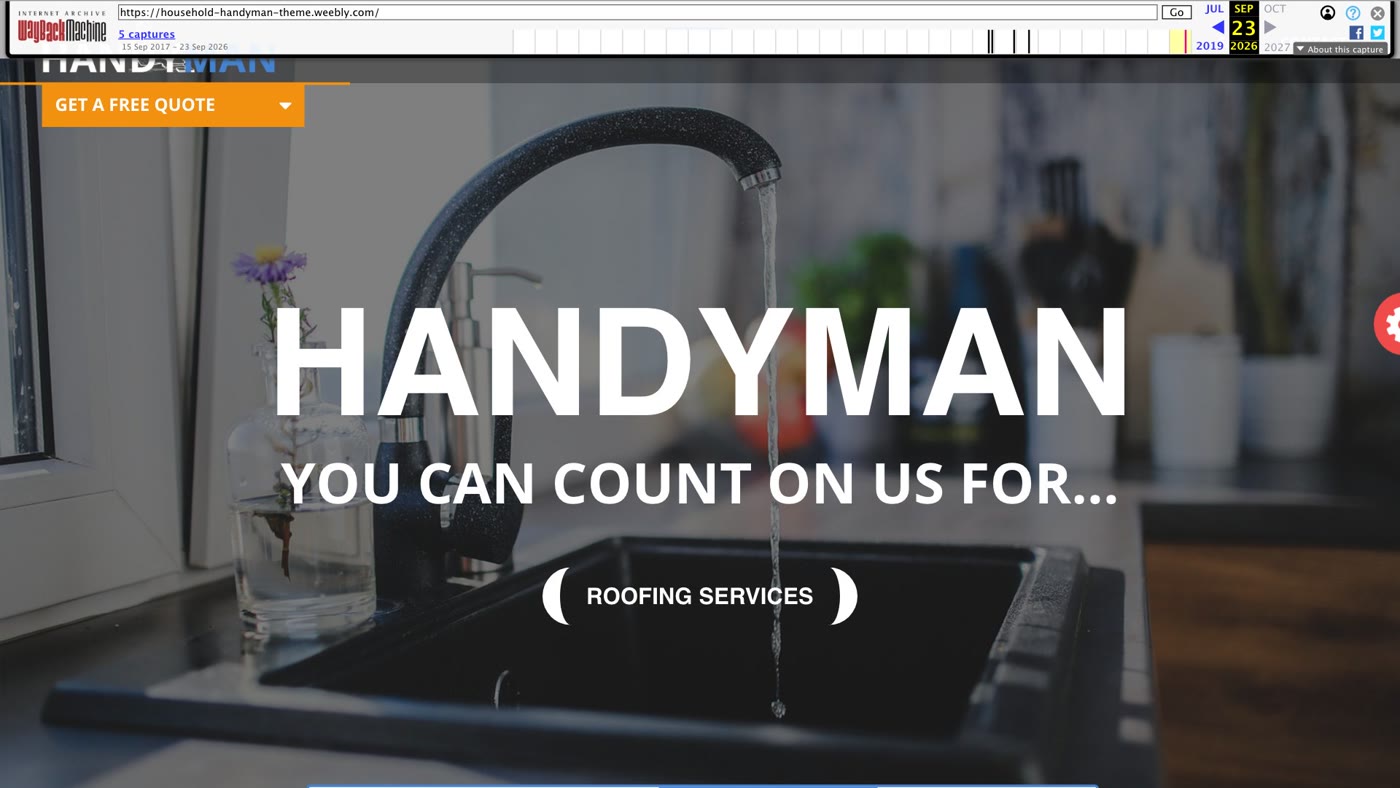
If your site was saved like this, you have a public copy to work from; click through it to see how much is there. If it wasn't saved, or only partly, Weebly's Archive download from step 2 is what you have, while the login lasts: without the blog or store pages, and with the contact form and slideshows that may not work outside Weebly.
- Check: your country in the list at the end of Weebly's notice. Sites there were unpublished on 27 September 2026; account access ends on 26 December 2026.
- Step 1: in your Weebly dashboard, Websites › Domains › Manage › Manage Domain, turn off the Registrar Lock and copy the EPP code. Don't change your contact details first.
- Step 2: Account Settings › My Data › Download My Data, and each site's Archive (Settings › General › Archive › Email Archive). Blog and store pages aren't in the export.
- Step 3: look your site up at web.archive.org, click through the latest save from before 27 September 2026, and see how much was saved.
Or, there is another way
Weebly's notice gives no way to put it back online there. But if the Wayback Machine saved your site, that copy is enough to build it again, and you don't need your Weebly login for it.
Ullbek is an AI website builder. You give it the Wayback Machine's address for your site in one message, and it builds a new, custom website from that copy: your pages and your photos. In the film we did exactly that with the Weebly theme demo, briefed as a fictional handyman business in Singapore. Ullbek asked three questions first (one was what to do with the demo's placeholder text), brought the photos across and built the pages. It paused once at its step limit and carried on when we pressed Continue. About half an hour after the message, all 30 pages were built, each one opening at its old Weebly address, like /about.html. The six blog posts came across as short previews on the blog page; ask Ullbek to bring each full post back at its own address.
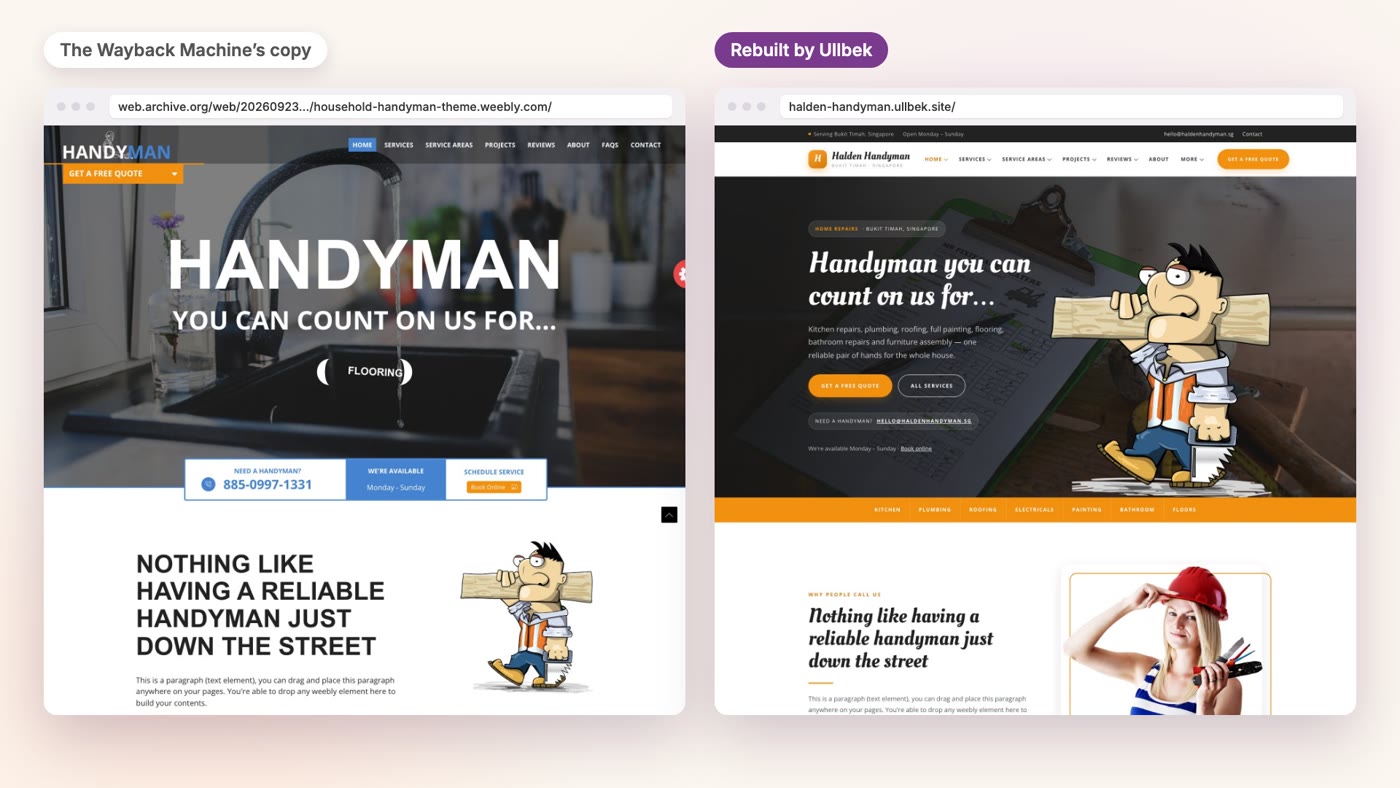
- Give it the Wayback address. "My Weebly website has been taken offline. The Wayback Machine has a copy of it here: [address]. Rebuild it as a new site from that copy. Keep every page and all the wording, and bring across the photos." Add your business name, your town and how customers reach you.
- Answer its questions, then read every page. Check the photos, the contact details and the blog posts. To change anything, say what should be different.
- Publish, then connect your domain. The one you saved in step 1. The move guide walks through every step, including the message to type.
Get your Weebly site back online
See how moving a Weebly site to Ullbek works, step by step.