Why connect
The best material for your website is already on your grid: photos of your work, and captions about each piece in your own words. When you connect your Instagram, your recent posts come into your site's files as pictures with their captions, and Ullbek builds from them. A site built from your grid looks like yours on the first try; one built from made-up pictures is a draft you then have to fix. See a site built from six posts.
Ullbek offers this once, early in the chat, after your site's name is settled and before it starts building. You can say yes, or start without and connect later by asking.
How to connect
-
Tap Connect Instagram
Ullbek sends a card titled Connect your Instagram. Tap its Connect Instagram button.
-
Allow it in Instagram's own window
Instagram opens its permission window and asks whether to share your account with Ullbek-IG (that's us; Instagram shows the app's registered name). Check it's the account you want, then tap Allow.
-
See what came in
You land on a Connected page: your picture, name and @handle, how many posts came in, and how they become your website.
-
Go back to your chat
Tap Back to your chat. Inside Instagram, the page points you to the ✕ at the top of the screen instead: tap it and you're back in the conversation.
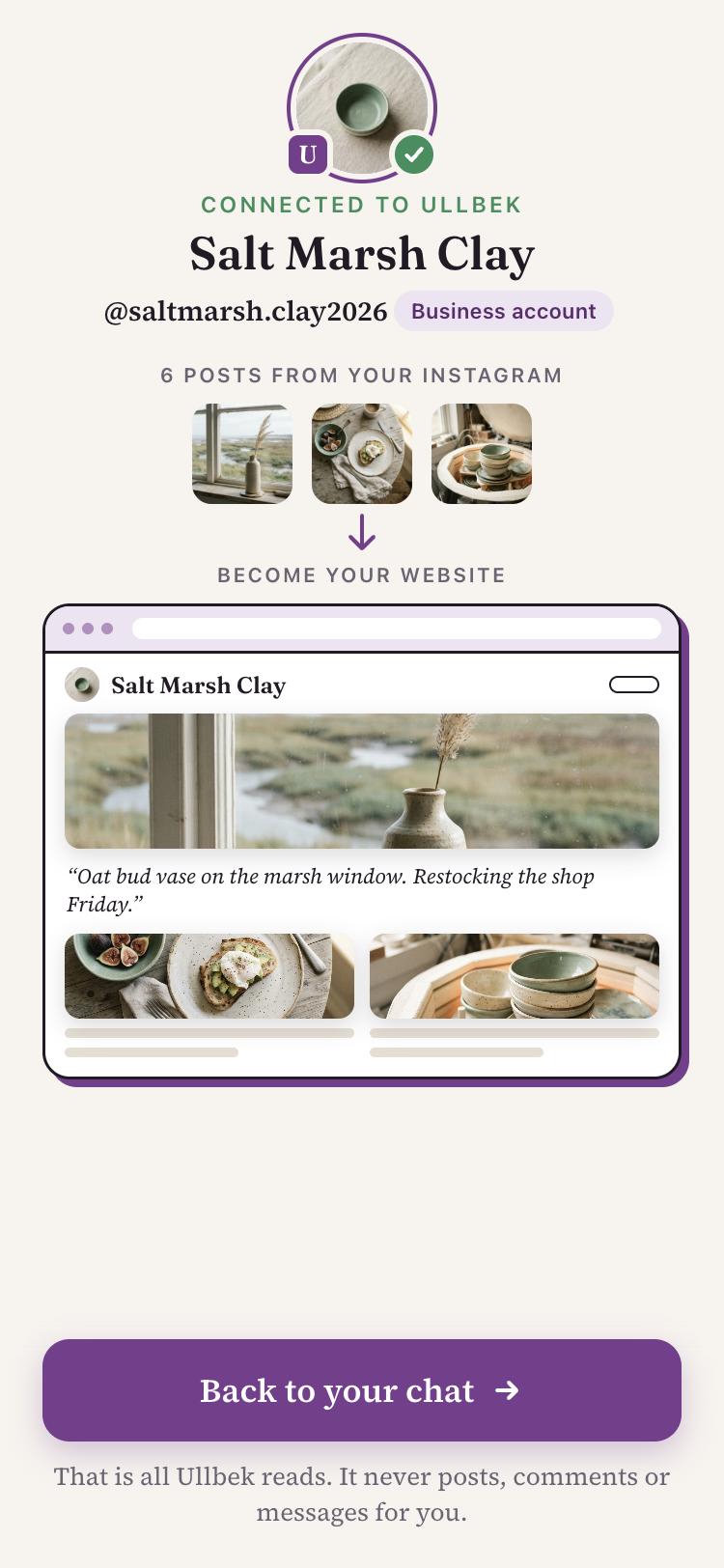
Back in the chat, Ullbek confirms it in a line, usually within a minute: which account connected and how many posts came in. Then it carries on with the next question, or starts building.
Business or Creator accounts
Instagram only lets apps connect to professional accounts: Business or Creator. Most people who sell on Instagram already have one. If yours is a personal account, Ullbek tells you after you tap Allow, and you can switch in about a minute:
-
Open your profile
Tap your picture at the bottom right, then the menu (☰) at the top.
-
Account type and tools
Under For professionals, tap Account type and tools, then Switch to professional account.
-
Pick Creator or Business
Choose a category that fits and follow the steps. Contact details and a Facebook Page are optional.
-
Connect again
Go back to your chat with Ullbek and tap Connect Instagram once more.
Switching is free and keeps your posts and followers, and you can switch back any time. But professional accounts are public, so a private account becomes public when it switches. If your personal account is private and you want it to stay that way, start a separate account for your business and connect that one.
What Ullbek reads, and what it never does
Your profile
Your name, @handle, account type, profile picture and how many posts you have.
ReadYour recent posts
Up to about 30 of your latest posts: each picture and the caption you wrote. A video comes in as a still; a carousel as its first picture.
ReadNever posts or comments
Ullbek can't post, comment, like or change anything on your account.
NeverNever reads your messages
Your other conversations and your followers' accounts stay out of reach. Ullbek only sees the chat you have with it.
NeverThat's the whole permission: read-only access to your own profile and posts. The pictures and captions are saved with your website so Ullbek can build from them. Our privacy policy has the full detail under Instagram Data.
If you'd rather not connect
That's fine, and Ullbek won't keep asking. Tap Start without and your first site is built with pictures made to fit your style. You can share photos and posts straight into the chat whenever you like, and they go onto your site the same way. See Sharing photos into the chat.
Disconnecting
You can take the permission back at any time, from Instagram itself:
-
Open Apps and websites
In the Instagram app, open Settings and search for Apps and websites. On a computer, it's Settings → Apps and websites, or instagram.com/accounts/manage_access.
-
Remove Ullbek-IG
Under Active, find Ullbek-IG and tap Remove.
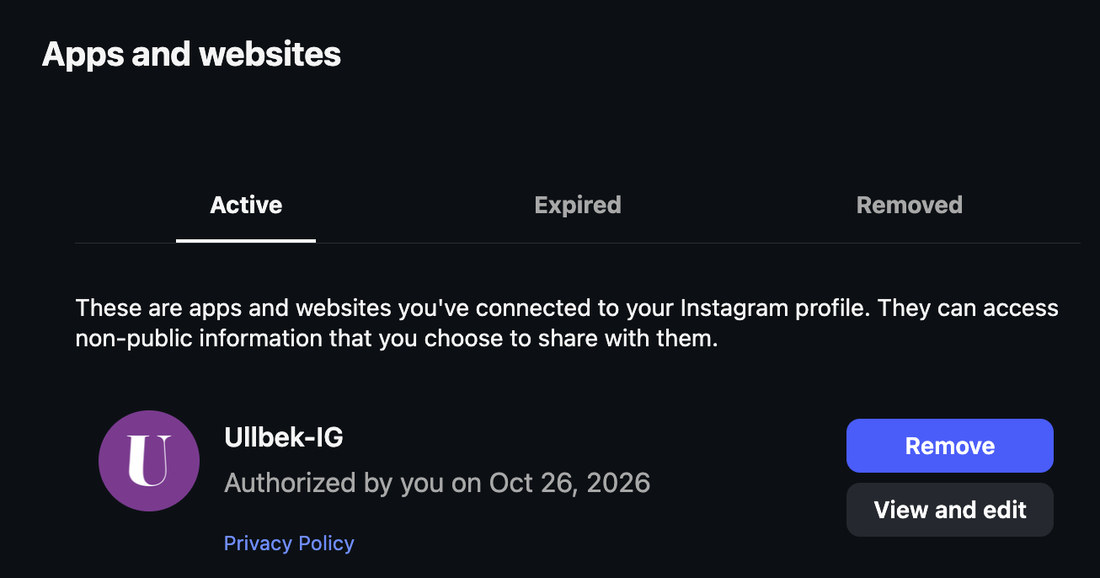
Instagram tells Ullbek straight away. Ullbek forgets the connection and its access, and lets you know in the chat. The pictures already on your site stay where they are, so your site keeps working. You can connect again whenever you like.
Deleting your data
When you remove an app, Instagram also lets you ask it to delete the information it received. If you send Ullbek that request, the pictures and captions that came from your Instagram are deleted from your site's files as well, and you get a confirmation code with a page that shows what was deleted. Pages that used those pictures will need new ones: just ask Ullbek.
To delete your whole site or your Ullbek account, sign in on the web (see Your site on the web), or email support@ullbek.com for any data request.
Build from your own posts
Message @ullbek_ai and tap Connect Instagram when Ullbek offers it.