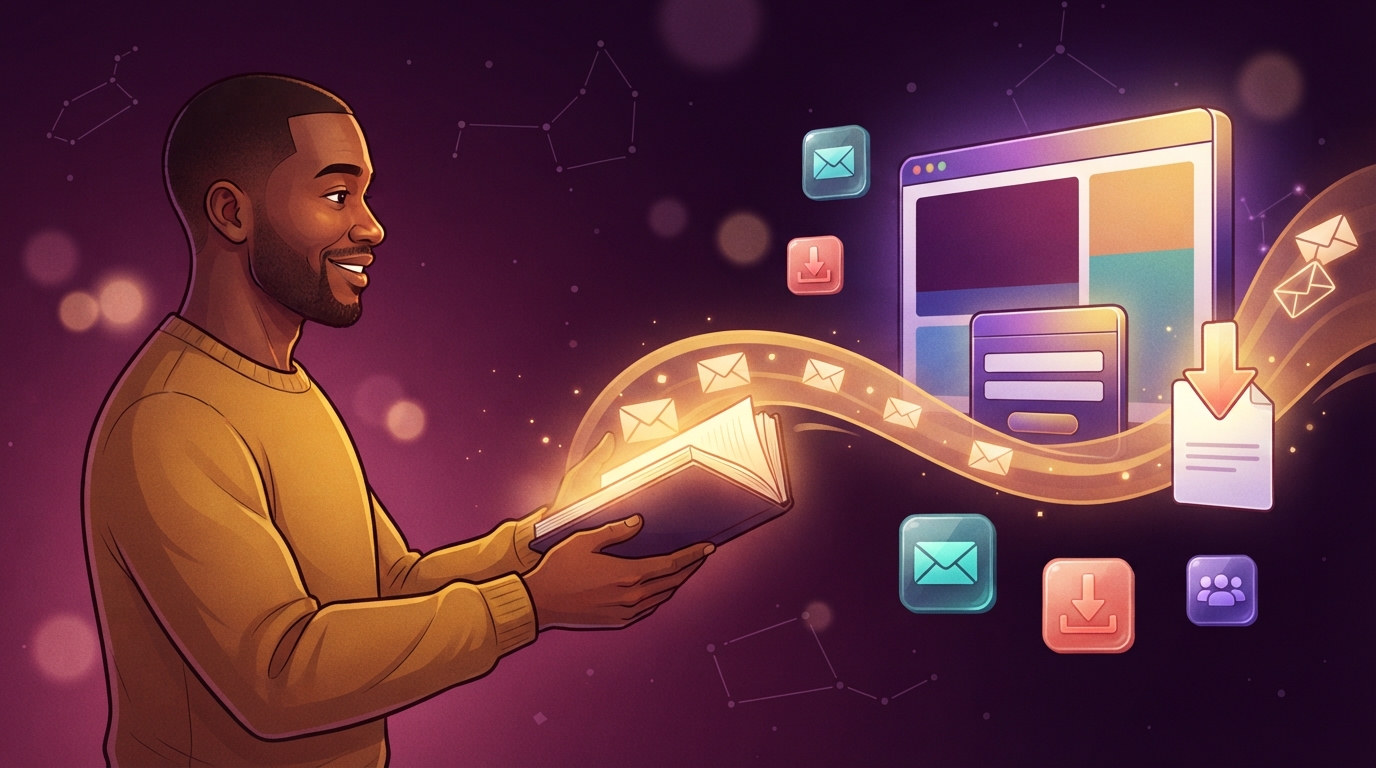
How it works
A free guide, a checklist, a price list, a recipe card — a useful PDF is the oldest, most reliable way to grow an email list. The visitor gets something worth having; you get a name and an address you can write to again.
On an Ullbek site this takes one page and one form. Here's what happens from the moment someone clicks the button:
Visitor signs up
They type their name and email into a short form on your download page and press the button.
Two places at once
The signup reaches you like any form message, and the same details are added to the form in your email tool.
Download appears
The page thanks them and shows the download — or your email tool's welcome email delivers it, your choice.
Ullbek doesn't run newsletters. The signup is handed to the tool you already use — MailerLite, Mailchimp, Kit (formerly ConvertKit), Brevo, Beehiiv or any other with an embeddable form — and that tool sends the welcome email, keeps the list and handles unsubscribes, exactly as it does for signups from anywhere else.
What to say to your assistant
You don't set any of this up by hand. Open your site, upload the PDF (drag it into the chat, or add it under Manage → Assets), and describe the page you want. Three prompts cover it — use them one after another, or roll them into one message.
1. The download page and its form
2. Send every signup to your email tool
3. Only show the download after they sign up
Ullbek builds the page to match the rest of your site, connects the form to your inbox and to your email tool, and sets up the reveal. Open the preview, sign up with your own address, and check both places before you publish.
Where to find your form in each tool
Every email tool has a form you can "embed" on a website. You never need to read the embed code yourself — copy it, paste it into the chat, and your assistant picks out the account and form details it needs. Here is where the embed code lives in each tool.
Create a separate form (or group, tag, or audience) in your email tool for each giveaway. Then you can see exactly which PDF brought each subscriber in, and send a welcome email that matches what they asked for.
Two ways to hand over the file
There are two honest ways to deliver the PDF, and they suit different goals. Pick one and tell your assistant which.
A. Show the link on the page
After the form is sent, the page reveals a download button. The simplest option and the smoothest for the visitor — no waiting for an email. The file itself stays a normal file on your site, so anyone who has its address can open it; the form is a polite gate, not a lock.
Best for list-buildingB. Send it from the welcome email
The page only says "check your inbox". The link lives in your email tool's welcome email and is never shown on the site. Only people who gave a real address get it — and if your tool uses double opt-in, only after they confirm.
Best when only subscribers should get itOption A is what most small businesses want: the point is the list, and a guide that spreads a little further is free marketing. Option B is for the cases where the file itself is the value — a discount code, a members' price list, a template you sell elsewhere.
With option B the PDF is still a file on your site with its own address — it's just not linked anywhere, so nobody finds it without the welcome email. Tell your assistant not to link it from any page, and set the welcome email up in your email tool with the file's address. Ask your assistant for that address; it will tell you.
What you get
Every signup lands in your inbox and in your email tool, nothing is lost, and the usual form rules apply:
Your inbox
Each signup is emailed to your form recipient — your account email, or whichever address you've set. Same as any other form on your site.
Included freeYour email tool's list
The same name and email appear in the form, group or audience you chose — ready for your welcome sequence and newsletters.
Your tool, your rulesNothing is lost
Every signup is saved with your site. Ask your assistant to pull up the list anytime — handy if an email went astray or you want to compare it with your email tool.
Included freeThe usual spam checks
Signups pass through the same spam screening as every Ullbek form. Junk is held back before it reaches your inbox. Your email tool applies its own checks on its side.
Included freeCommon questions
Do I need an email tool at all?
No. Skip the second prompt and every signup still reaches your inbox and is saved with your site. You can connect an email tool later and ask your assistant to add it — the page doesn't change.
My tool isn't on the list. Will it work?
If it offers an embeddable signup form, yes — paste the embed code into the chat. If it only offers a hosted signup page (a link, not an embed), tell your assistant; it can send visitors there after the download instead.
Can I give away more than one file?
Yes. Each download page can have its own form and its own form in your email tool, so you know which guide each subscriber asked for. Or one page can offer several files after one signup.
What if someone types a fake email?
With option A they still get the file — the form is a polite gate. With option B they don't, because the link only arrives by email. If that matters, choose B.
Does the signup page need a paid plan?
No. Forms, inbox delivery and the handover to your email tool all work on the free address. The PDF counts as a file on your site like any image.
Where do I change the address signups are emailed to?
Tell your assistant, or set it under Manage → Form. All forms on a site share one delivery address — see Sending messages to a different address.
Ready to give something away?
Upload the PDF, paste your email tool's embed code, and describe the page. Your download page is live in minutes.