The routine is written out below.
Captions available — press CC · Also on YouTube
The dashboard always wants something. A red 4 next to Updates, and a Site Health screen with a list of things to improve. You built the site to bring in work, not to look after it, and nobody ever told you what "looking after it" actually means: what you must do, how often, and what you can safely ignore.
So here is the minimum, not a fifty-point checklist: two steps a week, three a month and three once a year, each one shown on a real WordPress site in the film above. Do these and the badges stop being a worry.
Why the badges keep coming back
A WordPress site is WordPress itself, a theme and a handful of plugins, each looked after by different people who release fixes on their own schedules. Each fix arrives as an update, and every one of them waits for you. WordPress's own Site Health screen is blunt about why it matters: plugins "have deep access to your site, so it's vital to keep them up to date".
The good news is that WordPress already does part of the job. Small security releases of WordPress itself install on their own in the background on most sites; only the bigger versions wait for you to press Update. Everything else on this page is the part it can't do for you.
Part one, every week: a backup, then updates one at a time
WordPress's own backup guide says a smaller site should be backed up once a week. Updates are the reason that backup matters, so the two belong together.
- Check there's a backup from last night. Most hosts keep backups for you, in your hosting account under Backups (the name varies a little from host to host). Look for one from last night that includes both the files and the database: a WordPress backup needs both. If there isn't one, make one now, before you press anything.
- Update one thing at a time, and look at your site after each. Go to Dashboard › Updates. Tick one plugin, press Update Plugins, then open your site in another tab and check the home page and your contact page still work. Then the next plugin, then your theme. If something breaks, you know exactly which update did it, and video 1 of this series has the three ways back in.
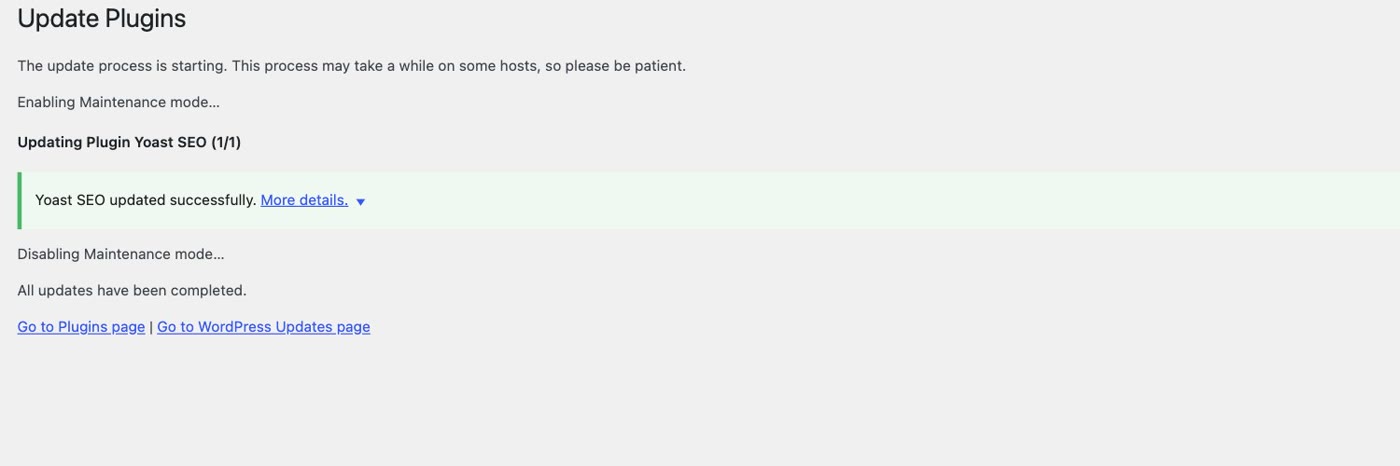
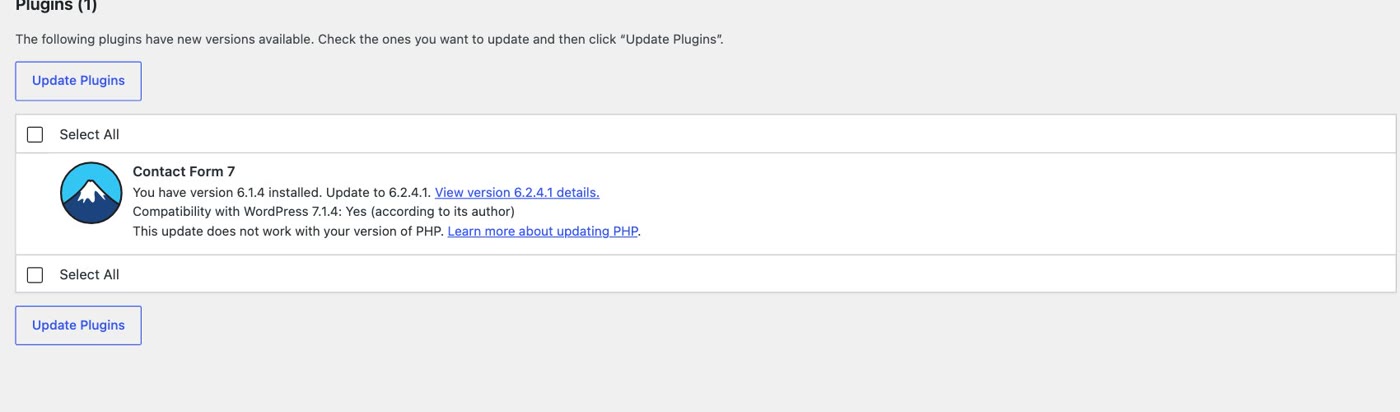
In the film, Yoast SEO was updated on its own from Dashboard › Updates, "updated successfully", the site was checked, then Flamingo was next. One update wouldn't go:
If you'd rather not do it by hand: since version 5.5 you can switch on auto-updates plugin by plugin, in the "Automatic updates" column of the Plugins screen. WordPress then updates them twice a day and emails you what it did. WordPress's own advice is to make sure you can roll back first, so the backup in step 1 still matters, and so does reading those emails.
Part two, every month: Site Health, a clear-out, a test message
- Read Site Health. Go to Tools › Site Health. Anything under critical issues comes first; then the recommended improvements. Click any item and it opens to tell you what's wrong and how to fix it. You don't need to understand every line; you need to notice when something new appears.
- Delete what you don't use. A plugin you switched off is still on your site. Site Health puts it plainly: "Inactive plugins are tempting targets for attackers". On the Plugins screen, Deactivate, then Delete. Do the same for old themes under Appearance › Themes (Theme Details › Delete), but keep your own theme and one default WordPress theme, such as Twenty Twenty-Five: WordPress falls back on a default theme if anything is wrong with yours.
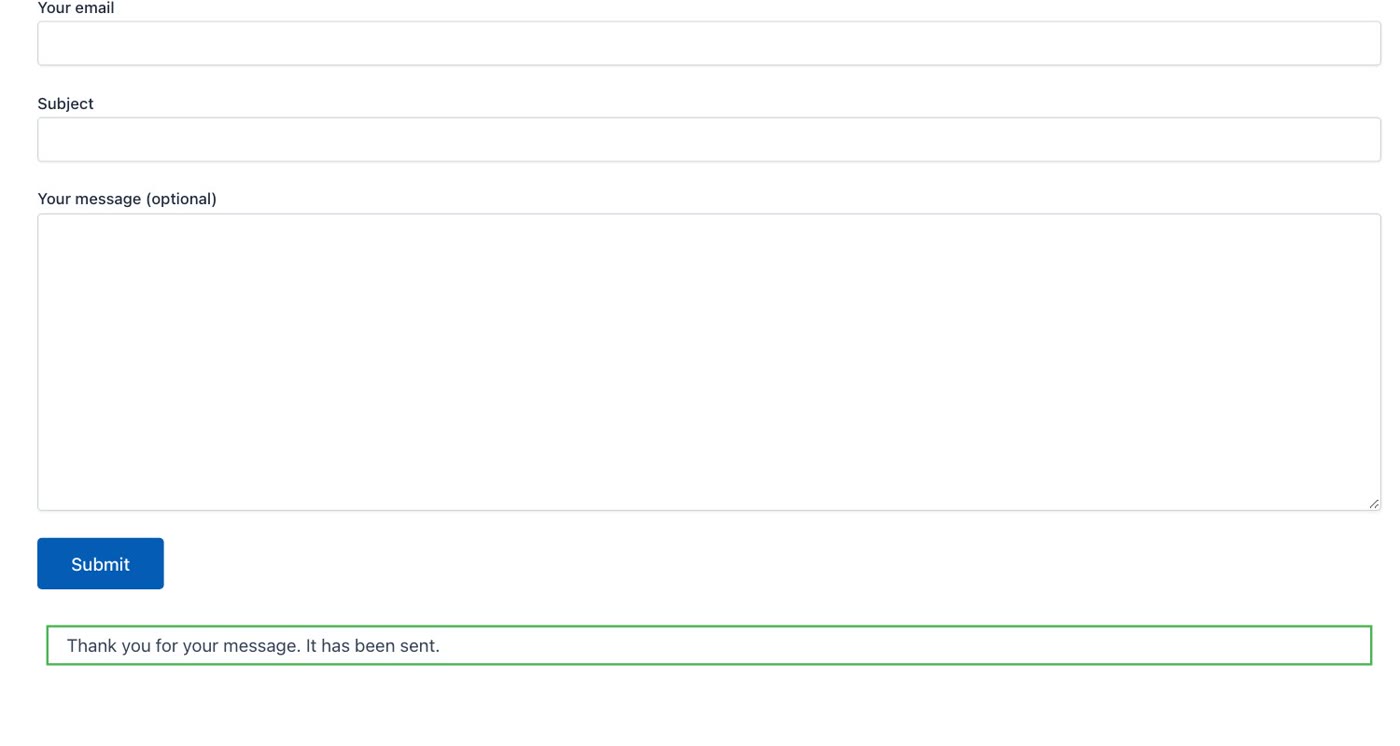
- Send yourself a message through your own contact form. Fill it in like a customer would. When the form says Thank you for your message. It has been sent., that only means your site handed the message over, not that anyone received it. Check it actually reaches your inbox (and your spam folder). If it never arrives, video 5 of this series is the fix.
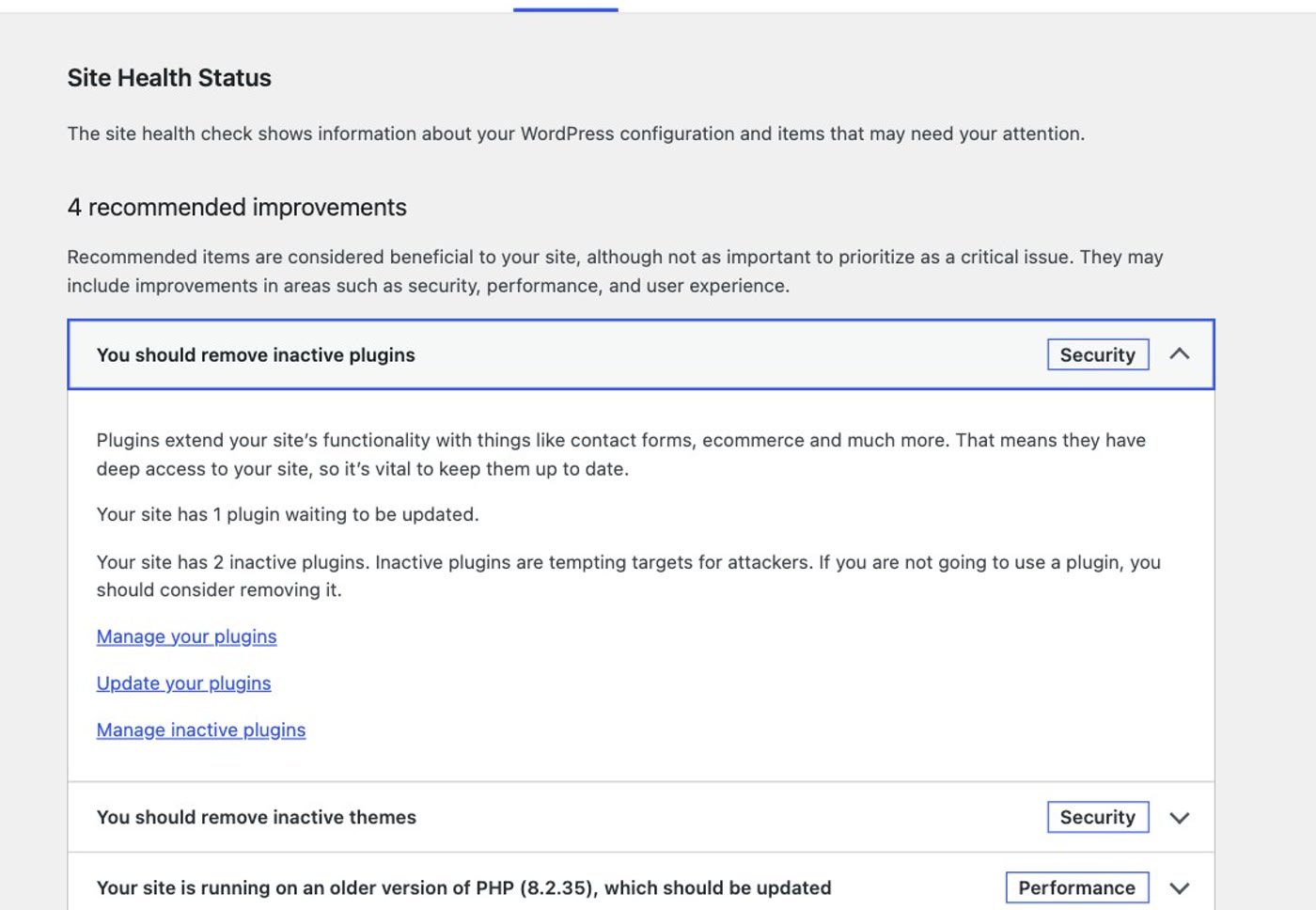
On the site in the film, Site Health said Good: no critical issues, and four recommended improvements. The waiting update sat under the first of them, "You should remove inactive plugins".
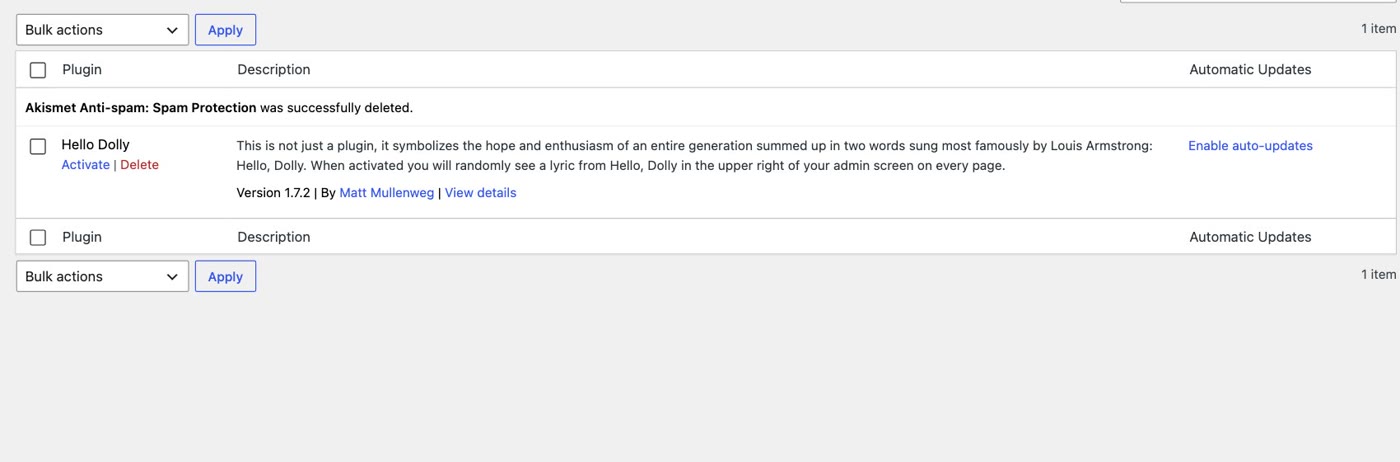
In the film, Akismet and Hello Dolly were deleted, then the themes Twenty Twenty-Three and Twenty Twenty-Four; Twenty Twenty-Five stayed as the spare.
While you're there once a month, download a copy of your latest backup to your own computer. WordPress's backup guide suggests keeping several recent backups in different places, a computer included.
Part three, once a year: PHP, your domain, who can log in
- Check your PHP version. PHP is what your WordPress site runs on, and your host chooses the version. Find it in Tools › Site Health › Info, under Server. WordPress recommends PHP 8.3 or newer; PHP 8.2 gets its last security fixes at the end of December 2026, and 8.1 already stopped at the end of 2025. It matters for updates too: the newest Contact Form 7 needs PHP 8.3, so on 8.2 WordPress refuses to install it. If yours is older, take a backup, then switch PHP in your hosting account (most have a PHP version setting) or ask your host to move you. Then look at your site, the same way as step 2.
- Check your domain renewal. Log in where your domain is registered and look at two things: the renewal date, and the email address the reminders go to. If it's an old address, or someone else's, change it. If a domain lapses, the website and the email on it can stop working; a .uk name is suspended 30 days after it expires if nobody renews it.
- Review who can log in. Go to Users. Remove anyone who no longer needs access (the web designer from years ago, a helper who has moved on) and give their pages to your own account when WordPress asks. Keep the Administrator role to the few people who need it. Then use a long, unique password (a password manager helps), never the username "admin", and turn on two-factor sign-in for every administrator. WordPress needs a plugin for that: Two-Factor, from the WordPress.org plugin directory, adds an authenticator-app option under Users › Profile.
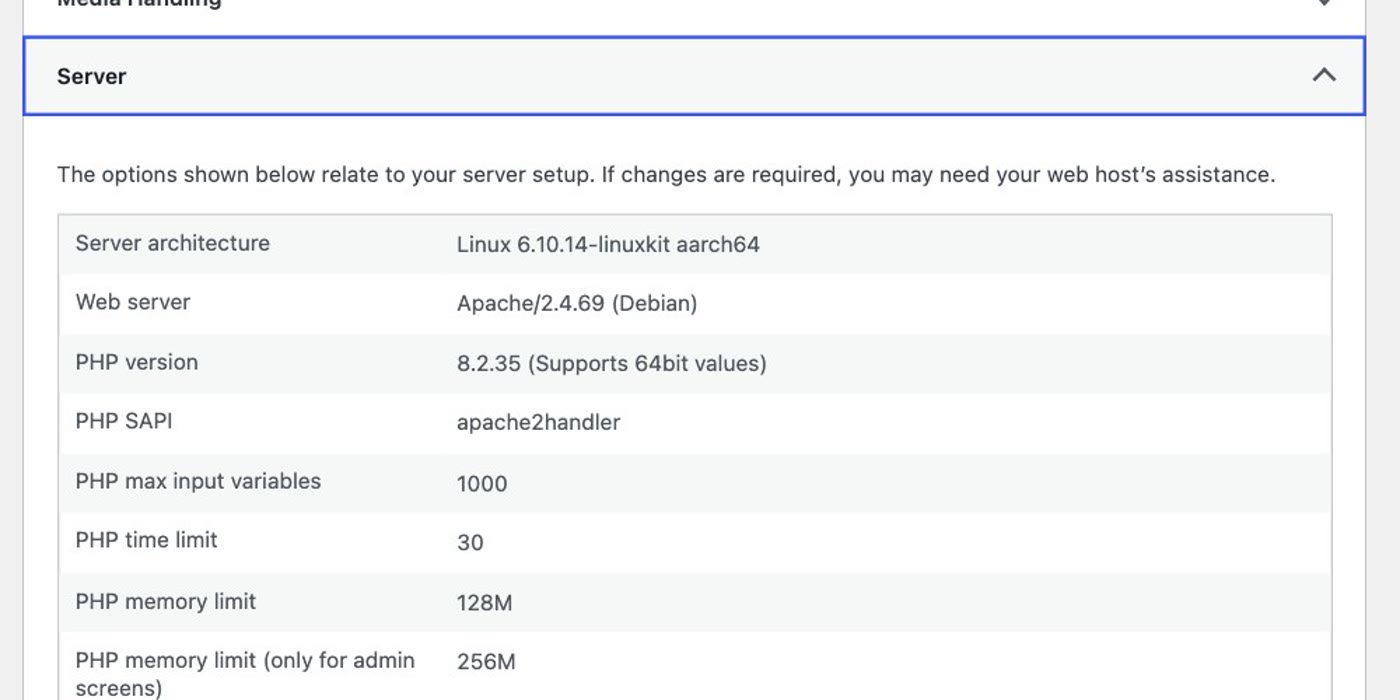
On the site in the film, it said 8.2.35. After the move it said 8.3.36, and Contact Form 7 then updated from 6.1.4 to 6.2.4.1.
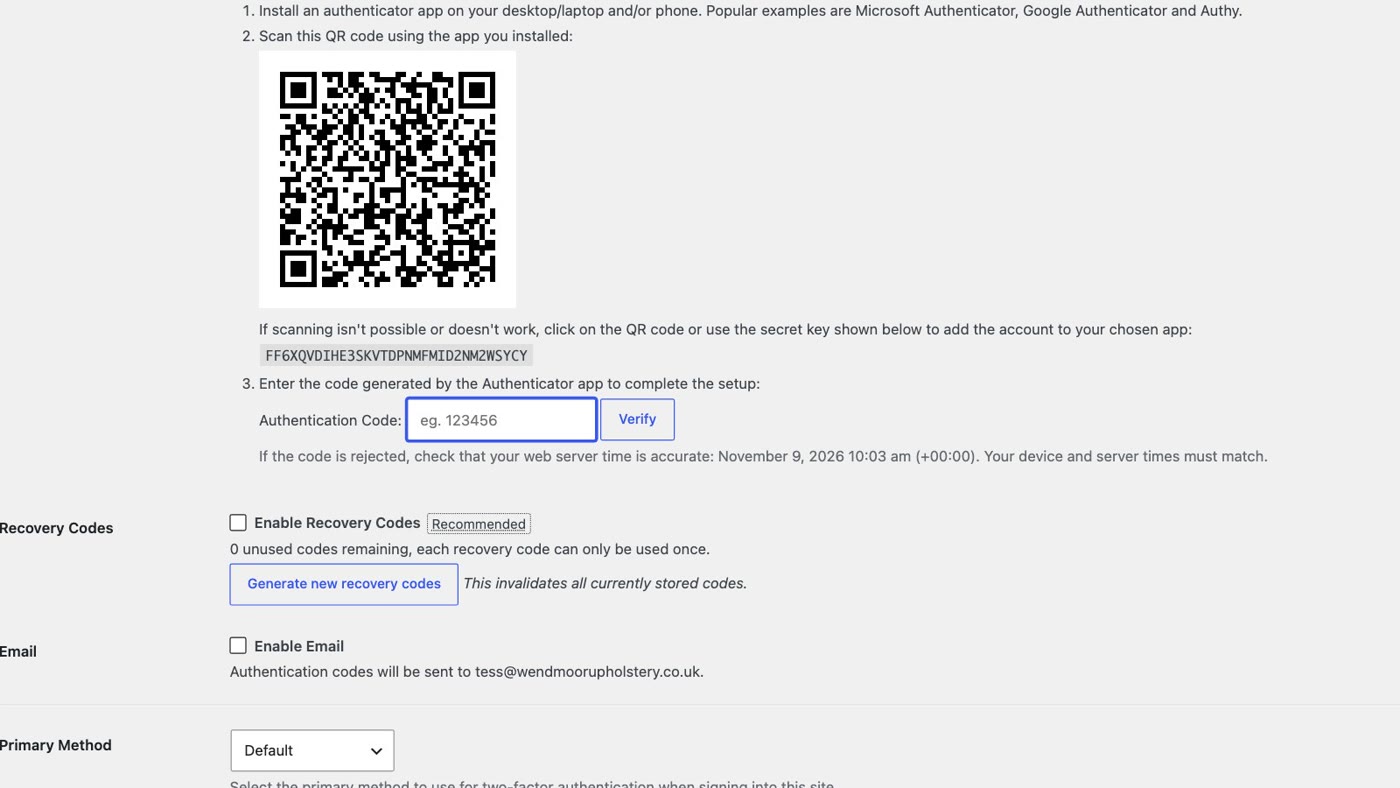
In the film, the old web designer's administrator account was deleted, with everything it had written given to the owner's own account, and the Two-Factor plugin's authenticator app option turned on.
While you're at it once a year, ask your host to restore one of your backups to a test copy of your site (many call it staging), so you know your backups really work before the day you need one.
- Every week — Step 1: check there's a backup from last night. Step 2: update one plugin at a time, and look at your site after each.
- Every month — Step 3: read Site Health, critical issues first. Step 4: delete plugins and themes you don't use (keep one default theme). Step 5: send a test message through your contact form and check it arrives. Plus: download a copy of your latest backup.
- Once a year — Step 6: check your PHP version (8.3 or newer). Step 7: check your domain's renewal date and reminder email. Step 8: remove old users, keep administrators few, use two-factor sign-in. Plus: have a backup restored to a test copy.
It isn't much, and none of it is hard. But it doesn't stop: there is always a next update, for as long as the site runs on WordPress. WordPress's own documentation suggests putting the routine in your calendar, and that's the best way to keep it.
Or, there is another way
Everything above keeps a WordPress site healthy. None of it goes away, because a WordPress site is WordPress, a theme and a stack of plugins, and each one keeps asking to be updated. If your site is a few pages, a contact form and some photos, it doesn't need plugins at all.
Ullbek is an AI website builder. You give it your WordPress site's address, and it builds a new, custom website from your pages and photos: the same pages, your wording and pictures, a fresh design, the form wired to your inbox. There are no plugins and nothing to update, so there is no weekly routine to keep: no update badges, and no inactive plugins to clear out. When something needs to change, you say what should be different, and it's done.
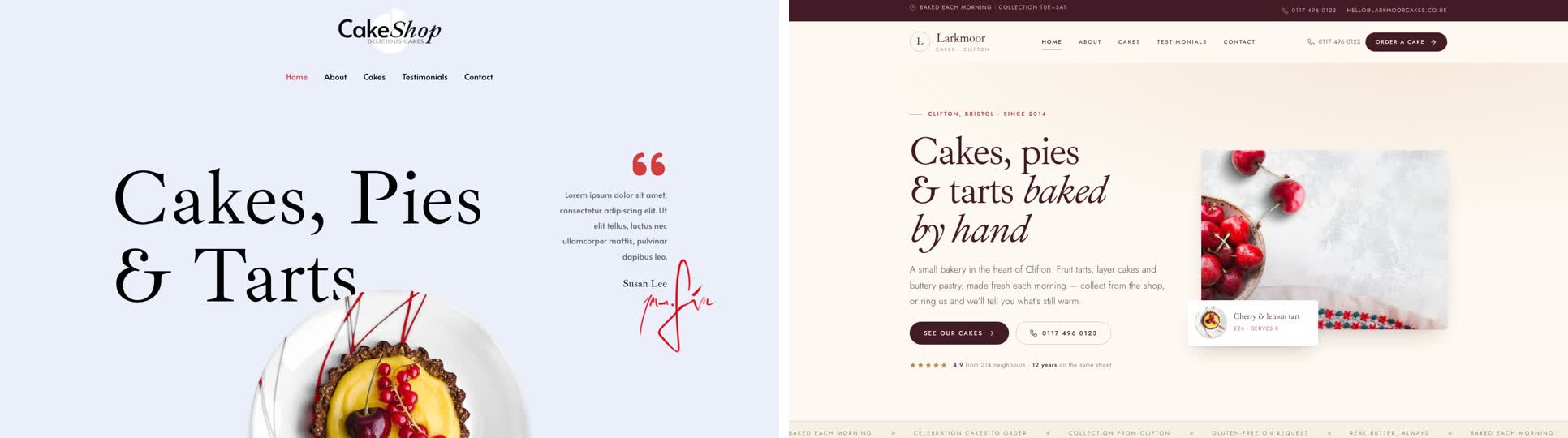
- Give it your old site's address. "Rebuild [your address] as a new site. It's my current WordPress website. Keep every page and bring across the photos." It reads every page and downloads your pictures.
- Answer a few questions in one go. Usually the business name, what to do with any placeholder text, and your real contact details.
- Look it over, publish, then move your domain. Your WordPress site stays up until the new one is live, and your old page addresses can be kept so links and search results still work. The move guide walks through every step, including what to collect from your old host first.
In our tests, a six-page business site moved from its address in about seventeen minutes of building, with one round of questions. After that, there are no updates to run and no plugins to clear out.
Leave the routine behind
See how moving a WordPress site to Ullbek works, step by step.