The three causes and five habits are written out below.
Captions available — press CC · Also on YouTube
You did what the dashboard asked. You pressed Update. And this morning your site is a white page with one line on it, or the contact form has gone, or the gallery is empty. If you followed video 1 of this series, you're back in. This post is about the next question: why did that happen, and how do you stop it happening again?
It isn't bad luck, and it isn't you. There are three plain reasons updates break WordPress sites, and once you know them, the habits that protect you make sense. Everything below, and in the film above, was done on a real WordPress site.
What actually happens
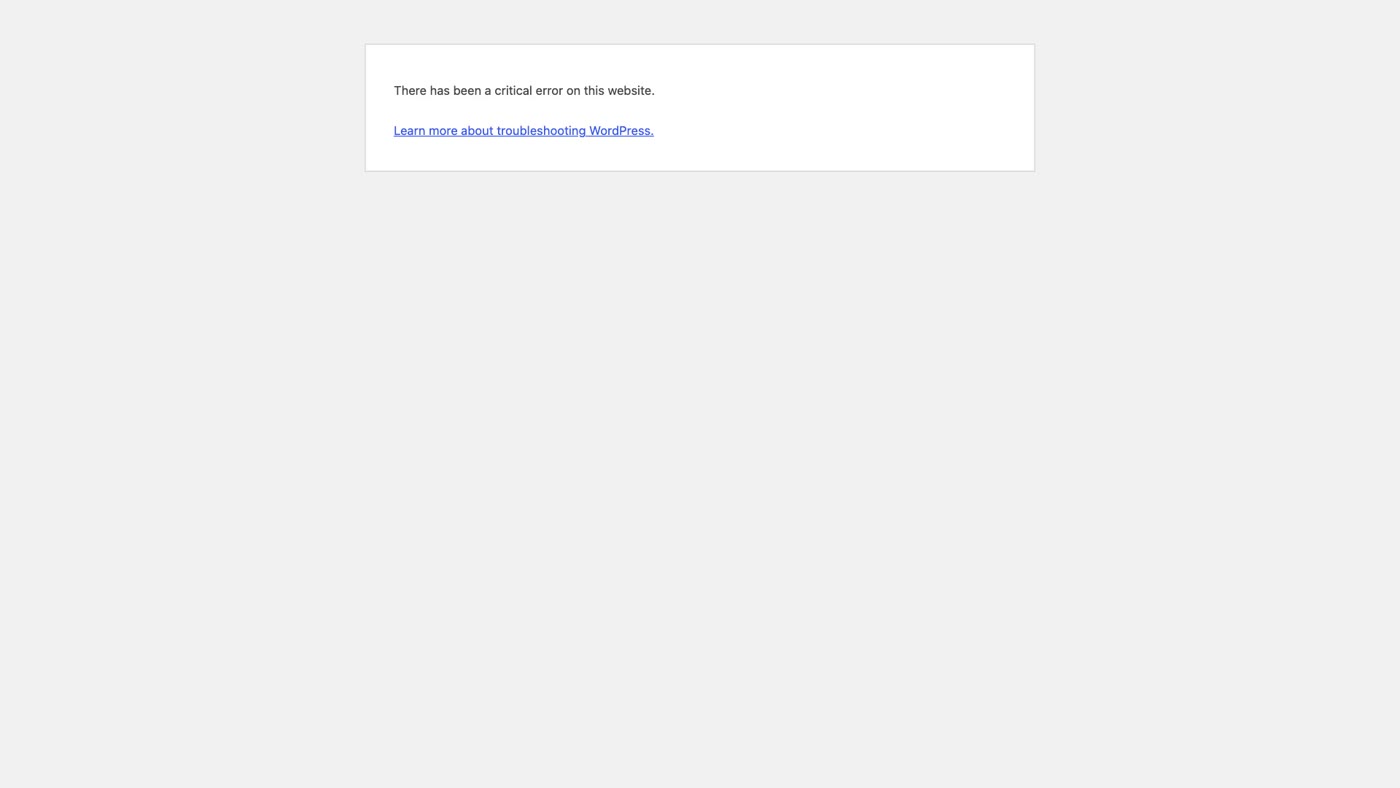
A WordPress site isn't one piece of software. It's WordPress itself, a theme, and a stack of plugins, all running on a version of PHP that your host chooses. Each of those parts changes on its own schedule. When one part changes and another part was built for the old version, the result is a PHP "fatal error", and WordPress stops every page, including the dashboard, to show "There has been a critical error on this website".
WordPress's own documentation is candid about this. It says there "isn't a single update order that works for every website", and on its page about PHP it says plainly: "We don't know if your themes or plugins will work on newer versions." Nobody can know, because nobody but you has your exact combination.
Cause 1: Many authors, one site
Every plugin on your site was written by someone different. Each author tests their plugin against WordPress, and says which version they tested with. What nobody tests is your exact mix: this contact form, with that add-on, with your theme, on your host.
You can see this on your own site:
- Open Dashboard, then Updates. Scroll down to Plugins. Each waiting update has a line like "Compatibility with WordPress 7.1.4: Yes (according to its author)". Those last three words matter: it's the author's own word for their own plugin.
- Open Plugins. Under each plugin's description is its author ("By …"). Count them on your own site: most are different people and companies.
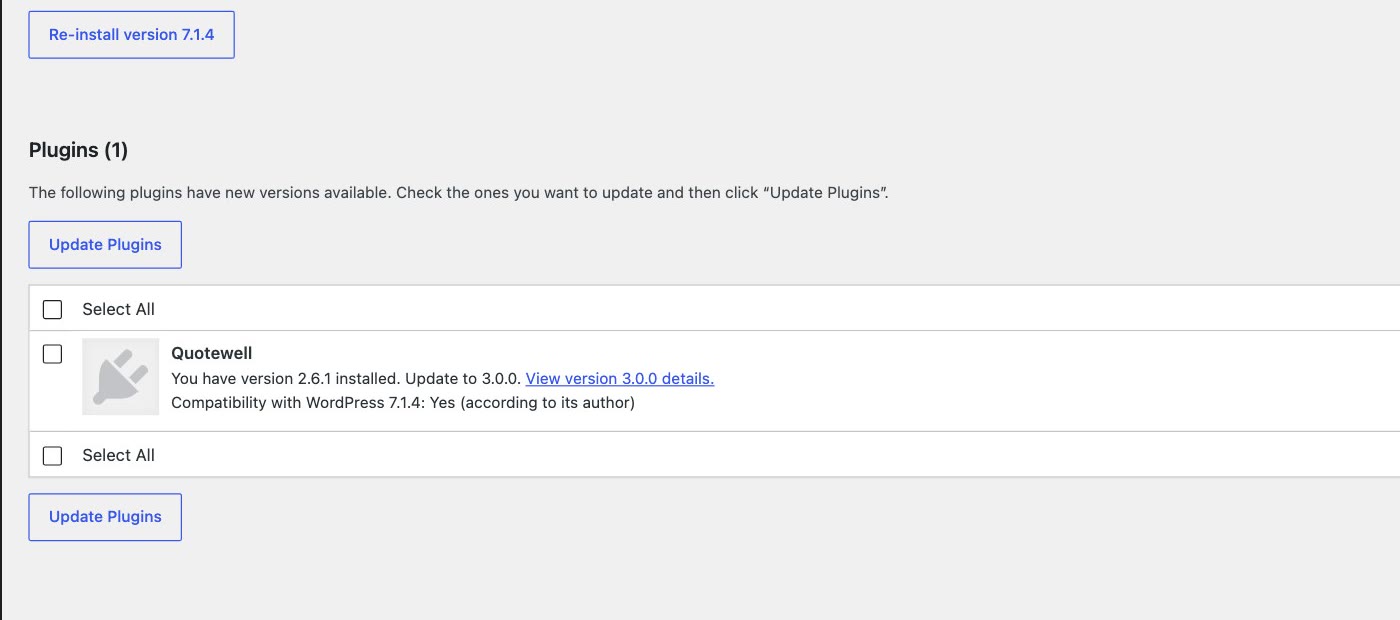
In the film, we updated a quote-form plugin called Quotewell from version 2.6.1 to 3.0.0. The update itself went fine. But an add-on for photo uploads, written by a different author, still expected something the old version of Quotewell had. The whole site stopped, and WordPress's recovery email named the add-on, Quotewell Photo Uploads, not the plugin we had just updated. (Both plugins are made up for the film; we built them to show how this happens, so no real plugin is blamed.)
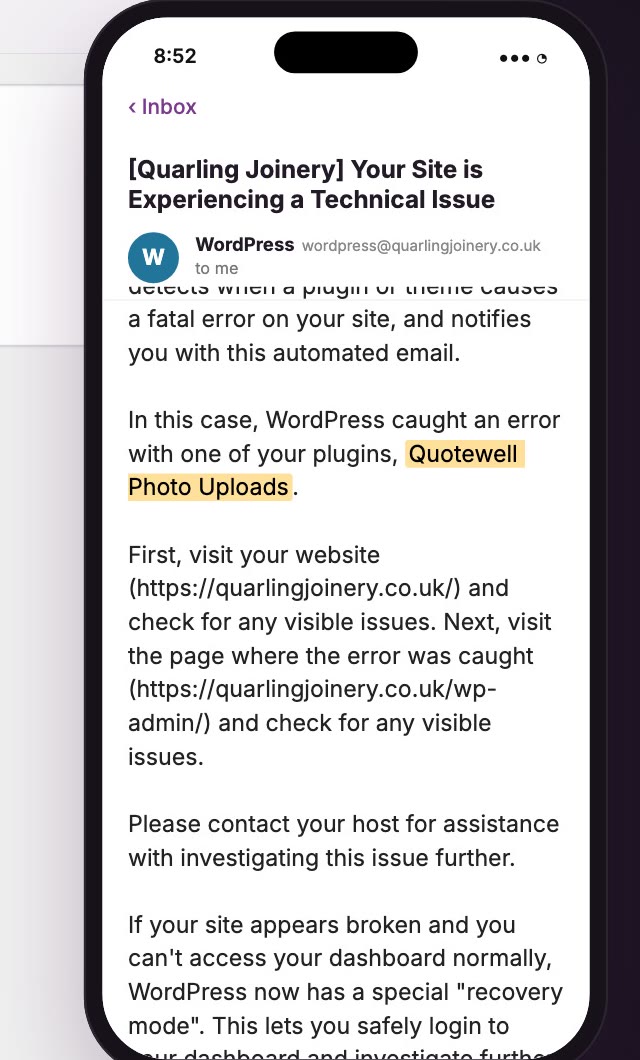
That's why the plugin named in the error is sometimes one you didn't touch. It's also why updating one plugin at a time (habit 3, below) saves you an afternoon of guessing.
Cause 2: Your host changes PHP
PHP is what your host runs WordPress on. WordPress's own help page describes it as one of the languages WordPress is built on. Each version of PHP gets security fixes for a few years, and then stops:
- PHP 8.1 stopped getting security fixes on 31 December 2025.
- PHP 8.2 stops on 31 December 2026.
- WordPress recommends PHP 8.3 or newer.
So hosts are moving sites up, sometimes without asking. WordPress itself copes: version 7.1 supports everything from PHP 7.4 to 8.5. The problem is the plugins. A plugin written years ago can trip over something the new PHP changed, or a name the new PHP now uses for itself, and the site stops the moment the switch is made, even though you didn't press Update at all.
To see which PHP your site runs:
- Go to Tools, then Site Health. The Status tab will flag it if your PHP is out of date. On the site in the film it said: "Your site is running on an older version of PHP (8.2.35), which should be updated", and "The minimum recommended version of PHP is 8.3."
- Open the Info tab, then Server. The line "PHP version" shows the exact version.
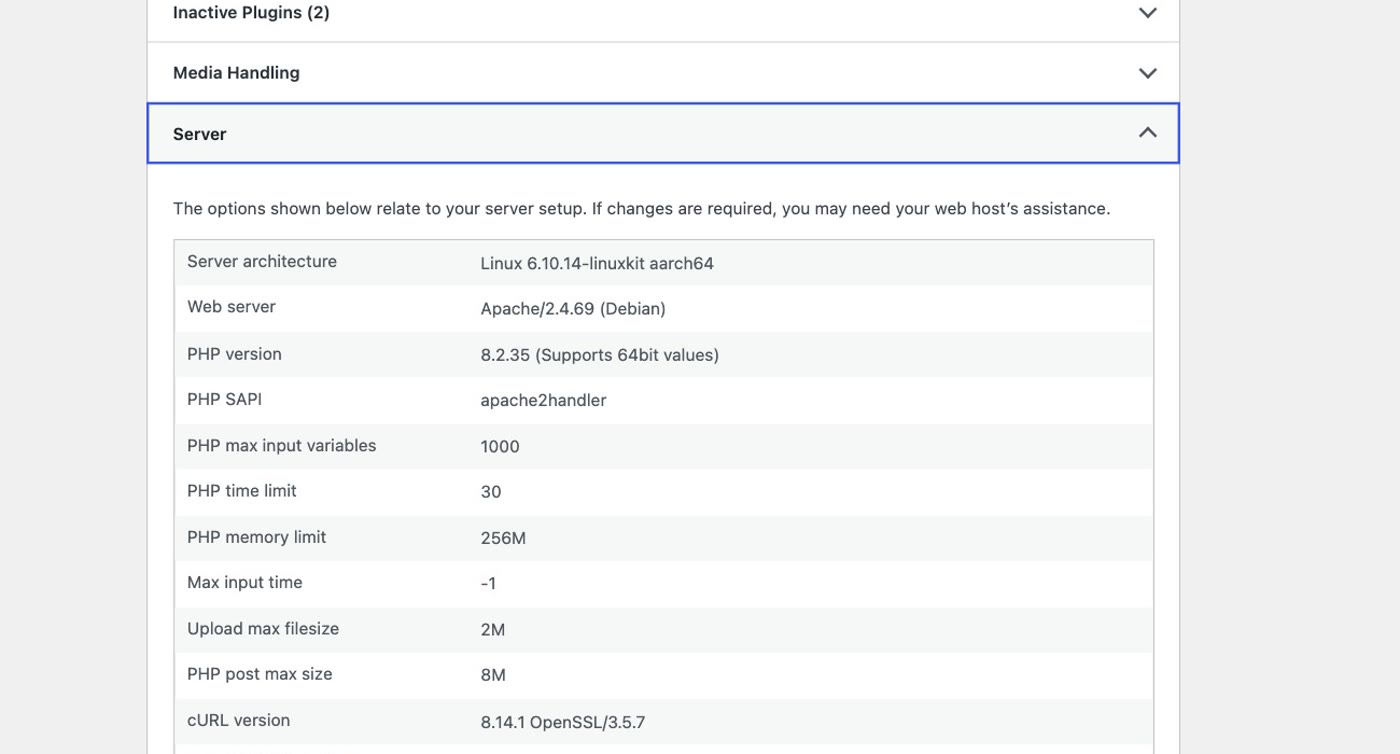
WordPress's help page puts it simply: changing PHP means "interacting with your host's settings or asking your provider to do it for you". So look in your hosting account for a PHP version setting, and read your host's emails about PHP. Either way, the moment to prepare is before the switch, not after (habit 2).
Cause 3: Plugins nobody looks after
Some plugins stop being maintained. The author moves on, and the plugin stays on every site that installed it. It worked when it was written. But nobody is keeping it up with new versions of WordPress and PHP, so sooner or later one of them leaves it behind. In the film, the plugin that broke on PHP 8.4 was Workshop Gallery Lite, a gallery last updated five years earlier (made up for the film, like the others).
You can check any plugin in under a minute:
- Open Plugins and click "View details" under the plugin's name.
- Look at "Last Updated" and "Compatible up to". A plugin last updated years ago, and only tested with a WordPress several versions old, is one nobody is looking after.
- On wordpress.org, look at the top of the plugin's page. A plugin that hasn't been tested with the latest three major WordPress releases carries a yellow notice saying so, and that it "may no longer be maintained or supported".
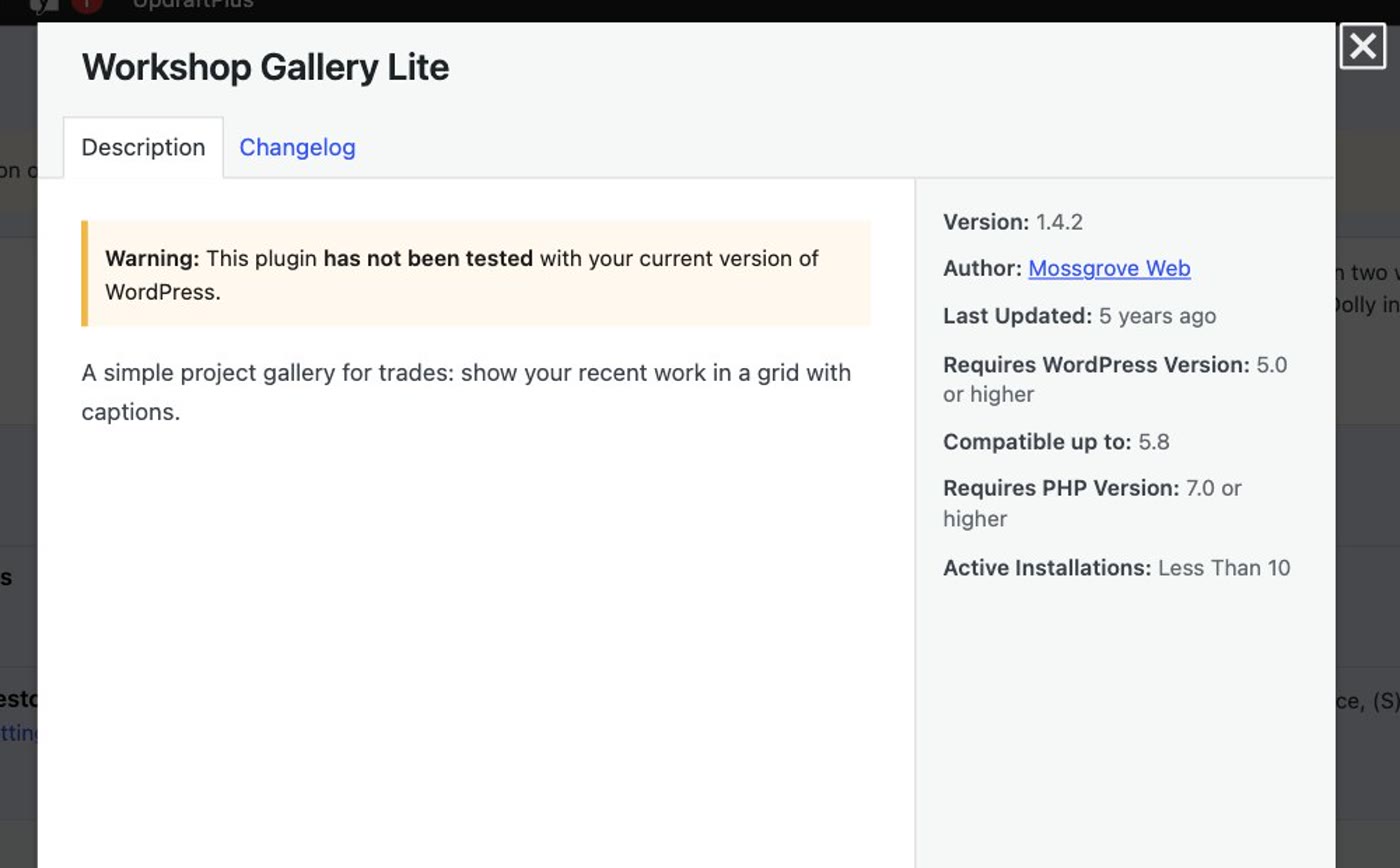
If a plugin you rely on looks like this, the safest time to replace it is now, while your site still works, not the morning after your host's PHP upgrade.
Five habits before every update
None of these needs a developer. Together they mean that when an update does go wrong, it goes wrong on a copy, or you know which plugin did it and have a backup to go back to.
- Back up first, every time. Before you press Update, take a backup: from your hosting account, or with a backup plugin. WordPress's own update guide starts with this step. If your host keeps nightly backups, update in the morning, while last night's copy is fresh.
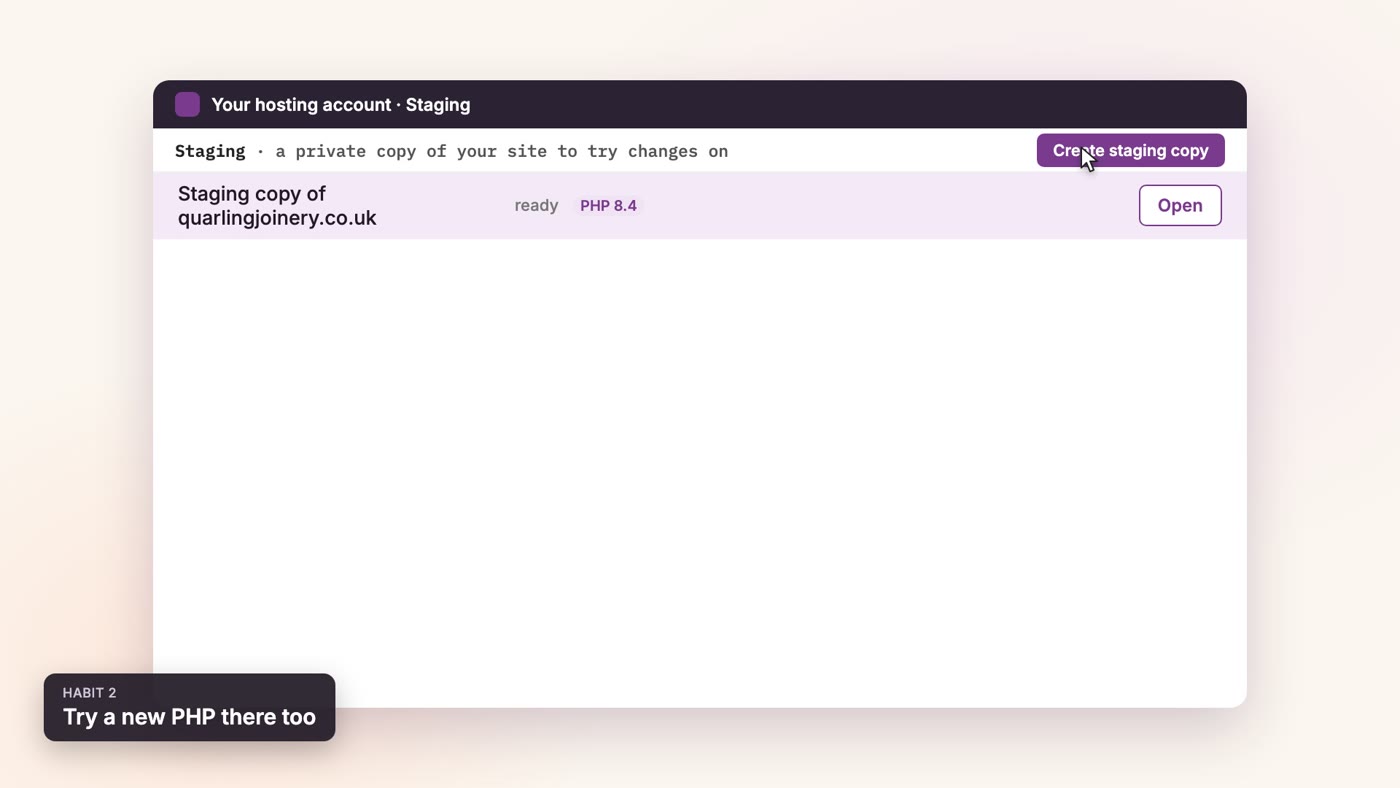
- Try it on a staging copy, if your host offers one. A staging copy is a private copy of your site. Update there first, and switch the staging copy to the new PHP before your host switches the real one. If something breaks, your real site never saw it.
- Update one plugin at a time. Click "View details" first and check it's been tested with your WordPress. Then update, and open your site before you do the next one. When something breaks, you'll know exactly which one did it.
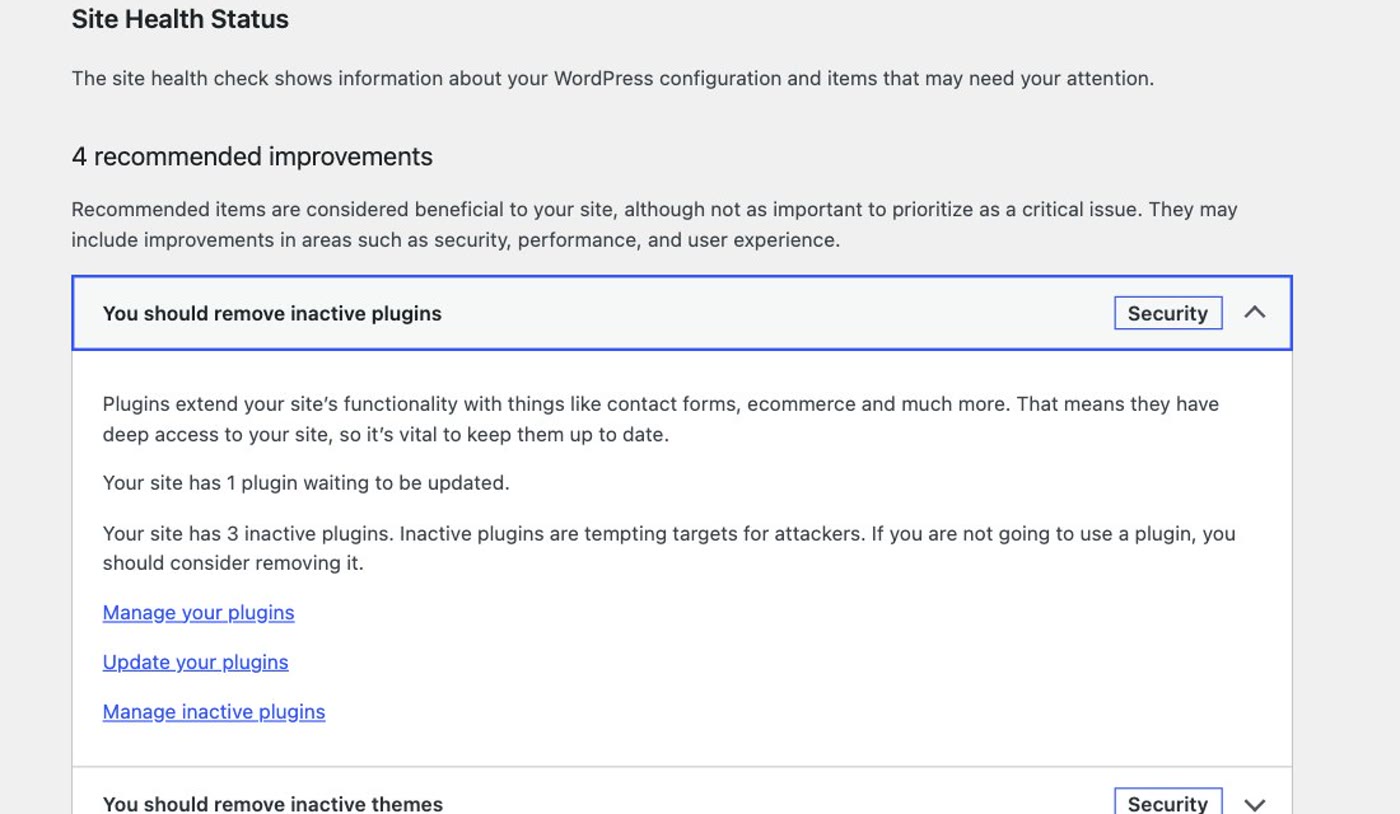
- Delete plugins you don't use. A deactivated plugin is still installed and still offered updates. Site Health says so too: under Tools → Site Health, "You should remove inactive plugins". In Plugins, click Deactivate, then Delete. WordPress asks first ("Are you sure you want to delete Hello Dolly?" in the film), then confirms it's gone.
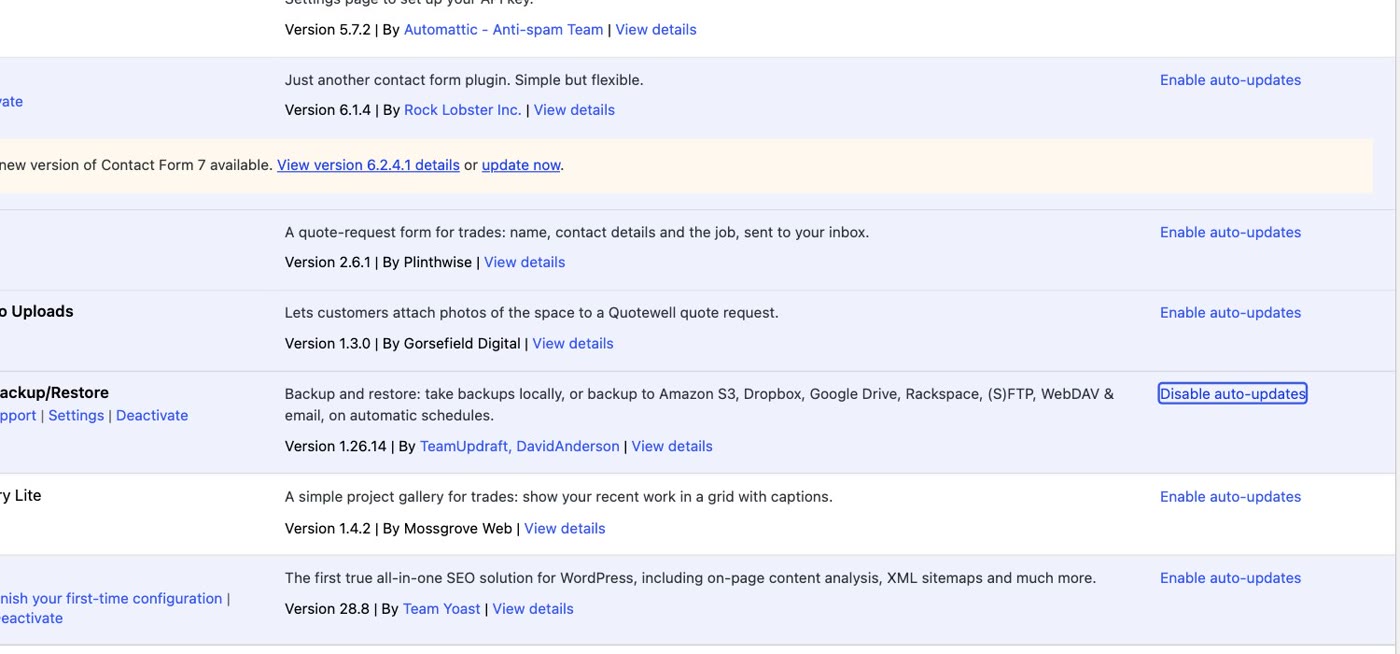
- Choose auto-updates plugin by plugin. The Plugins screen has an Automatic Updates column; turning it on is a per-plugin choice. Auto-updates run twice a day, and WordPress emails you afterwards. Since WordPress 6.6, if an automatic plugin update causes a fatal error, WordPress puts the previous version back. That safety net only covers automatic plugin updates: not an update you press yourself, and not a PHP change by your host. (Minor WordPress security releases already install themselves, and have since version 3.7.)
- Cause 1: your site is many parts from many authors; each tests their own, nobody tests your mix.
- Cause 2: hosts are moving sites to newer PHP (8.1 ended in 2025, 8.2 ends in 2026); old plugins can't cope.
- Cause 3: plugins nobody maintains fall behind; check "Last Updated" and "Compatible up to".
- Then: back up first, use a staging copy if you have one, update one at a time, delete what you don't use, and choose auto-updates plugin by plugin.
Or, there is another way
Those five habits make updates safer. They don't make them go away. As long as a site is a stack of plugins from different authors, on a PHP your host has to keep current, every update is something to plan for. If your site is a few pages, a contact form and some photos, it doesn't need plugins at all.
Ullbek is an AI website builder. You give it your WordPress site's address, and it builds a new, custom website from your pages and photos: the same pages, your wording and pictures, a fresh design, the form wired to your inbox. There are no plugins and nothing to update, so none of the three causes above can reach your site. When something needs to change, you say what should be different, and it's done.
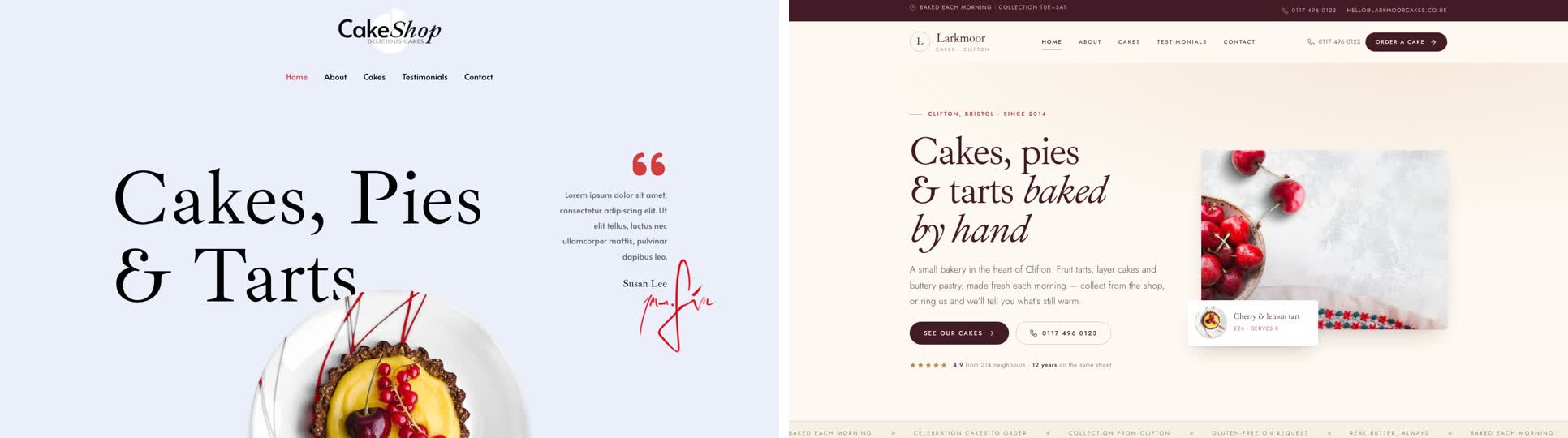
- Give it your old site's address. "Rebuild [your address] as a new site. It's my current WordPress website. Keep every page and bring across the photos." It reads every page and downloads your pictures.
- Answer a few questions in one go. Usually the business name, what to do with any placeholder text, and your real contact details.
- Look it over, publish, then move your domain. Your WordPress site stays up until the new one is live, and your old page addresses can be kept so links and search results still work. The move guide walks through every step, including what to collect from your old host first.
In our tests, a six-page business site moved from its address in about seventeen minutes of building, with one round of questions. After that, there are no updates to plan and no plugins to check.
Leave the updates behind
See how moving a WordPress site to Ullbek works, step by step.