The three fixes are written out below.
Captions available — press CC · Also on YouTube
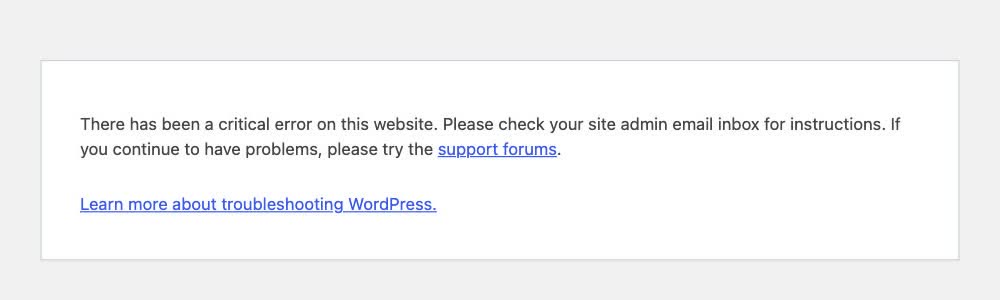
It's seven in the morning and your website is a white page. One line: There has been a critical error on this website. Last night you updated a plugin, because the dashboard told you to. The pages are gone, the admin login shows the same white page, and the first customer of the day has already noticed.
Don't ring a developer yet. Most of the time this is one plugin that no longer agrees with the rest of your site, and there are three ways back in that you can do yourself. The first one takes about two minutes. Everything in it, and in the film above, was done on a real WordPress site.
What actually happened
A WordPress site is a core, a theme and a stack of plugins, written by different people who have never met. An update changes one of them, and if the new version now expects something the others don't give it, the whole page stops: not just the bit the plugin drew, but every page, including the dashboard. Hosts moving sites to a newer version of PHP in 2026 have made this more common, because an old plugin that was fine for years suddenly isn't.
Two things are worth knowing before you touch anything. It isn't you. And your pages are still there. Nothing has been deleted; the site just isn't being shown while the broken piece is in the way. All three solutions below do the same thing in the end: they get that one piece out of the way.
Solution 1: the recovery email
Since version 5.2, WordPress has a built-in way out of exactly this. When a plugin or theme causes a fatal error, it emails the site's admin address a link to "recovery mode". But there is a catch almost nobody mentions: the email is only sent when the error happens on the login or admin side, not when a visitor sees the white page. So the first thing to do is to be that person.
- Open your site's address with /wp-admin on the end. For example
yoursite.com/wp-admin. You will see the same error, but with one extra sentence: Please check your site admin email inbox for instructions. That visit is what makes WordPress send the email. - Find the email. It is called [Your site] Your Site is Experiencing a Technical Issue, from WordPress at your own domain. Check spam. It names the plugin that broke ("WordPress caught an error with one of your plugins, …") and, near the bottom, has a link to recovery mode. The link works for one day; if it has expired, repeat step 1 and a new one is sent.
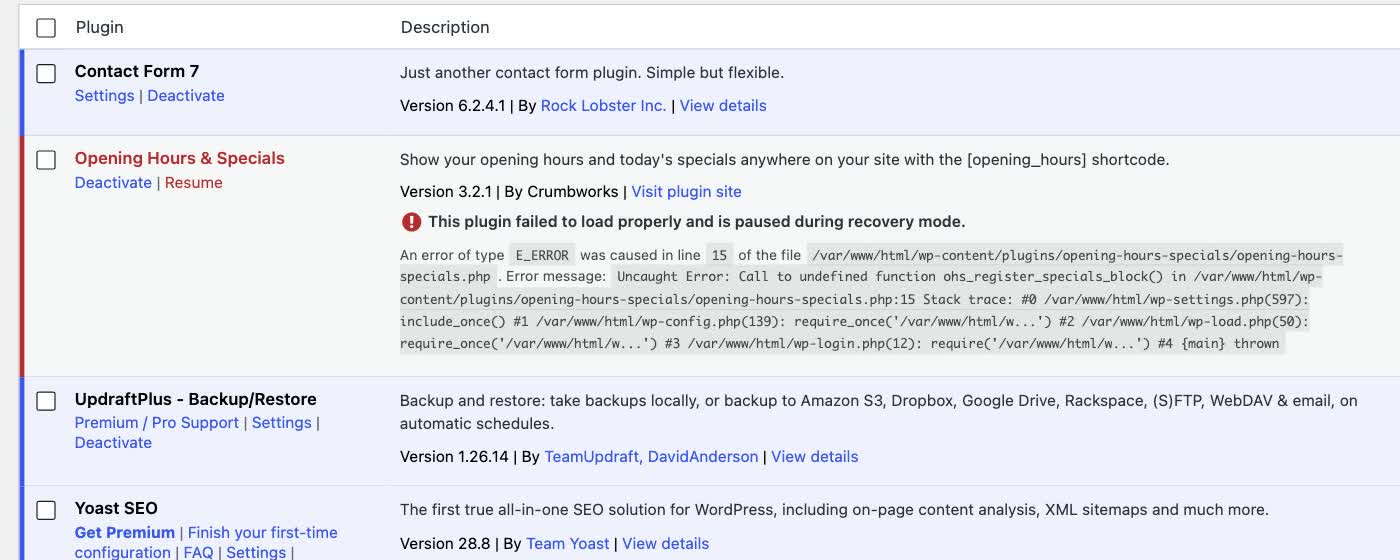
- Open the link and log in as usual. You land in a safe version of your dashboard with a notice: "You are in recovery mode." The broken plugin has been paused, so everything else works.
- Go to Plugins, find the one with the notice, and press Deactivate. The paused plugin is marked "This plugin failed to load properly and is paused during recovery mode", with the error underneath. Deactivate it.
- Press Exit Recovery Mode (top right), then open your site. It's back.
If the email never arrives, don't wait on it. Some hosts don't deliver mail from WordPress at all, which is the same reason contact forms go quiet. Go to solution 2.
Solution 2: rename the plugin folder
This is what the recovery email does for you, done by hand. You need your hosting account login (the company you pay for hosting, not WordPress itself), because the files live there.
- Log in to your hosting account and open the file manager. Every host has one; it is usually called File Manager and sits next to Domains and Email. (If you have ever used FTP, that works too.)
- Go into the folder called
wp-content, thenplugins. Your site's files are usually in a folder calledpublic_htmlorwwwor named after your domain;wp-contentis inside it. Insideplugins, each plugin is a folder. - Find the plugin you updated and rename its folder: add
-offon the end, sosome-pluginbecomessome-plugin-off. Renaming is enough; don't delete anything. Reload your site. - Still broken, or not sure which one it was? Go up one level and rename the whole
pluginsfolder toplugins-off. Every plugin switches off at once and the site comes back. Rename it back toplugins, then in your dashboard switch the plugins on one at a time, reloading your site after each, until you find the culprit.
Your contact form or gallery will be missing while its plugin is off. That is the trade: a site that works without one feature, instead of no site. Once you are in, the next section is about what to do with the plugin you found.
Solution 3: restore a backup
Nearly every host keeps a nightly backup of your site, and restoring one is the way back in that needs the least from you.
- In your hosting panel, look for Backups. Choose the one from before you pressed Update (the night before, not the one taken after the site broke), and restore it. Most hosts do this in a few minutes.
- Can't find it? Message your host's support and use the exact words: critical error after a plugin update. They see this every day and can restore a backup, or turn the plugin off for you, in a few minutes.
One caveat with a restore: anything you changed on the site after that backup (a new post, a price) goes back too, and the plugin that broke is restored to the version that worked, so the update will be offered again. Which brings us to the part that stops this happening next month.
Before you switch the plugin back on
- Check whether the plugin's author has posted a fix. Open the plugin's page (the "View details" or "Visit plugin site" link in your Plugins list). If the problem is known, the next version is usually days away; wait for it rather than reactivating the broken one.
- Update one thing at a time. Press Update on one plugin, reload your site, then the next. When something breaks you will know which one did it, and solutions 1 and 2 take a minute instead of an afternoon.
- Take a backup before every update, not after. If your host does nightly backups, update in the morning, when last night's copy is fresh. If it doesn't, that is worth more than any security plugin.
- Delete the plugins you no longer use. Deactivated is not gone: a plugin that is switched off still sits on the server and still gets updates offered. Every one you remove is one less thing that can do this to you.
- Solution 1: open
yoursite.com/wp-adminto trigger the recovery email, follow its link, deactivate the paused plugin, exit recovery mode. - Solution 2: in your host's file manager, rename the plugin's folder in
wp-content/plugins(add-off), or rename the wholepluginsfolder and switch them back on one by one. - Solution 3: restore last night's backup from your hosting panel, or ask support with the words "critical error after a plugin update".
- Then: check for a fixed version before reactivating, update one plugin at a time, back up first, delete what you don't use.
Or, there is another way
Everything above gets you back in. None of it stops the next update doing the same thing, because a WordPress site is a stack of plugins from different authors, and keeping it safe means pressing Update on all of them, forever. If your site is a few pages, a contact form and some photos, it doesn't need plugins at all.
Ullbek is an AI website builder. You give it your WordPress site's address, and it builds a new, custom website from your pages and photos: the same pages, your wording and pictures, a fresh design, the form wired to your inbox. There are no plugins and nothing to update, so there is nothing left for an update to break: no critical error, no recovery email, no file manager. When something needs to change, you say what should be different, and it's done.

- Give it your old site's address. "Rebuild [your address] as a new site. It's my current WordPress website. Keep every page and bring across the photos." It reads every page and downloads your pictures.
- Answer a few questions in one go. Usually the business name, what to do with any placeholder text, and your real contact details.
- Look it over, publish, then move your domain. Your WordPress site stays up until the new one is live, and your old page addresses can be kept so links and search results still work. The move guide walks through every step, including what to collect from your old host first.
In our tests, a six-page business site moved from its address in about seventeen minutes of building, with one round of questions. After that, there is nothing to maintain: no updates to run, no plugins to check, and no critical error to come back to.
Leave the plugins behind
See how moving a WordPress site to Ullbek works, step by step.