The five fixes are written out below.
Captions available — press CC · Also on YouTube
It's a quiet Tuesday and you open your own website on your phone, the way a customer would. The header appears, then some text, then a grey box where the photo should be. You count. Four seconds. Six. Eight. By then, a customer on the bus has gone back to the search results.
There's a fix, and most of it you can do yourself, in an afternoon, without a developer. Here are five solutions, in the order to try them: the first two make the server quicker, the third makes the page lighter, and the last two are about your hosting. Everything in this post, and in the film above, was done on a real WordPress site.
What actually makes it slow
A page is slow for two reasons, and it helps to know which one you have.
The server takes too long to build the page. Every time someone visits, WordPress puts the page together from scratch: the theme, every active plugin, the database. If one plugin does something slow on every visit, or waits on another website, every visitor waits with it.
The page is too heavy to download. Once the page arrives, the browser still has to fetch everything on it, and the largest thing on most pages is an image. One oversized photo can take longer to download than the rest of the page put together, especially on a phone.
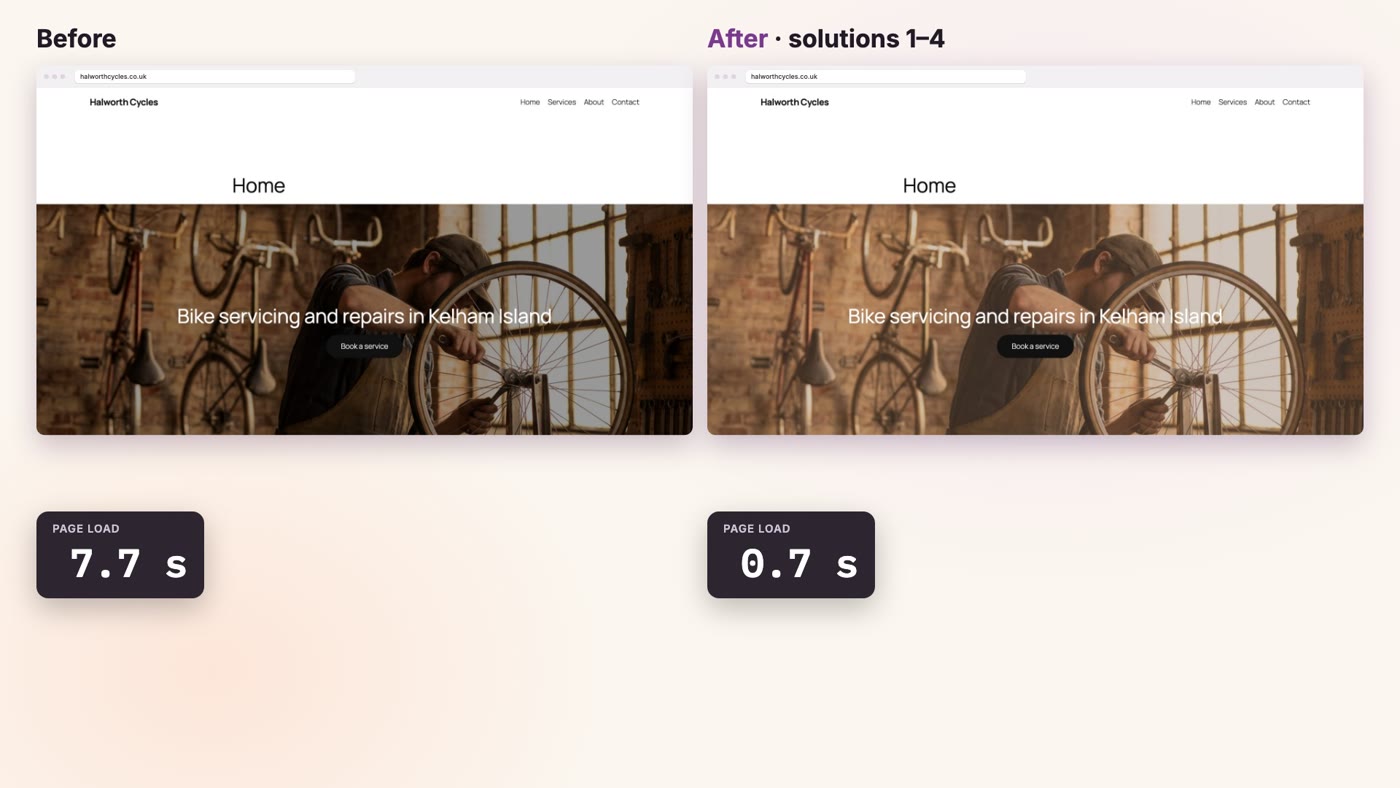
Google's own guidance is that the main content of a page should appear within 2.5 seconds for most visits. In the film, on a simulated mobile connection, our demonstration site took 7.7 seconds: 3.5 seconds waiting for the server, and 4.3 more downloading one photo.
WordPress already checks your server's response time, too: Tools › Site Health tells you whether it's slow.
Solution 1: find the slow plugin
The quickest way to see what your server is doing is a plugin called Query Monitor, from WordPress's own plugin directory. It shows, on any page you open while logged in, how long WordPress took to build it, and what took the time.
- Install Query Monitor. In your dashboard, go to Plugins › Add New Plugin, search for Query Monitor, click Install Now, then Activate.
- Open your home page while you're logged in. A new set of numbers appears in the black bar at the top. The first is the page generation time in seconds: how long WordPress took to build this page.
- Click the numbers to open the panel. Two parts matter most. HTTP API Calls lists every time a plugin or theme waited on another website while building your page, with how long each one took; the Caller column shows the plugin's file (on most sites the Component column names the plugin too). These are, in Query Monitor's own words, usually the "invisible" causes of a slow site. Queries by Component lists your plugins by how long their database queries took, slowest first.
- Deactivate the culprit. Go to Plugins, find the one Query Monitor named, and click Deactivate. Reload your page and check the first number again.

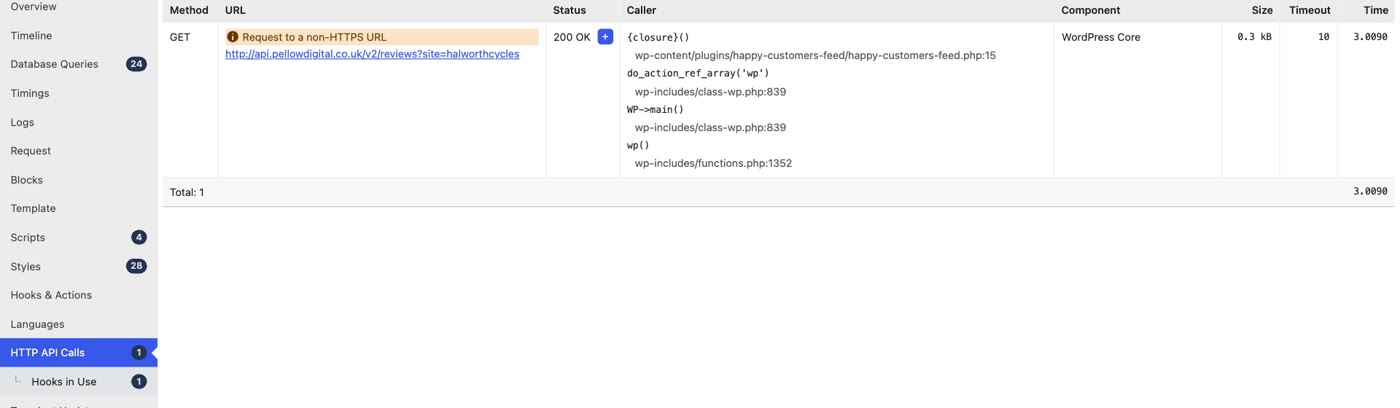
In the film, deactivating that one plugin took the first number from 3.49 seconds to 0.05.
If you need what that plugin does, don't just leave it off: ask its author about the delay (the plugin's page has a support link), or look for another plugin that does the same job. In the film, the slow plugin, Happy Customers Feed, is one we made for the demonstration, so no real plugin is being blamed; but any plugin that fetches reviews or social posts from another site while your page is being built can do exactly this.
When you're done, deactivate Query Monitor too. It's a tool for looking, and it adds a little time to every page itself. Only administrators can see it, so your visitors never did.
No plugins allowed on your site? WordPress's own handbook suggests the slower way: deactivate your plugins one at a time and time your page after each.
Solution 2: turn on page caching
Without caching, WordPress builds every page again for every visitor. A page cache keeps a ready-made copy of each page and hands that out instead, so the server does almost nothing. For a small-business site whose pages change once a month, it's usually a big speed-up: WordPress's handbook says caching can improve performance "several hundred times over for fairly static pages".
- Check your hosting account first. Some hosts have caching built in, with a switch in the hosting account (look for Caching or Speed). If yours does, turn that on and skip the plugin.
- If not, install a caching plugin. WP Super Cache, from the team behind WordPress.com, is in the plugin directory: Plugins › Add New Plugin, search WP Super Cache, Install Now, Activate. (WP Super Cache may ask you to switch to "pretty" page addresses first: Settings › Permalinks, Post name.)
- Turn it on. Go to Settings › WP Super Cache. On the Easy tab, choose Caching On (Recommended) and click Update Status.
- Check it works. On the same page, click Test Cache: it loads your home page twice and compares them. Then go to Tools › Site Health: under Passed tests you should see Page cache is detected and the server response time is good.
- Test it like a visitor. Logged-in users aren't served the cached copy, so open your site in a private window to see what customers see.
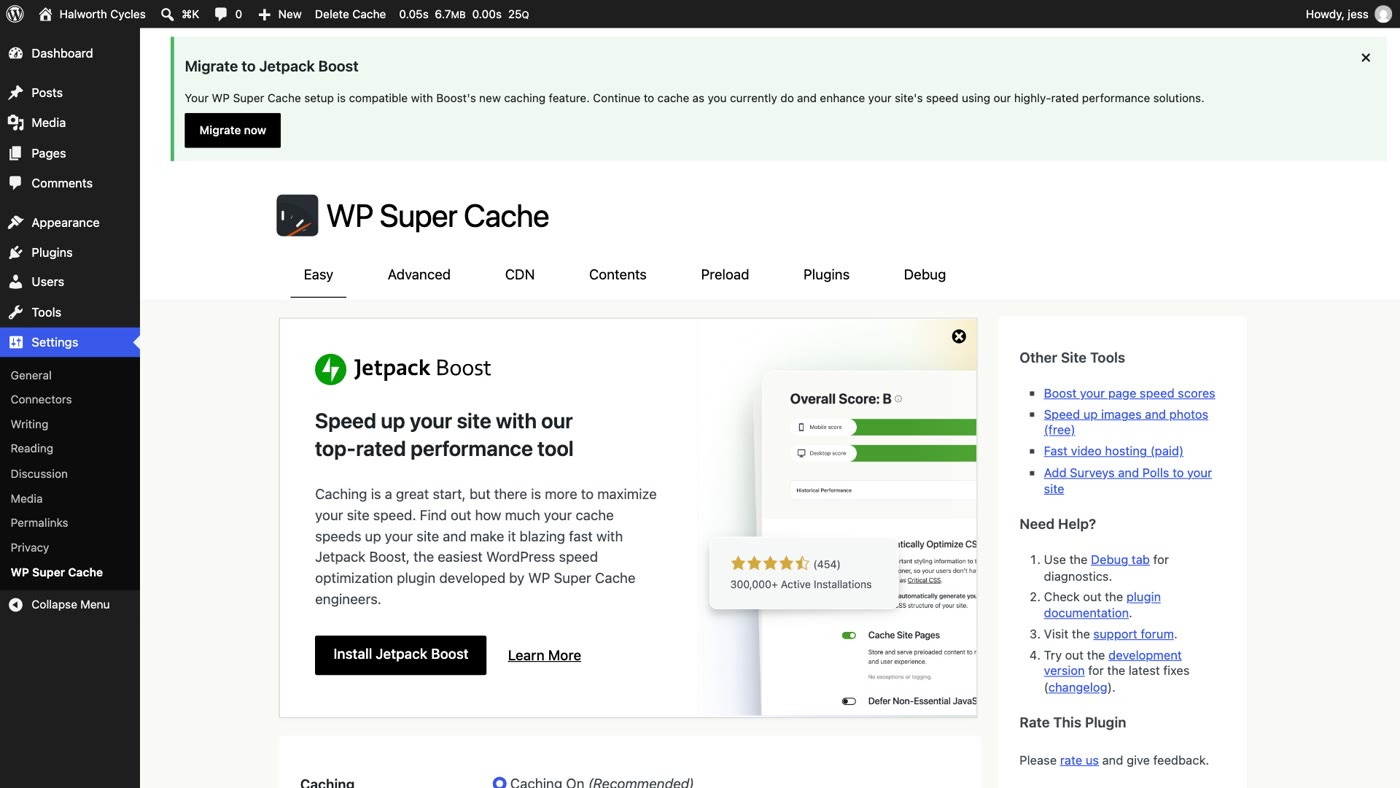
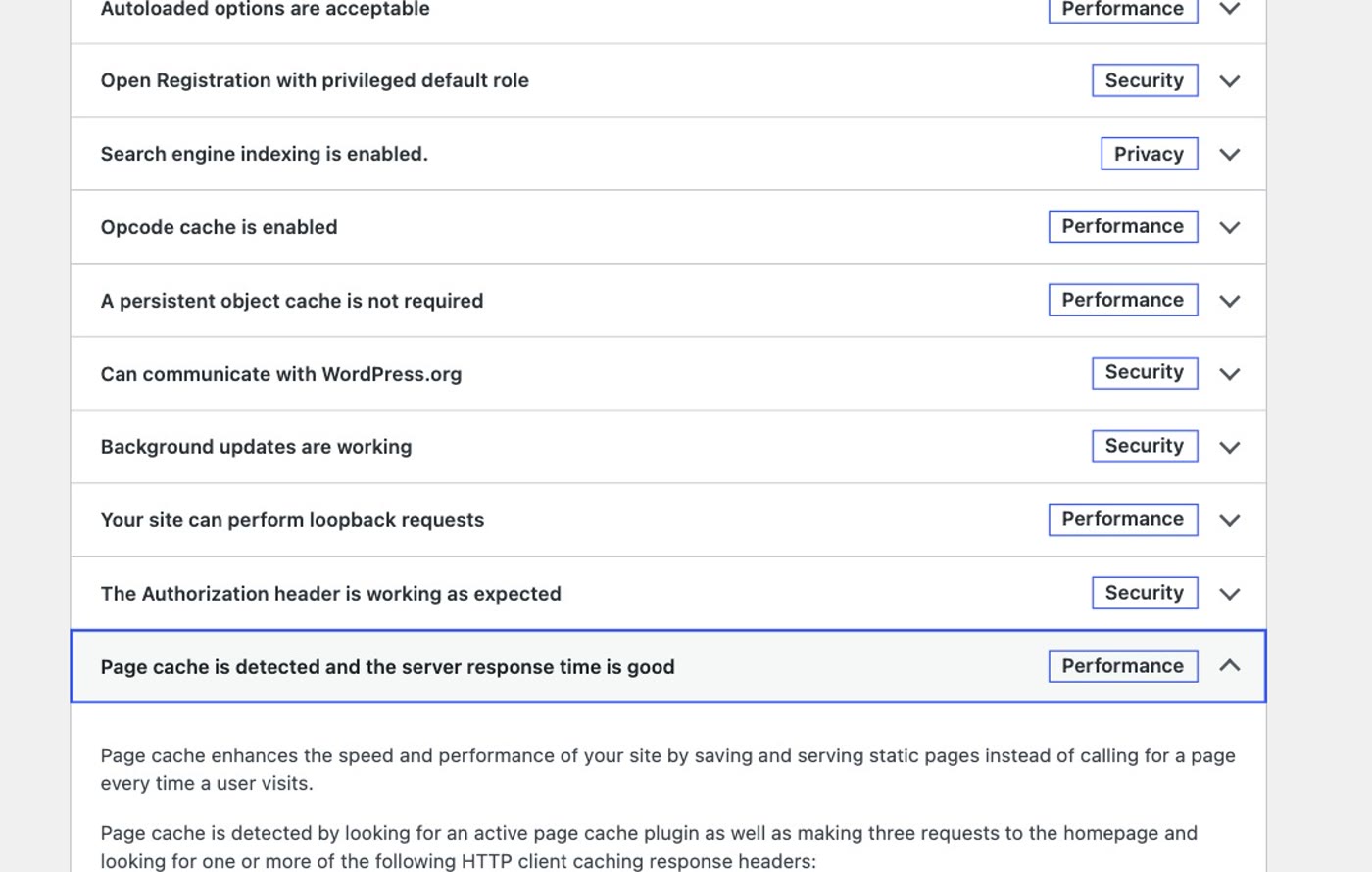
The caveat: if you change a page and don't see the change, an old copy is still being served. Click Delete Cache on the same settings page. If a page looks broken after you turn caching on, switch it back to Caching Off and ask your host or the plugin's support forum before trying again.
Solution 3: shrink your photos
This is the one that matters most on a phone. WordPress's handbook says to choose the right format and compression for every image, and photos are where it usually goes wrong.
- Find your heaviest photos. Go to Media › Library and click a photo. The details on the right show its file type, file size and dimensions. Start with the photos at the top of your home page.
- Look for photos saved as PNG. PNG is almost never the right choice for photographs: the files are far bigger than the same photo saved as a JPEG.
- Save it again, smaller. In any photo app, export it as a JPEG (or WebP, which WordPress accepts and which is around 30% smaller again on average), and make it no wider than 2,560 pixels, the size WordPress itself treats as "big".
- Swap it into the page. Open the page in the editor, click the image, choose Replace in the toolbar, upload the new file, and click Save.
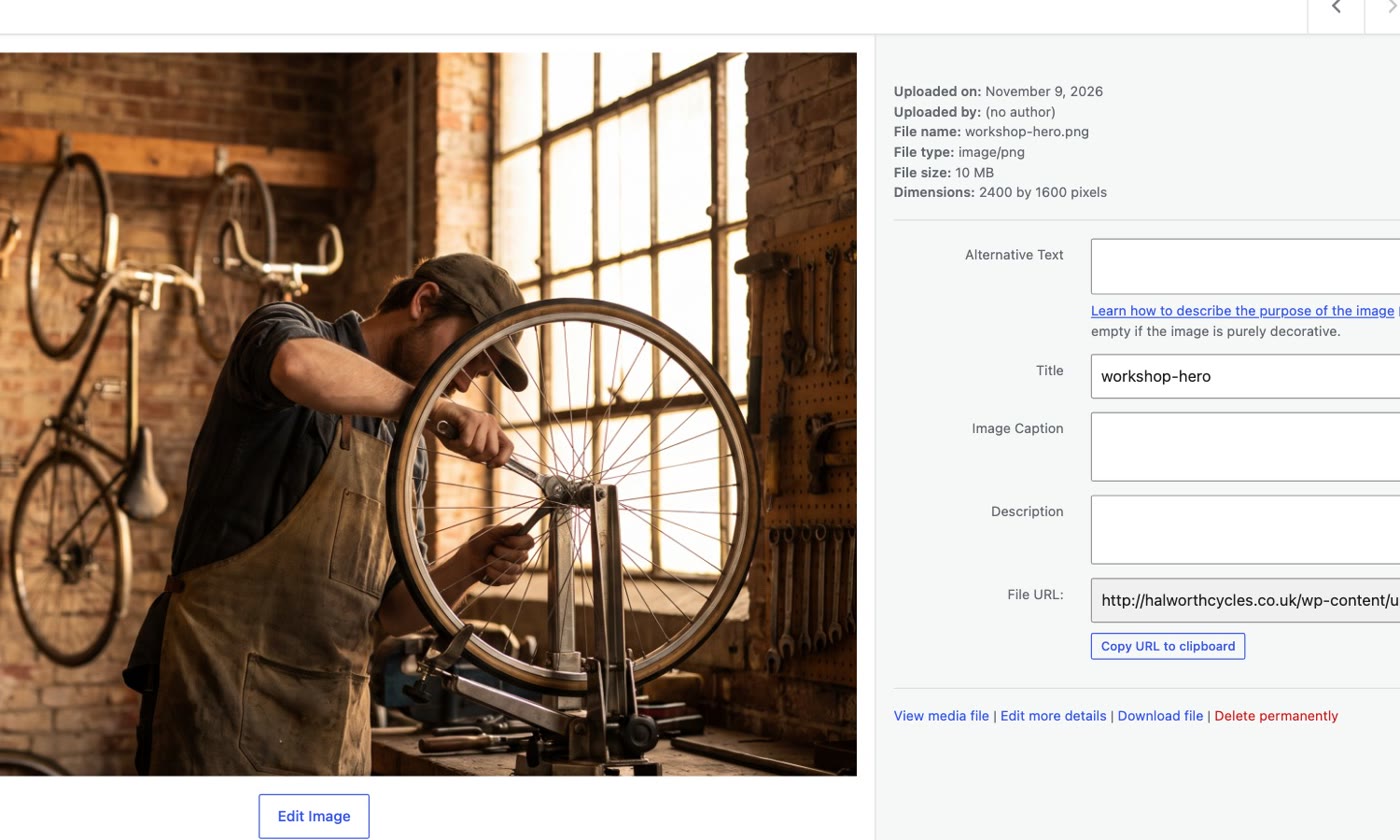
We saved that photo again as a JPEG, still 2,400 pixels wide, and it came to about 0.5 MB. Replace in the Cover block's toolbar swapped it in.
You don't need a plugin for lazy loading (photos further down the page waiting until you scroll to them): WordPress has done that by itself since version 5.5. An image-optimising plugin can compress new uploads for you, but it's one more plugin; a photo saved properly before it's uploaded needs nothing.
Solution 4: update PHP
PHP is the software your server uses to run WordPress, and newer versions are faster. WordPress's own Site Health check says newer versions "may increase your site's performance", and the WordPress.org guide says your website "may be faster because PHP becomes more efficient with each new version".
- Check your version. Go to Tools › Site Health. If it says your site is running an older or outdated version of PHP, this solution is for you. On the site in the film it said: "Your site is running on an older version of PHP (8.2.35), which should be updated". (The exact number is under Info › Server.) WordPress recommends PHP 8.3 or newer. PHP 8.2 only gets security fixes, and only until the end of 2026; anything older has reached its end of life.
- Back up, and update everything first. Take a backup, then update WordPress, your theme and your plugins from Dashboard › Updates. That way they're ready for the new version.
- Change it in your hosting account, not in WordPress. Most hosts have a PHP version setting; choose 8.3 or newer and save. If you can't find it, ask your host's support to do it.
- Check your site. Click through your main pages and your contact form. If anything breaks, switch back to the old version in the same place, and look for an update for the plugin that broke.
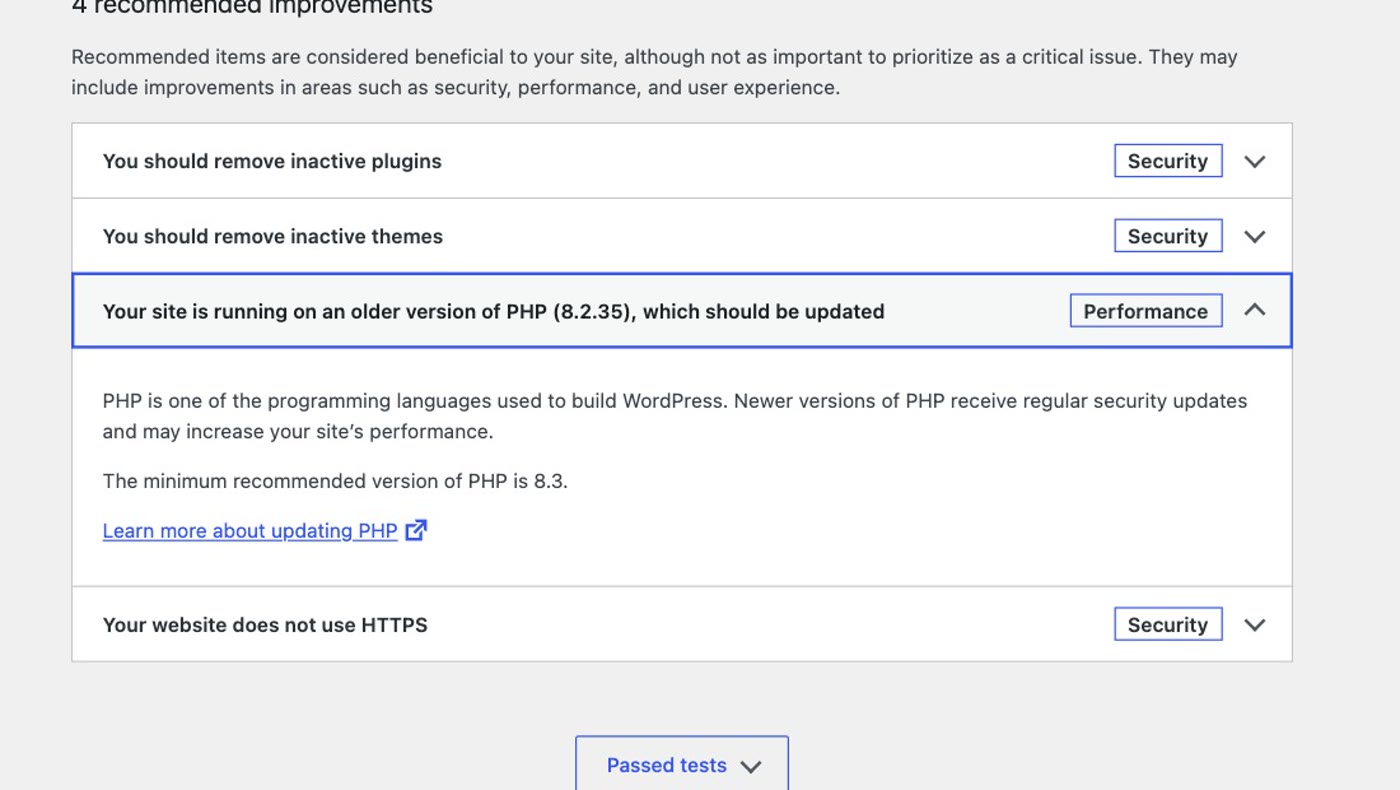
After the switch to 8.3, the same check said: "Your site is running a recommended version of PHP (8.3.36)".
Solution 5: ask your host
If your pages are still slow after solutions 1 to 4, the limit may be the hosting itself, and that's something only your host can see. Message their support and ask three things:
- "Is my plan running out of resources?" Shared hosting plans have limits on processing and memory; a site that keeps hitting them slows down. The host can see this; you usually can't.
- "Is page caching on at your end?" Some hosts cache pages on their servers. If they do, they may tell you to switch off your caching plugin from solution 2.
- "Can you switch on a CDN?" A content delivery network keeps copies of your pages and photos on servers closer to your visitors. WordPress's handbook says it "can greatly reduce the load on your website", and that it works best alongside page caching.
If the answer is a bigger plan, that can be the right fix: WordPress's handbook says better hosting "can be very effective". But ask what exactly it will fix (which limit you are hitting, and how often) before you agree to pay more.
Keeping it fast
Speed doesn't stay fixed. One new plugin, or one big photo, can undo all of the above. Once a month:
- Time your slowest page. Open it in a private window on your phone. If it's slower than last month, something changed: switch Query Monitor back on for ten minutes and look.
- Delete the plugins you don't use. Deactivated isn't gone. WordPress's handbook says to "deactivate and delete any unnecessary plugins".
- Shrink photos before you upload them, not after. JPEG or WebP, no wider than 2,560 pixels.
- Keep PHP current, and keep your plugins updated, so the next PHP change isn't a fright.
- Solution 1: install Query Monitor, open a page logged in, check HTTP API Calls and Queries by Component, and deactivate the plugin that's taking the time.
- Solution 2: turn on page caching: your host's switch if it has one, otherwise WP Super Cache, Caching On. Check Site Health says "Page cache is detected".
- Solution 3: replace photos saved as PNG with JPEG or WebP, no wider than 2,560 pixels. Lazy loading is already built in.
- Solution 4: check Tools › Site Health; back up, update your plugins, then switch to PHP 8.3 or newer in your hosting account.
- Solution 5: ask your host about your plan's limits, server caching and a CDN, and what a bigger plan would actually fix.
- Then: once a month, time your slowest page, delete unused plugins, shrink photos before uploading.
Or, there is another way
Everything above makes a WordPress site faster. None of it stays done on its own: each new plugin, theme update and photo can slow it down again, so speed becomes one more thing to check every month. If your site is a few pages, a contact form and some photos, it doesn't need plugins, or caching, to be quick.
Ullbek is an AI website builder. You give it your WordPress site's address, and it builds a new, custom website from your pages and photos: the same pages, your wording and pictures, a fresh design, the form wired to your inbox. There is nothing to speed up and nothing to tune: no caching plugin, no photo plugin, no PHP updates. When something needs to change, you say what should be different, and it's done.

- Give it your old site's address. "Rebuild [your address] as a new site. It's my current WordPress website. Keep every page and bring across the photos." It reads every page and downloads your pictures.
- Answer a few questions in one go. Usually the business name, what to do with any placeholder text, and your real contact details.
- Look it over, publish, then move your domain. Your WordPress site stays up until the new one is live, and your old page addresses can be kept so links and search results still work. The move guide walks through every step, including what to collect from your old host first.
In our tests, a six-page business site moved from its address in about seventeen minutes of building, with one round of questions. After that, there is nothing to tune: no plugins to check, no cache to clear, no PHP to update.
Leave the tuning behind
See how moving a WordPress site to Ullbek works, step by step.