The five steps are written out below.
Captions available — press CC · Also on YouTube
You have messaged your web developer three times in a month and heard nothing back. The site needs a change, and the login they gave you no longer works. Nobody else seems to know where the site lives, who the domain belongs to, or where your email is hosted.
This is fixable, and you don't need the developer to do it. There are five things to get back: your way into WordPress, the knowledge of who holds your domain, the domain itself in your name, the hosting account, and your email. Each step below is its own section, in the order that works. Every WordPress screen in the film and in this post is real; the registrar's and the host's screens are drawn, because every company's look different.
Why the keys end up with the developer
Whoever set the site up created the accounts, and usually created them with their own email address because it was quicker: the WordPress login, the domain at the registrar, the hosting, sometimes the mailboxes too. ICANN's own FAQ describes exactly this: someone who registers a domain for you "may have registered the domain name using their own contact details". None of that matters while they answer. It matters now, because every password reset, renewal reminder and support conversation goes to them.
Step 1: get into WordPress
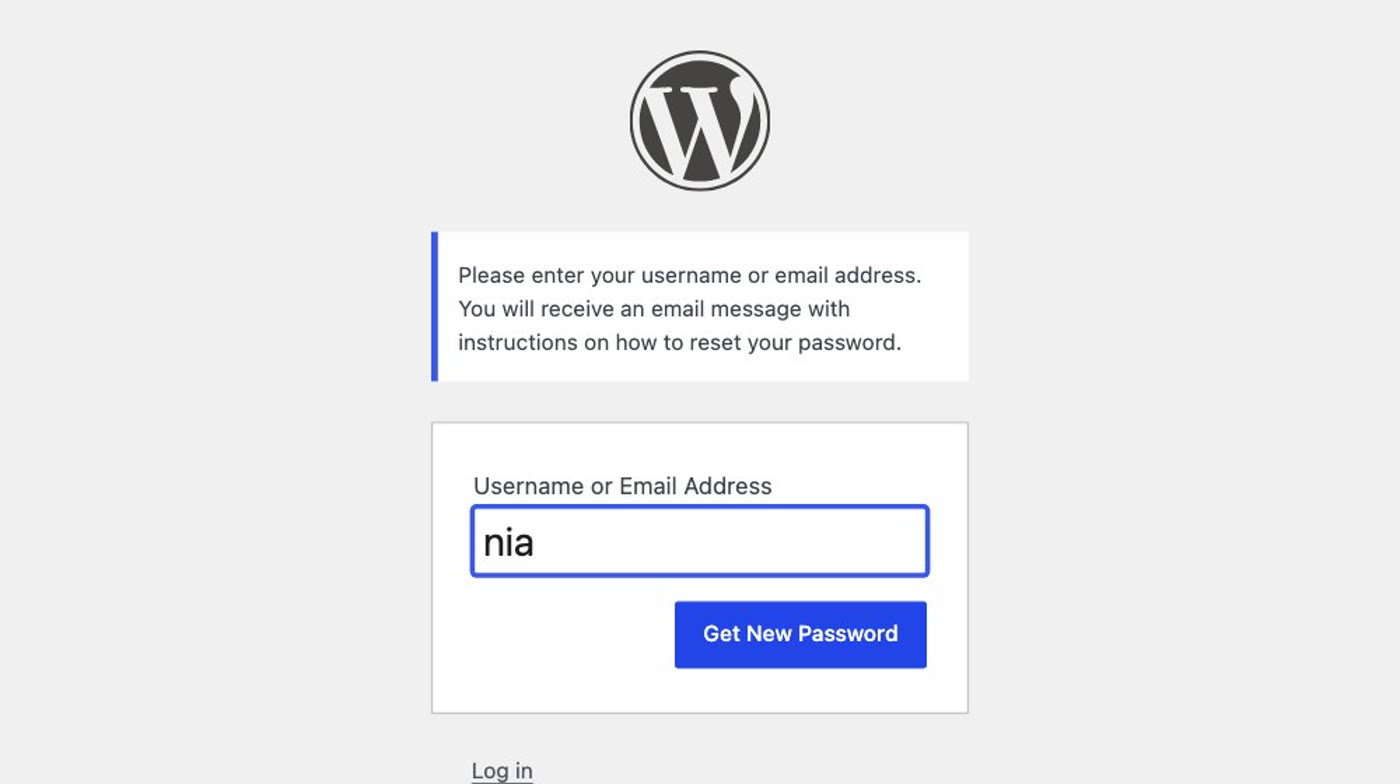
Start with the easy one. WordPress's own password reset works without anyone's help, as long as the account's email address is one you read.
- Click "Lost your password?" It's under the login form on your site's login page (usually
yourbusiness.co.uk/wp-login.php). - Type your username or email, and click Get New Password. WordPress says "Check your email for the confirmation link".
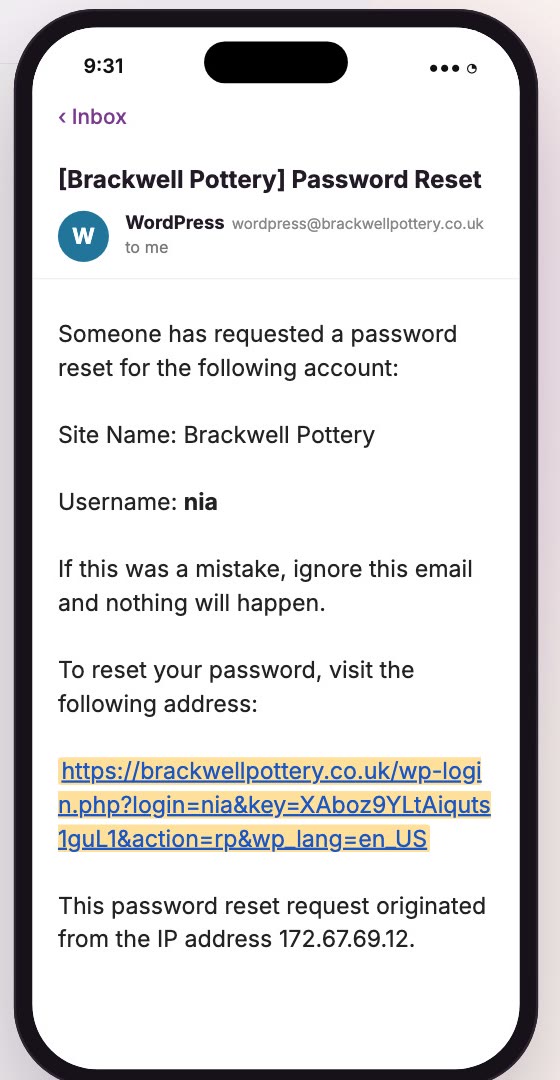
- Open the email. WordPress sends a reset link to the email address on that account. The subject is "[Your site's name] Password Reset".
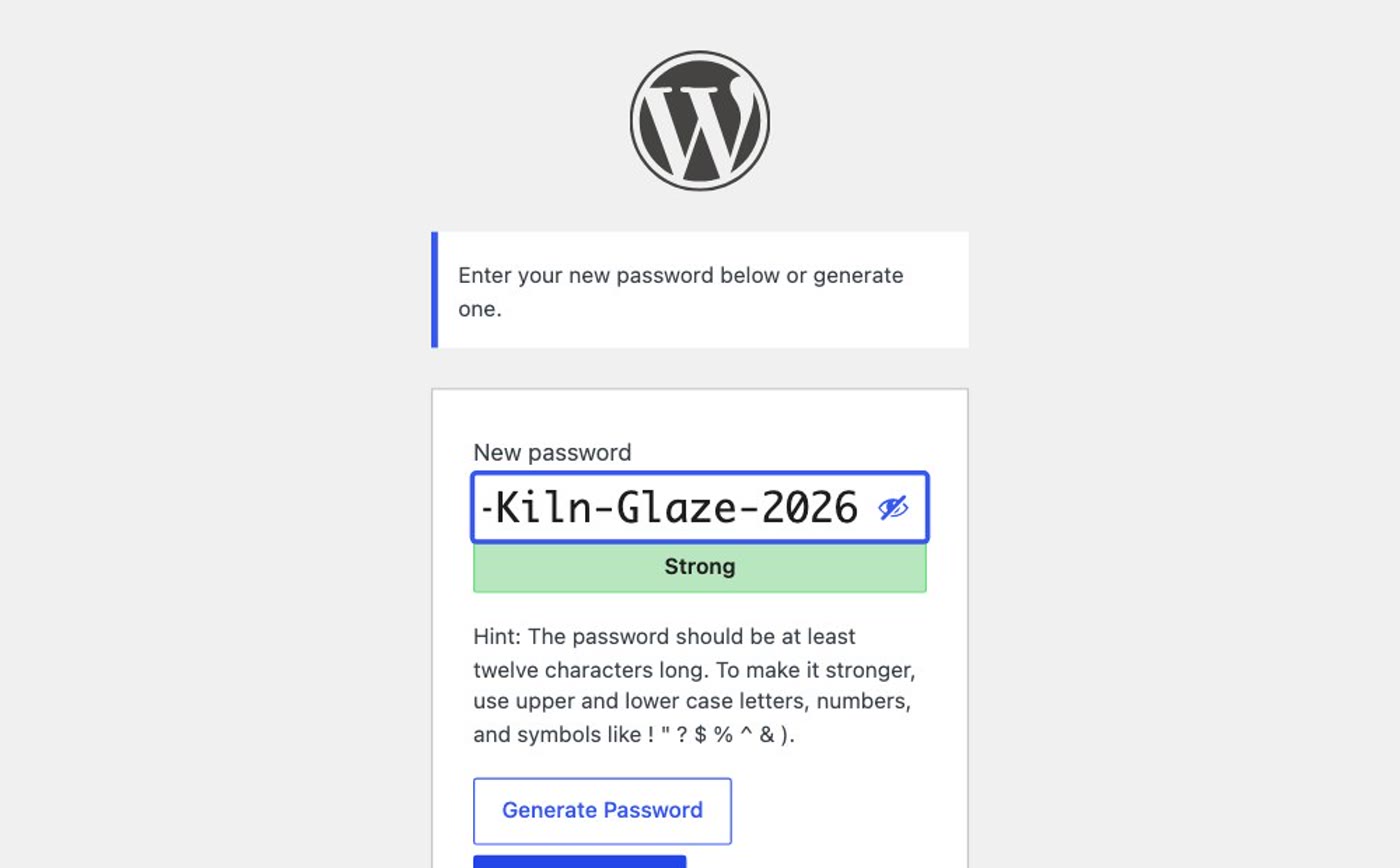
- Open the link, type a new password, and click Save Password. Then log in with it.
If the reset email goes to the developer instead, there is still a way in, through the hosting account. Your site's database has a table of WordPress logins (usually called wp_users), and each one has a user_email. Changing that email to yours, through the database tool in your hosting account, means the next password reset comes to you. WordPress's own guide to resetting a password describes a similar route, setting a new password in the same table through phpMyAdmin, and warns that editing the database is at your own risk. If you'd rather not touch the database, your host's support can usually get you back in. And if you have no hosting login yet, do step 4 first.
Once you are in, make sure you have your own Administrator login, and put your own address in Settings → General → Administration Email Address, so WordPress's emails come to you from now on.
Step 2: find who holds the domain
Your domain is registered with a company called the registrar. The person or business it is registered to is the registrant. A public lookup tells you the first, and sometimes the second.
- Open ICANN's lookup tool. Go to
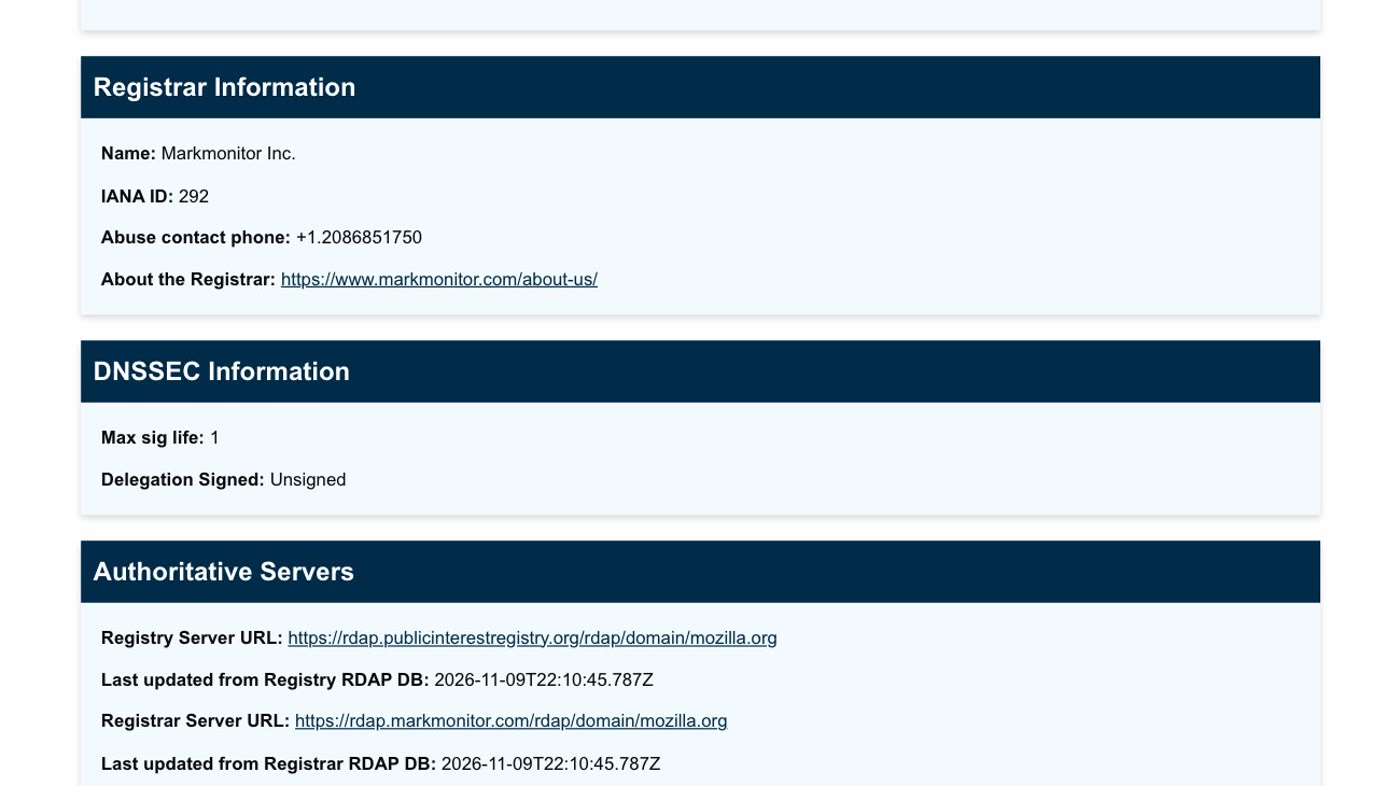
lookup.icann.org, type your domain and press Lookup. (For a .uk domain, Nominet runs the lookup.) - Read the registrar. Under Registrar Information, the name is the company your domain is registered with. That's who you will deal with in step 3.
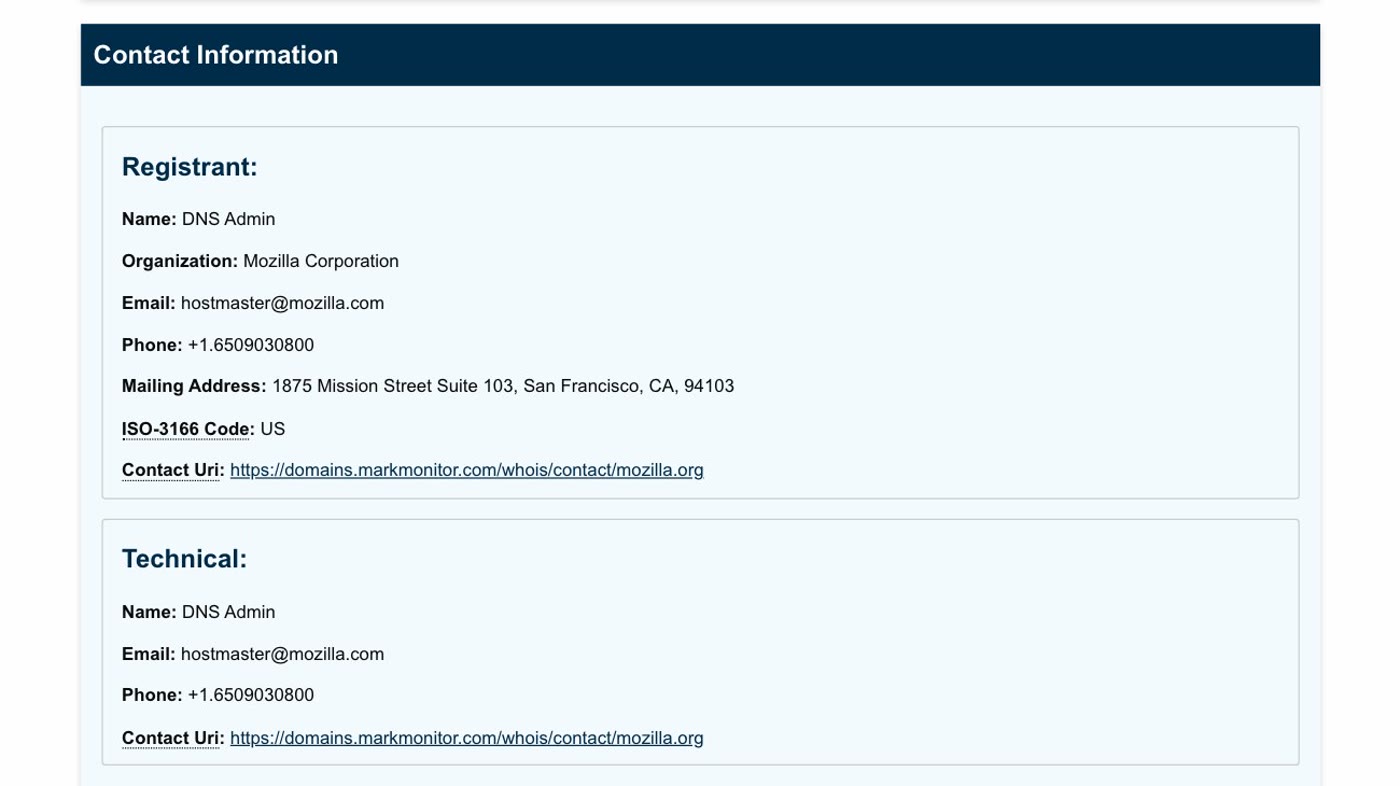
- Look at the registrant. Under Contact Information you may see a business, as with mozilla.org in the film, or REDACTED FOR PRIVACY: many registrars hide personal details in public lookups. If it's hidden, the registrar can tell you who the registrant of record is.
Step 3: get the domain into your name
Changing who a domain is registered to is called a change of registrant, and it goes through the registrar. Under ICANN's Transfer Policy, the registrar has to get confirmation of the change from both the new registrant and the current one.
- Contact the registrar from step 2 and ask to change the registrant to you or your business.
- If your developer still answers, that is one confirmation email from them. Ask them to move the domain into an account in your own name, not just to give you access.
- If they have vanished, ask the registrar what it needs instead, and send proof the business is yours. ICANN's FAQ says you may need to show proof of what you paid the developer, so the invoices for the domain matter.
- For a .uk domain that can't be settled this way, Nominet, which runs .uk, has a Dispute Resolution Service.
One thing to know: under the current policy, a change of registrant can put a 60-day lock on moving the domain to another registrar, unless your registrar lets you opt out first. It doesn't stop the domain working or stop you pointing it at a new site.
Step 4: the hosting account
The host is the company the site's files live with, and it is often not the registrar. Your card statement or the invoices will name it. If the developer paid for it, their invoices to you should.
- Find the hosting company on your card statement or your invoices.
- Write to its support. Say that the site is your business's, that your developer can't be reached, and that you'd like the account in your business's name.
- Expect to prove it. Many hosts publish an account-ownership process. They often ask for photo ID and business documents (a business registration, a utility bill or tax document in the business's name), with an address that matches.
Step 5: your email
If you have addresses at your own domain, someone runs them: an email provider, your host or your registrar. Your domain's MX records say which mail servers receive your email, and you can read them yourself.
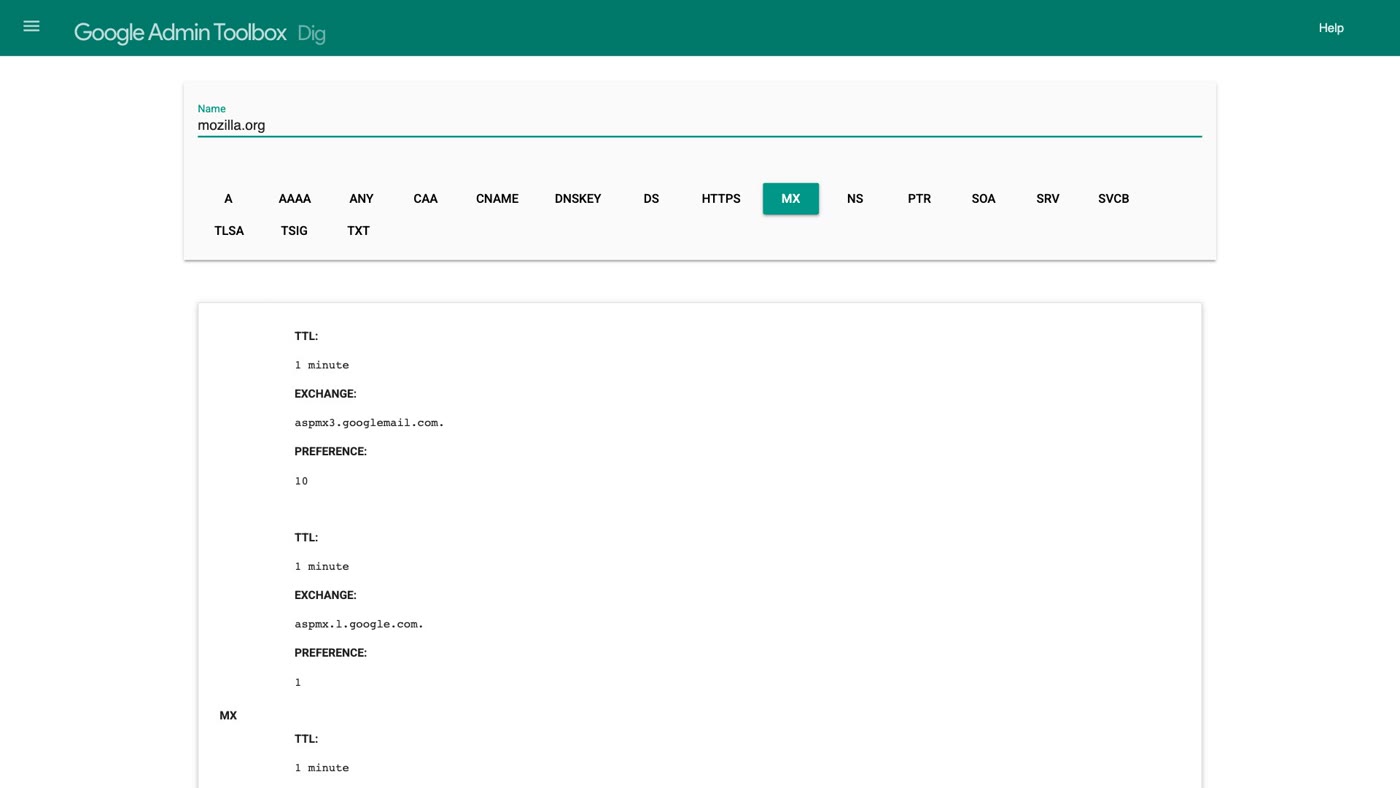
- Open Google's Admin Toolbox Dig (
toolbox.), choose MX and type your domain.googleapps. com/ apps/ dig - Read the answer. The server names tell you who runs your email: for mozilla.org,
aspmx.l.google.commeans Google. - If your mail runs on the developer's hosting, open a mailbox in your own name with an email provider. Its import tool can copy the old mail across (Google Workspace's data import tool, for example, copies mail from IMAP providers).
- Then point your domain's MX records at the new provider, at your registrar or wherever your domain's DNS is managed. The new provider tells you the records.
- Move the mail before anything is cancelled. If the old hosting lapses first, the mailboxes can go with it.
Collect these before you start
Steps 3 and 4 go faster when you have the proof ready. Gather what shows the business, and the site, are yours:
- Your business registration (or other official documents in the business's name).
- Invoices: for the domain, the hosting, and the developer's work.
- Card statements showing those payments.
- Photo ID for the person who will hold the accounts.
- The names you found: the registrar from step 2, the host from step 4, and who runs your email from step 5.
- Step 1: "Lost your password?" on your login page. If the email goes to the developer, the host's database (or its support) gets you back in.
- Step 2: look up your domain at
lookup.icann.org; note the registrar. - Step 3: ask the registrar to change the registrant to you; if the developer can't confirm, ask what it needs and send your proof.
- Step 4: find the host on your statement; ask its support for the account in your business's name.
- Step 5: an MX lookup tells you who runs your email; move the mail to a mailbox in your name before anything is cancelled.
Or, there is another way
Once you have your keys back, you can carry on with WordPress. Or, there is a simpler arrangement.
Ullbek is an AI website builder. You give it your WordPress site's address, and it builds a new, custom website from your pages and photos, in an account that's yours from day one. Your words and your photos are always there to see in the site's Files panel, and there's no one in the middle holding the keys. When something needs to change, you say what should be different, and it's done.
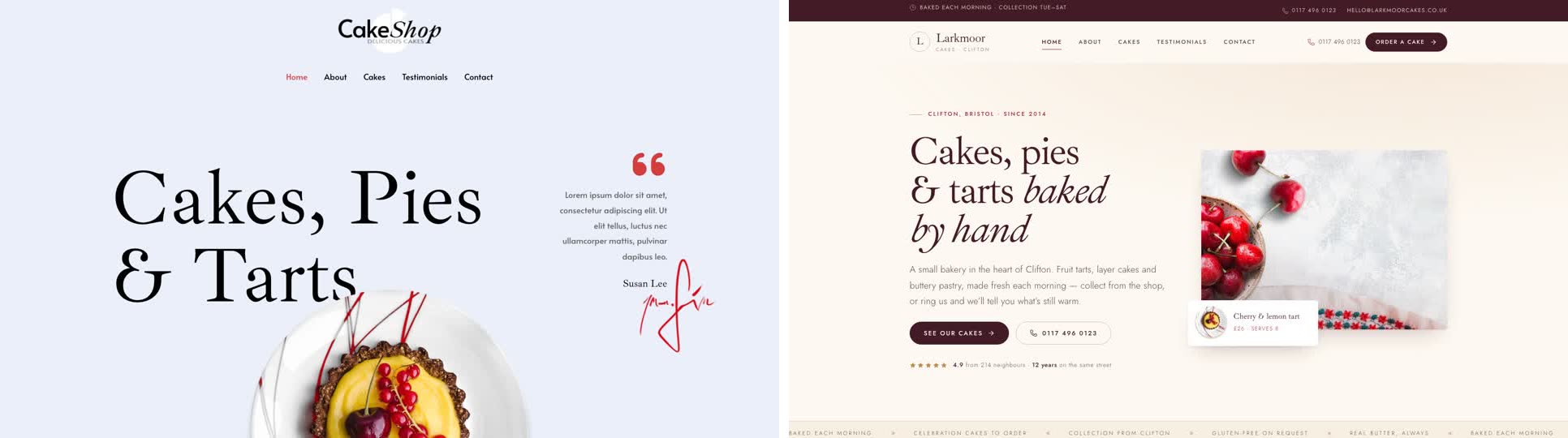
- Give it your old site's address. "Rebuild [your address] as a new site. It's my current WordPress website. Keep every page and bring across the photos." It reads every page and downloads your pictures.
- Answer a few questions in one go. Usually the business name, what to do with any placeholder text, and your real contact details.
- Look it over, publish, then connect your domain. Your domain stays registered where it is (steps 2 and 3 above are how you make sure it's yours), and Ullbek gives you the records to add and checks them for you. The move guide walks through every step, starting with getting your keys.
Keys back? Make the next site yours from day one
See how moving a WordPress site to Ullbek works, step by step.