The four solutions are written out below.
Captions available — press CC · Also on YouTube
The email from your hosting company says your site has gone over its plan's monthly visits: pay for the extra, or move to a bigger plan. Then you open your analytics, and it shows a few dozen people. On one managed host's own community forum, an owner who had picked a plan from their Google Analytics numbers found the host's own analytics showed 24,973 page views for the same days Google Analytics counted 4,518.
The difference is bots. This post explains why they count, then gives you four solutions, each shown on a real WordPress site. To show it honestly, we set up a small WordPress site for a fictional piano tuner, ran bots against it for a day on a private test network, and sent it 41 scripted browser visits standing in for people (all from one computer). Every WordPress screen in the film and below is real; the hosting company's screens are drawn, because every host's screens look different.
Cause 1: bots knock on every WordPress site
Every WordPress site has the same addresses in the same places: the login page at /wp-login.php, the remote-publishing door at /xmlrpc.php, and plugin files under /wp-content/plugins/. So bots don't need to know anything about your site to try them. WordPress's own security guide describes it plainly: an attacker repeatedly tries username and password combinations until one works, usually automated and spread across many machines, and xmlrpc.php is a frequent target.
Here is what one day of that looks like in our test site's access log, the file where the server writes down every request:
- 728 attempts to log in at
/wp-login.phpwith guessed passwords; - 363 login calls to
/xmlrpc.php; - 906 probes for plugin files and leftovers like
/.envand/wp-admin/install.php, looking for something weak; - and crawlers fetching the pages while dressed as an ordinary Chrome browser.
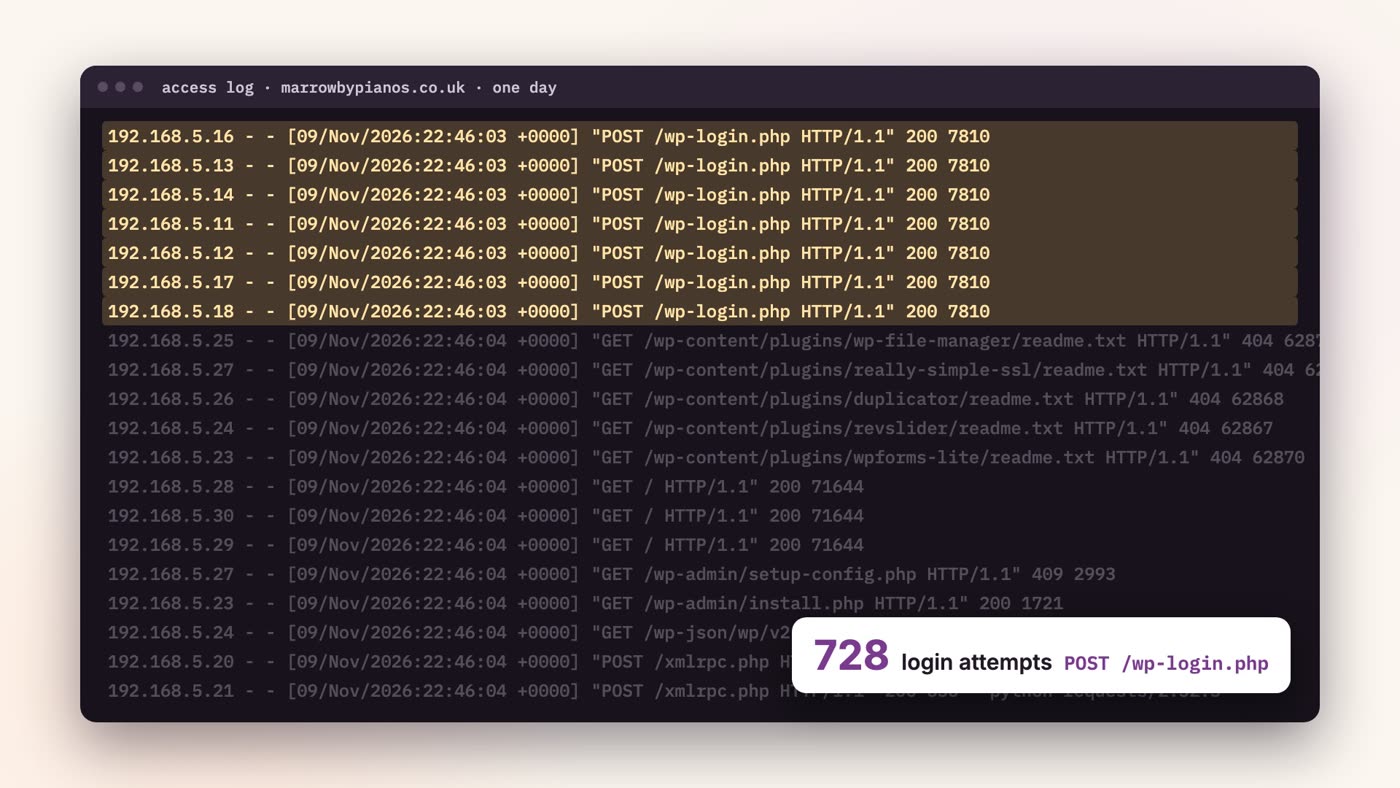
This isn't something we only staged. Of all the page requests to the small websites Ullbek hosts, 68% came from bots from 7 to 31 October 2026.
Cause 2: a visit is an address, once a day
Hosts that bill by visits publish how they count one. WP Engine's help page: “A single visit is one unique IP address logged per day (UTC).” Kinsta's: the number of visits is “the sum of the unique IP addresses seen each 24-hour period”. Both filter out the bots they can recognise. But Kinsta's page also says “some bots might be included in your total visits count”, and that bots have been known to fake the label that says what kind of browser they are. A bot that calls itself Chrome, from a new address, looks like a new visitor.
Your analytics counts differently. Google Analytics automatically leaves out known bots and spiders, and analytics that runs in the visitor's browser only counts browsers that run its script. The plugin on our test site skips anything that looks like a bot or a test browser. So the two numbers measure different things:
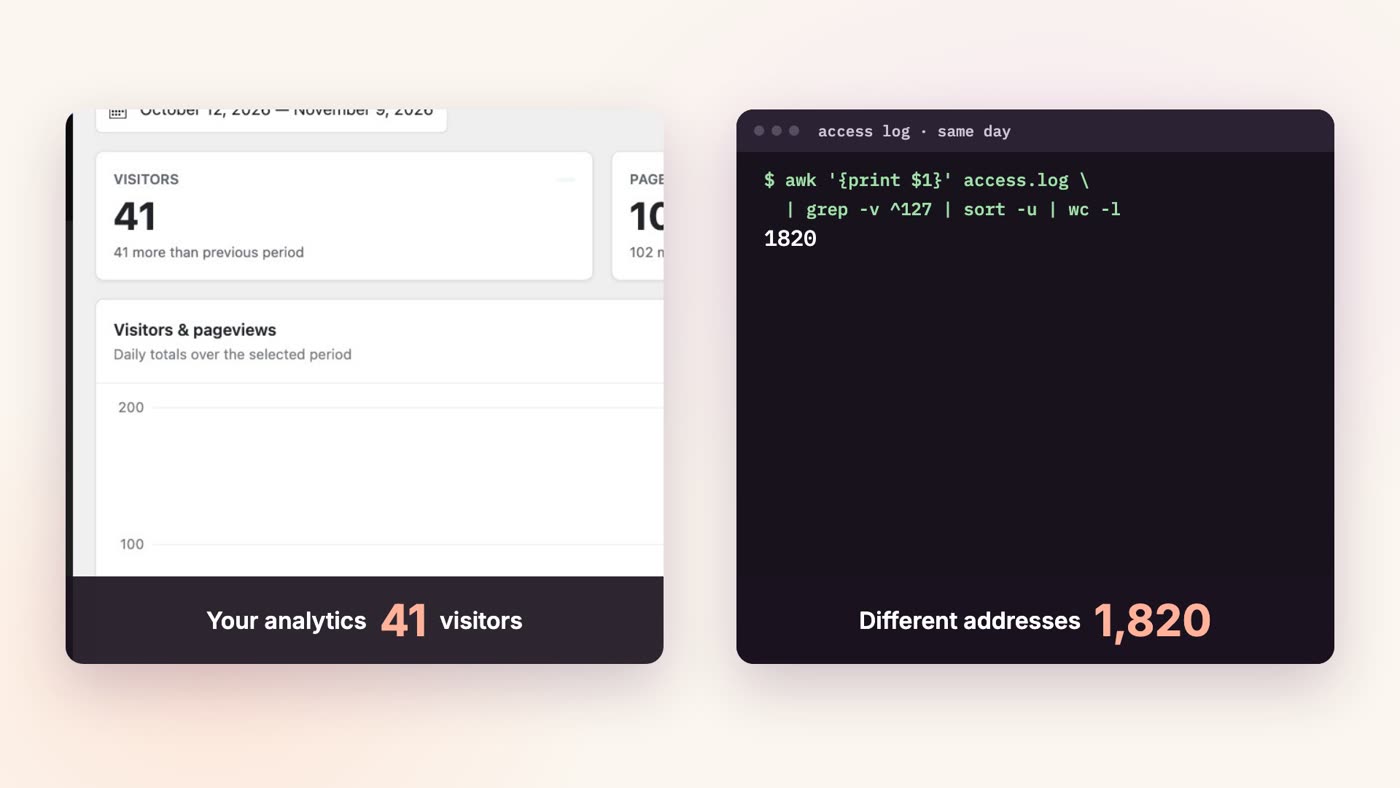
Our 41 scripted visits all came from one computer, so they show up in the log as a single address. Every other address is a bot. By an address-a-day count, that day could be billed as up to 1,820 visits, less whatever bots the host recognises.
Solution 1: read your host's definition of a visit
- Find the usage page. In your hosting account, open the page that shows your visits, and look for the help article on how visits are counted. Note whether it counts by address, by day, and which bots it leaves out.
- Compare the same days. Put your analytics' visitors for the same dates next to the host's visits. A gap of several times is the bots.
- Ask support two questions. "How many of last month's visits were bots?" and "Can you exclude them, or show me the log?" Hosts change how they filter: WP Engine, for example, started leaving suspected bots out of billable visits in September 2025.
Then you know what you're paying for, and whether the next three solutions are worth doing.
Solution 2: block the easy ones
Three changes inside WordPress, each a few minutes' work.
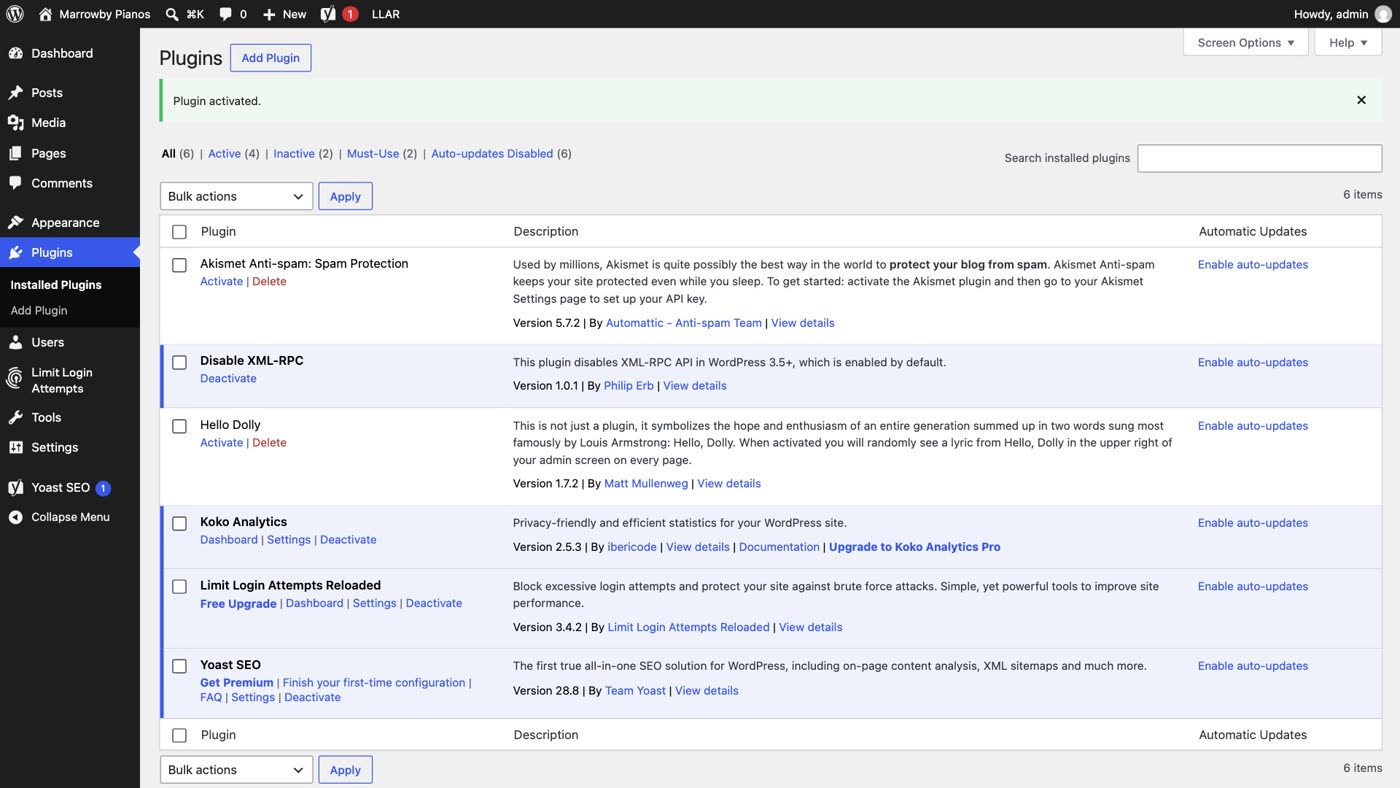
- Limit login attempts. Go to Plugins → Add Plugin, install a login limiter such as Limit Login Attempts Reloaded (free in the WordPress plugin directory), and click Activate. It locks an address out after a few wrong passwords, and applies the same limits to logins over XML-RPC.
- Turn off logins over XML-RPC, if you don't use them. If you don't use the WordPress mobile app or another tool that publishes to your site remotely, install Disable XML-RPC and activate it. It has no settings: it uses WordPress's own switch to turn off the XML-RPC features that need a login. Deactivate it if your app stops working.
- Ask named crawlers to stay away. If there is a crawler you don't want, add two lines to your site's
robots.txt. With Yoast SEO: Yoast SEO → Tools → File editor, Create robots.txt file if there isn't one, add the lines, then Save changes to robots.txt. In the film we used OpenAI's training crawler, GPTBot, as the example (User-agent: GPTBot/Disallow: /); OpenAI's search crawler is a different one, OAI-SearchBot.
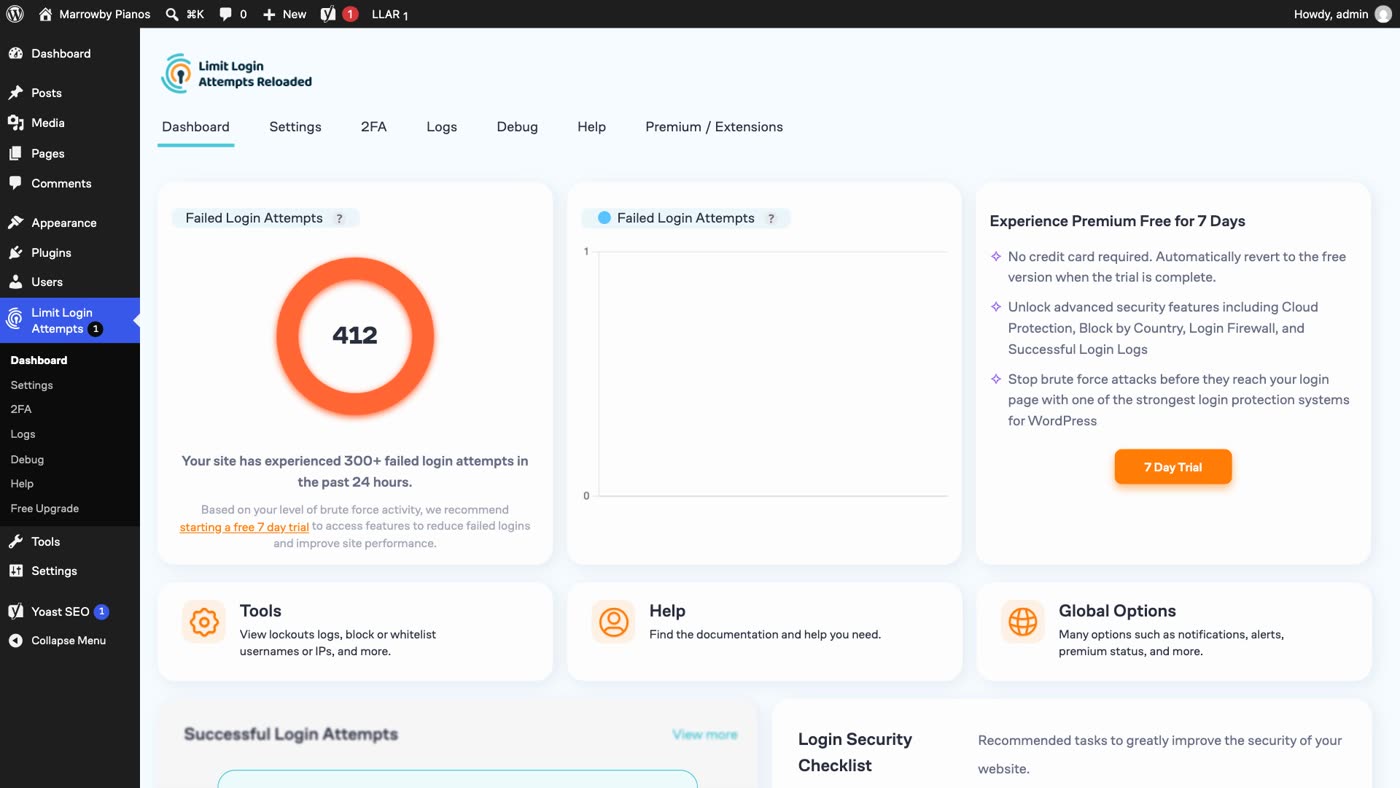
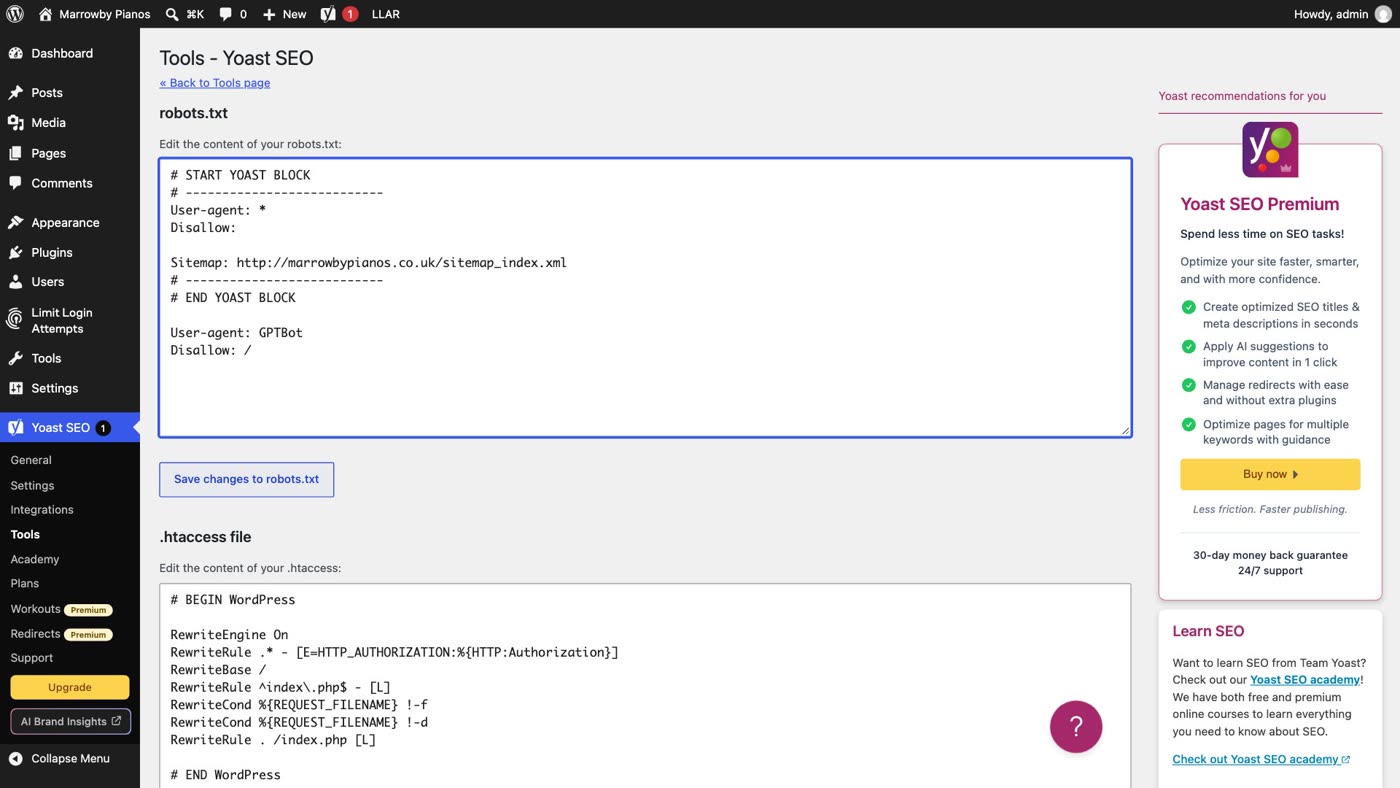
Two caveats. robots.txt is a request, not a lock: Google's own guide says crawlers decide for themselves whether to obey, and the bots that guess passwords and probe for plugins ignore it. And these plugins run inside WordPress, so each bot request still reaches your site and is still answered. WordPress's security guide puts it the same way: plugins still use some of the server's resources under heavy attack. That is what solution 3 is for.
Solution 3: put a firewall in front
A web application firewall or CDN service sits in front of your site, so every request passes through it on the way in. WordPress's own security guide prefers protection there, at the edge, to plugins.
- Ask your host first. Some hosts include a firewall or CDN; otherwise you add one yourself and point your domain at it, following its own setup steps.
- Turn on its bot challenge. Requests that look automated are asked to prove they are a browser before they reach your site.
- Add a rate limit on the login and XML-RPC addresses. A rule that limits how often one address can send requests to
/wp-login.phpand/xmlrpc.php.
It helps, but it isn't a guarantee: the owner in that forum thread already had a bot-blocking mode switched on, and the host's count was still more than five times their Google Analytics.
Solution 4: ask for a plan you control
If bots still fill the meter, ask for a plan that charges by something you control. Some managed hosts let you choose a plan billed by the bandwidth your sites use instead of the number of visits. And many hosts don't meter visits at all. Ask your host which plans it has, and what happens when a busy month comes.
Before you pay an overage
- Read your host's definition of a visit, and ask for the bot share.
- Limit logins, and turn off XML-RPC logins if you don't use them.
- Put a firewall or CDN in front, with a bot challenge and rate limits.
- Ask for a plan that charges by something you control.
- Solution 1: read how your host counts a visit; compare it with your analytics; ask support for the bot share.
- Solution 2: a login limiter, XML-RPC logins off if unused, and a robots.txt line for crawlers you don't want.
- Solution 3: a firewall or CDN in front of the site, with a bot challenge and rate limits on
/wp-login.phpand/xmlrpc.php. - Solution 4: a plan billed by bandwidth, or one with no visits meter.
Or, there is another way
The cause was a meter that counts addresses, bots among them, and a login page that bots never stop trying.
Ullbek is an AI website builder. You give it your WordPress site's address, and it builds a new, custom website from your pages and photos. Visits are never metered, so a bot costs you nothing. There is no login page on your site for bots to guess at, and nothing for a flood of them to knock over. The free .ullbek.site address it publishes on never expires. And when you want to change something, you just say what should be different.
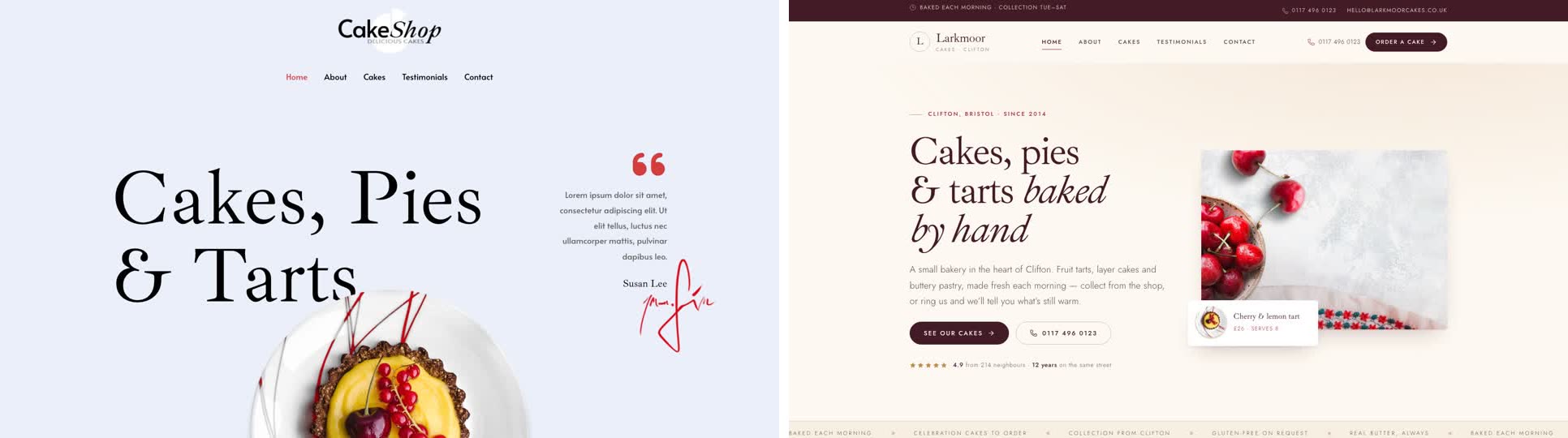
- Give it your old site's address. "Rebuild [your address] as a new site. It's my current WordPress website. Keep every page and bring across the photos." It reads every page and downloads your pictures.
- Answer a few questions in one go. Usually the business name, what to do with any placeholder text, and your real contact details.
- Look it over, publish, then connect your domain. Your domain stays registered where it is, and Ullbek gives you the records to add and checks them for you. The move guide walks through every step.
A website with no visits meter
See how moving a WordPress site to Ullbek works, step by step.