The four solutions are written out below.
Captions available — press CC · Also on YouTube
You open your inbox and it is full of "contact form" emails: an SEO audit you didn't ask for, a business loan, a guest post, followers for your brand. Somewhere in the middle is a real customer asking for a quote, and it is very easy to miss. Owners on the WordPress support forums describe exactly this, and the fear that comes with it: "I don't want to lose customers, but the SPAM is a pain."
The usual answer, a puzzle in front of the form, stops the spam and some of the customers too. Below are four solutions that don't, done on a real WordPress site with Contact Form 7 (the form plugin on more than ten million sites). You can use one, or stack them.
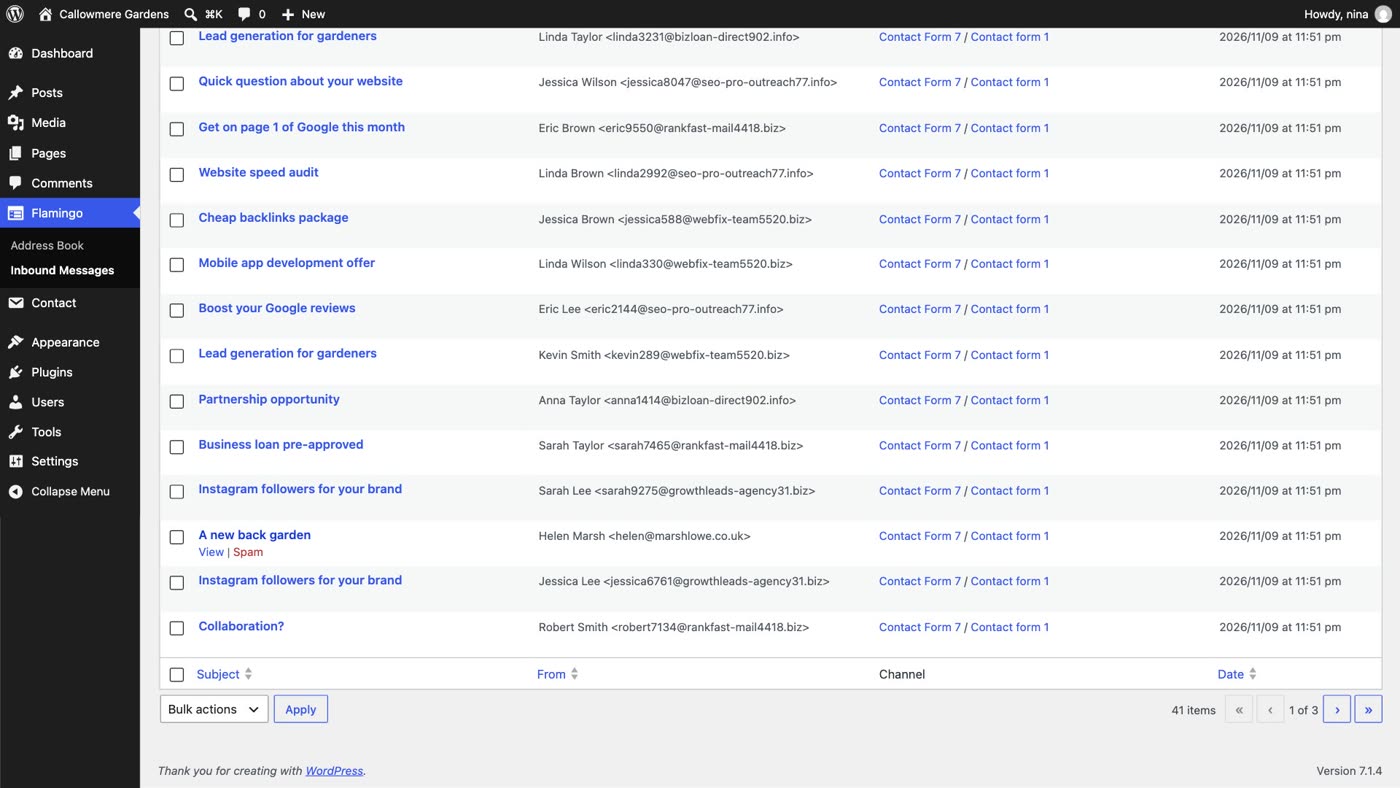
What actually happened
The spam isn't written by people. It comes from bots that find contact forms, fill in every box they can see in the page, and press send, over and over. They don't care what your business does; a form is a form. And because a contact form has no idea who is on the other side, it passes every one of those messages on to you.
So the fix is to give the form a way to tell a bot from a person, without asking your customers to prove anything. That is what the four solutions do, from the lightest to the safety net.
Solution 1: an invisible honeypot
A honeypot is an extra box in your form that people never see, but bots do. A person leaves it empty, because it isn't there for them. A bot fills it in, like every other box, and that gives it away. The plugin Honeypot for Contact Form 7 adds one. In WordPress's plugin directory it now shows as CF7 Apps, with the honeypot built in, on more than 300,000 sites.
- Install the plugin. Go to Plugins › Add Plugin, search for Honeypot for Contact Form 7, click Install Now, then Activate. If it asks you to opt in to updates and emails, you can skip that.
- Open your form. Go to Contact › Contact Forms and open your form.
- Add the honeypot tag. Click at the end of the form template, then the Honeypot button above it, and Insert Tag. A line like
[honeypot honeypot-846]appears. - Click Save.
- Send yourself a real test through your own form, and check it arrives.
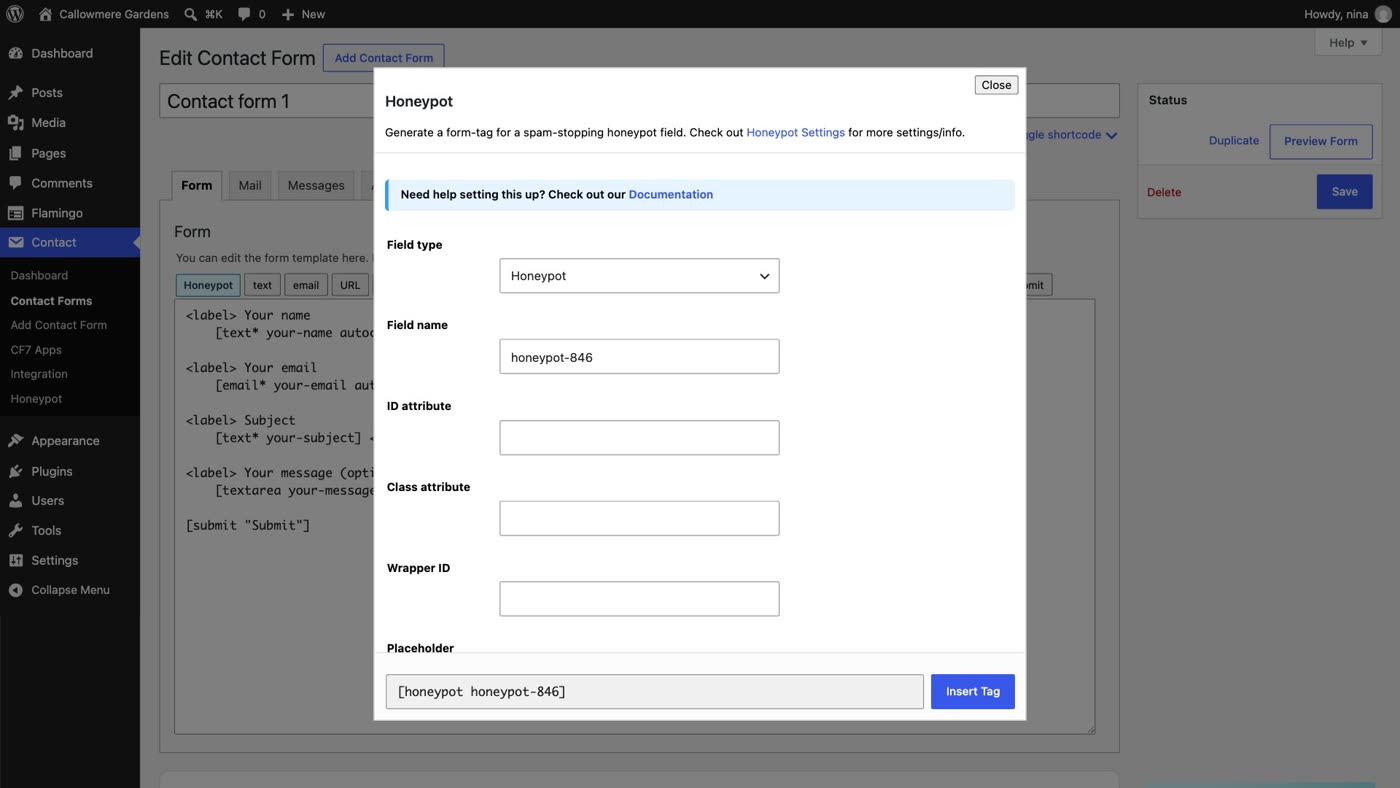
On our test site we then pointed a spam bot at the form: 20 messages sent, all 20 marked as spam, none reached the inbox. The real test sent straight after arrived as normal. Contact Form 7 doesn't email a message it marks as spam; the sender sees an error instead of the green "sent" box.
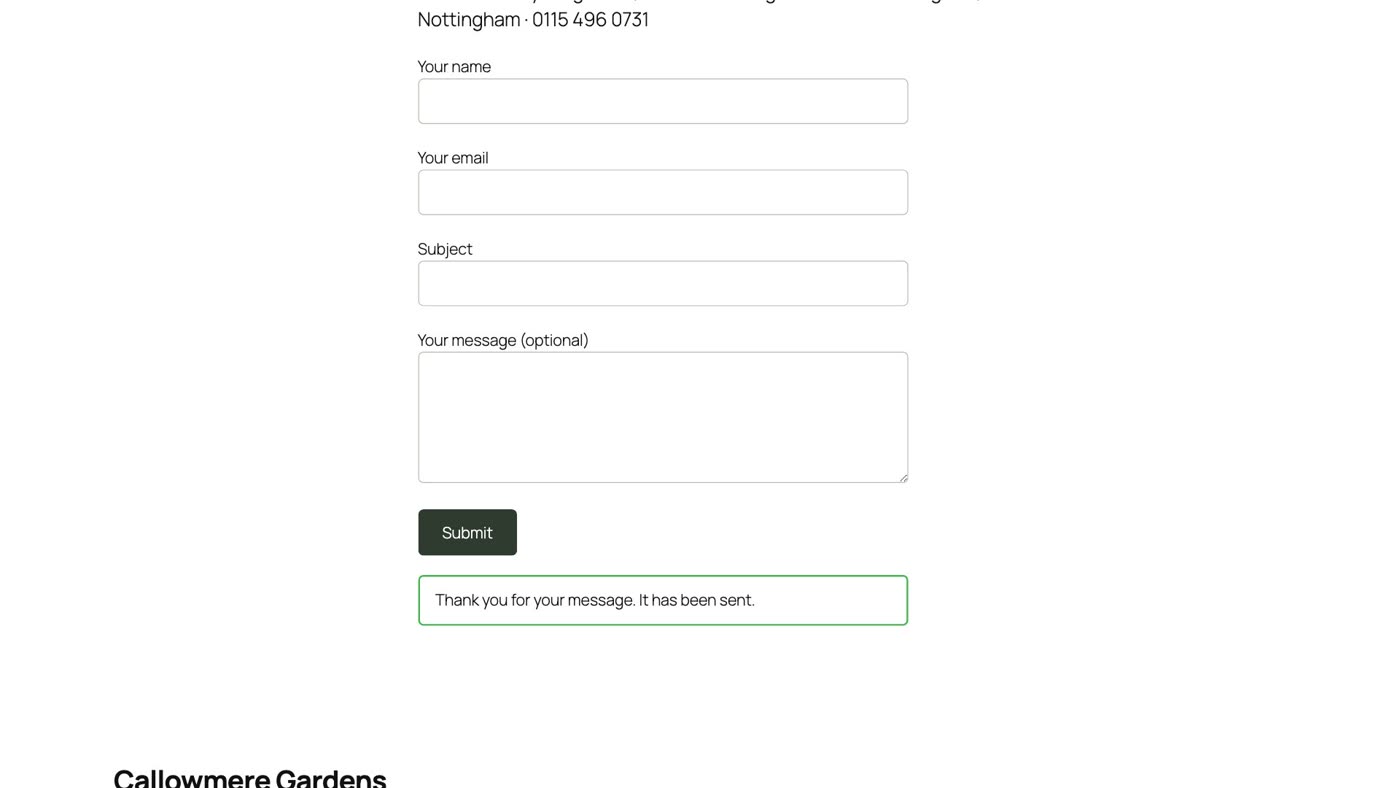
The catch: a honeypot only stops bots simple enough to fill in a box they shouldn't. It does nothing against spam typed by a person. That is what solution 2 is for.
Solution 2: a spam filter (Akismet)
Akismet, by Automattic, checks comments and contact form messages against a global database of spam. It is on more than five million sites, and it may already be in your Plugins list, waiting to be activated (it was on our fresh WordPress install). Contact Form 7 supports it directly.
- Activate Akismet. In Plugins, find Akismet Anti-spam and click Activate (or install it from Add Plugin).
- Set up its key. Click Get started on its setup page. Akismet needs a key from its own website, and its page says which plans it has for personal and business sites.
- Tell Akismet which boxes are which. Open your form in Contact › Contact Forms and add
akismet:authorto the name field andakismet:author_emailto the email field, like this:[text* your-name autocomplete:name akismet:author]. - Click Save.
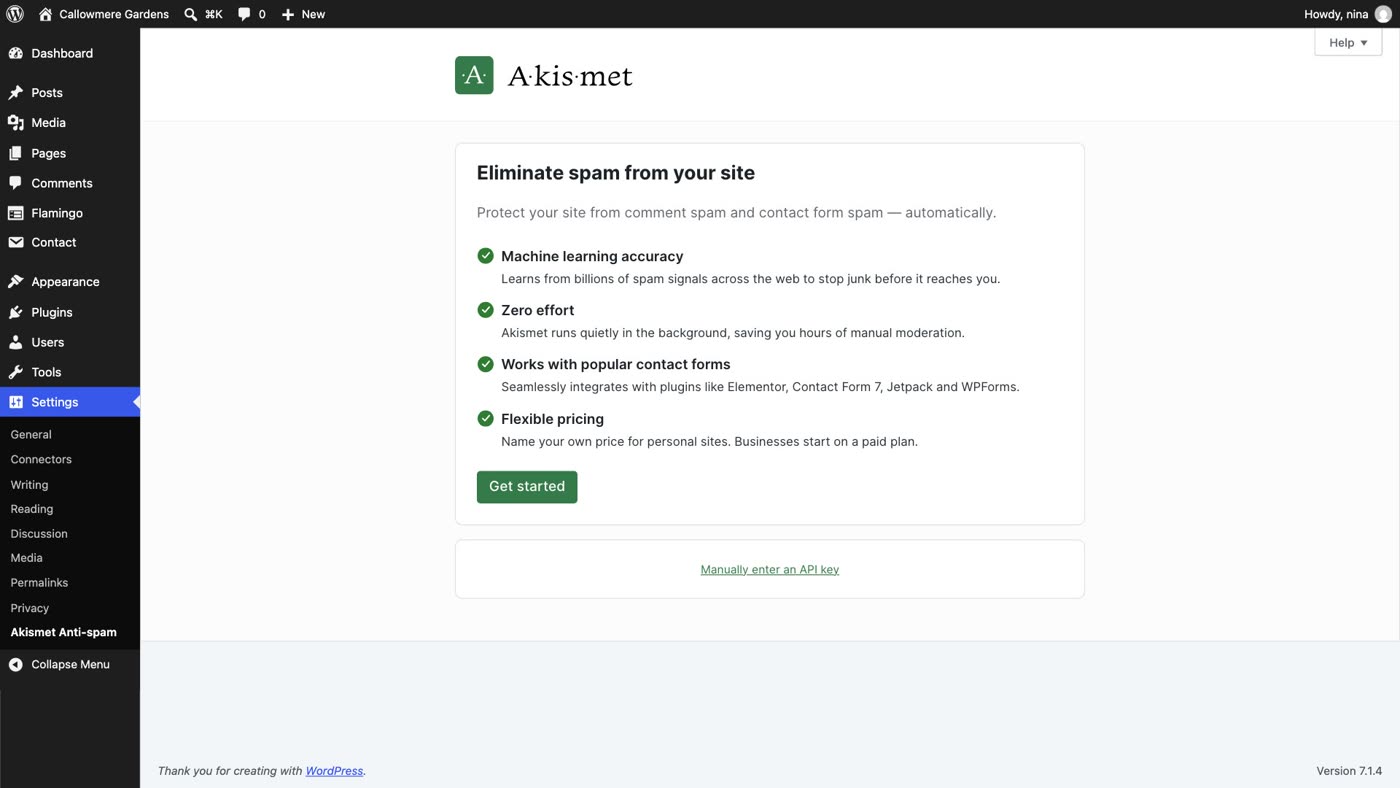
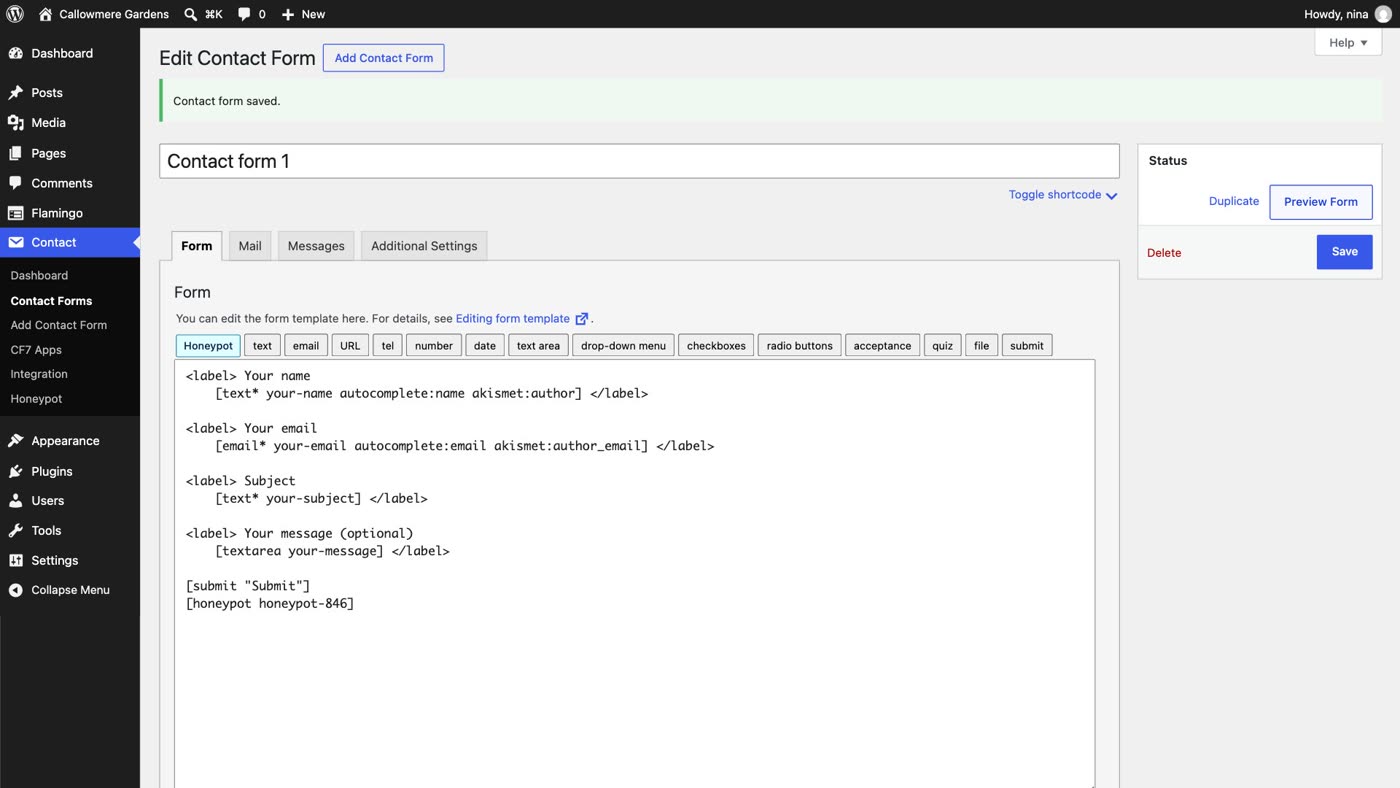
The catch: no filter is perfect. Now and then a real message can be marked as spam, which is why solution 4 matters.
Solution 3: a CAPTCHA, the invisible kind
A visible CAPTCHA, the "select every square with a traffic light" kind, does stop bots. It also stands in front of every customer. Cloudflare puts the time a person takes to solve one at 32 seconds on average, and the W3C, the body that sets web standards, notes that the task excludes many people with disabilities.
The invisible kind does its check in the background. Cloudflare Turnstile is built into Contact Form 7 (since version 6.1) and never shows visitors a puzzle; in its recommended Managed mode, a visitor at most ticks a box. Google's reCAPTCHA v3, also built into Contact Form 7, works the same way: it scores each message without asking the visitor to do anything.
- Get the two keys. In your Cloudflare account, add a Turnstile widget for your site's domain, choose Invisible mode, or Managed if you'd rather some visitors see a checkbox, and copy the Site Key and Secret Key. Cloudflare's own pages list its plans.
- Add them in WordPress. Go to Contact › Integration, find Turnstile, click Setup integration, paste both keys and click Save Changes.
- Check your form. Contact Form 7 adds Turnstile to every form on its own. Send yourself a real test.
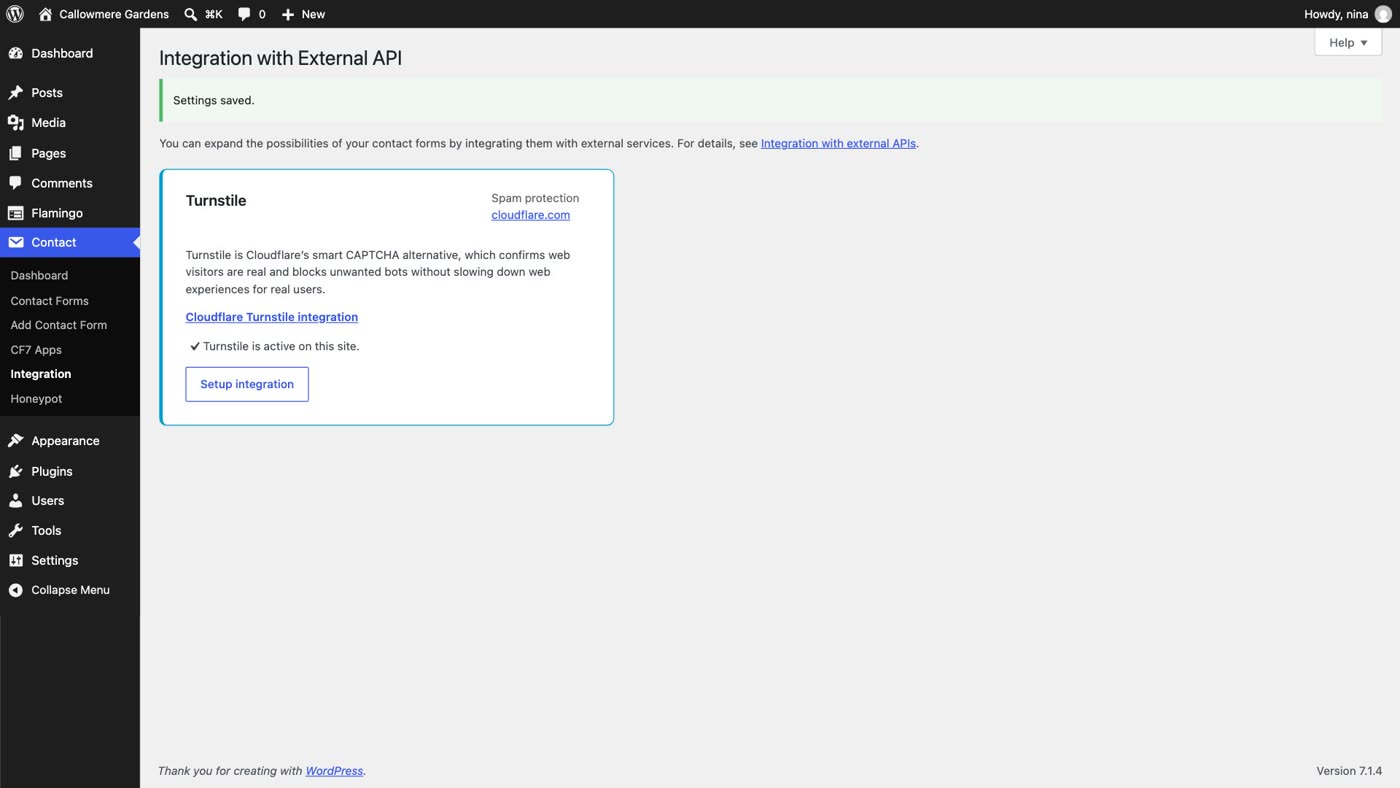
On our test site, with Turnstile on, the same spam bot's messages were all rejected, and the real test went through with the form looking exactly as before. (Our test site used Cloudflare's invisible test key. If you create your widget in Managed mode, a small Turnstile box appears at the top of the form and only some visitors are asked to tick it; Invisible mode shows nothing.)
Solution 4: keep every message
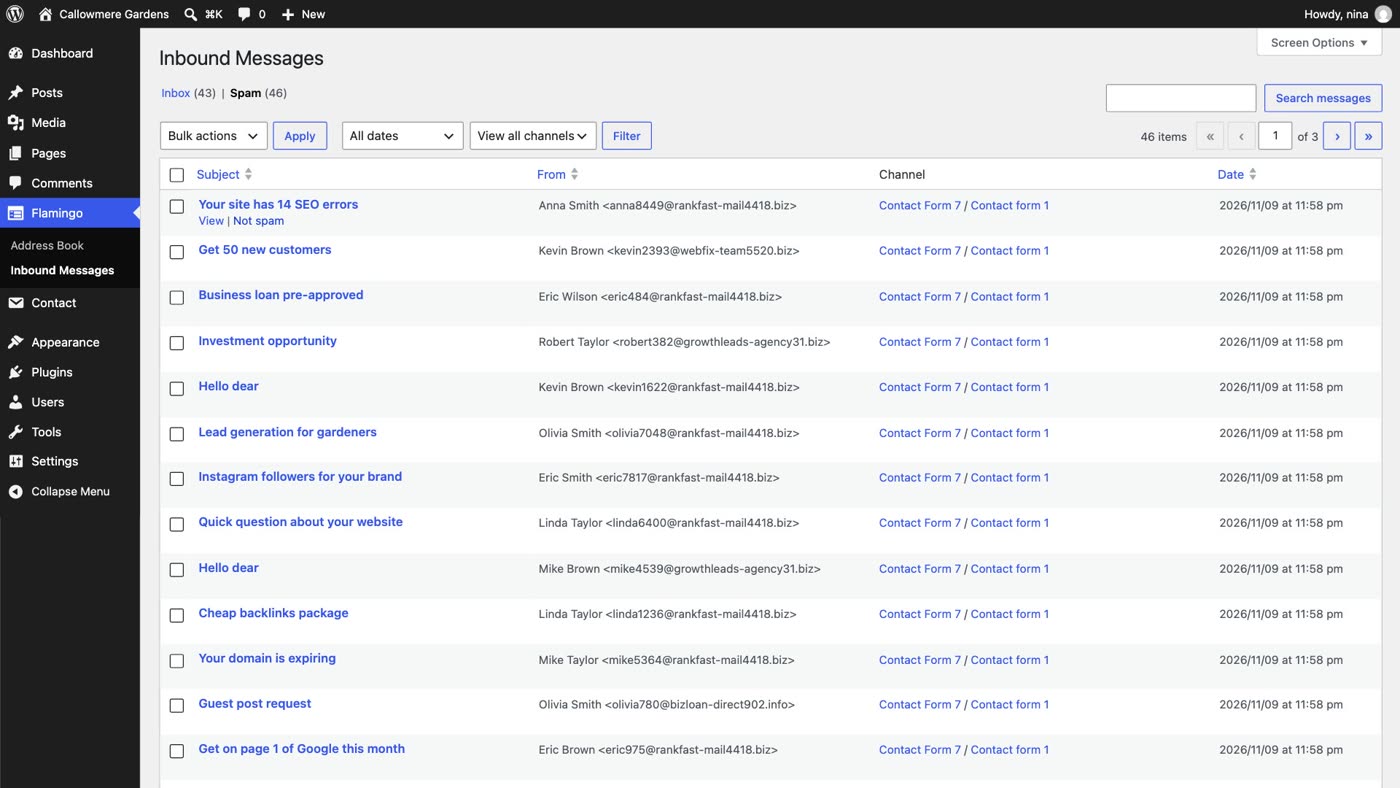
Every filter will, now and then, get one wrong. So keep a copy of everything. Contact Form 7 doesn't store what people send; its makers also make Flamingo, which does. Install it from Plugins › Add Plugin, and every submission is saved in WordPress under Flamingo › Inbound Messages, whether the email reaches you or not.
- Install and activate Flamingo. Nothing to set up.
- Look under Spam once in a while. Messages marked as spam are kept under Inbound Messages › Spam.
- Rescue a real one. If a real enquiry is there, hover over it and click Not spam.
If your messages aren't arriving by email at all, spam or not, that's a different problem with its own fix: see WordPress contact form says "sent" but no email arrives.
Test your own form once a month
Send your own form a test once a month, and after any change to your site or its plugins. Check it arrives. A form that quietly stops working, or a filter that starts catching real people, looks exactly like a quiet month.
- Solution 1: install Honeypot for Contact Form 7 and insert its tag in your form. Bots fill in the hidden box and are marked as spam.
- Solution 2: activate Akismet, set up its key, and add
akismet:authorandakismet:author_emailto your form. - Solution 3: if you want a CAPTCHA, use the invisible kind: Cloudflare Turnstile under Contact › Integration, never a visible puzzle.
- Solution 4: install Flamingo so every message is kept, and check its Spam list for real ones.
- Then: test your own form once a month.
Or, there is another way
All four solutions above are things to install, set up and keep an eye on, on top of the form itself.
Ullbek is an AI website builder. You give it your WordPress site's address, and it builds a new, custom website from your pages and photos. The contact form is built in: messages are delivered to your inbox from Ullbek's own sending address, with spam checked before they reach you, and there's no CAPTCHA for your visitors to solve. Every message is kept too, so if one goes astray you can ask Ullbek to show you what arrived. When something needs to change, you say what should be different, and it's done.

- Give it your old site's address. "Rebuild [your address] as a new site. It's my current WordPress website. Keep every page and bring across the photos." It reads every page and downloads your pictures.
- Answer one round of questions. It asks about anything it can't tell from the old site, such as placeholder text or old facts.
- Look it over, publish, then move your domain. Your WordPress site stays up until the new one is live. The move guide walks through every step.
A contact form that just works
See how moving a WordPress site to Ullbek works, step by step.