Every step is written out below.
Captions available · press CC · Also on YouTube
If you're in one of the 67 countries where Weebly is closing, your site was unpublished on 27 September 2026. Your domain is a different matter. If you bought it through Weebly, it can still be moved, from inside your Weebly account, until account access ends on 26 December 2026.
This page walks through who holds your domain, Weebly's own steps to unlock it, what the new registrar asks for, the rules that catch people out, and how to keep your email working. One thing up front: we did not buy a domain through Weebly to make this. The Weebly steps below are Weebly's own instructions, quoted from its notice, not screens we operated ourselves. Everything else was looked up on the real public pages on 11 November 2026.
Why the domain comes first
Weebly's notice, Upcoming Changes to Weebly's Global Operations, says you keep access to your account until 26 December 2026 "to enable you to move your site, domains, and data to another service", and that after it "you will no longer have login access to your Weebly account."
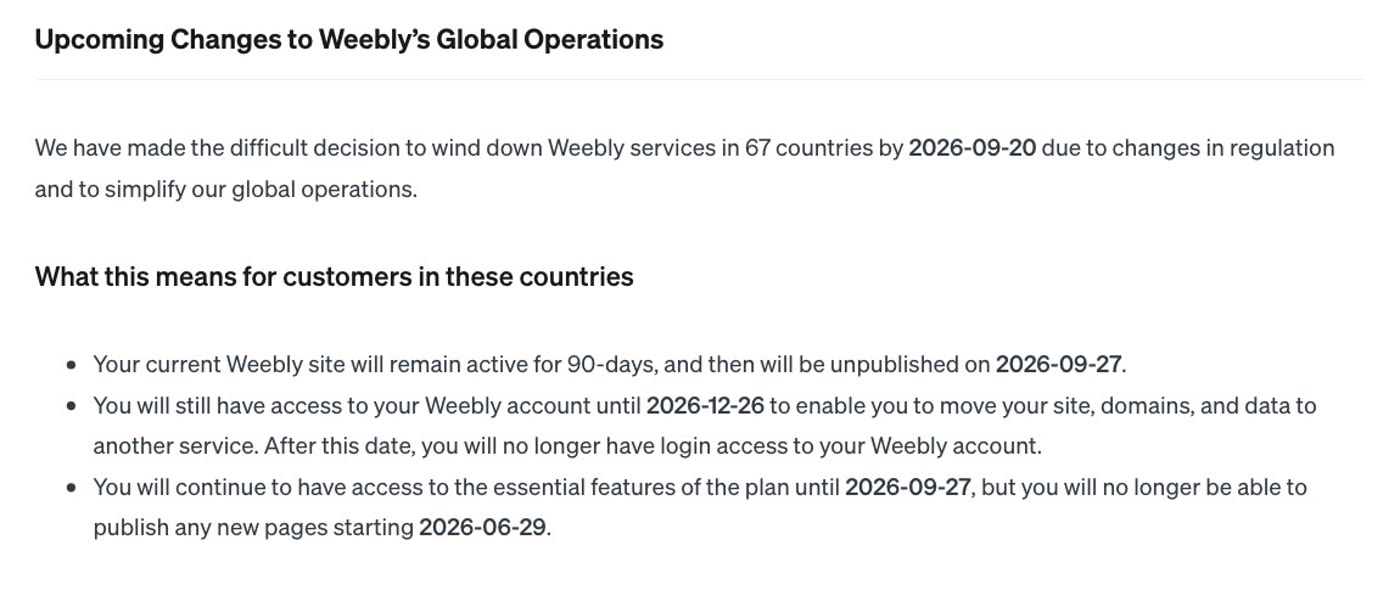
Weebly has not said what happens to a domain left in an account after that date, or how it could be renewed or moved without the login. A site can often be built again from a copy, if one was saved: the first post in this series shows one rebuilt from a public copy. Your domain is the address people already know. So move it first, while the login still works.
Step 1: Find out who holds your domain
There are two kinds of Weebly domain, and they need different things. A domain you bought somewhere else and connected to Weebly stays with that company: nothing needs to be transferred, you don't need your Weebly login for it, and later you change where it points. A domain you bought through Weebly has to be unlocked and transferred out from inside your Weebly account. A public lookup tells you which you have, with no login.
- Open ICANN's lookup at lookup.
icann. . ICANN is the body that oversees domain names. Its FAQ for registrants says: "The "Registrar" field shows you who your registrar is."org - Type your domain and choose Lookup. The result opens on the same page.
- Scroll to Registrar Information. The name there is the company that holds the domain.
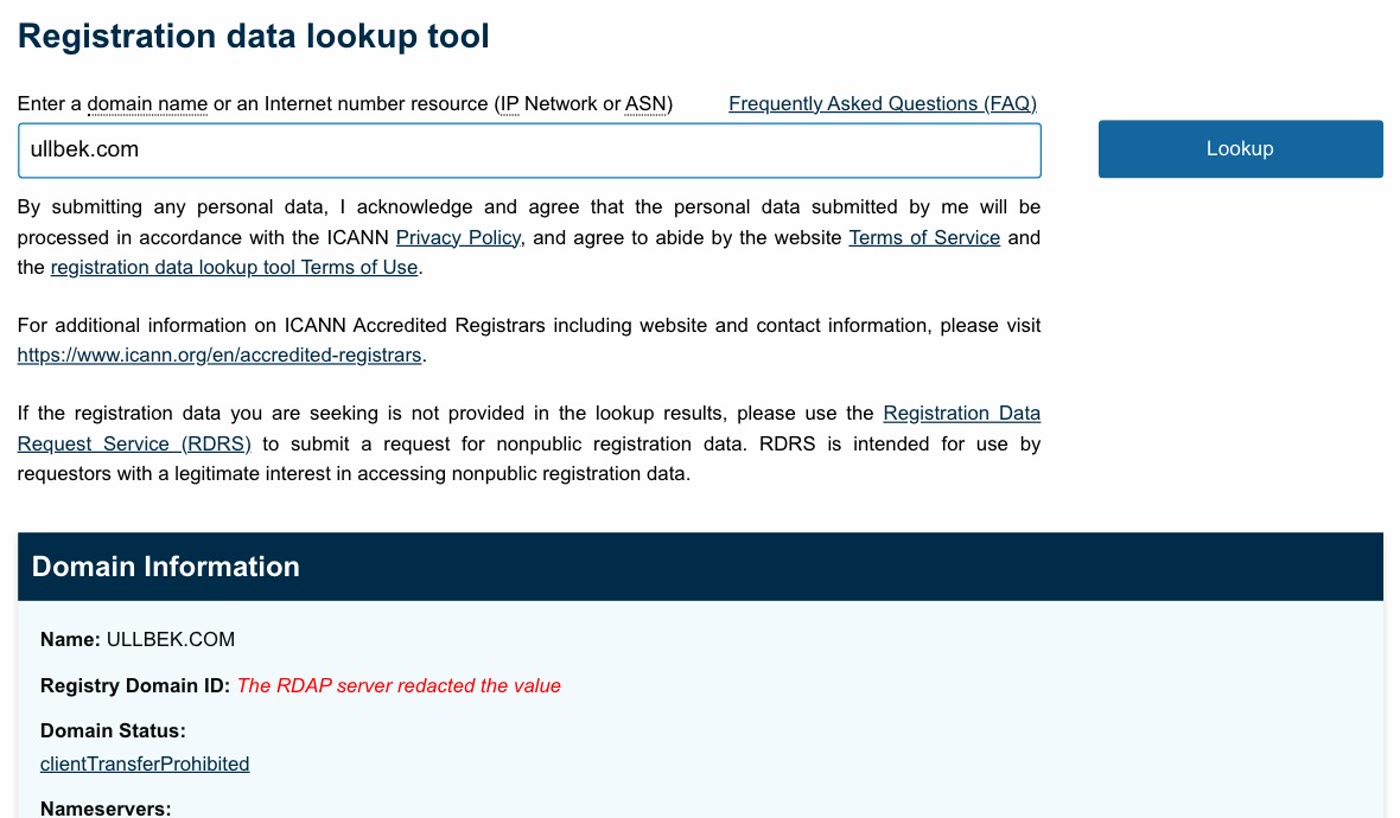
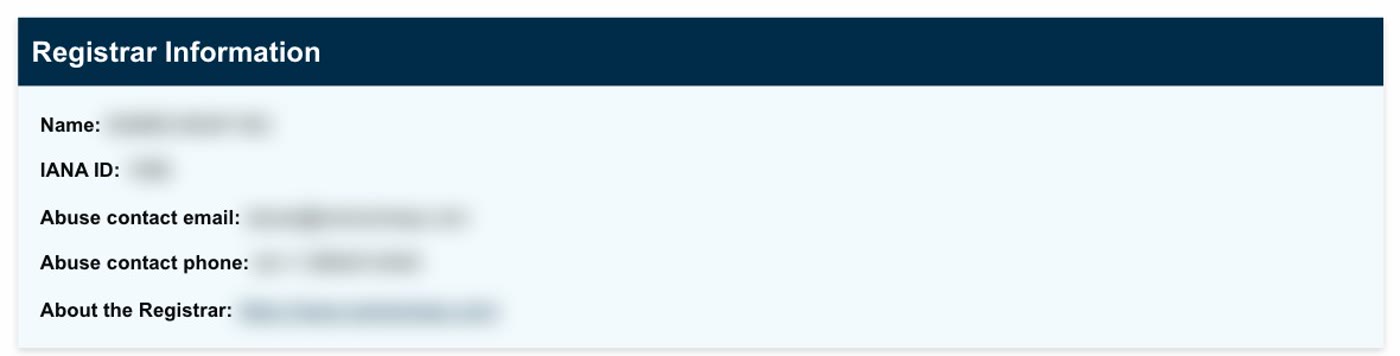
If you have an account with the company named there, your domain is there, and that is where you will change it, not in Weebly. If it is a company you have never dealt with, the domain was most likely bought through Weebly. Weebly's terms of service from 2018 name the registrar as Register.com, and say Weebly may use another provider at any time. One owner in the 67 countries reports a registrar line naming both Register.com and Network Solutions (what one owner reports: Square Community thread).

Step 2: Unlock it in Weebly
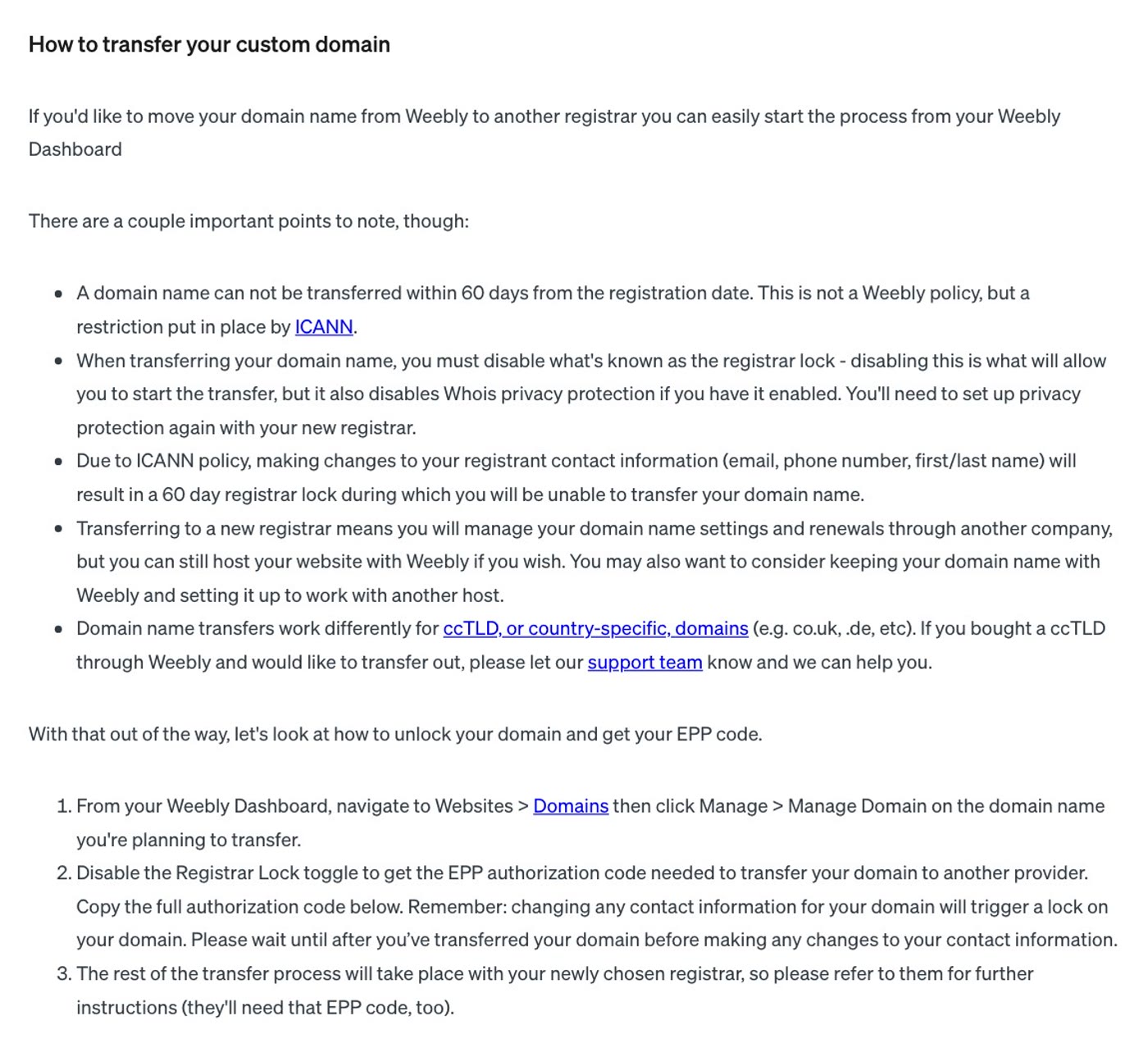
If you bought your domain through Weebly, Weebly's notice gives the steps, and they need your login. We show them as Weebly publishes them; we did not buy a domain through Weebly, so these are not screens we used.
- From your Weebly Dashboard, go to Websites, then Domains. Click Manage, then Manage Domain, on the domain you're moving. That is the notice's wording; in a Weebly dashboard we looked at on 11 November 2026, the menu on the left reads Website, with Domains under it.
- Turn off the Registrar Lock toggle and copy the full EPP code. The notice calls it the "EPP authorization code", the transfer code another registrar needs.
- Keep the code for your new registrar. The notice says the rest of the transfer "will take place with your newly chosen registrar" and that "they'll need that EPP code, too".
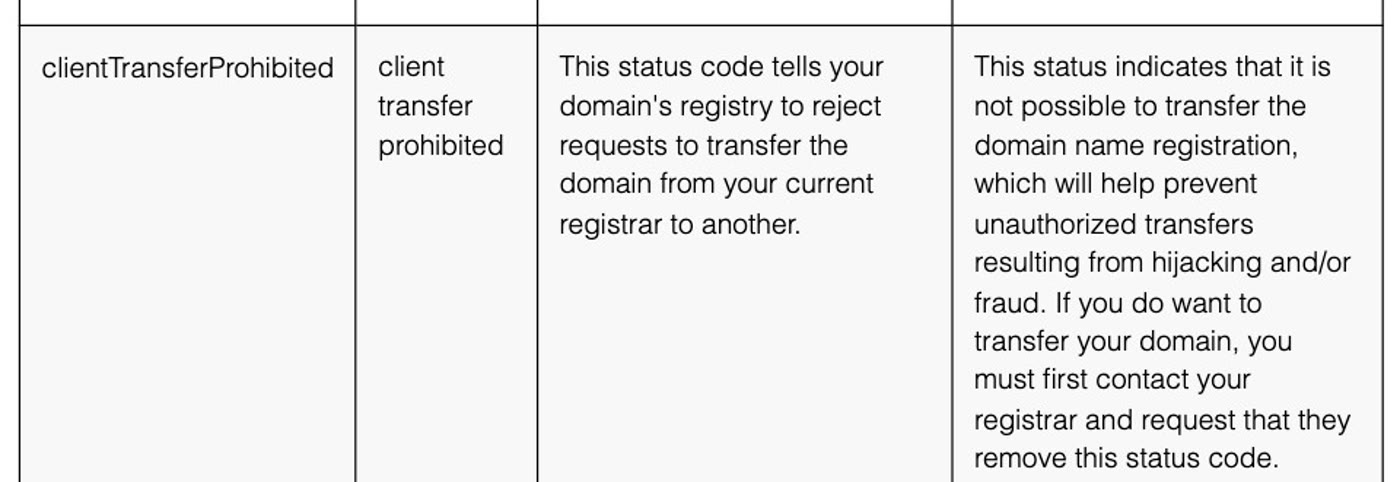
You can see a lock from outside, too. In ICANN's lookup above, our own domain's status reads client. ICANN's page on EPP status codes says this status "tells your domain's registry to reject requests to transfer the domain from your current registrar to another." It is a line you can check after turning the lock off; we have not seen this on a Weebly-bought domain.
Step 3: Start the transfer at your new registrar
- Choose a registrar you'll keep, and open an account there. Look for its page to transfer a domain in.
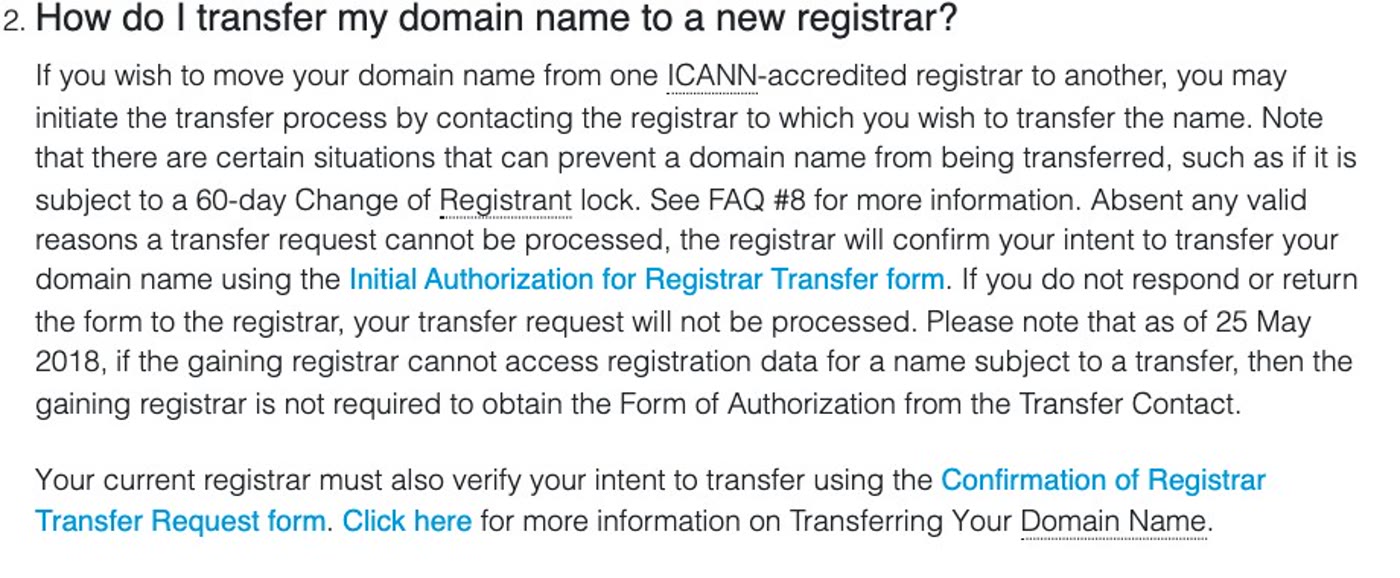
- Give it your domain and the EPP code. ICANN's FAQ says you start a transfer "by contacting the registrar to which you wish to transfer the name".
- Watch for a message from your current registrar. ICANN says your current registrar "must also verify your intent to transfer".
How long the old side can take is set by ICANN's Transfer Policy: if the current registrar does not respond within five calendar days to the registry's notice of a transfer request, the transfer is approved by default. Once the domain arrives, turn privacy back on there (next section).
The rules that catch people out
Weebly's notice lists four, before its steps:
- No transfer within 60 days of registration. "This is not a Weebly policy, but a restriction put in place by ICANN." ICANN's FAQ lists "within 60 days of initial registration" among the reasons a registrar may deny a transfer.
- Don't change your contact details first. Changing the registrant's email, phone number or name "will result in a 60 day registrar lock". Leave them as they are, even if they are out of date, and update them at the new registrar afterwards. ICANN's FAQ adds that some registrars may let you opt out of this lock, and that they don't have to.
- Turning off the lock also turns off WHOIS privacy. The setting that hides your name and address from public lookups. Set it up again at your new registrar.
- Country domains work differently. For a domain ending in a country code (
.sg,.co.uk,.de) bought through Weebly, the notice says "please let our support team know and we can help you."
Step 4: Keep your email working
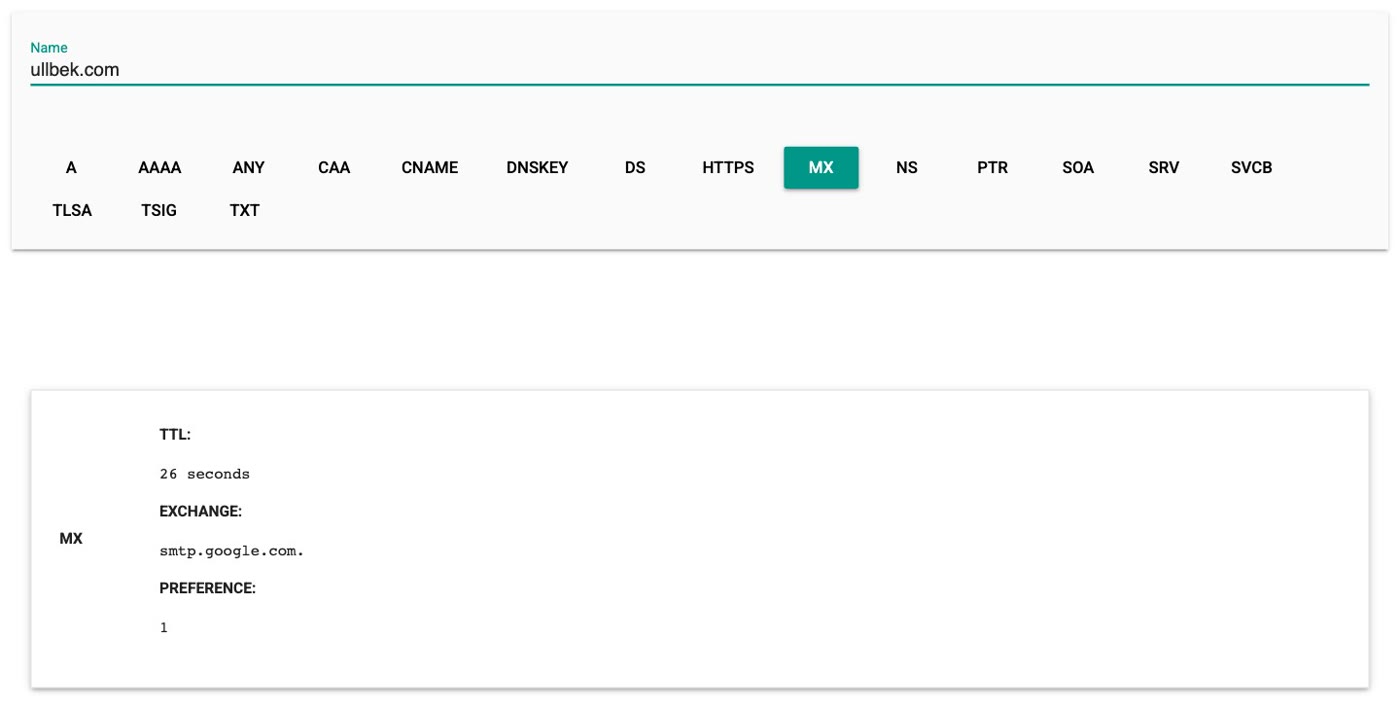
If your email addresses end in your domain, the domain also says where that email goes. Google's help page Set up MX records for Google Workspace puts it simply: "When someone sends you an email, the sender's computer looks up the MX records for your email domain … to figure out where to deliver it."
- Before you transfer, write down your domain's MX and TXT records. If you can't find them in your domain settings, your email provider can tell you what they should be.
- Make sure they're in place after the transfer, at the new registrar, or wherever your domain's DNS is managed. That is what keeps your email arriving after the move.
- Have a Google Workspace account? Weebly's notice says: "please contact us for help transferring your account directly to Google." Do that while you can still sign in.
If the Weebly side doesn't work
- The domain settings page won't open, or you can't find the Registrar Lock toggle. One owner reports a page saying the domain settings had been "moved or removed" (what one owner reports: Square Community thread). Contact Weebly support, ask in writing for the domain to be unlocked and for its EPP code, and keep a copy of what you send. ICANN's FAQ says your registrar (the company named in the lookup, not Weebly itself) must provide the code: "Your registrar must provide you with the AuthInfo code within five (5) calendar days of your request."
- The domain is too new to transfer under the 60-day rule: ask Weebly support what they can do before 26 December 2026.
- A country domain (
.sg,.ae,.com.au): the notice sends you to Weebly's support team. Contact them early.
The same steps, with the rest of a move, are in the guide's chapter Getting your domain out.
- First: move the domain before 26 December 2026, when Weebly account access ends.
- Step 1: look your domain up at lookup.
icann. org and read Registrar Information. A company you have an account with: the domain is there. One you've never dealt with: most likely bought through Weebly. - Step 2: in your Weebly dashboard, Websites › Domains › Manage › Manage Domain, turn off the Registrar Lock and copy the EPP code.
- Step 3: start the transfer at the registrar you're moving to, with the domain and the code, and answer your current registrar's message.
- The rules: no transfer within 60 days of registration; don't change contact details first; privacy goes off with the lock; country domains go through Weebly support.
- Step 4: write down your MX and TXT records first, and make sure they're in place at the new registrar.
Or, there is another way
The domain is the part only you can save. The site itself can often be built again, if a copy of it was saved, and you don't need your Weebly login for that.
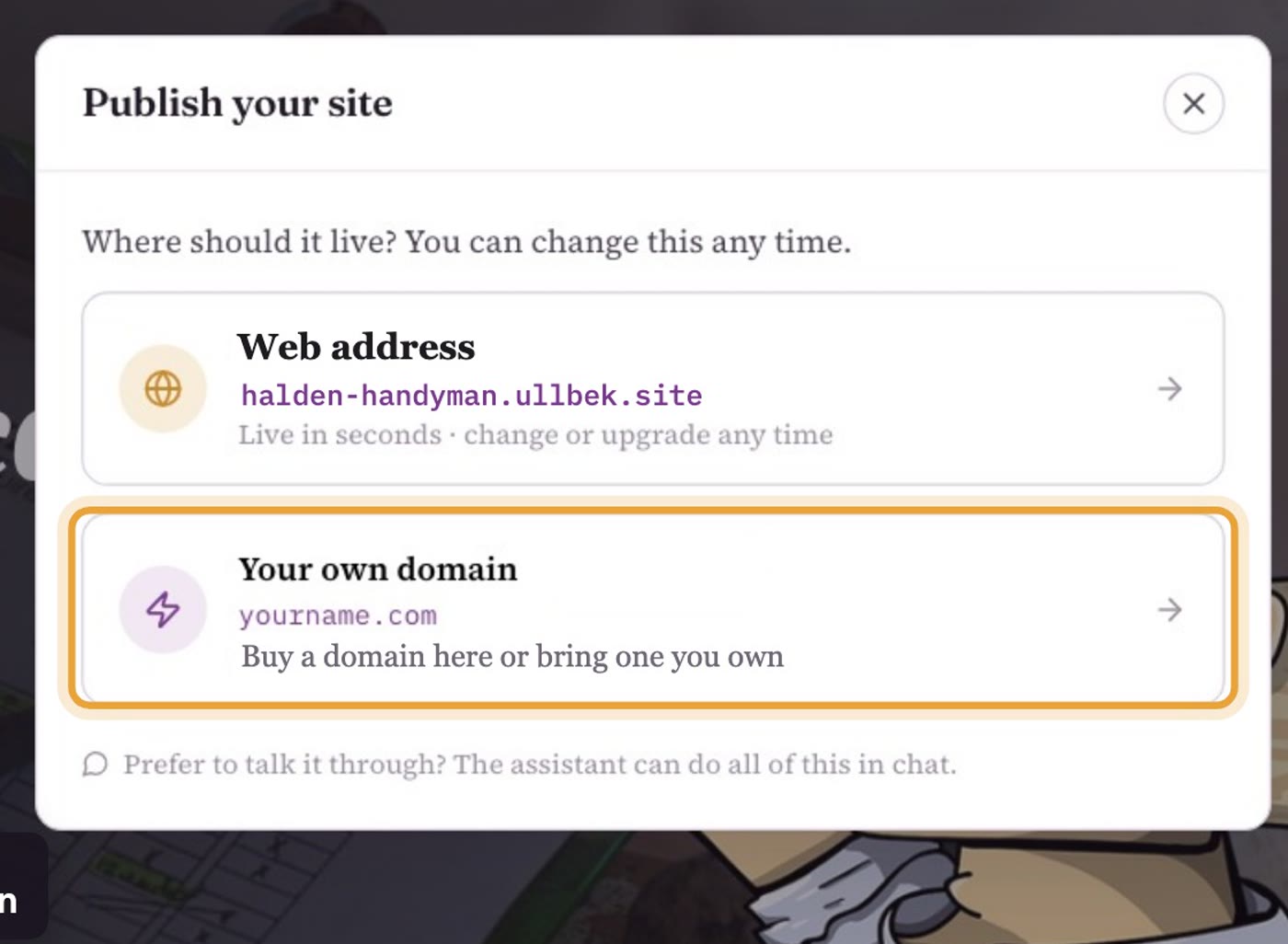
Ullbek is an AI website builder. In the first film of this series, a Weebly site was rebuilt from the Wayback Machine's copy, with its pages and its photos. When your new site is ready, you publish it, choose Your own domain, and bring the one you saved.
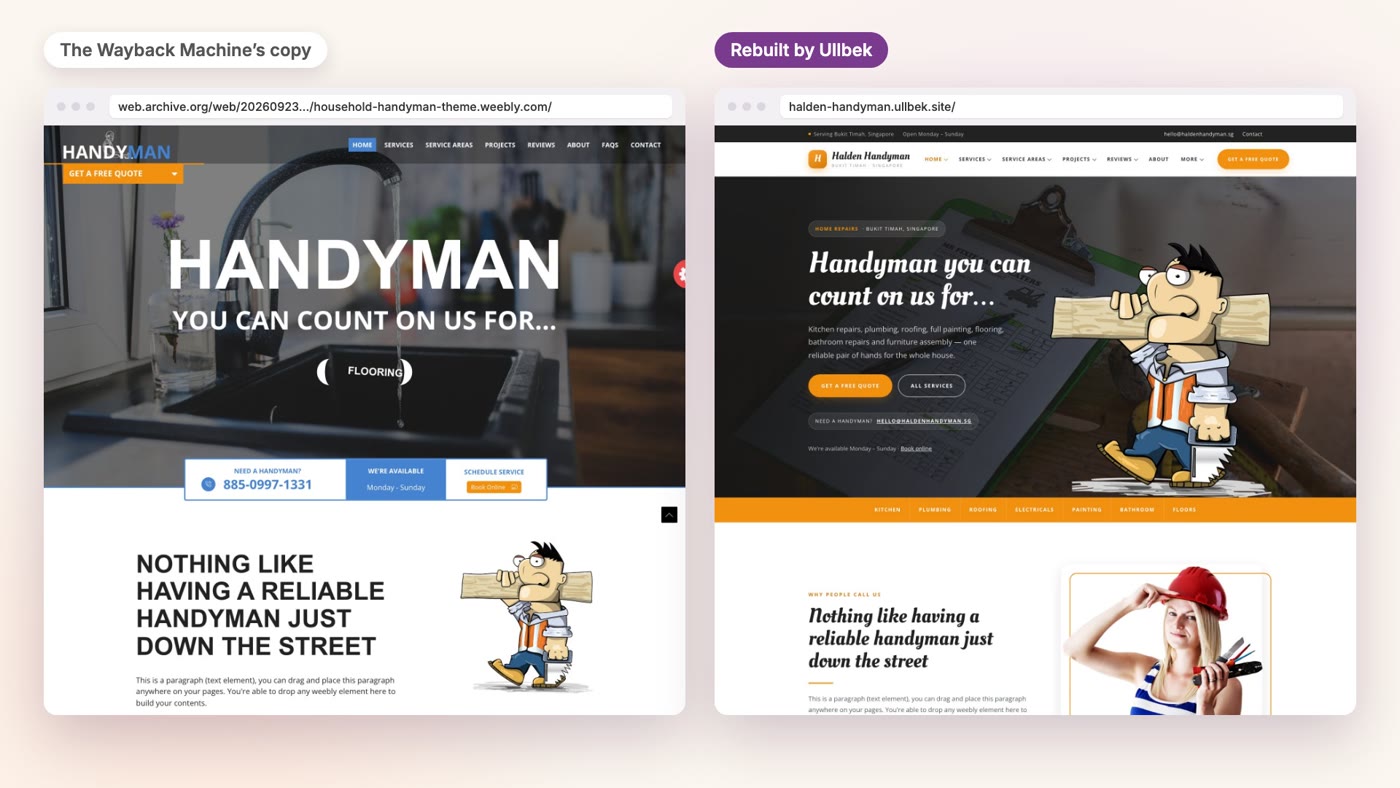
- Build the new site. Give Ullbek the Wayback Machine's copy of your site, if it was saved, in one message, or attach the Archive ZIP Weebly sent you. The guide has the message to type for each. Answer its questions, then read every page.
- Publish, and choose Your own domain. Bring the domain you saved in steps 1 to 3 (your own domain needs a monthly plan; the price shows before you pay).
- Add only the records Ullbek shows you. Add them at your registrar, and keep the MX and TXT records you wrote down. Once it's connected, the address people already know opens your new site.
Get your domain out, then your site back
See how moving a Weebly site to Ullbek works, step by step, with the domain first.