The two solutions are written out below.
Captions available · press CC · Also on YouTube
The Edit with Elementor button has gone. It isn't under the page's name in your Pages list, it isn't at the top of the page's edit screen, and the toolbar on your live page doesn't have it either. Your page is still there, and visitors still see it as usual. Elementor just isn't offering its button.
Elementor's own help page for this lists where to look, in order. Everything below, and in the film above, was done on a real WordPress site with Elementor 4.4.0, where we made the button disappear on purpose and brought it back.
What actually happened
Elementor adds its button only to the kinds of content it has been told to work with, and only where nothing else on the site hides it. Its help page names the Post Types setting as "the primary cause", then a plugin, then the theme, then custom code. On our site the first two made the button disappear: the setting took it away everywhere, and a plugin took it off the toolbar only.
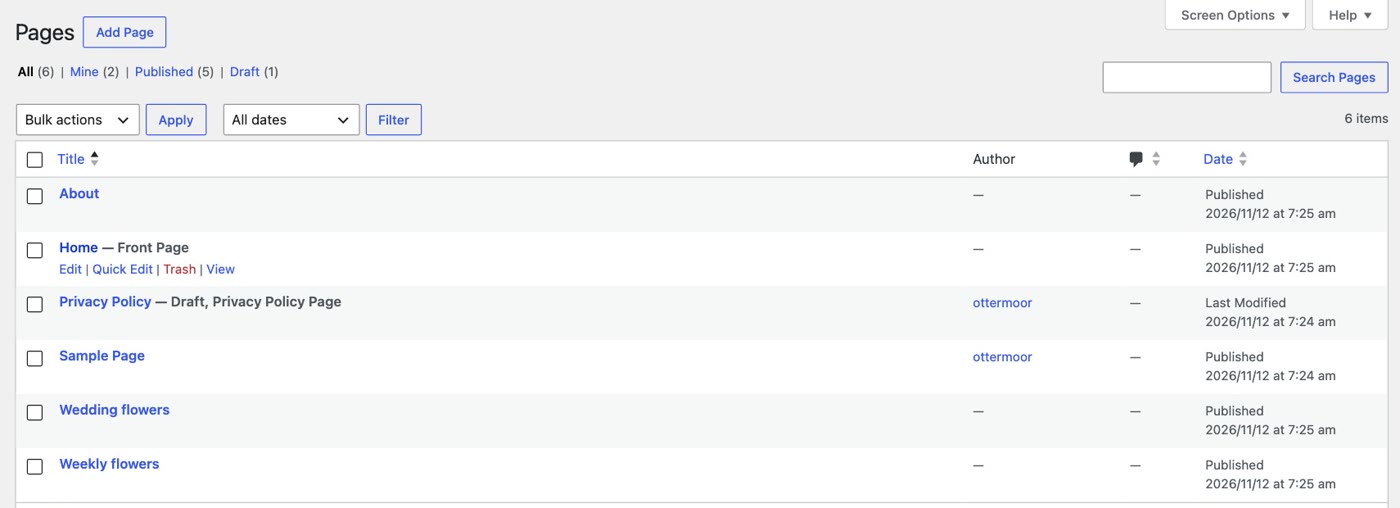
Solution 1: the Post Types setting
Elementor has a list of the kinds of content you can edit with it, Posts and Pages among them. If a kind isn't ticked, Elementor's button disappears from it.
- Go to Elementor › Editor › Settings and stay on the General tab.
- Look at Post Types. Ours had Posts ticked, and Pages not.
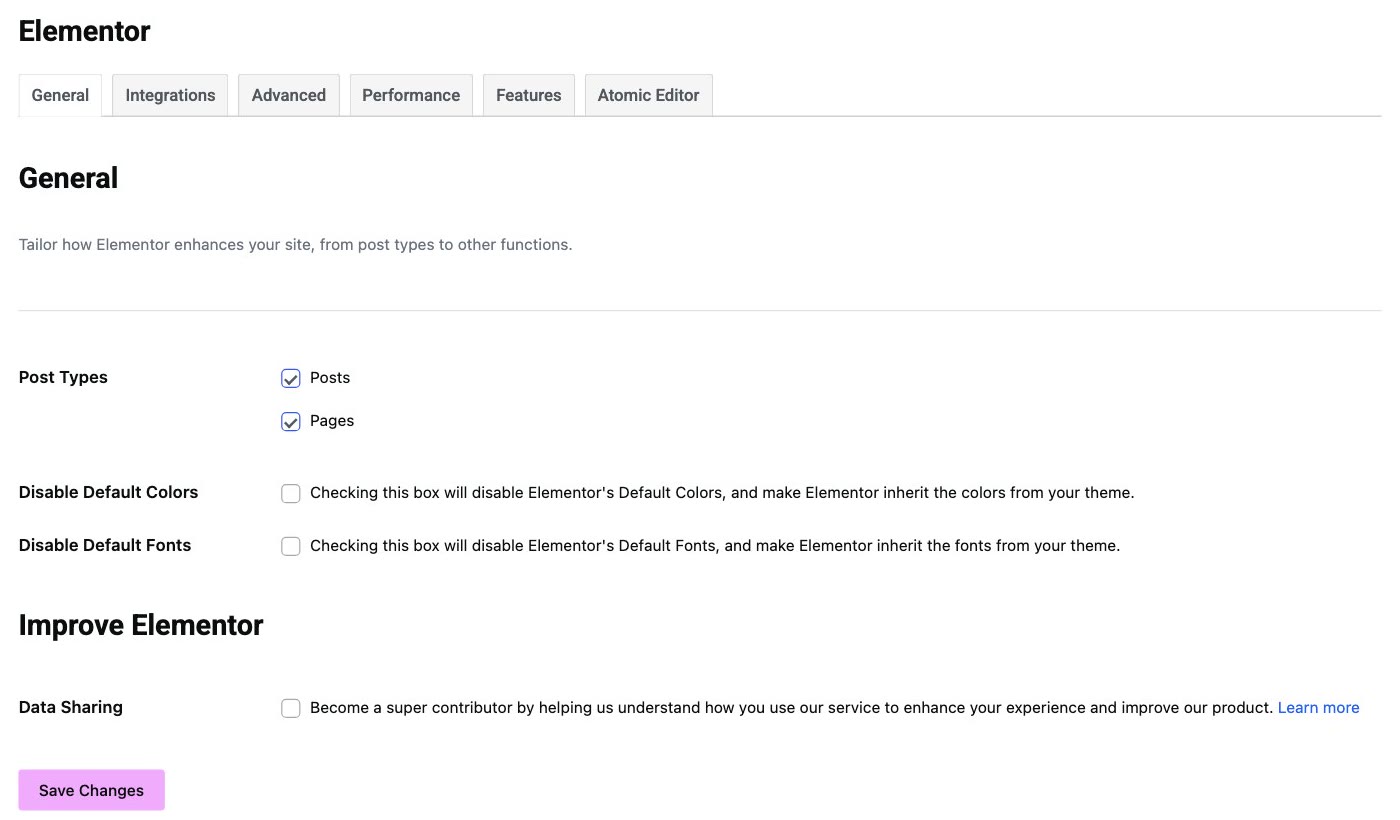
- Tick the one that's missing, and click Save Changes.
- Check your Pages list again. On our site the button was back under each page's name, at the top of the page's edit screen, and on the toolbar of the live page.
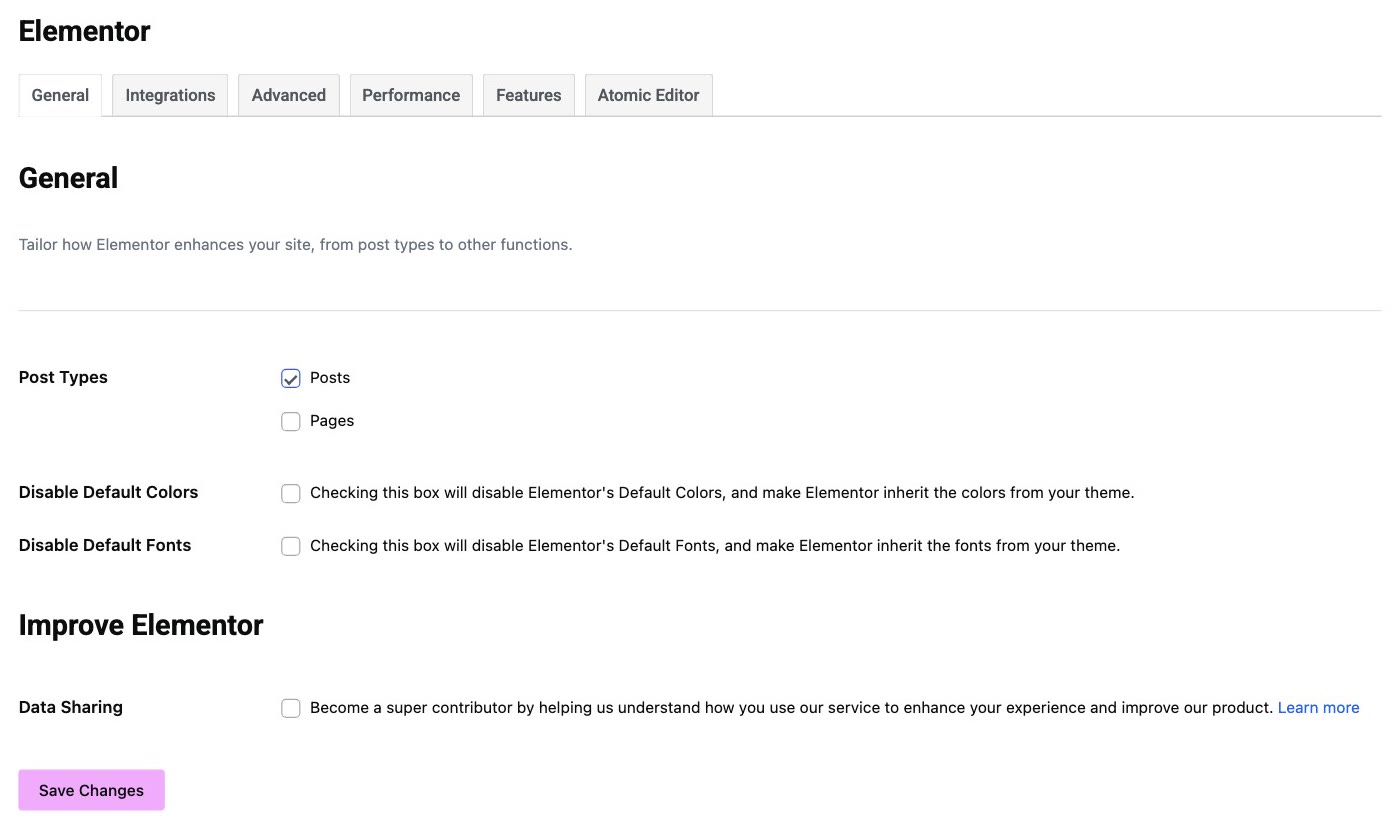
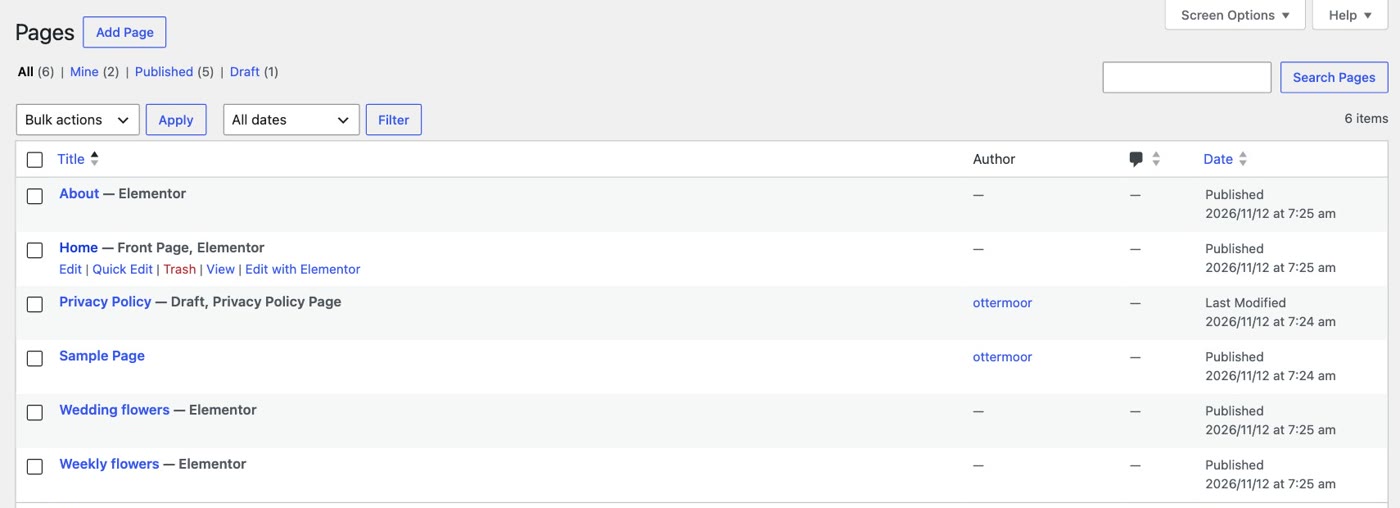
One thing to know before you fix it: while Pages was unticked, opening a page's ordinary edit screen showed the page as plain blocks (our home page as an empty page). Don't save anything there. Fix the setting first, then open the page with Elementor as usual.
Solution 2: a plugin
If the button is still in your Pages list but gone from the toolbar when you view the page, the setting is fine, and something else is hiding it. On our site that was a plugin.
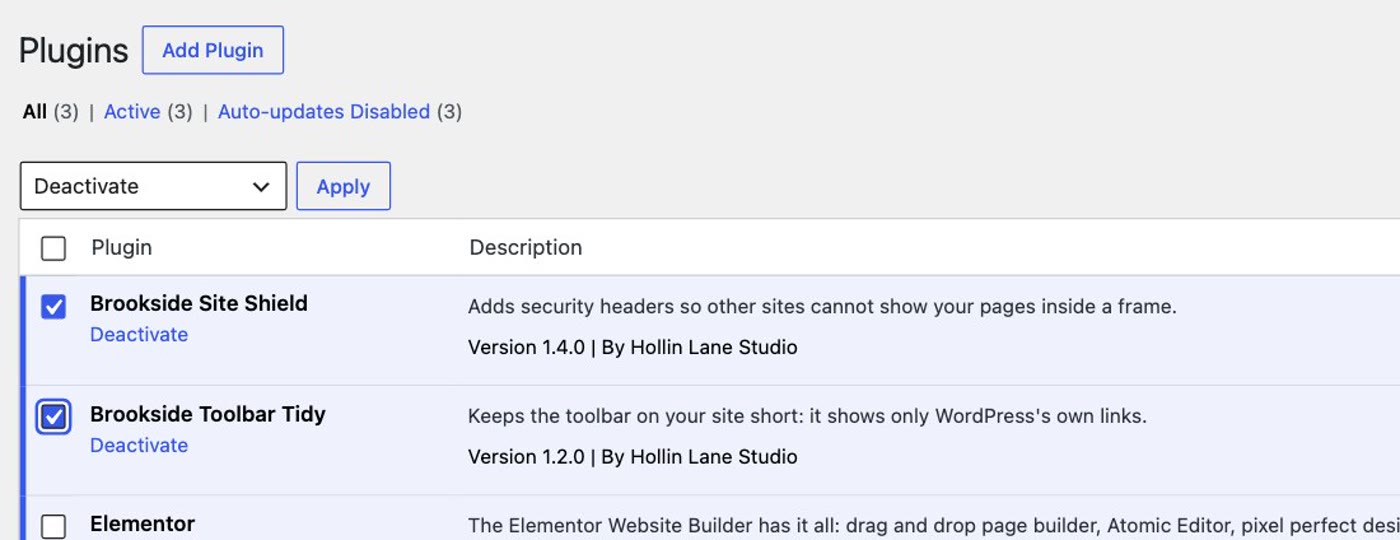
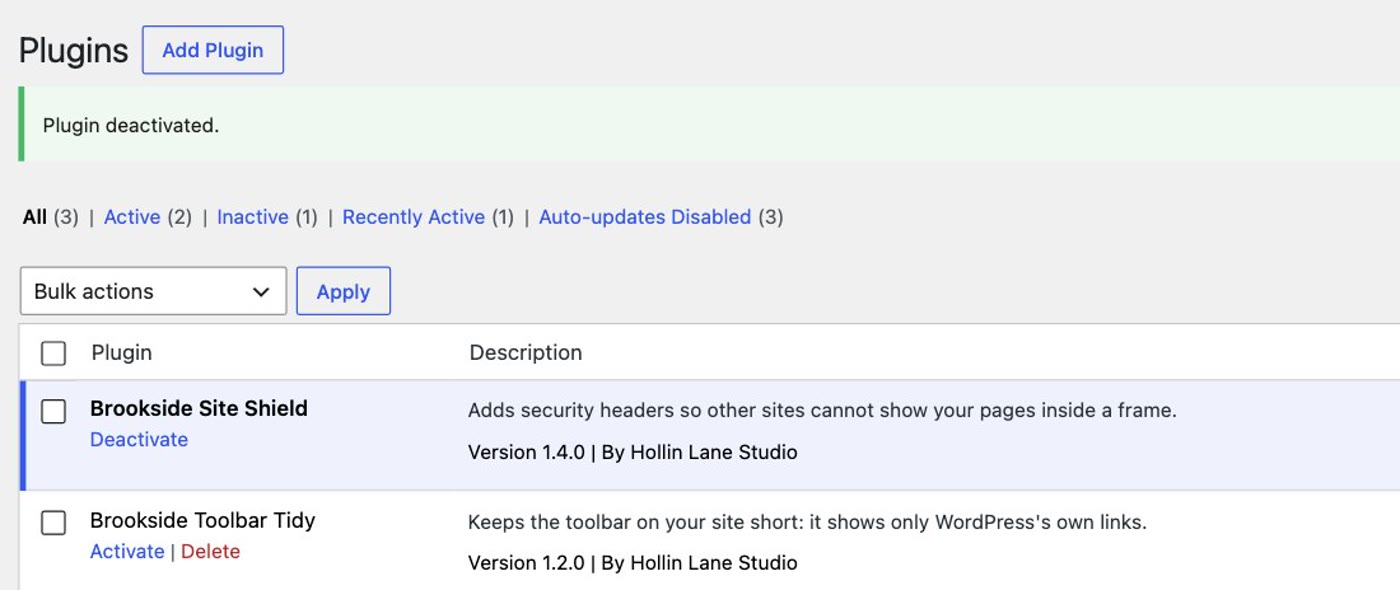
- Deactivate every plugin except Elementor. This is what Elementor's help page says to do. Go to Plugins, tick them all but not Elementor, choose Deactivate in Bulk actions, and click Apply.
- View the page again. If the button is back on the toolbar, one of those plugins was hiding it. Ours came back.
- Turn the plugins back on one at a time, and view the page after each one. When the button goes again, the plugin you just turned on is the one. On our site it was a plugin that tidies the toolbar.
- Leave that plugin off, and ask its maker for help, or use one that leaves Elementor's button alone.

Still missing? Where else to look
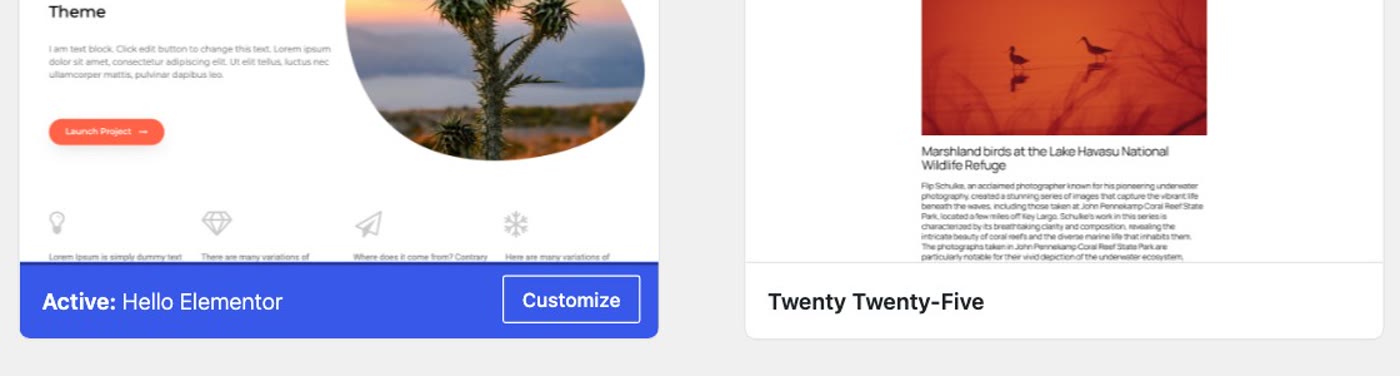
Elementor's help page says to switch to its Hello theme for a while. Your theme's settings won't be lost, and you can switch back. If the button comes back with Hello and goes again with your own theme, contact your theme's developers. Go to Appearance › Themes to switch. Our test site already uses Hello, so there was nothing to switch.
The same page's last suggestion is custom code: if someone has added code to your site, take it out for a while and see if the button returns.
If it goes missing again
- Post Types first. Elementor › Editor › Settings › General.
- Then your plugins, one at a time.
- Then your theme. Switch to Hello for a while, and switch back.
- Solution 1: Elementor › Editor › Settings › General › Post Types: tick Pages (or Posts), Save Changes.
- Solution 2: deactivate every plugin except Elementor; if the button returns, turn them back on one at a time to find the one that hides it, and leave it off.
- Still missing: switch to the Hello theme for a while; then take out any custom code for a while.
Or, there is another way
Everything above brings your button back. If your site is a few pages, a contact form and some photos, there is also a different way to keep it.
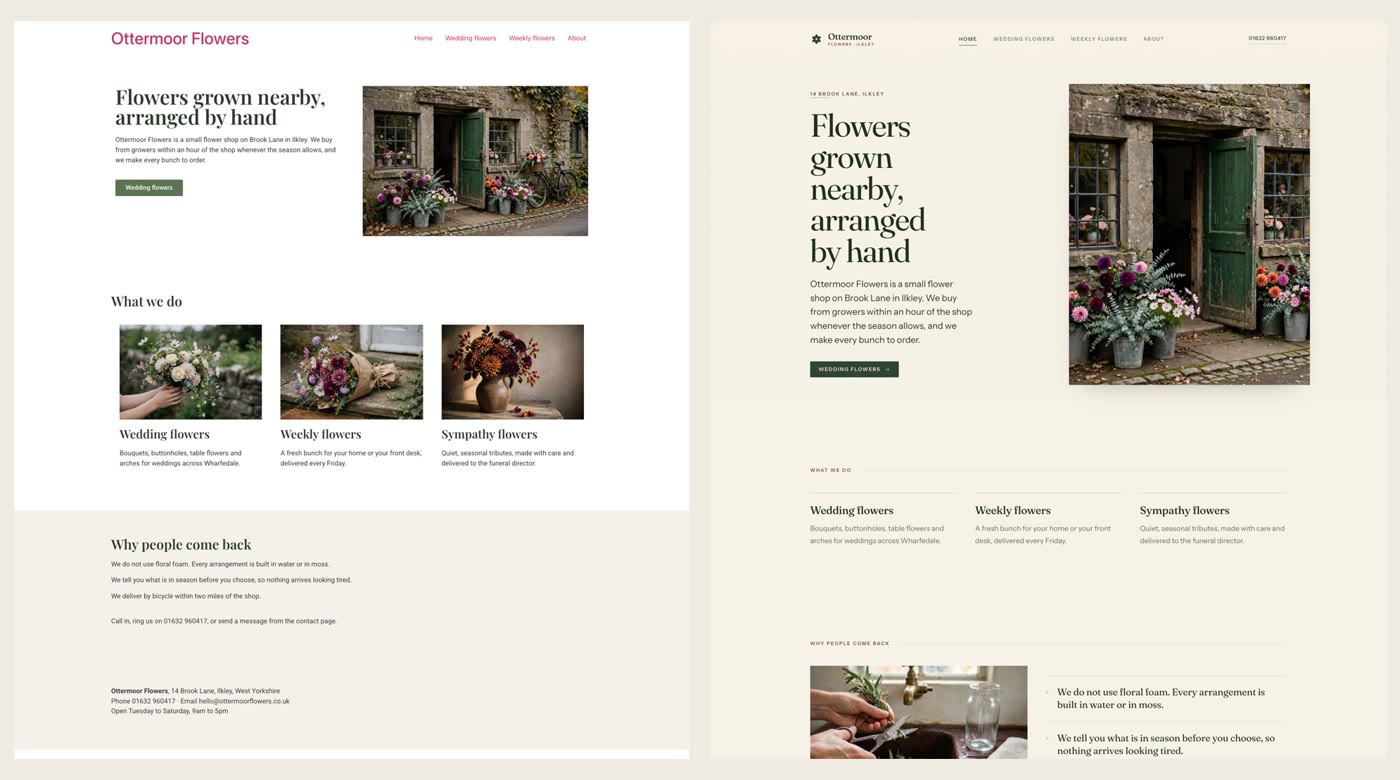
Ullbek is an AI website builder. You hand it your site's words and your own photos, and it builds a new, custom website with a new look. When we tried it with the Ottermoor Flowers site from this post, every page was kept at the same address, all of the wording was kept word for word, and only the florist's own photos were used. It asked one question, about the colours, and took about a quarter of an hour. There is no editor button to look for: when something needs to change, you say what should be different.
- Put your words and photos together. One text file with each page's wording and its address, and the photos that are yours.
- Say what you want. Ours: "Build a new website for my flower shop, Ottermoor Flowers, with a new look. The words for every page are in the file I've attached, my-website-words.txt, and the photos are my own. Keep every page and all my wording, put each page at the address written in the file, and use only my photos." It asks what it needs to know, and builds.
- Look it over, publish, then move your domain. The move guide walks through every step, including what to collect from your old host first.
A site with no editor button to look for
See how moving a WordPress site to Ullbek works, step by step.