The fix is written out below.
Captions available · press CC · Also on YouTube
You change something in Elementor, save it, and in the editor it looks right. Then you open your site, or a customer tells you, and the old version is still there. Sometimes the page even looks broken, as if its styles had gone.
Usually nothing is lost: your change is saved, and visitors are being shown an older copy of the page. Everything below, and in the film above, was done on a real WordPress site with Elementor 4.4.0 and a free caching plugin from WordPress.org, where we made the change, watched it fail to reach visitors, and fixed it.
What actually happened
On our site we changed the link colour in Elementor's Site Settings (Typography › Link › Color), from the theme's pink to green. That colour is used by the shop's name at the top of every page and by the menu. We saved, and in the editor it turned green straight away.
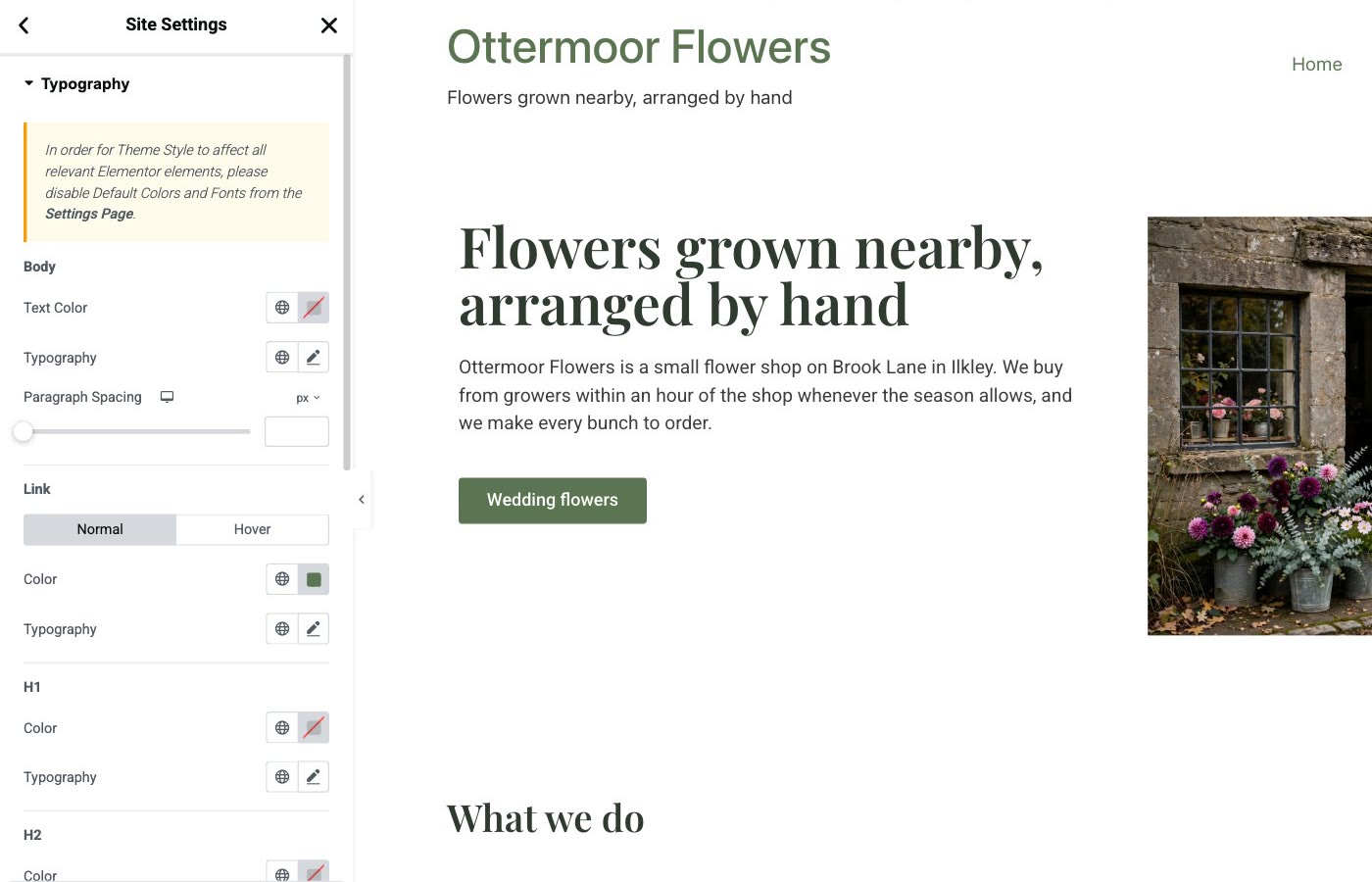
The usual cause is your caching plugin. It keeps a ready-made copy of each page for your visitors. On our site, an ordinary edit to one page showed to visitors at once: the caching plugin refreshed that page by itself. It was the Site Settings change, which touches every page, that didn't. Elementor's own help page puts it plainly: when a change shows while you're logged in but not for logged-out visitors, "the site is almost certainly serving cached content".
Step 1: Look at your site as a visitor
When you're logged in, you may not see what your visitors see. So look the way they do.
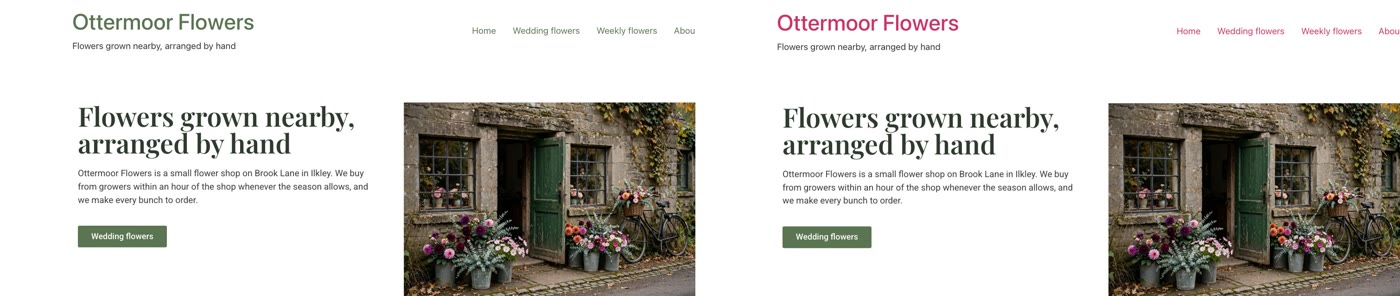
- Open your site while logged in. On ours the links were green: the new version.
- Open a private window (an incognito window) and go to your site's address. On ours, the links were still pink. That is the copy your visitors were getting.
Step 2: Empty your caching plugin's cache
Your caching plugin will have a button that empties its stored copies. Its name and place differ from plugin to plugin; look in the bar at the top of your dashboard, or on the plugin's own settings page.
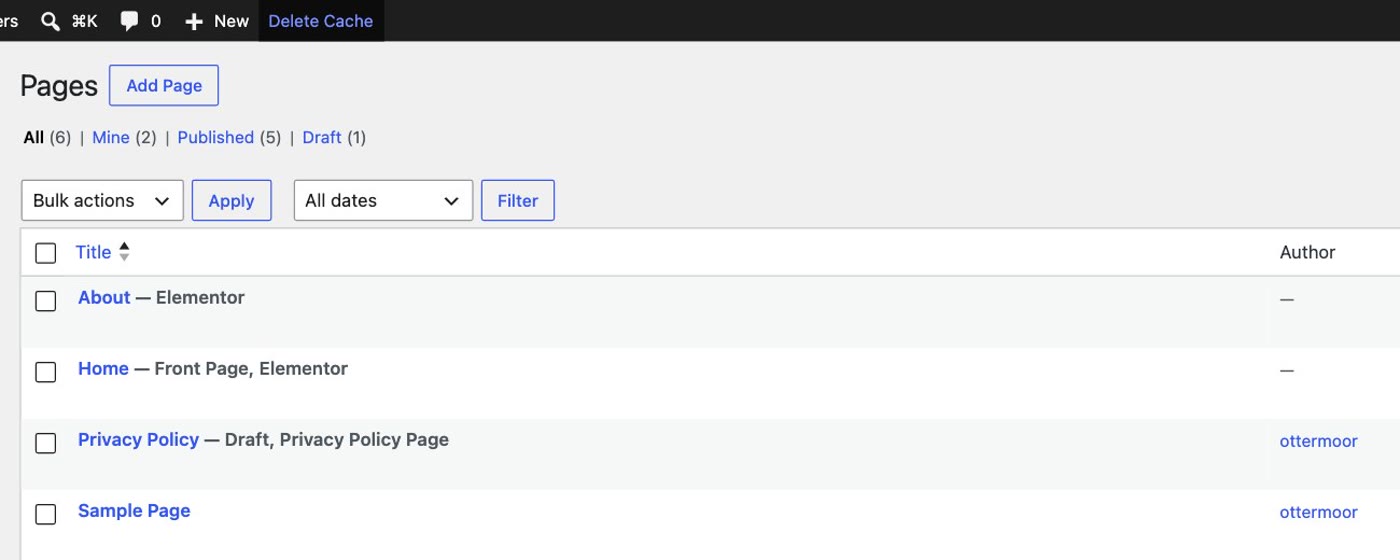
- Go to your dashboard (any page of it; we used Pages).
- Click your caching plugin's button. Ours is Delete Cache in the bar at the top. It empties the stored copies of your pages.
- Go back to the private window and reload. On our site the links were green for visitors too, and the other pages had them as well.
Looks broken instead? The same fix
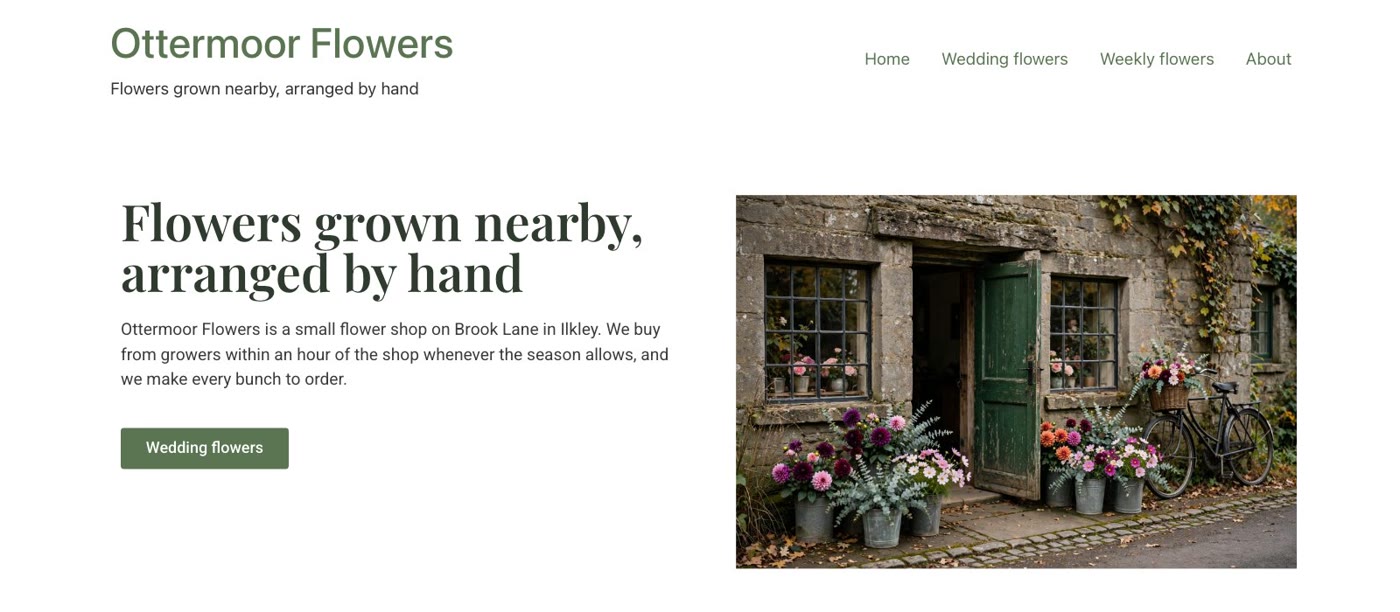
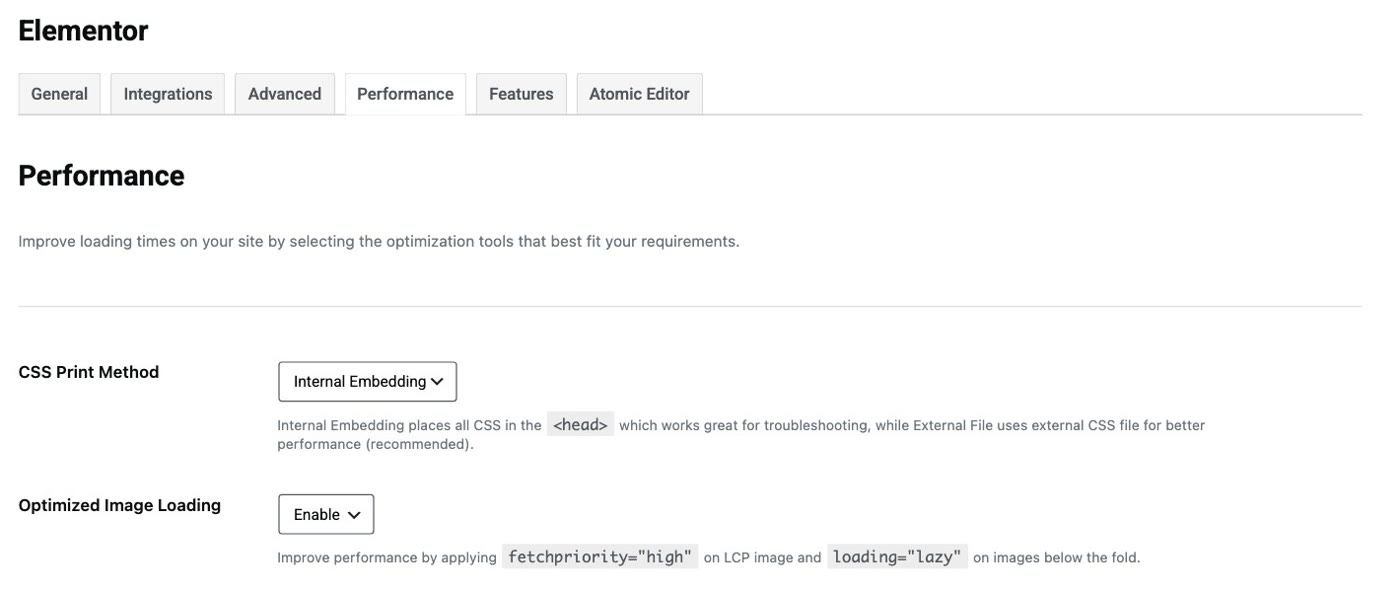
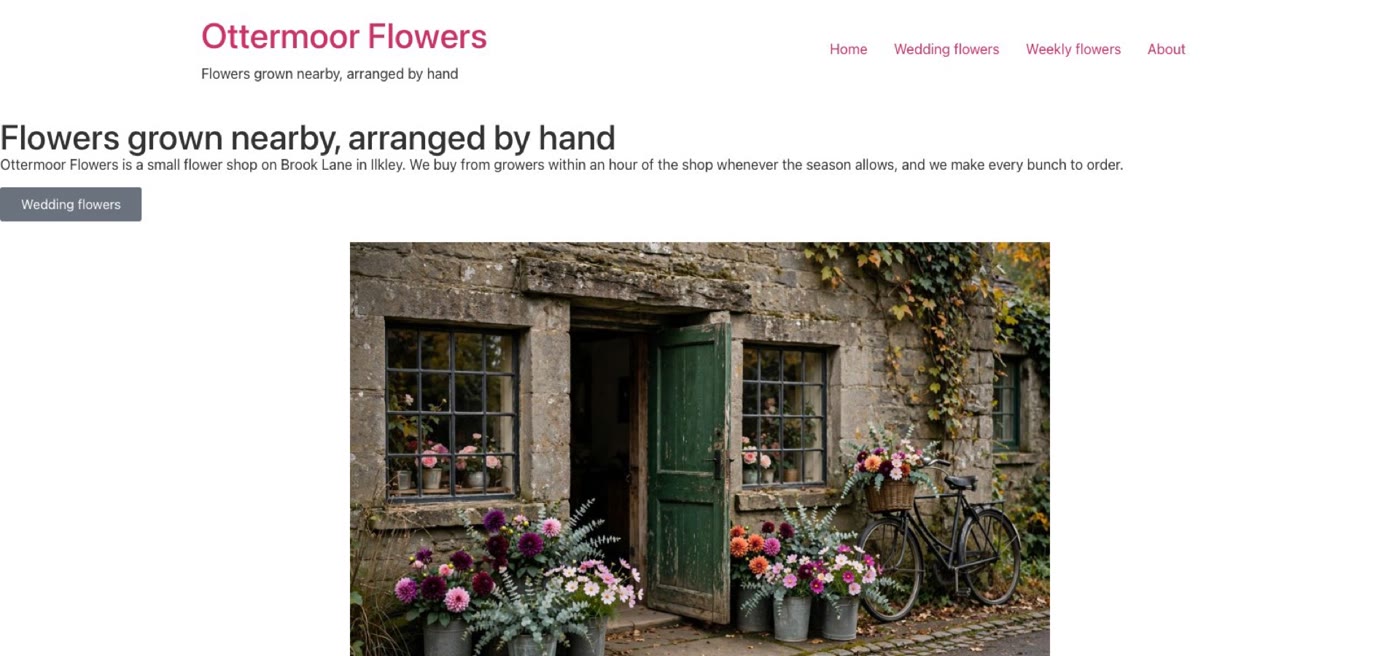
Elementor has a setting called CSS Print Method, in Elementor › Editor › Settings › Performance. On our test site it was set to Internal Embedding, and visitors kept the old colour. We tried the same change with External File, the option the screen marks as recommended: this time visitors got the home page without its styles, everything in a plain column. Emptying the cache, as in step 2, brought the page back, in green.
Still not showing? A few more places to look
Elementor's help page lists more places a copy of your page can be kept:
- Your hosting. Many hosts keep their own cache, with a "clear cache" or "purge" button in the hosting account; if you can't find it, ask your hosting provider.
- A service in front of your site (a CDN), which has its own purge button.
- Your browser. A private window, or a hard refresh, gets around it.
- Clear Files & Data, in Elementor › Editor › Tools. The screen says it clears "outdated CSS files and cached data" and that they are regenerated "the next time someone visits any page on your website". On our site it didn't bring the change through on its own, and with External File it left visitors with the unstyled page until we emptied the cache. So if you use it, empty your cache again straight after.
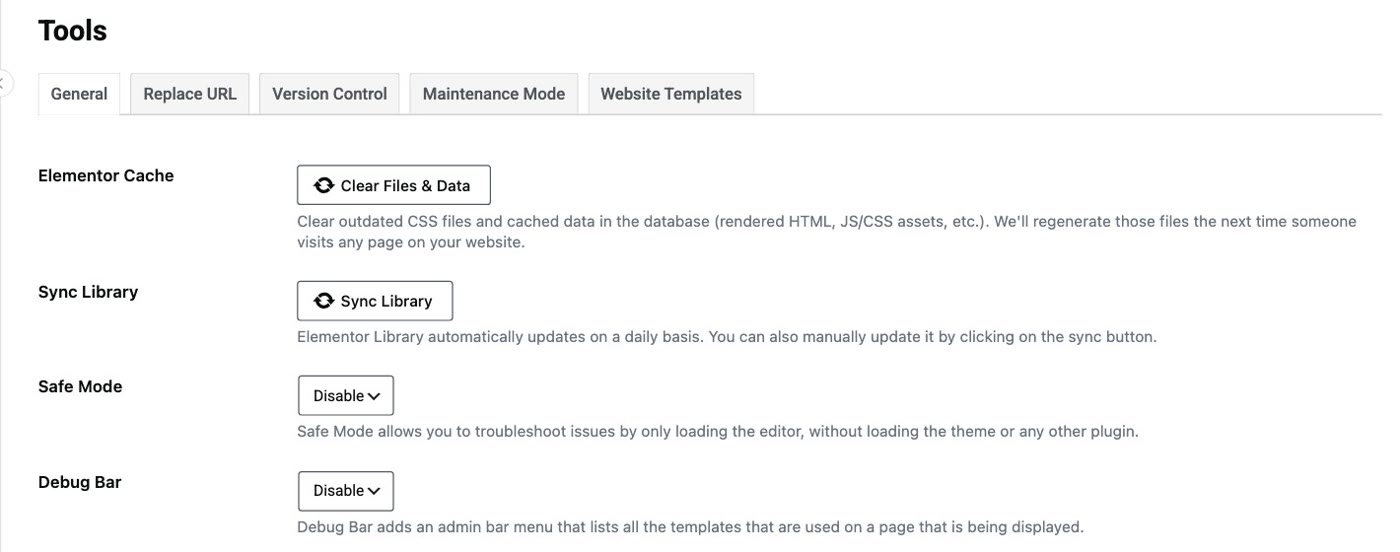
The same page also suggests switching the CSS Print Method between its two options, deactivating Elementor's performance features (such as Inline Font Icons and Improved CSS Loading), and deactivating the Element Caching experiment. Our site didn't need these.
After every Site Settings change
- Save, then empty your caching plugin's cache. A change in Site Settings reaches every page, so don't wait for the stored copies to run out.
- Look at your site in a private window. That's what your visitors get.
- Check one more page, not just the home page. The change should be everywhere.
- Step 1: open your site in a private window; if it shows the old version while you see the new one logged in, it's a cache.
- Step 2: empty your caching plugin's cache (ours: Delete Cache, in the bar at the top of the dashboard), then reload the private window.
- Looks broken instead: the same fix.
- Still not showing: empty your host's and your CDN's caches, or ask your hosting provider; if you use Elementor's Clear Files & Data, empty your cache again straight after.
Or, there is another way
Everything above gets your change in front of your visitors. If your site is a few pages, a contact form and some photos, there is also a different way to keep it.
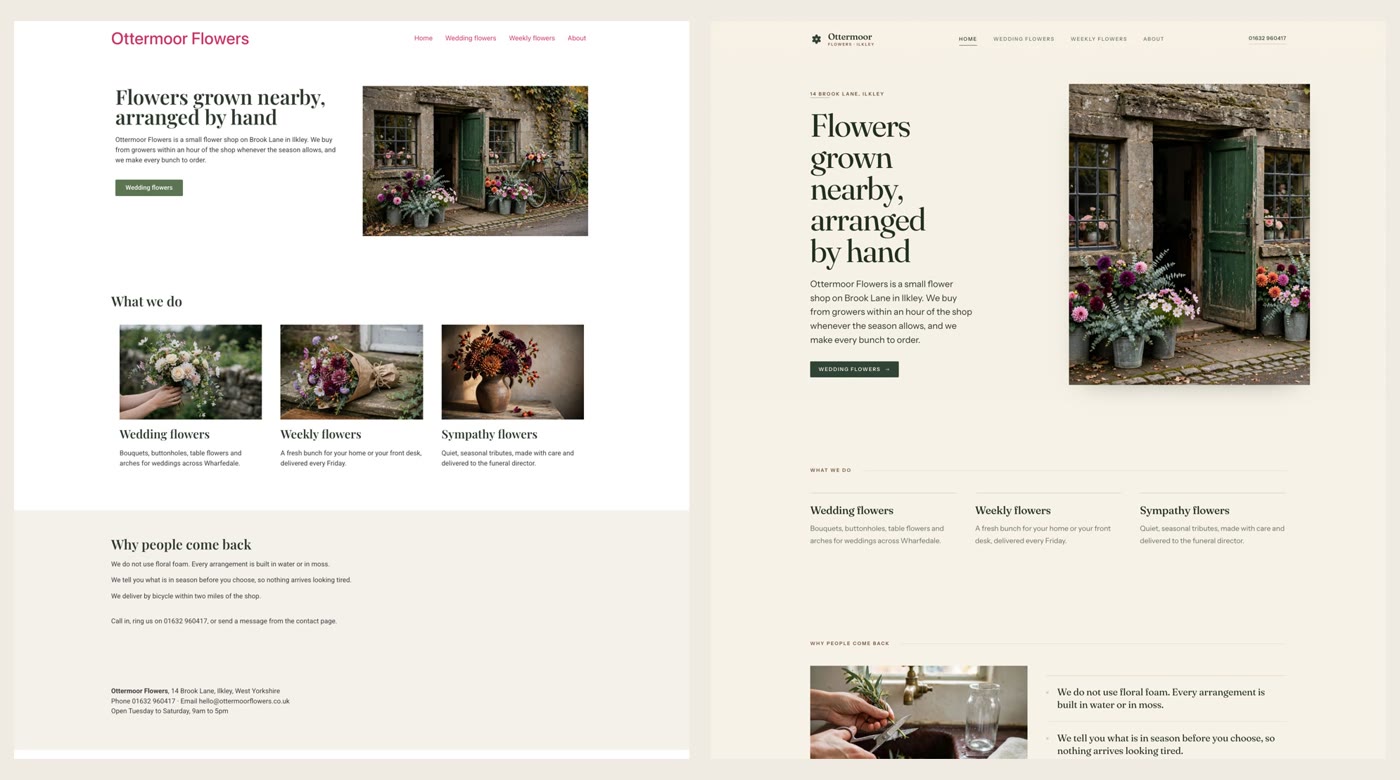
Ullbek is an AI website builder. You hand it your site's words and your own photos, and it builds a new, custom website with a new look. When we tried it with the Ottermoor Flowers site from this post, every page was kept at the same address, all of the wording was kept word for word, and only the florist's own photos were used. It asked one question, about the colours, and took about a quarter of an hour. What you see in the preview is what goes live. When something needs to change, you say what should be different.
- Put your words and photos together. One text file with each page's wording and its address, and the photos that are yours.
- Say what you want. Ours: "Build a new website for my flower shop, Ottermoor Flowers, with a new look. The words for every page are in the file I've attached, my-website-words.txt, and the photos are my own. Keep every page and all my wording, put each page at the address written in the file, and use only my photos." It asks what it needs to know, and builds.
- Look it over, publish, then move your domain. The move guide walks through every step, including what to collect from your old host first.
What you preview is what goes live
See how moving a WordPress site to Ullbek works, step by step.