The three solutions are written out below.
Captions available · press CC · Also on YouTube
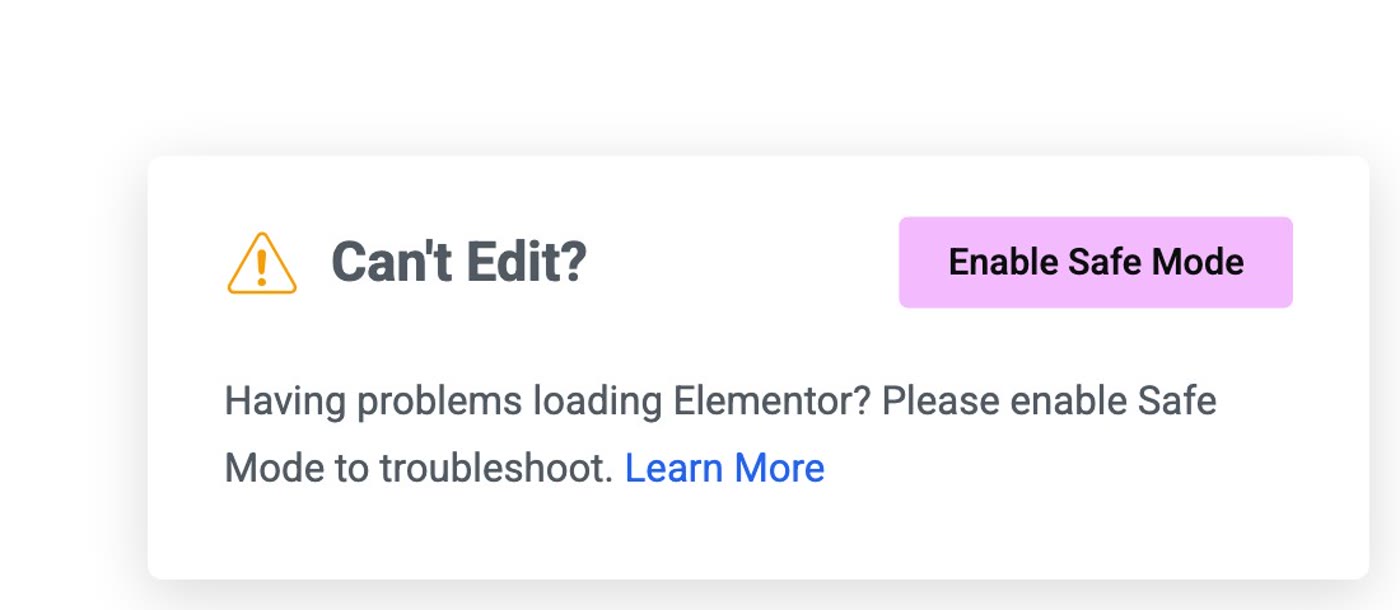
You click Edit with Elementor, and the page never opens. The screen goes grey, a spinner turns, the word Loading sits under it, and nothing else happens. Wait a little longer and a box appears in the corner: Can't Edit?
Usually your site itself is fine: visitors still see your pages as usual, and it is only the editor that can't start. Something on the site is getting in its way, and there are three things to check, in order. Everything below, and in the film above, was done on a real WordPress site with Elementor 4.4.0, where we broke the editor on purpose and fixed it again.
What actually happened
The editor shows the page you are editing inside a frame, and to do that it loads your site with its theme and its plugins. If one of them gets in the way, the editor never finishes starting. Elementor's help page for this screen lists the usual reasons, among them a conflict with another plugin or a theme script, and a security setting that stops the page being shown in a frame. Its page on an editor panel that never stops loading adds a third: not enough memory on the server ("Memory limit"), which its Safe Mode page also names as a thing to check.
Solution 1: Safe Mode
Safe Mode opens the editor without your other plugins and without your theme's code. It only applies to you, as a logged-in administrator, inside the editor: visitors keep seeing your site as usual. If the editor opens in Safe Mode, the cause is one of your plugins or your theme.
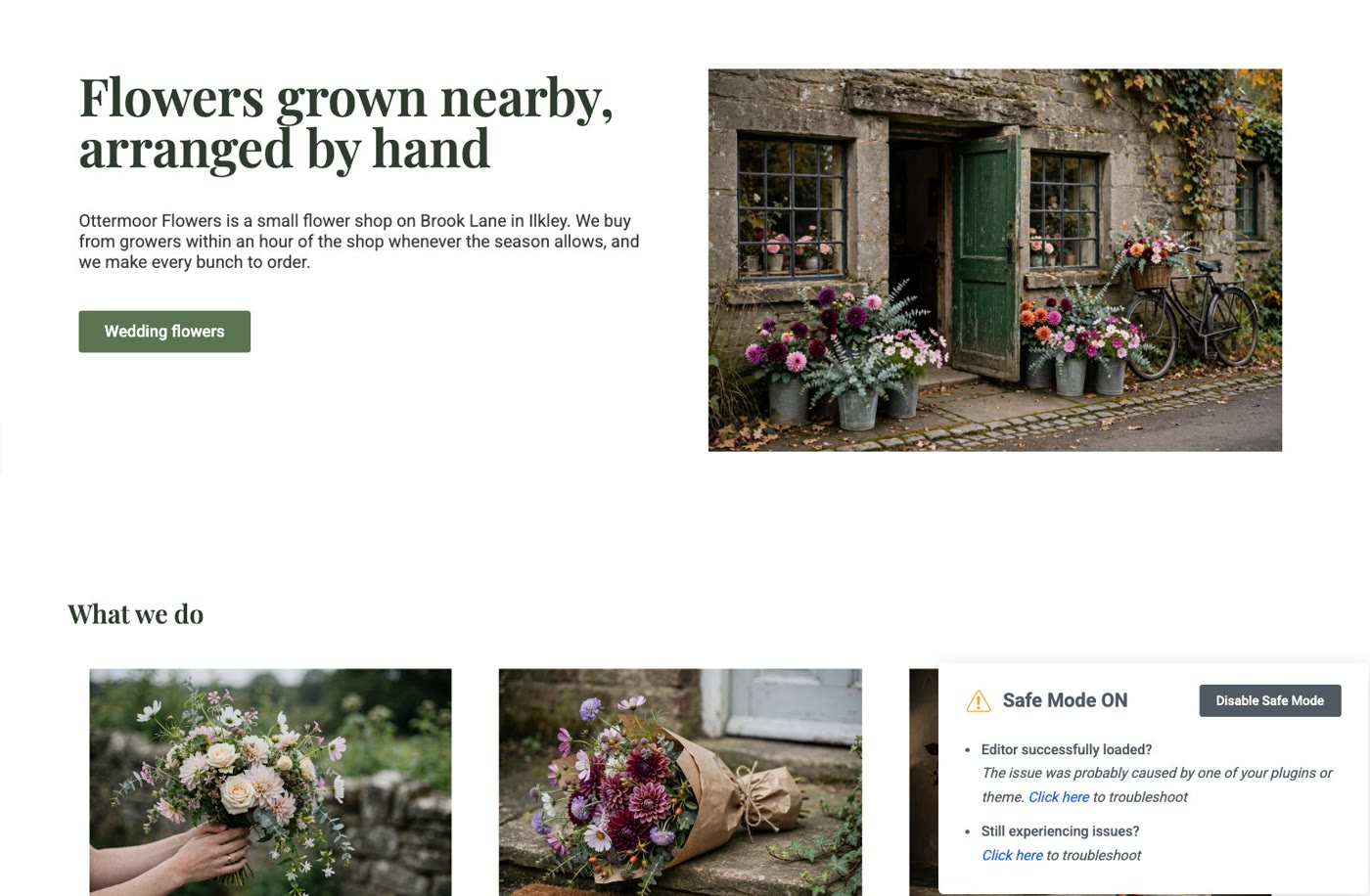
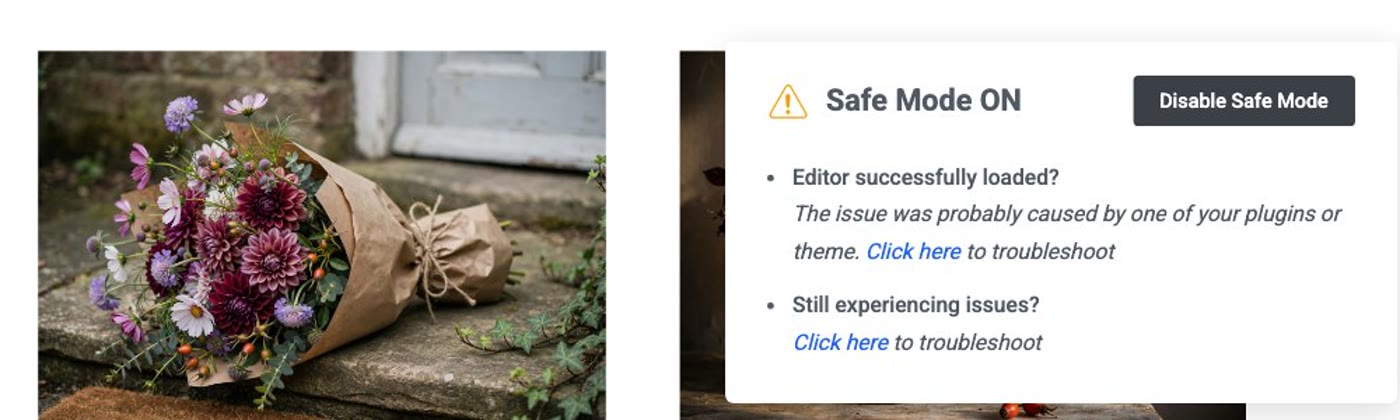
- Click Enable Safe Mode in the Can't Edit? box. The editor reloads and opens. A note in the lower right says Safe Mode ON and "The issue was probably caused by one of your plugins or theme." (No box? Go to Elementor › Editor › Tools, set Safe Mode to Enable, Save Changes, and open the page again.)
- Go to Plugins and deactivate one plugin. Start with the one you added or updated most recently. On our site, that was a photo lightbox plugin we had just added.
- Turn Safe Mode off. Go back to the editor tab that is in Safe Mode and click Disable Safe Mode on the Safe Mode ON note. The editor reloads without Safe Mode. If it opens, you have found the plugin. If it still gets stuck, turn that plugin back on and try the next one, one at a time.
- Leave the plugin that caused it switched off. Tell its maker what happened, or find another plugin that does the same job.
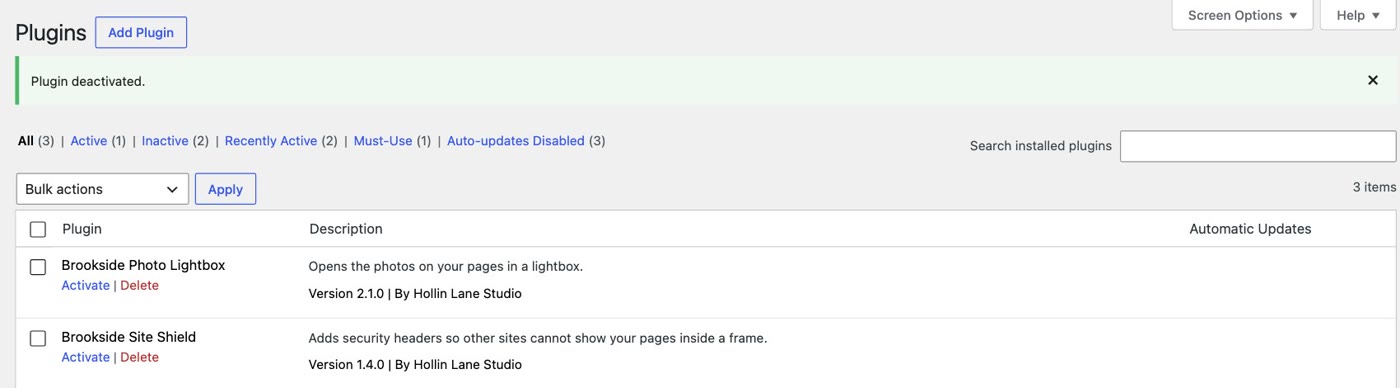
Safe Mode only helps with the editor. It doesn't change how your live pages look, and Elementor notes that it switches off its experimental features while it is on, so turn it off once you have found the cause. One thing that surprised us: with Safe Mode switched on from the Can't Edit? box, Elementor › Editor › Tools still showed Safe Mode as Disable. Pressing Save Changes on that page switched it off as well; we tested both ways on our site.
Solution 2: a security setting
A security setting called X-Frame-Options tells browsers whether your pages may be shown inside a frame. Set to DENY, it forbids that even for your own site, and the editor, which shows your page inside a frame, can't start. Elementor's requirements page asks for it to be set to same origin (SAMEORIGIN).
- Ask the browser what's in the way. On the stuck loading screen, right-click, choose Inspect and open the Console tab. Look for messages in red. Ours said: Refused to display 'http://ottermoorflowers.co.uk/' in a frame because it set 'X-Frame-Options' to 'deny'.
- If a security plugin sets it, change its setting rather than switching security off. On our site it came from a security plugin; in its settings we chose Allow this site only (SAMEORIGIN) and saved.
- Open the page with Elementor again. Ours opened straight away.
- If none of your plugins sets it, ask your hosting provider, in these words, to set
X-Frame-OptionstoSAMEORIGINinstead ofDENY.
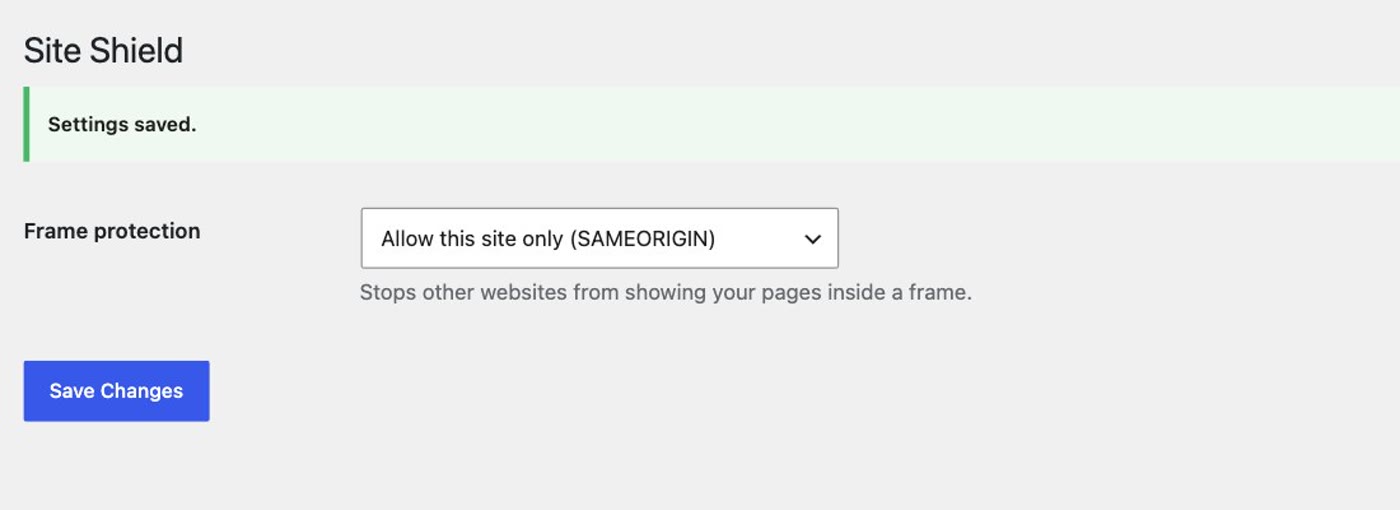
Safe Mode would also have opened the editor here, because it switches the security plugin off inside the editor. The console tells you which setting to change, so you can keep the plugin.
Solution 3: server memory
The editor needs enough memory on your server. Elementor shows you how much it has.
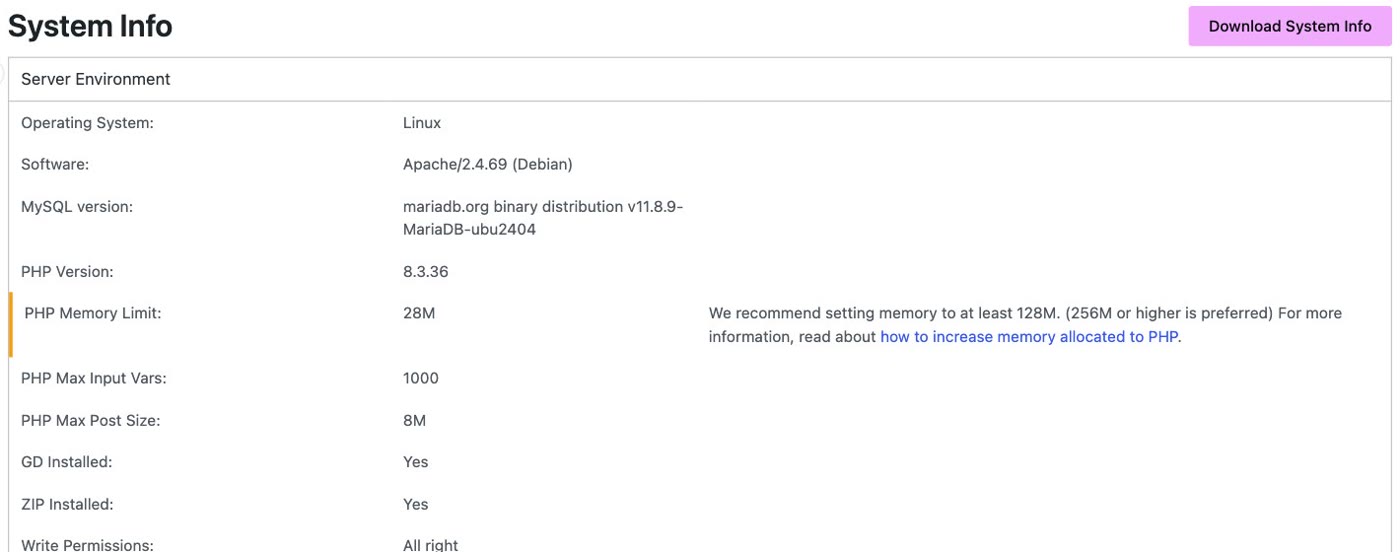
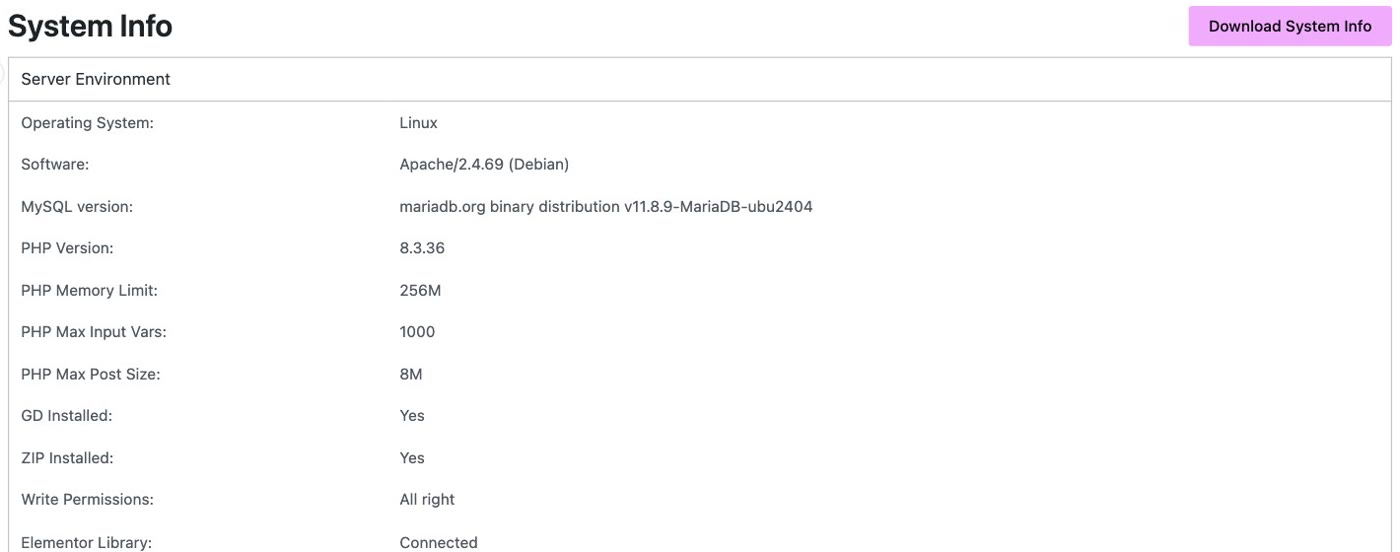
- Go to Elementor › Editor › System Info and find PHP Memory Limit under Server Environment. If it is low, Elementor says so beside it: "We recommend setting memory to at least 128M. (256M or higher is preferred)". Elementor's requirements page asks for 256 MB.
- Raise the limit. On most hosts it is a setting in your hosting account's PHP settings, or your host can raise it for you if you ask. Elementor's help page also shows the
wp-config.phpandphp.inilines for it; on our test server the limit was set by the server itself, so it had to be raised there. - Check System Info again, then open the page with Elementor.
Still stuck? One more setting
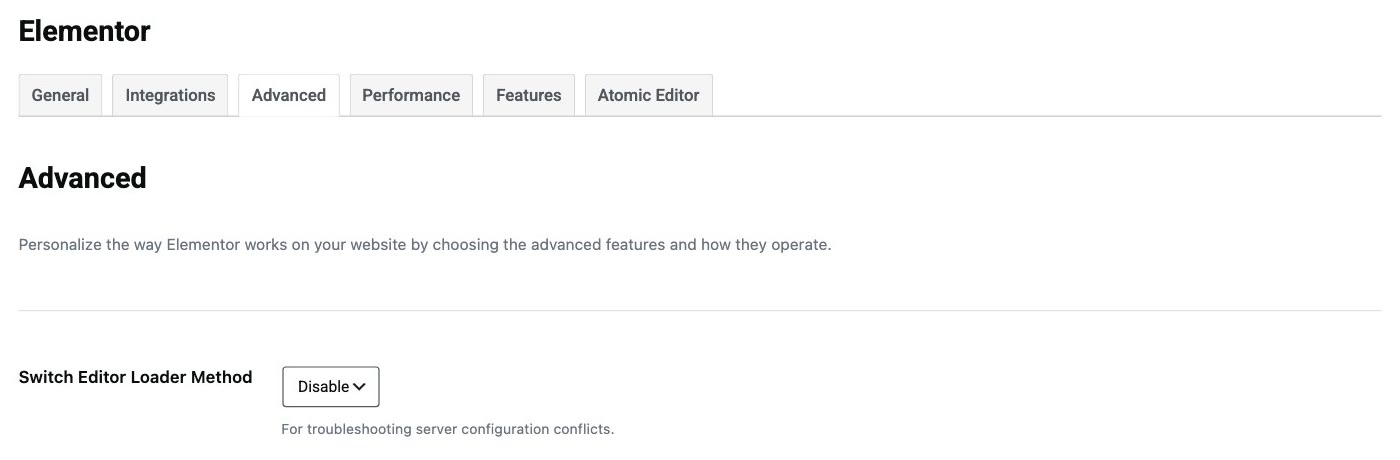
Elementor's own help pages list one more setting for editors that won't load because of how the server is set up. Go to Elementor › Editor › Settings, the Advanced tab, and find Switch Editor Loader Method ("For troubleshooting server configuration conflicts"). Set it to Enable, Save Changes, and try the editor again. Our test site didn't need it, so we left it as it was.
Before you add your next plugin
- Open one page in the editor after every new plugin or update. If it sticks, you know exactly which change did it, and solution 1 takes a minute.
- Keep a note of what you added, and when. "Deactivate the most recent one first" only works if you know which that was.
- Check the memory line in System Info once. If Elementor flags it, ask your host before it becomes a stuck editor on a busy day.
- Solution 1: click Enable Safe Mode in the Can't Edit? box; if the editor opens, deactivate plugins one at a time (newest first), click Disable Safe Mode on the editor's Safe Mode note, and see whether the editor opens.
- Solution 2: right-click › Inspect › Console; if it says
X-Frame-Optionsisdeny, set your security plugin to same origin, or ask your hosting provider forSAMEORIGIN. - Solution 3: Elementor › Editor › System Info › PHP Memory Limit; ask your host to raise it (Elementor asks for 256 MB).
- Still stuck: Elementor › Editor › Settings › Advanced › Switch Editor Loader Method: Enable.
Or, there is another way
Everything above gets your editor back. If your site is a few pages, a contact form and some photos, there is also a different way to keep it.
Ullbek is an AI website builder. You hand it your site's words and your own photos, and it builds a new, custom website with a new look. When we tried it with the Ottermoor Flowers site from this post, every page was kept at the same address, all of the wording was kept word for word, and only the florist's own photos were used. It asked one question, about the colours, and took about a quarter of an hour. There is no editor to load: when something needs to change, you say what should be different.
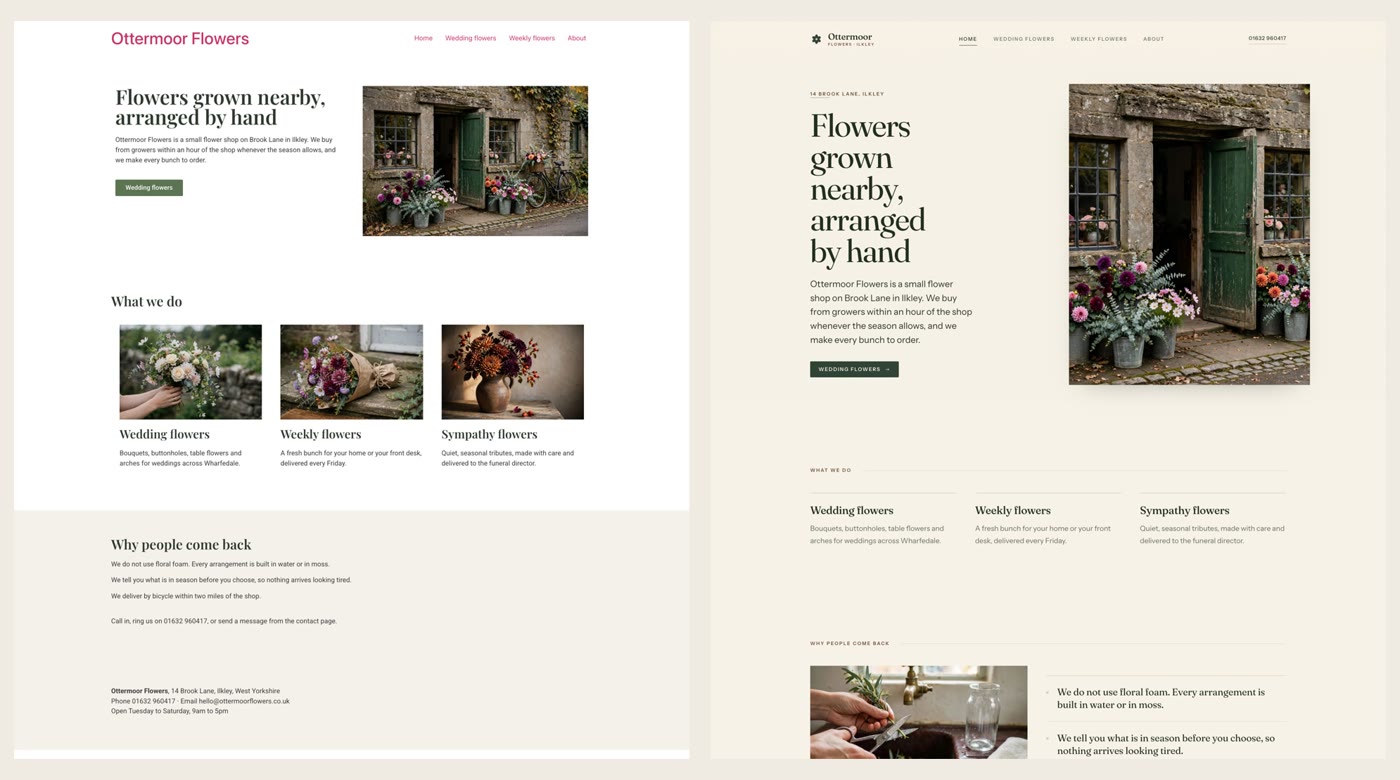
- Put your words and photos together. One text file with each page's wording and its address, and the photos that are yours.
- Say what you want. Ours: "Build a new website for my flower shop, Ottermoor Flowers, with a new look. The words for every page are in the file I've attached, my-website-words.txt, and the photos are my own. Keep every page and all my wording, put each page at the address written in the file, and use only my photos." It asks what it needs to know, and builds.
- Look it over, publish, then move your domain. The move guide walks through every step, including what to collect from your old host first.
A site with no editor to load
See how moving a WordPress site to Ullbek works, step by step.