The five steps are written out below.
Captions available · press CC · Also on YouTube
You updated Elementor, and something on your site looks or works differently. You would like yesterday's version back while you find out why. Elementor has its own tool for exactly this, called Version Control, and it comes with the plugin itself.
Elementor's help page on rolling back puts it this way: "If you are encountering issues with your website, particularly following a recent update, it may be necessary to revert to a prior version of Elementor." Everything below, and in the film above, was done on a real WordPress site with Elementor: we took it from version 4.4.0 back to 4.3.6, checked the site, and then updated it to 4.4.0 again.
Step 1: Before you go back
Make a backup first. A backup is a copy of your whole site, its files and its database, that you can put back if anything goes wrong. Elementor's help page says: "Always back up your site before rolling back to a previous version." If you are not sure how, it says to "check with your hosting company for details about backing up your site."
- Make a backup of your site. Files and database. Your hosting company can tell you how they do it.
- Note the version you are on. Go to Plugins and read Elementor's version line. Ours read Version 4.4.0.

Step 2: Open Version Control
- Go to Elementor › Editor, and in the panel click Tools.
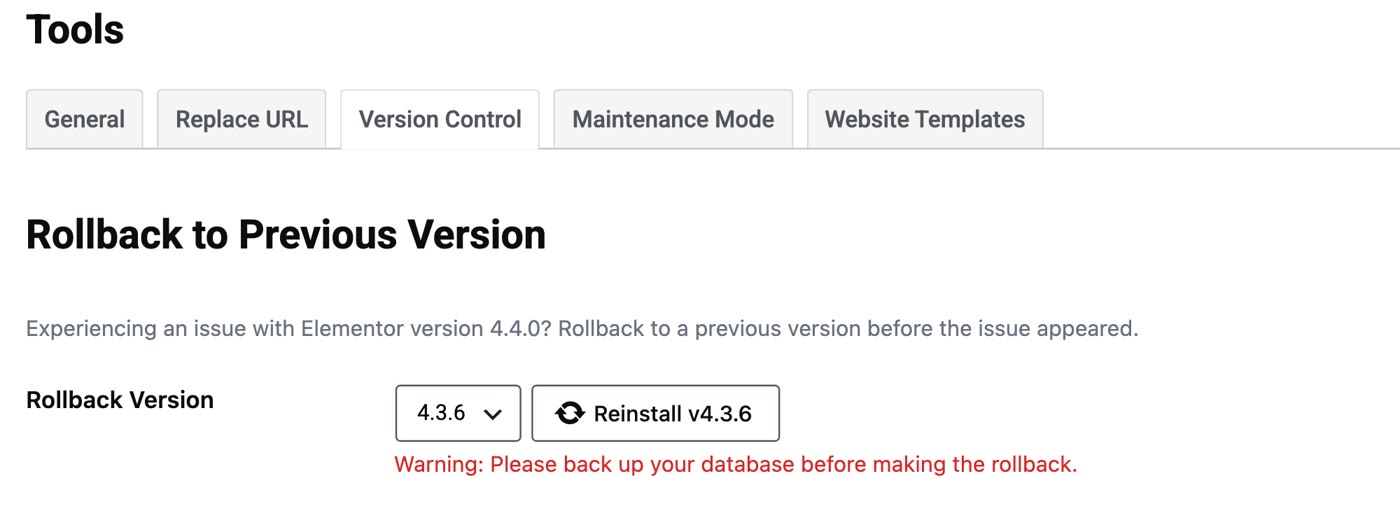
- Open the Version Control tab. Under Rollback to Previous Version, the Rollback Version list is already set to the version before yours (on our site, 4.3.6). You can choose an earlier one from the list; ours offered versions back to 3.35.8.
- Read the warning. This screen is Elementor's own way to go back a version. Under the list, in red, it says: "Warning: Please back up your database before making the rollback."
Step 3: Roll back
- Click Reinstall v4.3.6 (the button names the version you chose).
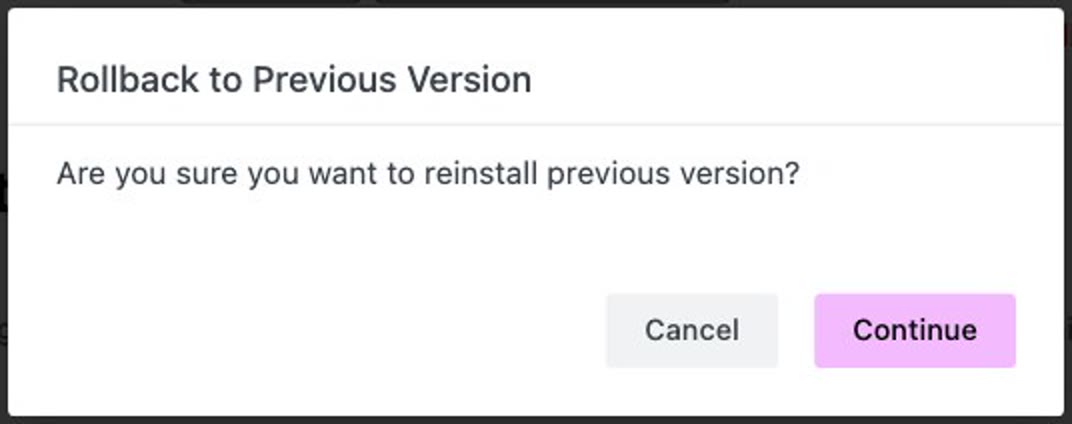
- Confirm. Elementor asks: "Are you sure you want to reinstall previous version?" Click Continue.
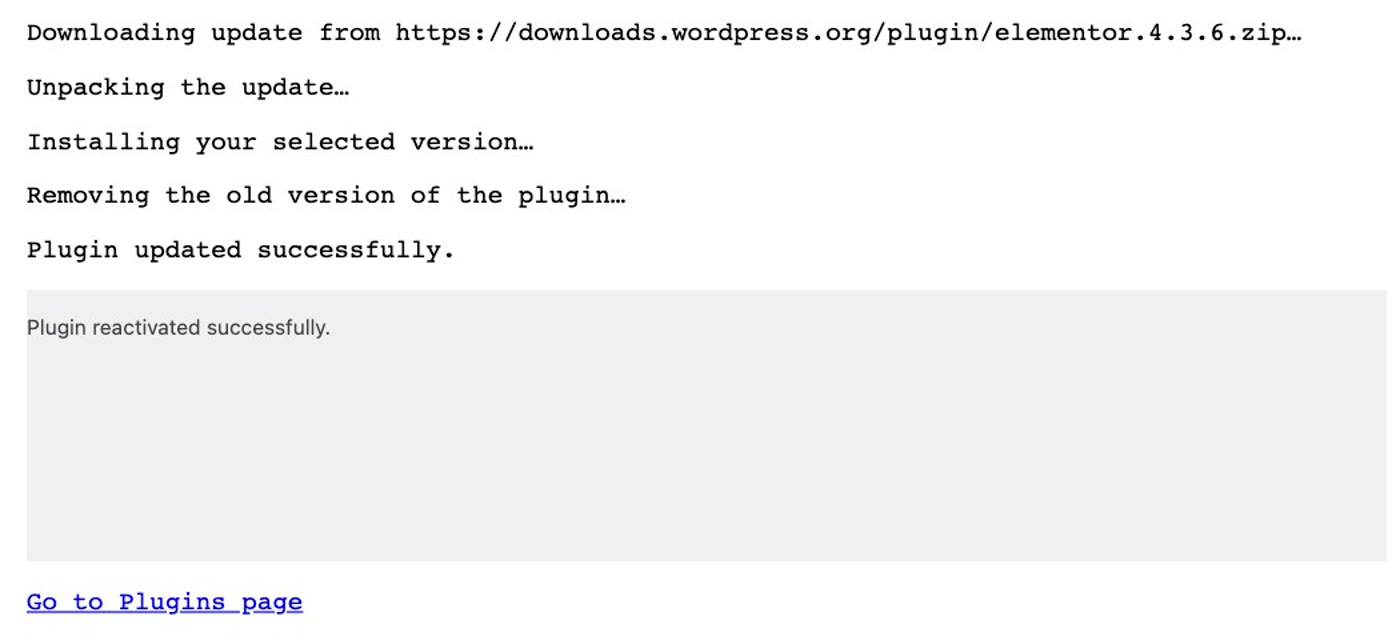
- Let it finish. It downloads that version of the plugin from WordPress.org, unpacks it, installs it and removes the old one, then says "Plugin updated successfully." On our site it took a few seconds.
- Go to Plugins and check the version. Ours now read Version 4.3.6.

Step 4: Check your site
- Look at your site the way a visitor does. Open the pages where you saw the change, and see whether it has gone.
- Open a page with Edit with Elementor. On our site the pages and the editor worked as before, on 4.3.6.
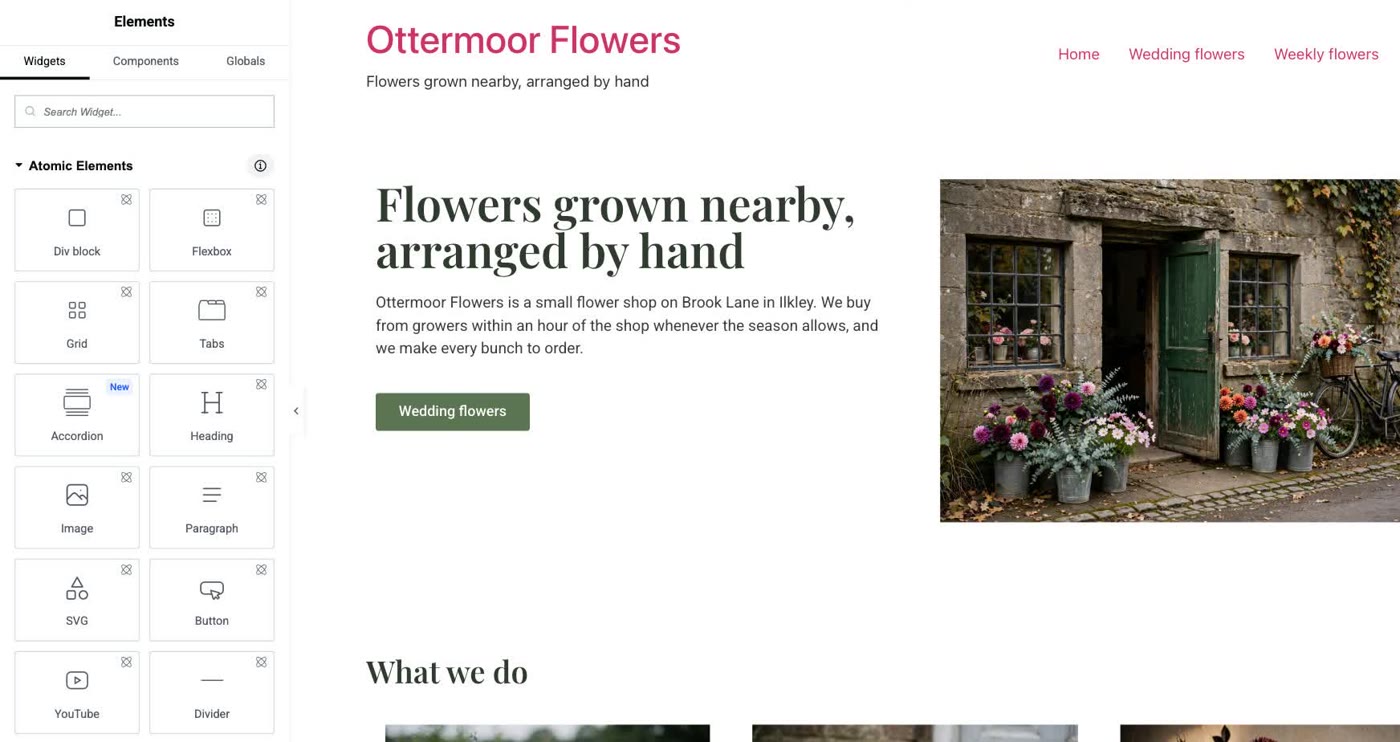
If the change has gone, you have your site the way it was, and time to find out what caused it.
Step 5: Back to the current version
When you have found the cause, come back to the current version with the ordinary update. While you are on the older version, the Plugins page shows that a new one is available, and under it Elementor's own note: "Heads up, Please backup before upgrade! The latest update includes some substantial changes across different areas of the plugin. We highly recommend you backup your site before upgrading, and make sure you first update in a staging environment".
- On the Plugins page, click update now under Elementor's row.
- Wait for "Updated!" On our site it took under half a minute.
- Check the version line. Ours read Version 4.4.0 again.


Before your next update
Elementor's help page "Steps to take before updating your site" suggests these:
- Make a backup. "While you should regularly backup your website this is especially important before updating."
- Read the changelog for the new release.
- Check that your add-ons are compatible. Add-ons are made by other companies; Elementor recommends checking with them before updating.
- Test the update on a staging site, a copy of your site that visitors don't see.
- Step 1: make a backup; note your version on the Plugins page.
- Step 2: Elementor › Editor › Tools › Version Control; the list is set to the version before yours.
- Step 3: Reinstall v<version> › Continue; check the Plugins page.
- Step 4: look at your site as a visitor, and open a page in the editor.
- Step 5: when you've found the cause, Plugins › update now.
Or, there is another way
Everything above takes your site back a version and forward again. If your site is a few pages, a contact form and some photos, there is also a different way to keep it.
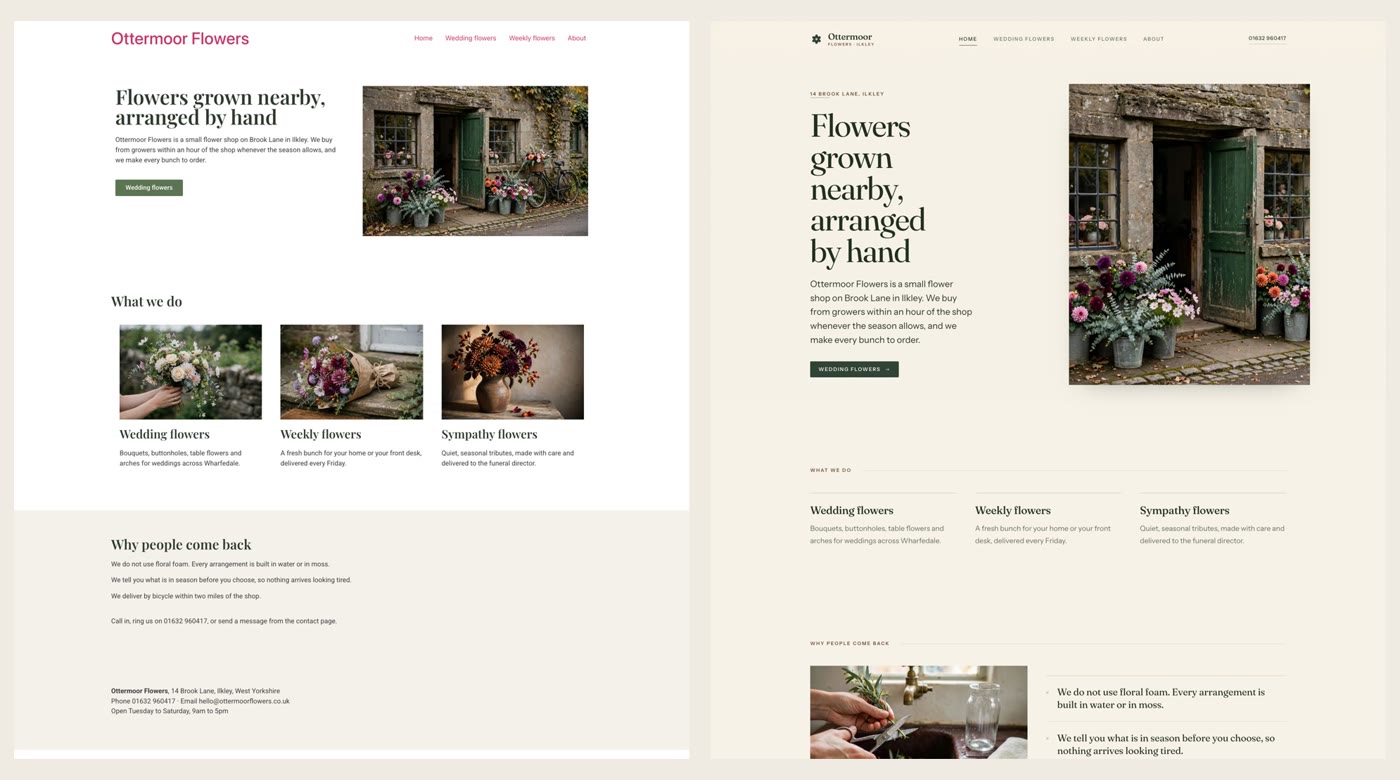
Ullbek is an AI website builder. You hand it your site's words and your own photos, and it builds a new, custom website with a new look. When we tried it with the Ottermoor Flowers site from this post, every page was kept at the same address, all of the wording was kept word for word, and only the florist's own photos were used. It asked one question, about the colours, and took about a quarter of an hour. There are no plugins and nothing to update. When something needs to change, you say what should be different.
- Put your words and photos together. One text file with each page's wording and its address, and the photos that are yours.
- Say what you want. Ours: "Build a new website for my flower shop, Ottermoor Flowers, with a new look. The words for every page are in the file I've attached, my-website-words.txt, and the photos are my own. Keep every page and all my wording, put each page at the address written in the file, and use only my photos." It asks what it needs to know, and builds.
- Look it over, publish, then move your domain. The move guide walks through every step, including what to collect from your old host first.
A site with nothing to update
See how moving a WordPress site to Ullbek works, step by step.