Every step is written out below.
Captions available · press CC · Also on YouTube
Weebly's Archive is the one download that gives you your whole site as a file. Weebly's help page says what it leaves out (blog and store pages), but not what it puts in. So we made a small demo site on Weebly, five pages and a blog with two short posts, asked for its Archive, and opened every file. This is what it held, what it didn't, and how to save your blog posts too.
One thing up front: our demo site sits in an account outside the 67 countries where Weebly is closing, and we un-published it ourselves. Everything below is what that site showed between 10 and 16 November 2026. Weebly's notice says account access in those 67 countries ends on 26 December 2026, and every step here needs that login.
Step 1: Ask for the Archive
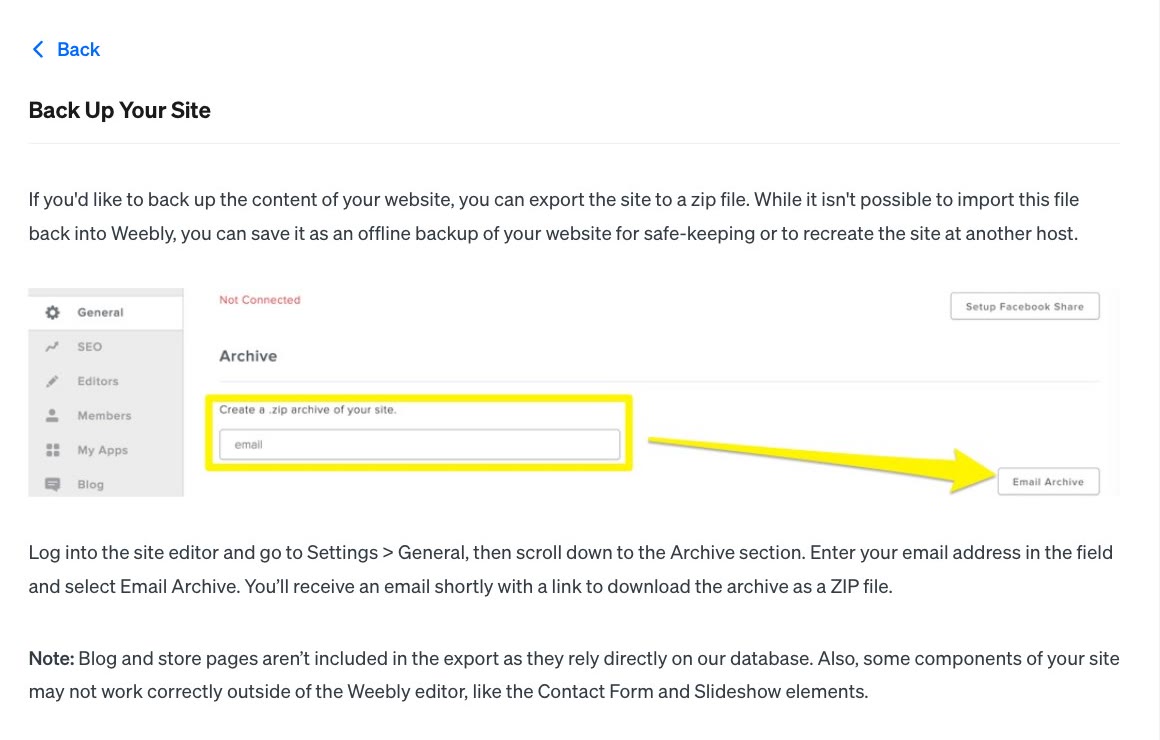
Weebly's help page, Back Up Your Site, gives the steps. It says you can save the ZIP "as an offline backup of your website for safe-keeping or to recreate the site at another host", and that it "isn't possible to import this file back into Weebly".
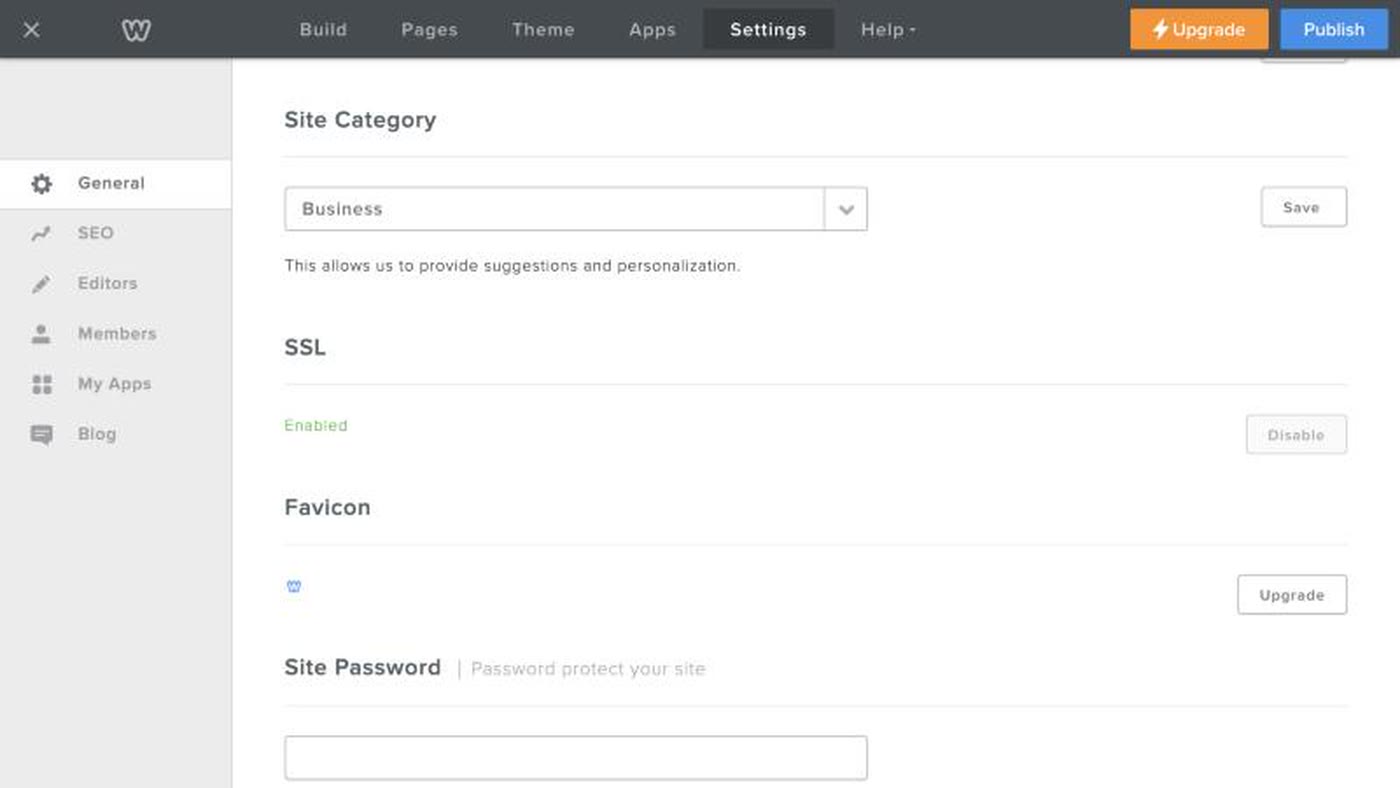
- Sign in, and open your site in the editor. From your Weebly dashboard, choose Edit Site.
- Choose Settings, then General, and scroll down to Archive. The section reads "Create a .zip archive of your site.", with an email box.
- Type your email address and choose Email Archive. When we pressed it, the box emptied and no message showed on the screen.
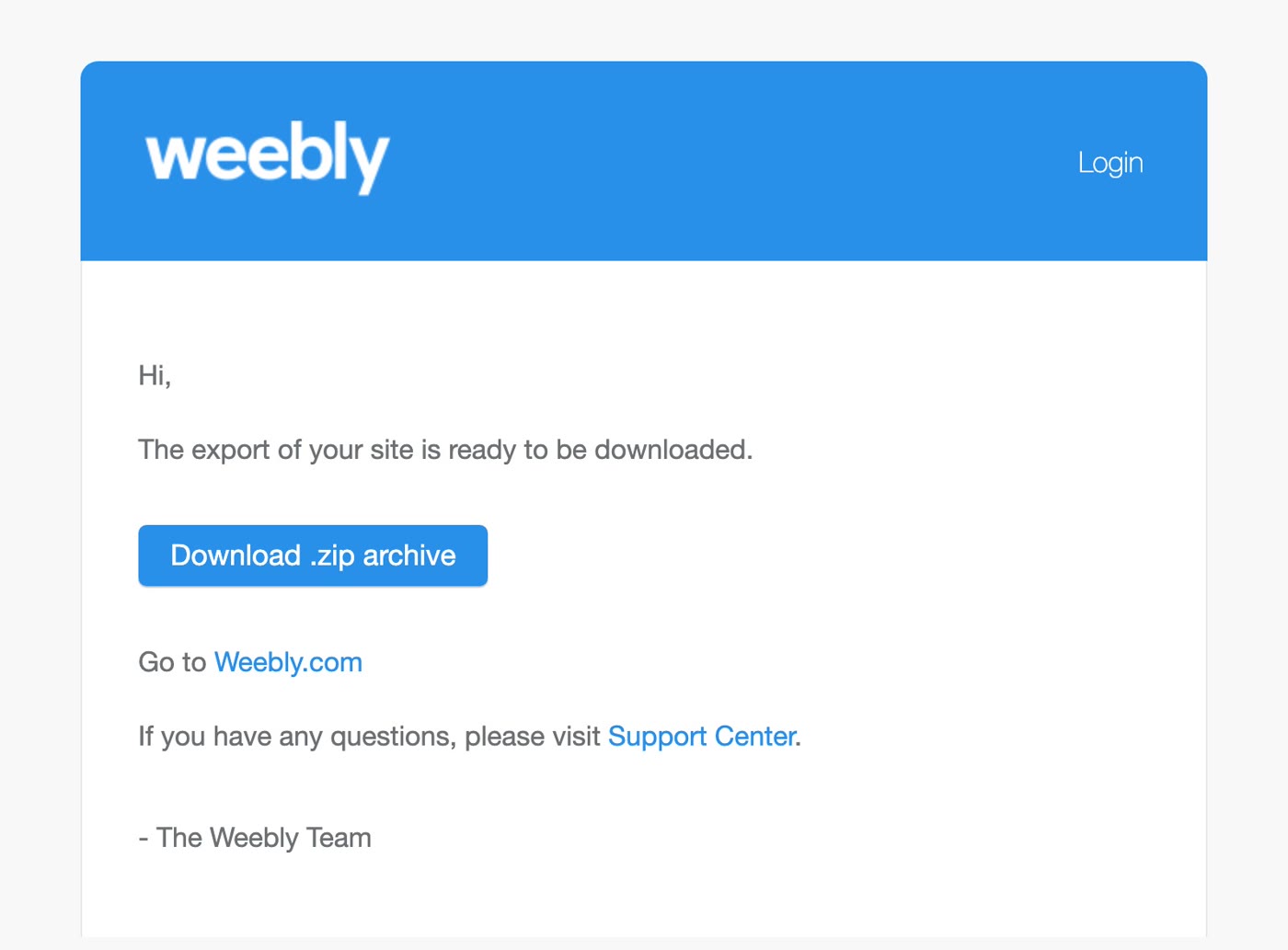
- Watch for the email. For our small demo site it came within seconds, from no-reply@weebly.com, titled "The export of your site is ready to be downloaded", with one button: Download .zip archive.
- Download the file while your login works. When we opened that link in a browser that wasn't signed in to Weebly, it went to Weebly's login page, not to the file. Having the email is not the same as having the ZIP.
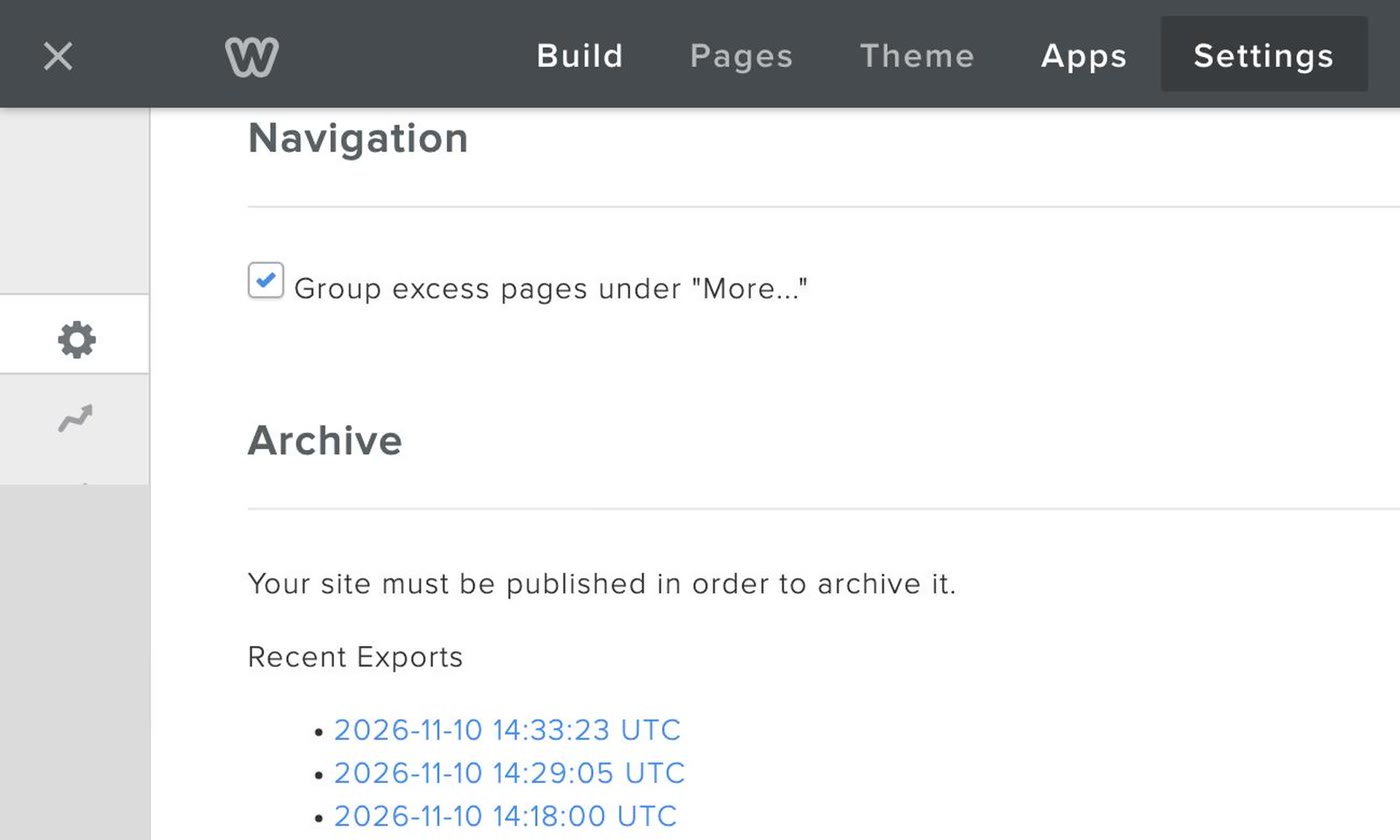
After that, the Archive section also lists each file you've asked for under Recent Exports, so there are two places to fetch it from. The times there are marked UTC, but for us they were US Pacific time.
Step 2: Open the ZIP
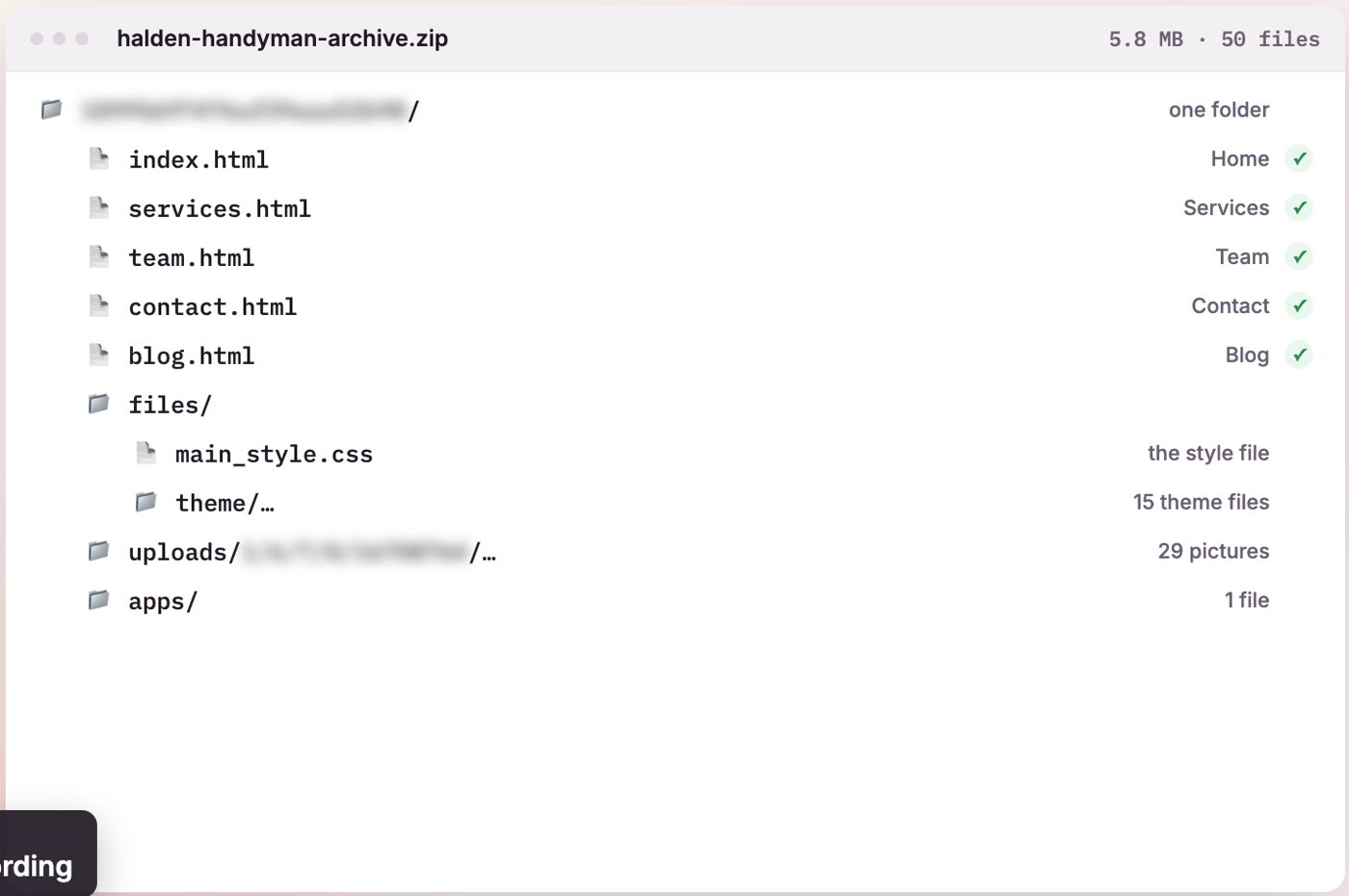
Ours was a little under 6 MB (5,773,921 bytes): 50 files, all inside one folder with a long random name.
- One file for each page, at the top:
index.html(the home page),services.html,team.html,contact.htmlandblog.html. - A style file and the theme's own files, under
files/:main_style.cssand fifteen theme files. - The pictures, 29 of them, in a folder called
uploads. - One more file under
apps/, an old audio player.
Every page was there, with its wording, including the home headline we had written.
Step 3: What it leaves out
Weebly's help page says: "Blog and store pages aren’t included in the export as they rely directly on our database. Also, some components of your site may not work correctly outside of the Weebly editor, like the Contact Form and Slideshow elements." Here is what we actually found in ours:
- The blog's front page is in, with both posts in full.
blog.htmlcarries each post's title, date and every sentence. - There is no page for each post. The live site had one for each post, plus a page per month, a category page and a feed. None of those are in the ZIP. Inside
blog.html, the links to the posts point at an address that doesn't exist. - One picture is missing. The Team page asks for a picture the ZIP does not hold.
- The pages still lean on Weebly. Each page loads its styles and scripts from Weebly's servers, and some of the theme's own files sit in folders the pages don't look in.
So the ZIP isn't a site you can simply upload somewhere else. It's a copy of your words and your pictures, to rebuild from. (Our demo had no store and no contact form, so we couldn't check those.)
Step 4: Save your blog posts
Open blog.html from the ZIP in a browser or a text editor. Our two posts were both on the blog's front page, so both came along in full. An earlier archive of the same site, taken while the posts had titles but no text yet, held only the titles: the file holds what the blog's front page shows.
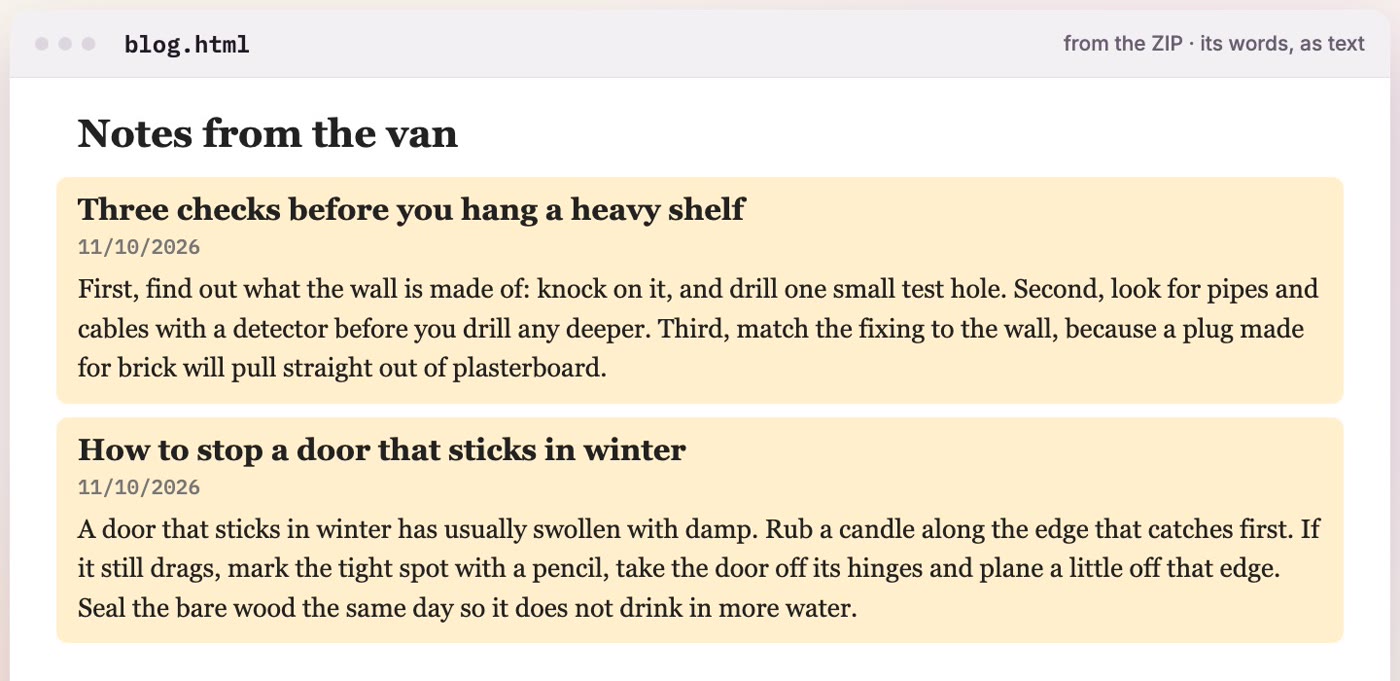
blog.html, shown as text: both posts, in full.We haven't tested a blog with more posts than its front page lists, or posts cut short with "Read More". If yours is like that, don't count on the Archive for them:
- Copy each post out by hand while your login works. Its title, its date and its words, into a document you keep.
- If the site is already offline, look it up in the Wayback Machine at web.
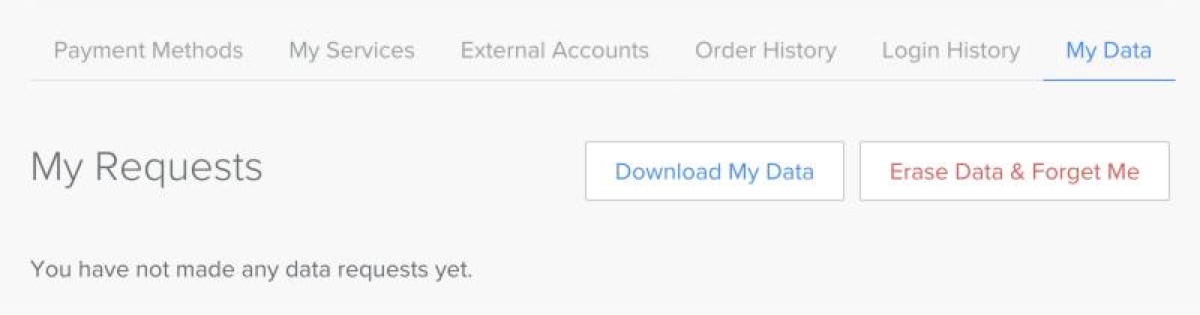
archive. . It may have a copy of your posts, if it was saved. Click through to see how much is there.org - Ask for Download My Data too. It's in your account settings, under My Data. Ours wasn't instant: an email came 23 minutes after we asked, with a link and a password, good for 30 days. We haven't opened that file yet, so we can't tell you what's inside.
Step 5: If the site is un-published
We un-published our demo site ourselves, with Un-publish Site at the foot of the same Settings › General page, and pressed Email Archive straight after. It still worked, and gave us the same 50 files, blog posts included.
Five days later, opening the same settings again, the Archive section read: "Your site must be published in order to archive it." There was no email box and no button. The archives we had already asked for were still listed under Recent Exports.
That was a site we un-published ourselves. We haven't seen a site that Weebly un-published, so we can't tell you what its Archive section shows. If yours still has its Email Archive button, ask for the Archive today.
- Step 1: in the editor, Settings › General › Archive, type your email, choose Email Archive, and download the file while your login works.
- Step 2: open the ZIP. Ours held one file per page, a style file, the theme's files and 29 pictures.
- Step 3: no page per post, no month or category pages, no feed, one picture missing, and the pages still load from Weebly. It's a copy to rebuild from.
- Step 4: the blog's front page carried our posts in full. A longer blog: copy each post by hand while you can, check the Wayback Machine, and ask for Download My Data.
- Step 5: once our site was un-published, the Archive section lost its button. If yours still has it, ask today.
Everything to do before 26 December 2026, on one page: the Weebly closing checklist.
Or, there is another way
Ullbek is an independent AI website builder, not part of Weebly or Square. Create a new site, attach the ZIP Weebly sent you, and say what you want in one message. We gave it this demo site's ZIP and asked for a new look, with every page and all the wording kept, a page for each blog post, and new pictures in place of Weebly's.
Before building, it read the ZIP and told us which words were ours (the home headline, the blog and both posts) and which were the theme's sample text, and asked what to do with the sample text. We chose to keep our own writing and replace the rest. On the clock it took about 16 minutes, including the time we took to answer two rounds of questions. It came back as seven pages: the home, services, team, contact and blog pages, and a page for each of the two posts. The ZIP held no post pages, so it built each one from the text on the blog's front page, word for word.
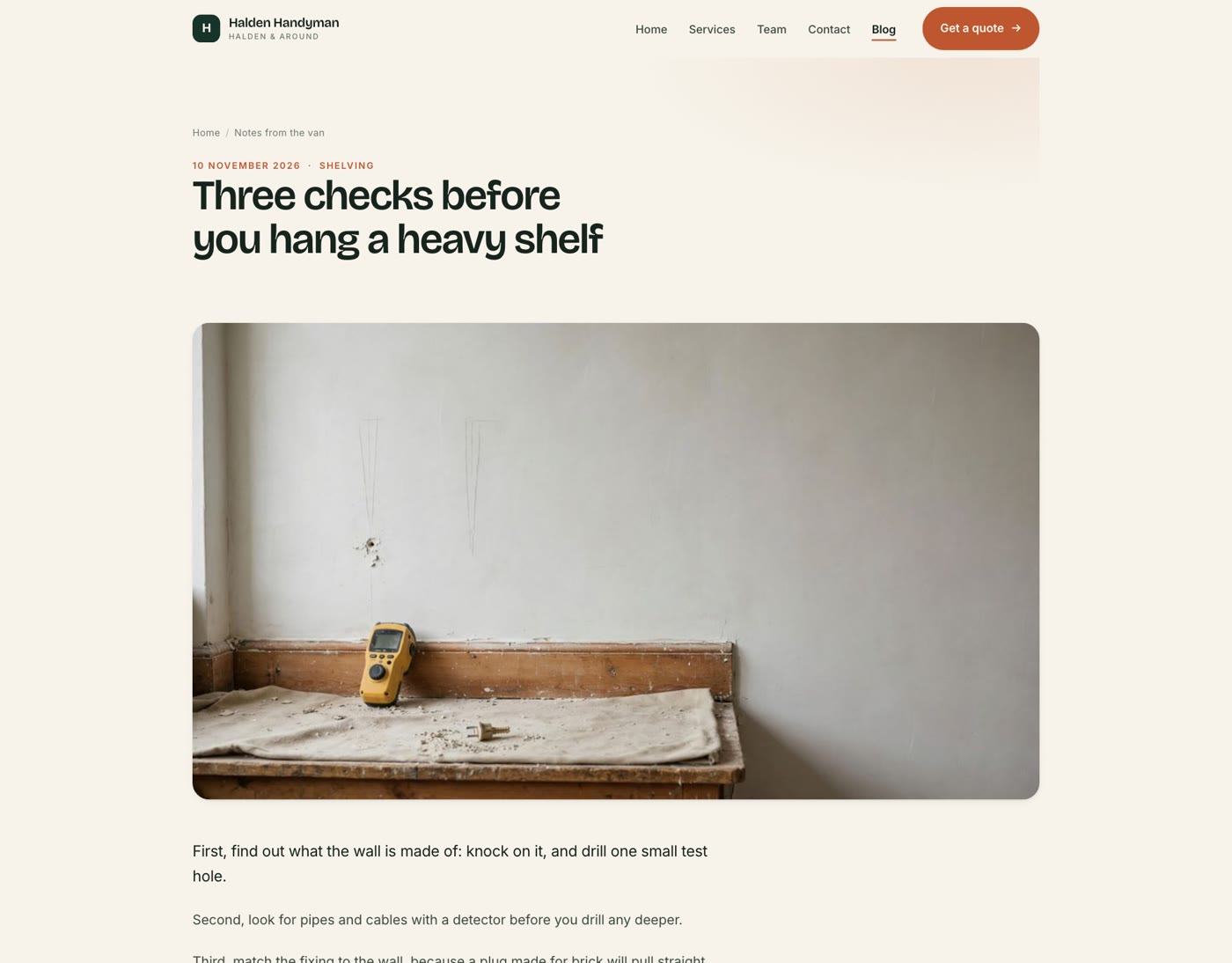
Every rebuild comes out a little differently, so count your pages. And check the pictures. This time it put generated portraits on the team page and asked us whether those names were real people. In an earlier test from the same site's ZIP, a portrait the ZIP didn't hold was replaced with a generated one, and Ullbek said so in its closing summary. On a real site that would put an invented face beside a real name: put your own photo there, or ask for it to be taken out.
- Create a new site and attach the ZIP. Under the message box, choose Attach files (the paperclip) and pick the ZIP Weebly sent you.
- Say what you want, in one message. The guide has the message to type. Answer its questions.
- Read every page. Count them against your old site, and check each picture before you publish.
Rebuild your Weebly site from its Archive
See how moving a Weebly site to Ullbek works, step by step, from the Archive ZIP or from a saved copy.