The three steps are written out below.
Captions available · press CC · Also on YouTube
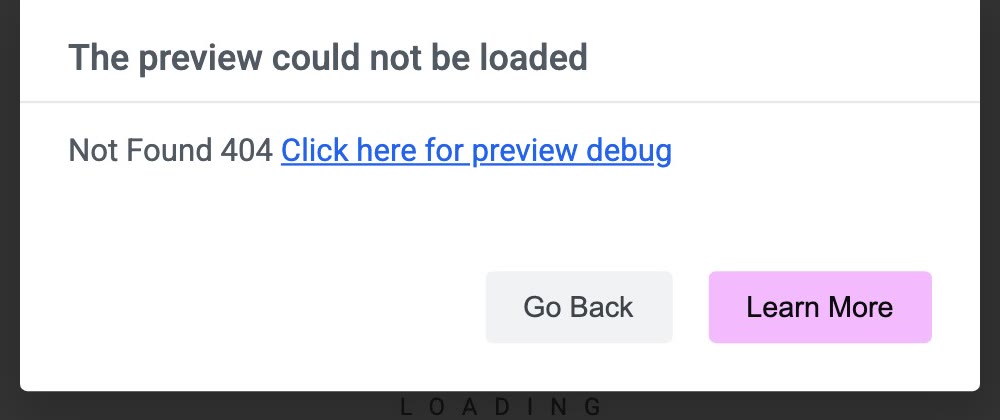
You open a page with Edit with Elementor, and instead of the editor you get a box: The preview could not be loaded, with a short reason under it and two buttons, Go Back and Learn More.
On our site nothing was lost: every page was still in WordPress. Elementor's editor shows the page you are editing as a preview, and this box means that preview didn't arrive. The number in the box says why. On our site it said Not Found 404, and the fix took three steps and changed no settings. Everything below, and in the film above, was done on a real WordPress site with Elementor 4.4.0, where we broke the preview on purpose and fixed it again.
What actually happened
Elementor's help page for this message says it "occurs when the Elementor editor is blocked from rendering its live preview window", and lists causes, among them a low memory limit, a conflict with another plugin or the theme, "Corrupted Permalinks" (rewrite rules out of sync, or "a damaged .htaccess file"), a server firewall, and a leftover index.html file.
Ours was the permalinks one. A file on the server, called .htaccess, had gone missing. WordPress uses that file to make page addresses such as /weddings/ work (WordPress's documentation: it "modifies this file to be able to handle pretty permalinks"). Without it, the server answers Not Found for every page except the home page. So the editor asked for the page and got nothing back.
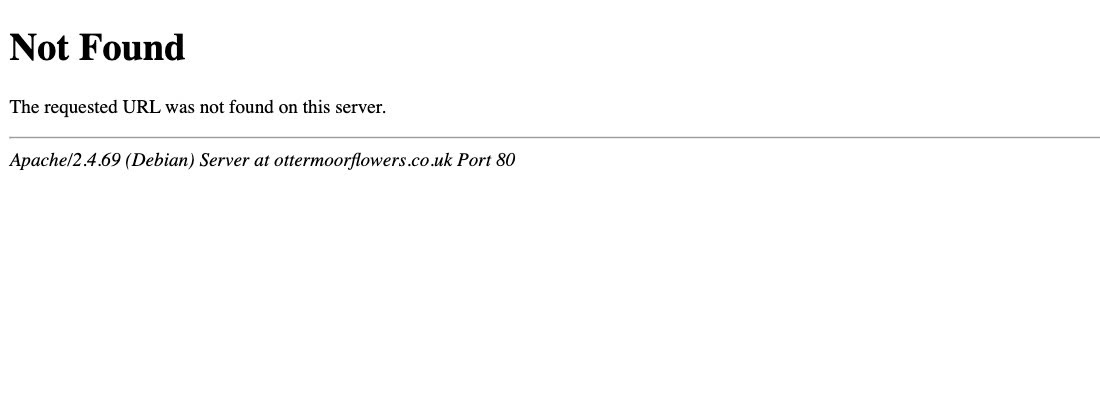
It is not only the editor. While the file was missing, a visitor opening the same page got the server's own Not Found page. On our site the home page kept working, which is why this can go unnoticed for a while.
Step 1: let Elementor name the cause
Wait a little on the stuck screen and Elementor shows a second box in the lower right, Can't Edit?, with an Enable Safe Mode button. Safe Mode loads the editor with your other plugins and your theme switched off, only for you and only inside the editor; visitors see your site as usual.
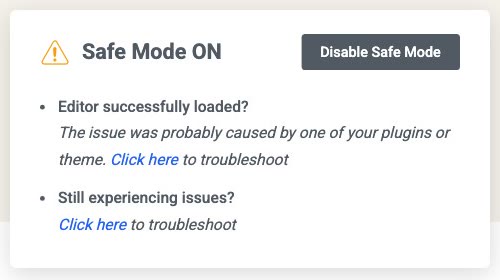
- Click Enable Safe Mode. The editor reloads in Safe Mode, and a note in the lower right says Safe Mode ON.
- Read the box again. In Safe Mode, Elementor makes one more check: on servers that use an
.htaccessfile (Apache servers), it looks for that file. On our server the box now said: Your site's .htaccess file appears to be missing., with the file's path. On another kind of server the box may not name the file. - Note that Safe Mode didn't bring the editor back. Elementor's help page says what that means: "If the editor fails in Safe Mode: The conflict stems from server configurations, memory limits, or permalink structures." So it is not a plugin.
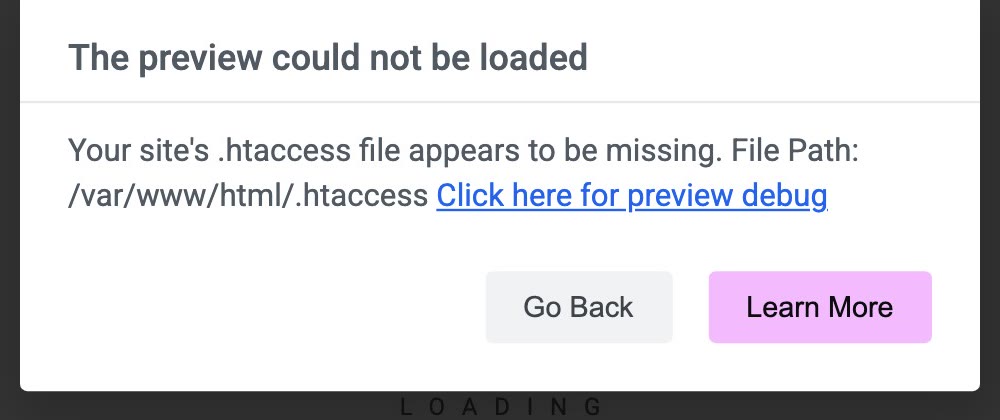
.htaccess file.)Step 2: save your permalinks, without changing anything
This is the step that fixed it, and it changes nothing you can see.
- Go to Settings › Permalinks.
- Don't change anything. Your setting stays as it is (ours was Post name).
- Scroll down and click Save Changes. WordPress says Permalink structure updated.
- Open one of your inner pages as a visitor would. Ours was back straight away.
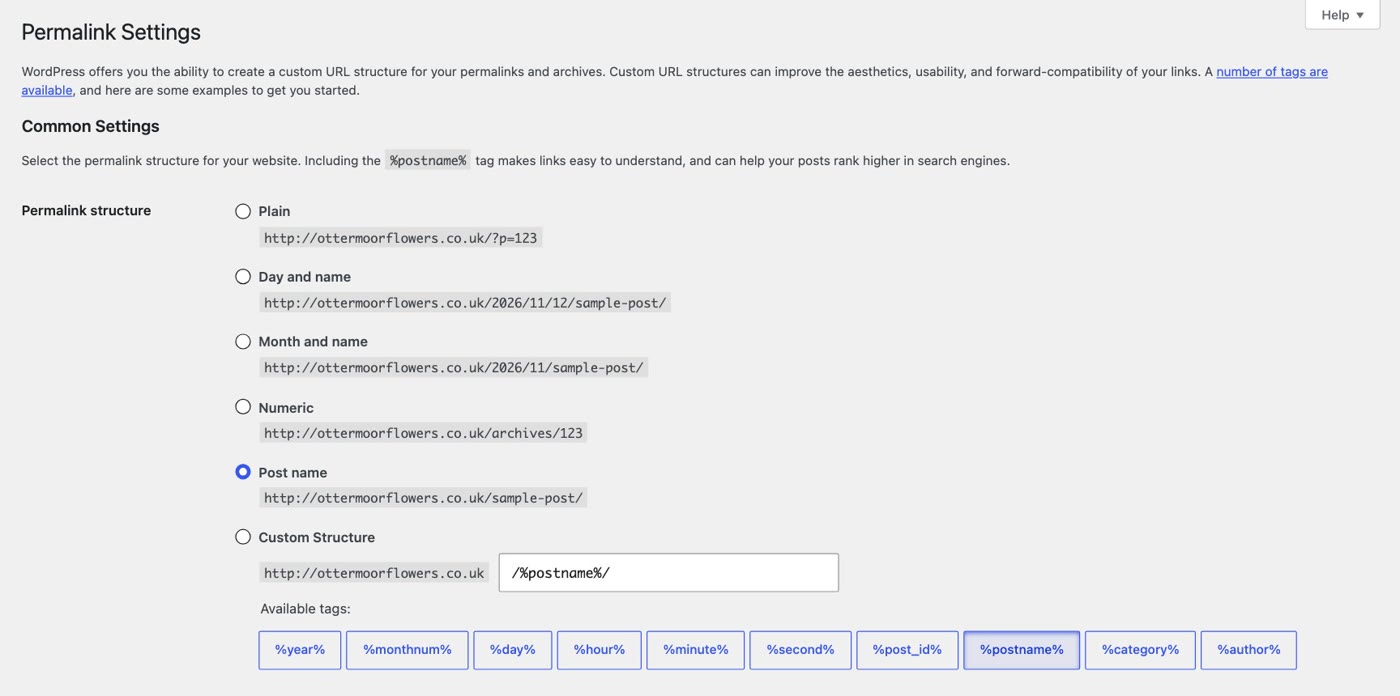
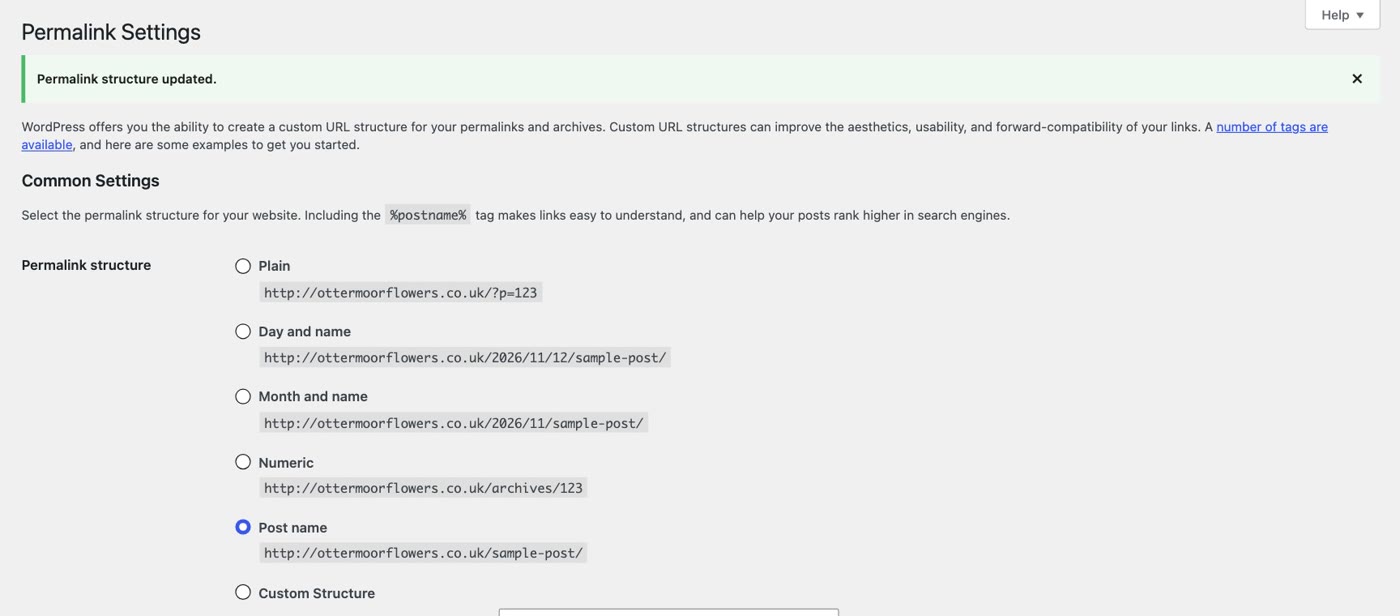
Opening this screen and saving it makes WordPress write the file again. In our tests, simply opening Settings › Permalinks had already written it, and Save Changes wrote it too; saving is what both Elementor's page and WordPress's documentation say to do, and it does no harm. If WordPress can't write the file, WordPress's documentation says this screen tells you so ("You should update your .htaccess now.") and shows the lines the file needs; that is the moment to ask your host. Elementor's page also suggests choosing Plain before saving. We didn't need to, and Plain changes the address of every page (to a numbered form, like the ?p=123 example on the screen), so we left our setting as it was.
Step 3: turn Safe Mode off
- Go back to the editor tab that's in Safe Mode and reload it. The editor opens, with the Safe Mode ON note.
- Click Disable Safe Mode on the note. The editor reloads without Safe Mode, and your page is ready to edit.
Still not loading? Read the number in the box
Our box said 404, so that is the one we tested. Elementor's help page matches the other numbers to causes (it tells you to read them in the browser's console; the box shows the same number):
- 403: "Server firewalls (mod_security) or bad file permissions block access." Elementor's page says to ask your host to allow Elementor's requests, and gives the usual permissions (755 for folders, 644 for files).
- 500: "The server ran out of PHP memory or triggered a critical script error." Your host's PHP error log says which.
- 401: "Password protection is blocking access to admin folders."
Before you move your site or tidy its files
- Keep
.htaccess. Files whose names start with a dot are hidden on most servers (WordPress's documentation says so), so it is easy to delete without seeing it. - After a move, open an inner page, not just the home page. On our site the home page kept working while every other page was gone.
- If it happens again: Settings › Permalinks › Save Changes.
- Step 1: click Enable Safe Mode in the Can't Edit? box and read the box again; ours named the missing
.htaccessfile. Still failing in Safe Mode means it isn't a plugin. - Step 2: Settings › Permalinks › Save Changes, without changing anything.
- Step 3: reload the Safe Mode editor tab and click Disable Safe Mode on its note.
- A different number: 403, a firewall or file permissions (ask your host); 500, memory or a script error; 401, password protection.
Or, there is another way
Everything above gets your preview back. If your site is a few pages, a contact form and some photos, there is also a different way to keep it.
Ullbek is an AI website builder. You hand it your site's words and your own photos, and it builds a new, custom website with a new look. When we tried it with the Ottermoor Flowers site from this post, every page was kept at the same address, all of the wording was kept word for word, and only the florist's own photos were used. It asked one question, about the colours, and took about a quarter of an hour. The preview is the published site: what you see is what goes live. When something needs to change, you say what should be different.
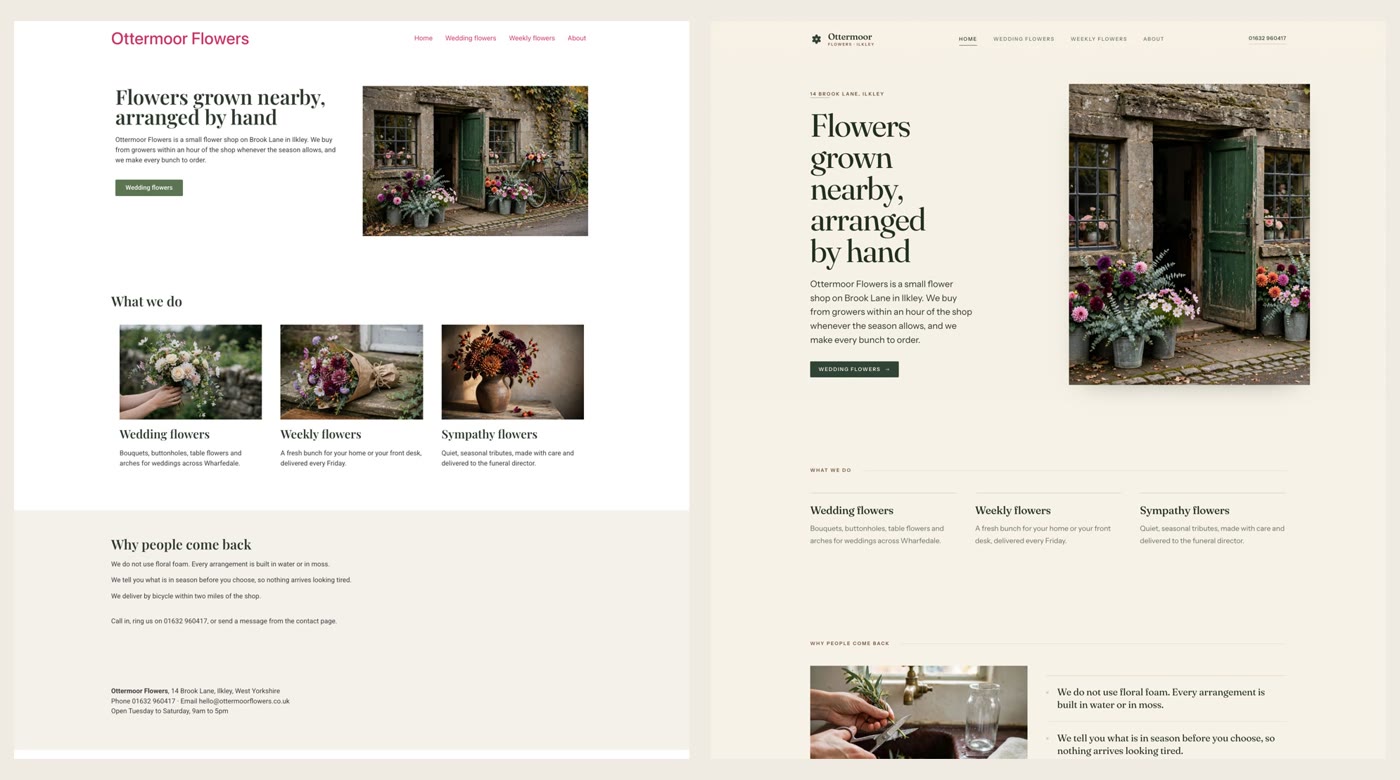
- Put your words and photos together. One text file with each page's wording and its address, and the photos that are yours.
- Say what you want. Ours: "Build a new website for my flower shop, Ottermoor Flowers, with a new look. The words for every page are in the file I've attached, my-website-words.txt, and the photos are my own. Keep every page and all my wording, put each page at the address written in the file, and use only my photos." It asks what it needs to know, and builds.
- Look it over, publish, then move your domain. The move guide walks through every step, including what to collect from your old host first.
What you see is what goes live
See how moving a WordPress site to Ullbek works, step by step.