The checks are written out below.
Captions available · press CC · Also on YouTube
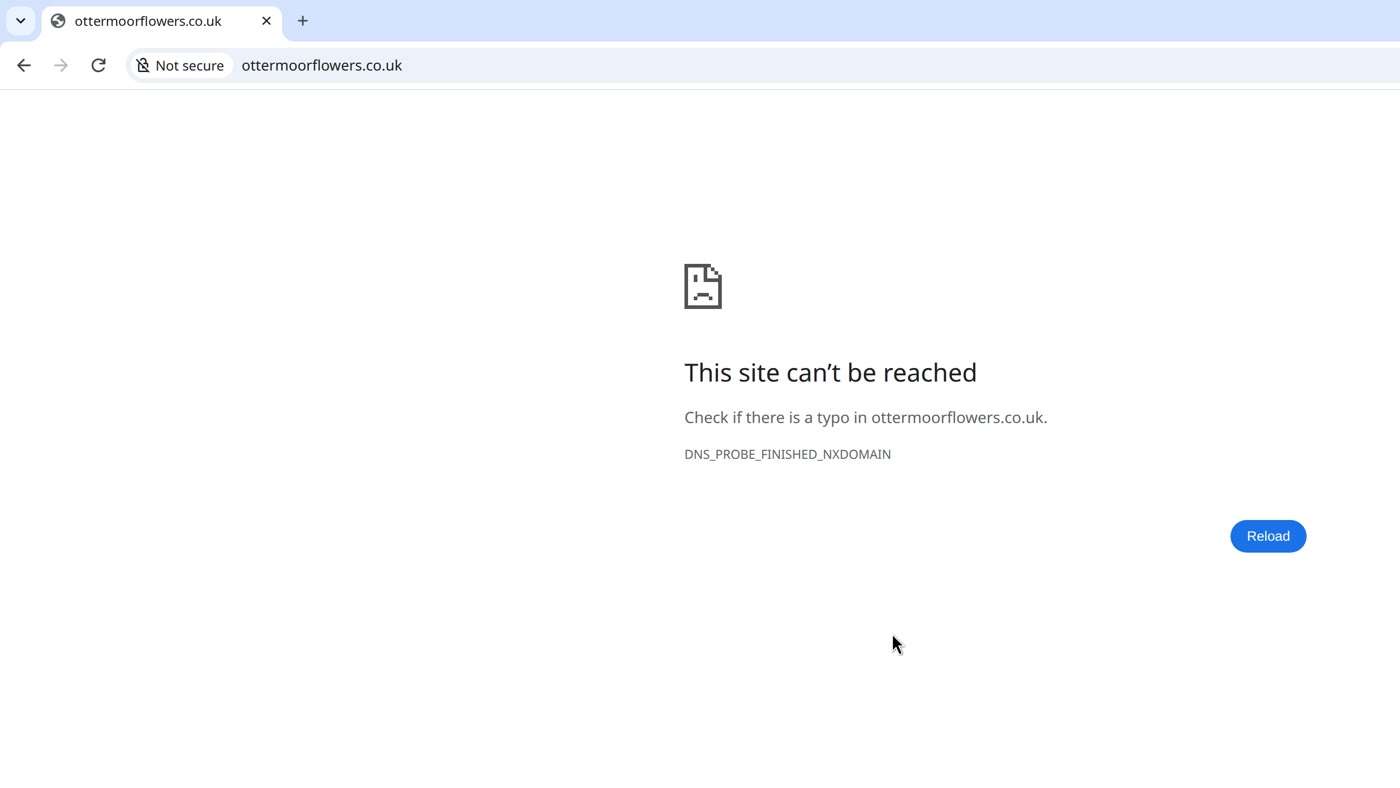
You type your own address and, instead of your site, the browser shows a plain page: This site can't be reached. Under it, Check if there is a typo in your address, and a code: DNS_PROBE_FINISHED_NXDOMAIN.
Your site itself may be perfectly fine. What has gone wrong is the step before it: finding where your site is. Everything below, and in the film above, was done on our own test website, a WordPress site for a flower shop, on our own private test network: we took the record away, and we put it back.
What the page means
That code means your browser asked for your website's address and got none back. The browser's own source code describes it as: "The DNS servers are working fine, so the domain must not exist." In plain words: the browser's own check of its connection worked; it is your name that has no address.
Our test site runs on WordPress, but this happens before your site is even asked for a page, so it is the same on any platform.
- First, the page's own advice: check the address is spelled right, the way you typed it and the way it is printed or linked.
- If your page says something else under the heading, like refused to connect or took too long to respond, your name did lead to an address, but the connection to it was refused (
ERR_CONNECTION_REFUSED) or timed out (ERR_CONNECTION_TIMED_OUT). Check 3 below still applies: make sure the address in your record is your host's.
When you type the address, your browser may first show its own notice, This site doesn't support a secure connection, over this page. Our test browser showed it for about a second and closed it by itself, and the film cuts that second. If yours stays open, that notice is about a secure connection, not about this page: another film in this series, Your website says "Not secure"?, covers it.
Check 1: is your domain still active?
- Sign in to your domain company, where you registered the domain, and find it in your list.
- It should say active, with an expiry date still to come.
- Not sure which company it is with? ICANN's own look-up shows it: ICANN's page on renewing an expired domain says you can find your registrar with a WHOIS search on ICANN's own site.
If it has expired, contact that company straight away. When a domain expires, your website and email can stop working. For the domain endings its policies cover, ICANN's rule is: "Before a registrar deletes an expired domain name, it must also interrupt the domain name's resolution path", and with it, services such as "websites and email addresses" may stop working.
Check 2: where are your records kept?
Next to your domain, your domain company lists its name servers. That is where its records are kept, and where browsers ask for the address: as ICANN puts it, the Domain Name System "consults the TLD registry to obtain the authoritative name servers" for a domain.
- If the name servers are your domain company's own, your records are there: go to check 3.
- If they name another company, your records are kept at that company, and that is where to look and make the change.
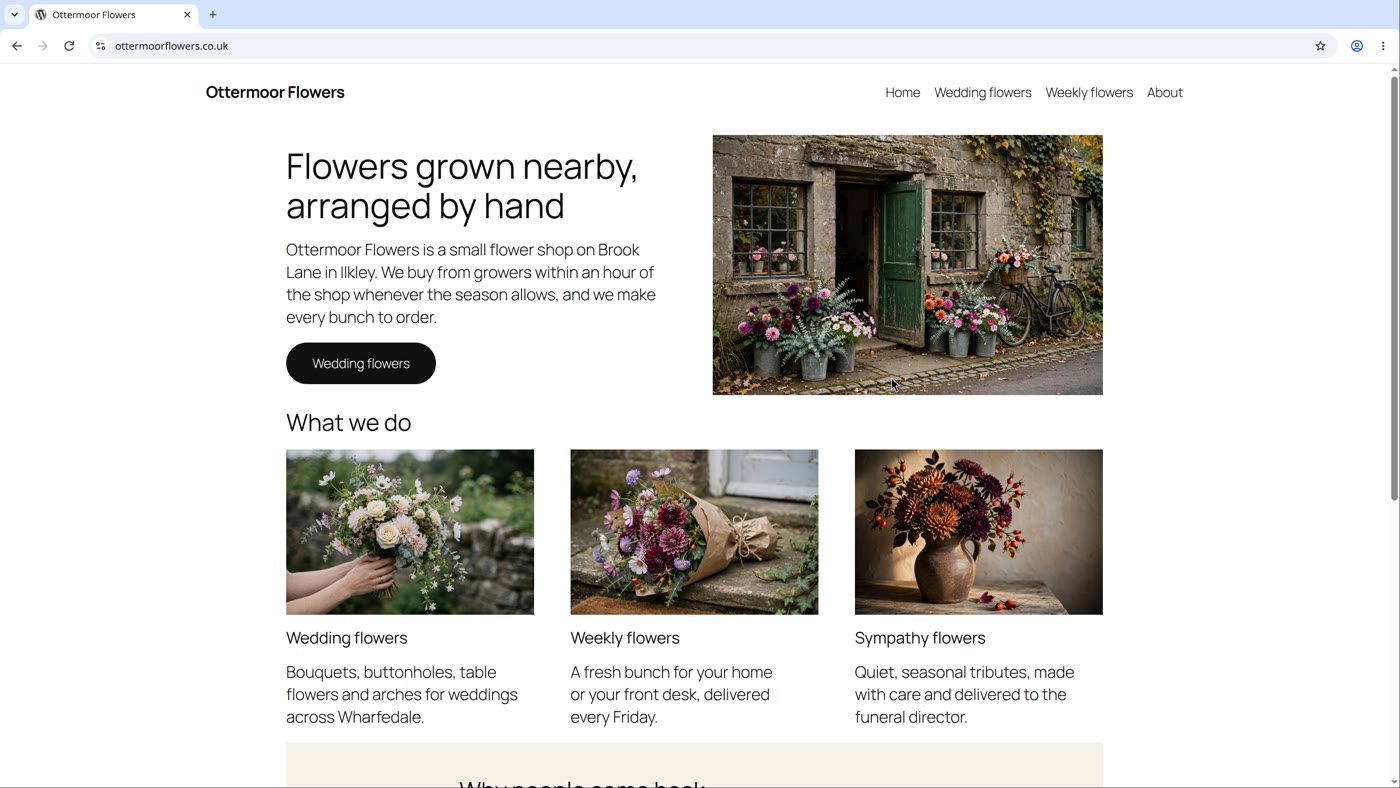
On our test site, the name servers named another company, and we added the record at the domain company. We reloaded: still This site can't be reached. We added the same record at the company the name servers named, reloaded, and the site was there. A change can take a while to reach you: networks keep an answer, even a "no such name" answer, for as long as the records allow (see check 3).
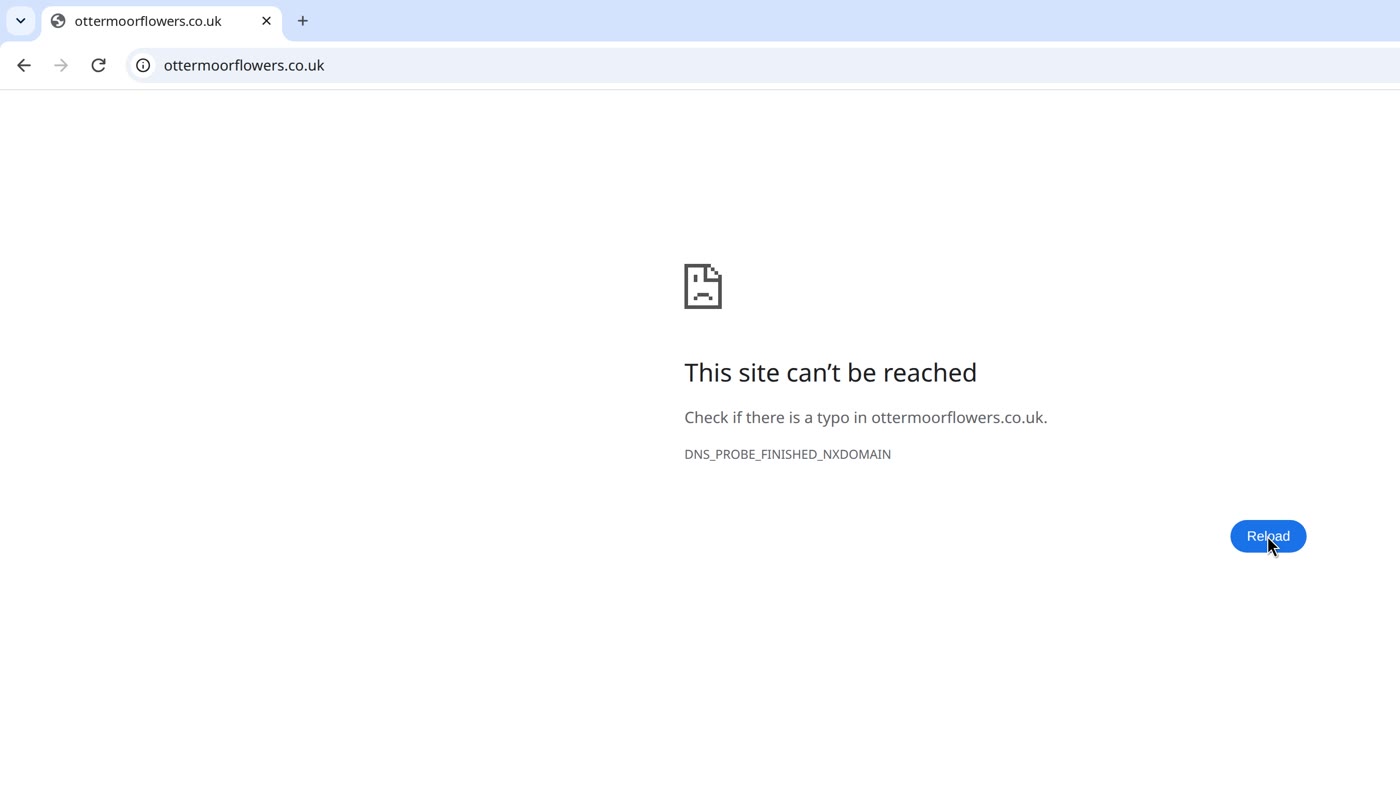
So add your record where the name servers point. Changing the name servers instead moves where all your records are read from, your email's included: ICANN's definition of an authoritative name server lists both "web servers, mail servers".
Check 3: the record itself
For a name to lead to your site, it needs a record, called an A record, holding your site's address (the standard for these records defines an A record as "a host address"). It is kept on your domain's name servers (check 2); ICANN describes a domain's authoritative name server as the server that "hosts the official database of resource records" for the domain.
- In your hosting account, look for the address to point your domain at.
- Open the records, at the company that keeps them (check 2). Each record has a name, a type and a value.
- Look for an A record for your domain itself, and one for
www. In the film the domain itself is written as@, the zone-file sign for "the current origin" in the standard. On our test site, there were none. - Add an A record with your host's address for the domain, and another for
www. If an A record is there already with a different address, change it to your host's. - Then, once the change has reached you, click Reload on the error page. On our test site, the site was back.
A change can take a while to reach you. Networks keep an answer for as long as the record allows (the standard calls this a record's time to live), and they keep a "no such name" answer too: the internet standard on it says such an answer "should be cached". On our test network we emptied that memory before each reload, which stands in for waiting.
Then: check it, the way a visitor would
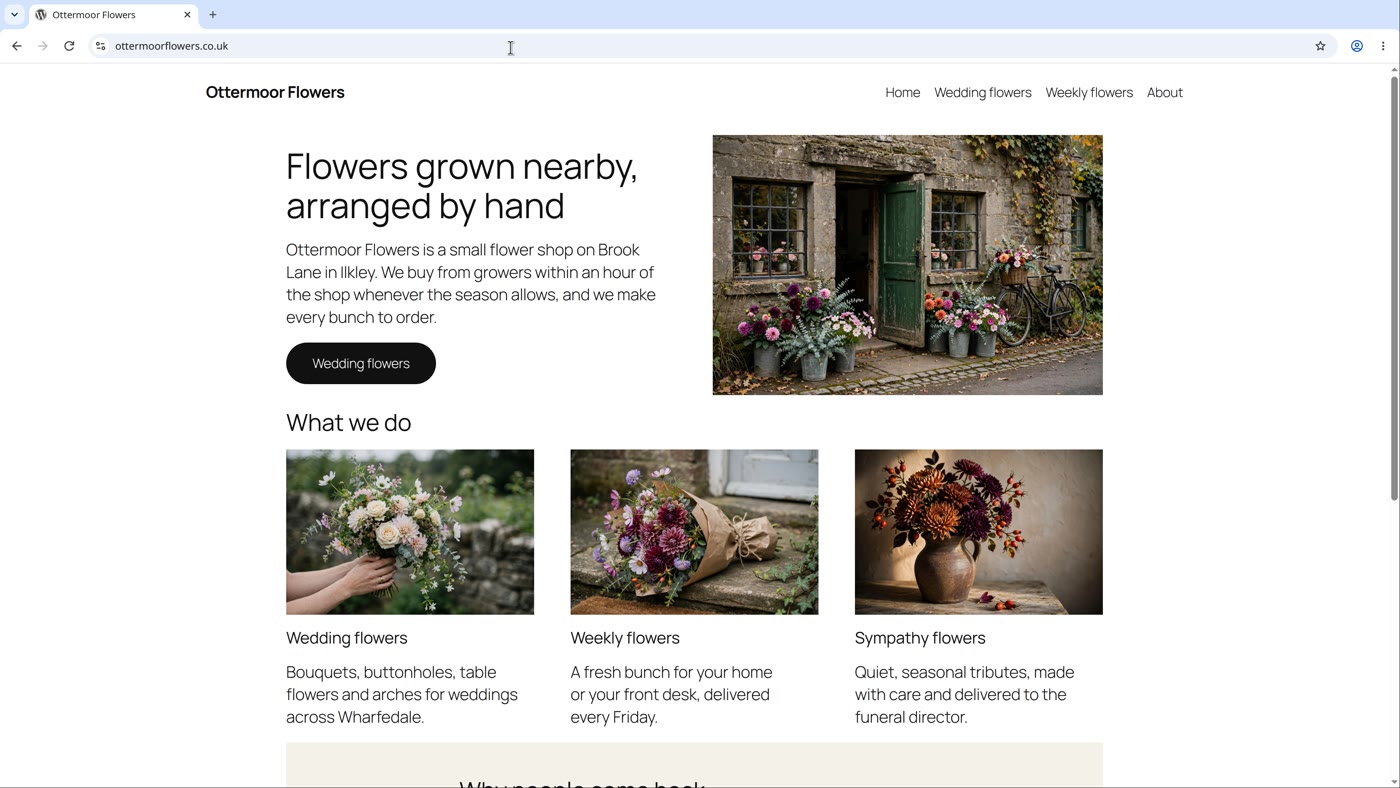
- Type your address plain, in a fresh browser window. Your site should open.
- Then try the
wwwform. On our test site it reached the site too. If one form works and the other doesn't, another film in this series covers it.
- Read the page: Check if there is a typo and
DNS_PROBE_FINISHED_NXDOMAINmean your name gave no address. Check the spelling first. - Check 1: your domain is active, with an expiry date still to come. Expired: contact your domain company straight away.
- Check 2: find where its records are kept: the name servers next to your domain.
- Check 3: add the A records there, for the domain and for
www, with your host's address. Then click Reload. - Then: check it as a visitor: the plain address, and the
wwwform.
Or, there is another way
Ullbek is an AI website builder. You hand it your site's words and your own photos, and it builds a new, custom website with a new look. When we tried it with the words and photos of the Ottermoor Flowers site from this post, every page was kept, with all of the wording word for word. It asked one question, about the colours, and took about a quarter of an hour.
Every Ullbek site is served over a secure connection, and anyone who types the plain http address is sent to the secure one. On a domain you bring, the certificate renews by itself, as long as the records you added stay in place.
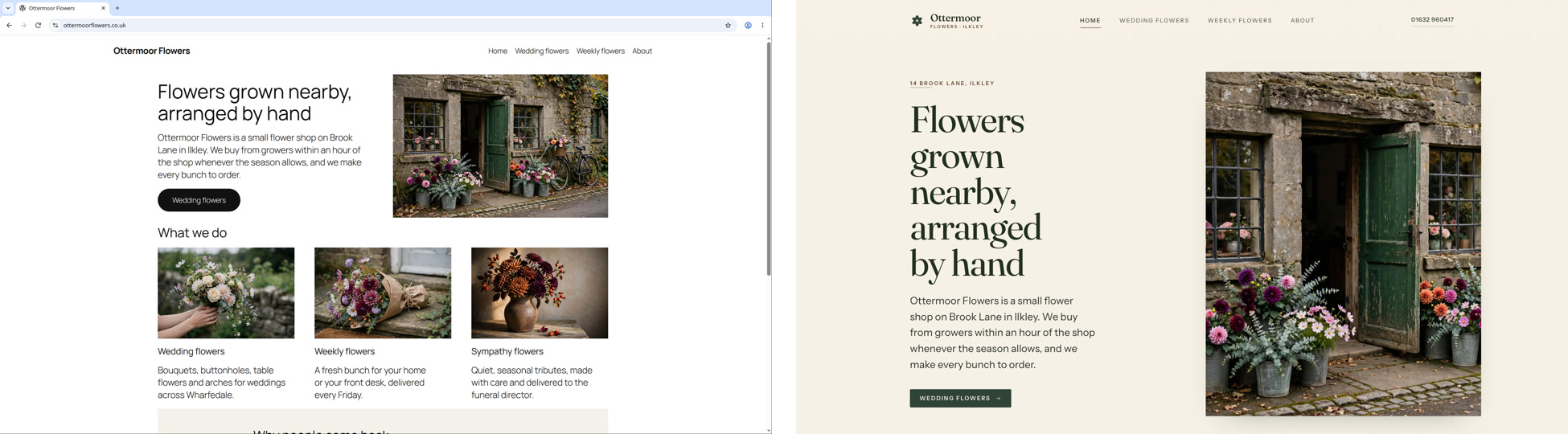
A real, custom website, on a secure connection
See how Ullbek builds a website from what you tell it.