The fix is written out below.
Captions available · press CC · Also on YouTube
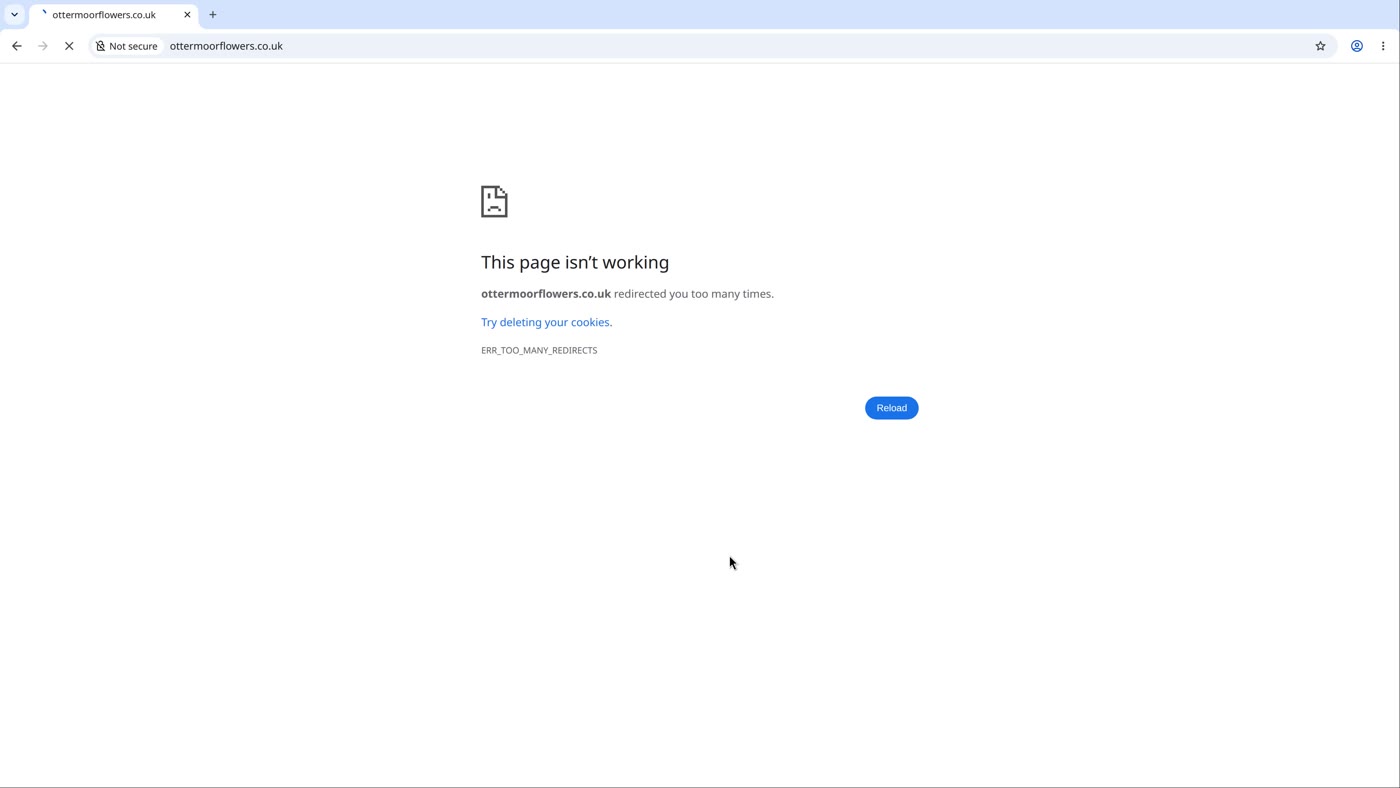
You type your own address and, instead of your site, the browser shows a plain page: This page isn't working. Under it, your address redirected you too many times, a link that says Try deleting your cookies, and a code: ERR_TOO_MANY_REDIRECTS.
Everything below, and in the film above, was done on our own test website, a WordPress site for a flower shop, on our own private test network: we made two of these loops, and we broke them.
What the loop is
A redirect is your site saying: not here, go to this other address. Your browser follows it. A loop is redirects that go round in a circle. Your browser goes round and round, then gives up and shows this page. The web's own standard asks browsers to do just that: a browser "SHOULD detect and intervene in cyclical redirections (i.e., "infinite" redirection loops)".
Our test site runs on WordPress. We made two of these loops on it, and both came from two settings that disagree.
First: your browser, or your site?
The page's own advice, Try deleting your cookies, is the answer when the loop is stuck in one visitor's browser. To tell which it is:
- Open your site in a private window, or on another device.
- If it opens there, the loop is in your own browser. Delete its browsing data, like cookies and cache. The browser's own help page, on errors in general, says: "Delete your browsing data like history, cookies and cache."
- If it loops there too, it is your site, and every visitor gets the loop. Read on.
Our test browser was brand new, with no cookies at all, and it still looped. So on our test site it was not cookies: it was the site.
Next: which loop is it?
Open your dashboard's address (your address with /wp-admin/ after it). On our test site, with the first loop below, it looped too. With the second, the log-in page opened, but logging in brought us straight back to it.
For anything else, your browser's developer tools show each turn of the loop. In our test browser, F12 opens them; on a Mac, Command, Option, I (the browser's own developer documentation gives "F12" or "Ctrl + Shift + I", and on a Mac "Fn + F12" or "Cmd + Option + I").
- Open the developer tools and choose Network.
- Choose Doc, to list only the pages.
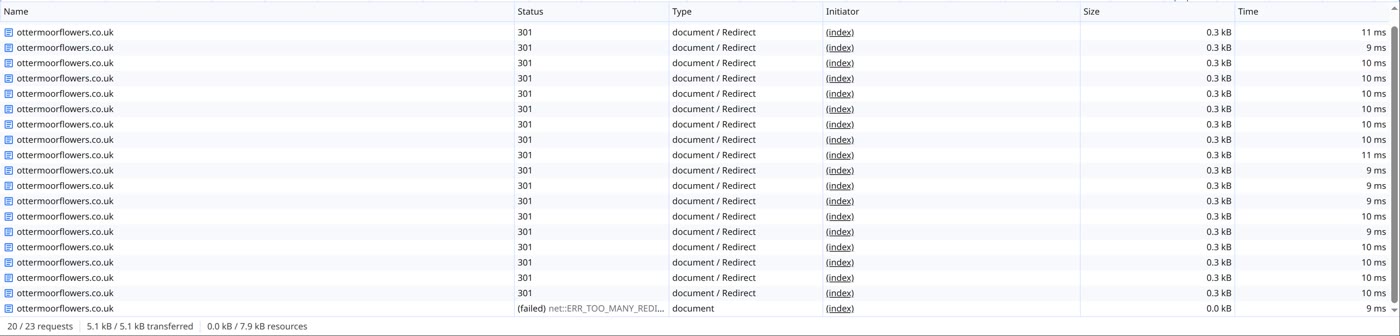
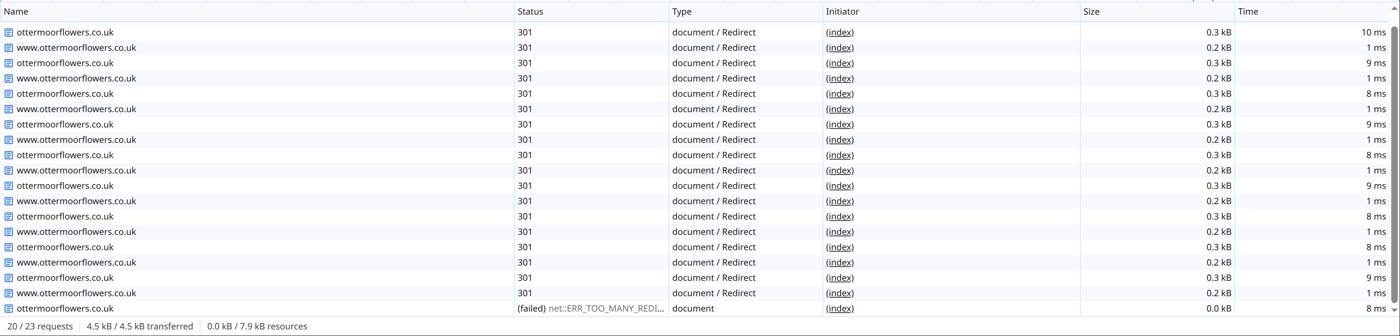
- Reload. Each line is one turn of the loop. Our test browser listed 20 lines: 19 redirects, then the one that failed.
- On our test site, the first loop showed the same address, again and again; the second flipped between
wwwand the plain name. - Other addresses? Note them in order, and show the list to your host.
Loop 1: the log-in page loops too
WordPress's own documentation describes a loop like this: a site "hosted behind a reverse proxy that provides SSL, but is hosted itself without SSL". In plain words: a service in front of your site gives your visitors https, but your site itself has none. WordPress never sees the secure connection, so it sends the visitor to https, again and again.
With the dashboard looping too, the change goes in a file, wp-config.php. If you'd rather not change the file yourself, ask your host first.
- Keep a copy of the file. WordPress's page on editing files says: "Always make sure you have a current backup before editing files."
- If the site stops working after you save, put your copy back. The same page: "If you make a mistake that causes errors, causes a site crash, creates a blank screen, or blocks access to your WordPress Dashboard, delete the changed file and replace it with a good copy from your backup."
- In your hosting account's file manager, add the lines WordPress's documentation gives, above the line that says That's all, stop editing (the file itself says to add custom values between its "Add any custom values" line and that one):
define( 'FORCE_SSL_ADMIN', true ); // in some setups HTTP_X_FORWARDED_PROTO might contain // a comma-separated list e.g. http,https // so check for https existence if( strpos( $_SERVER['HTTP_X_FORWARDED_PROTO'], 'https') !== false ) $_SERVER['HTTPS'] = 'on'; - Save, then reload. On our test site, the lines it gives broke the loop, and the dashboard's log-in page opened.
The lines let WordPress see that the visit came over https. They need the service in front to pass that on: WordPress's page says this works "assuming you have properly configured the reverse proxy to set that header". If you're not sure, ask your host before you change the file.
Loop 2: www and the plain address
Here, your host sends www to the plain address. But WordPress's own address is the www one, so WordPress sends visitors back. On our test site, every page we tried looped, except the log-in page. It opened, but logging in brought us straight back to it.
- Make the two agree, where you still can. In your hosting account, find the setting that sends one name to the other, and switch it off.
- Reload. WordPress then sends visitors to its own address by itself (its reference for
redirect_canonical(): "Redirects incoming links to the proper URL based on the site url."). On our test site, the site opened. - Want the plain address instead? Log in, set both addresses to it in Settings › General (WordPress Address (URL) and Site Address (URL)), and save. On our test site, WordPress then showed its log-in page. Then switch the host's setting back on.
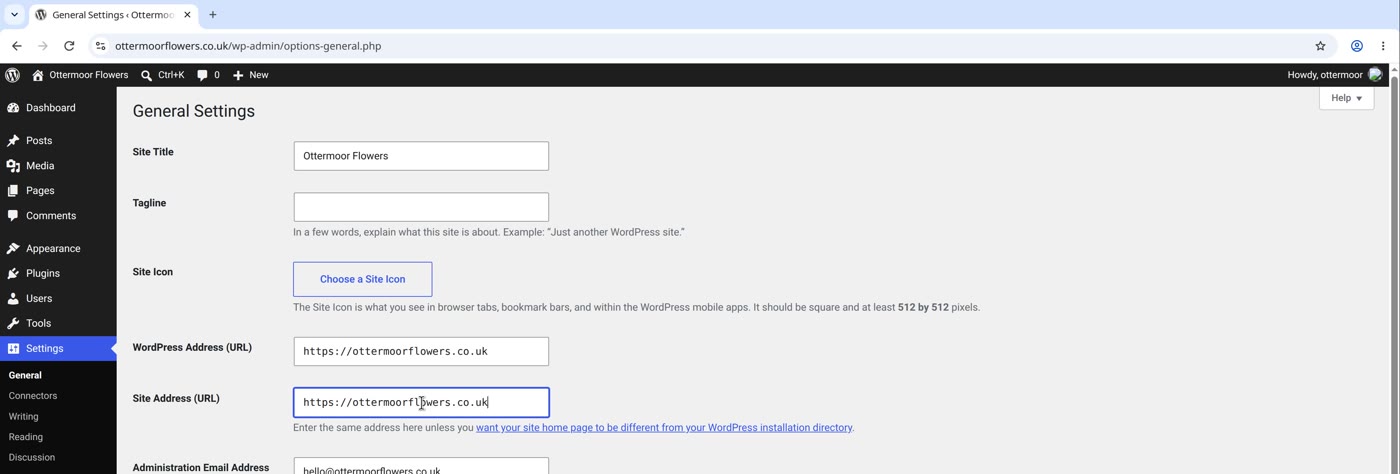
No such setting at your host? WordPress's documentation, in the section "Changing The Site URL" of its page on moving WordPress, gives two lines for the same file, wp-config.php, that set its address instead (with your own address in both, and a copy of the file kept first):
define( 'WP_HOME', 'https://example.com' );
define( 'WP_SITEURL', 'https://example.com' );
The same page adds: "This is not necessarily the best fix, it's just hard-coding the values into the site itself. You won't be able to edit them on the General settings page anymore when using this method." On our test site, with the host still sending www to the plain address, these two lines with the plain address broke the loop too.
Then: check it, the way a visitor would
- Type your address plain, in a fresh browser window. It should open.
- Then the
wwwform. On our test site it landed on the same site. If one form works and the other doesn't, another film in this series covers it. - And your dashboard's log-in page should open again.
- Try a private window. If it loops there too, it's your site.
- Open your dashboard's address, or see the loop in your browser's developer tools: Network, Doc, Reload.
- The log-in page loops too? Let WordPress see the https, with the lines its documentation gives. Keep a copy of the file first.
- Logging in comes straight back? Make the host and WordPress agree.
- And check it, as a visitor.
Or, there is another way
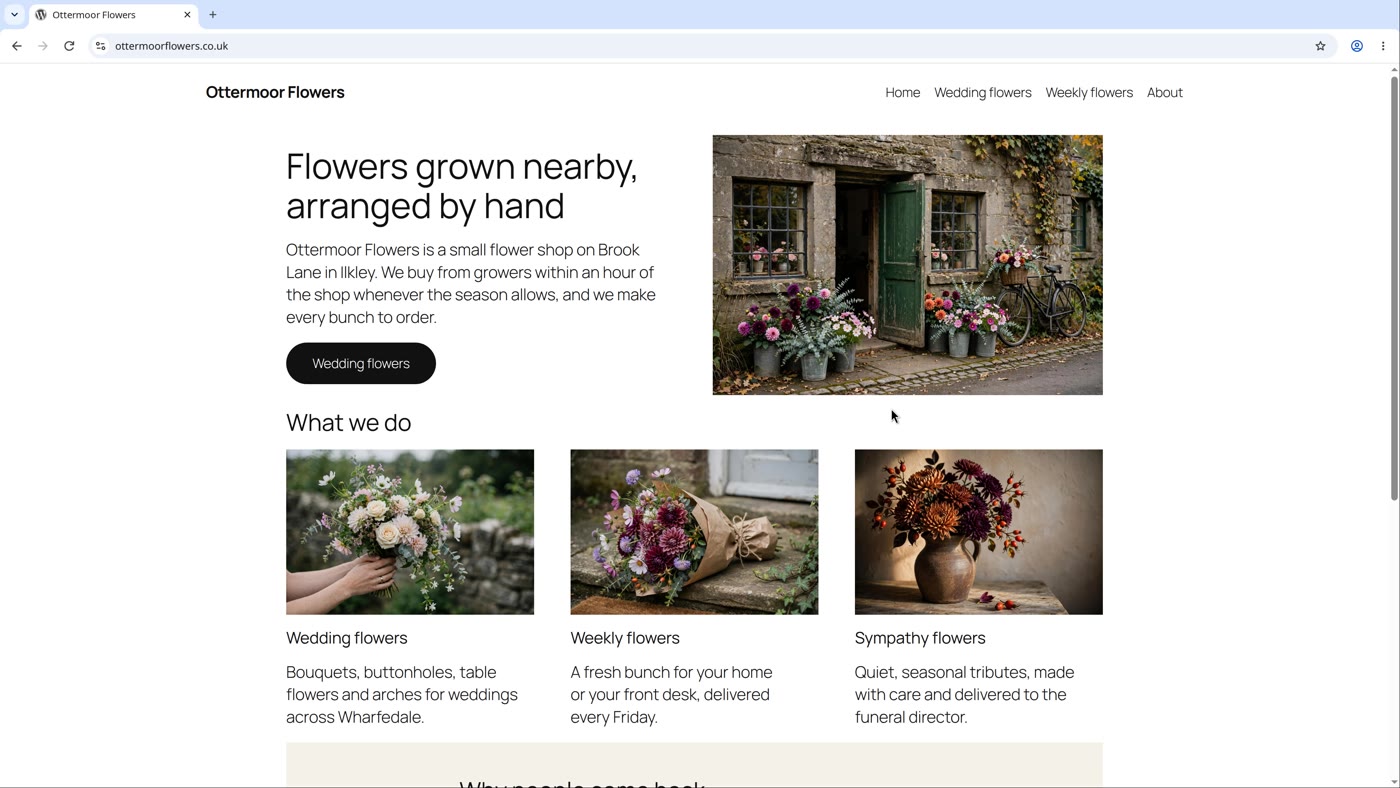
Ullbek is an AI website builder. You hand it your site's words and your own photos, and it builds a new, custom website with a new look. When we tried it with the words and photos of the Ottermoor Flowers site from this post, every page was kept, with all of the wording word for word. It asked one question, about the colours, and took about a quarter of an hour.
Every Ullbek site is served over a secure connection, and anyone who types the plain http address is sent to the secure one. On a domain you bring, the certificate renews by itself, as long as the records you added stay in place.
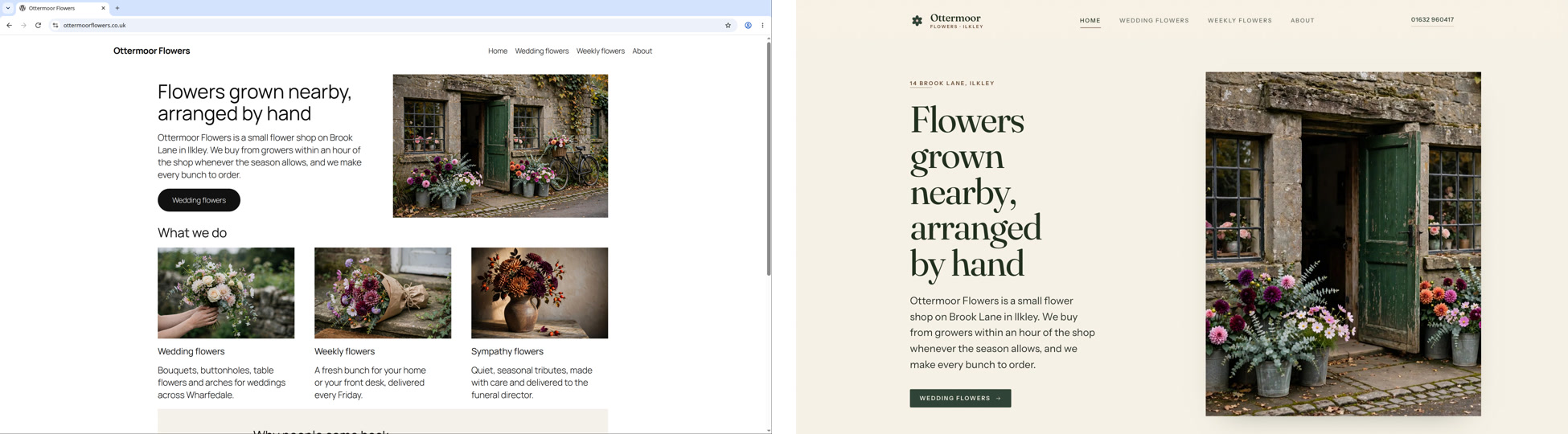
A real, custom website, on a secure connection
See how Ullbek builds a website from what you tell it.